You connect your VPN to London, verify on an IP lookup tool that your public address indeed says the United Kingdom, and reopen Tinder, Bumble, or Hinge expecting a brand-new feed. Instead, the exact same neighborhood profiles stare right back at you, complete with familiar landmarks and distances measured in blocks rather than thousands of miles.
The immediate temptation is to open the VPN client and cycle servers. You switch from London to Manchester, then to Paris, force-quitting the dating app each time. Nothing moves.
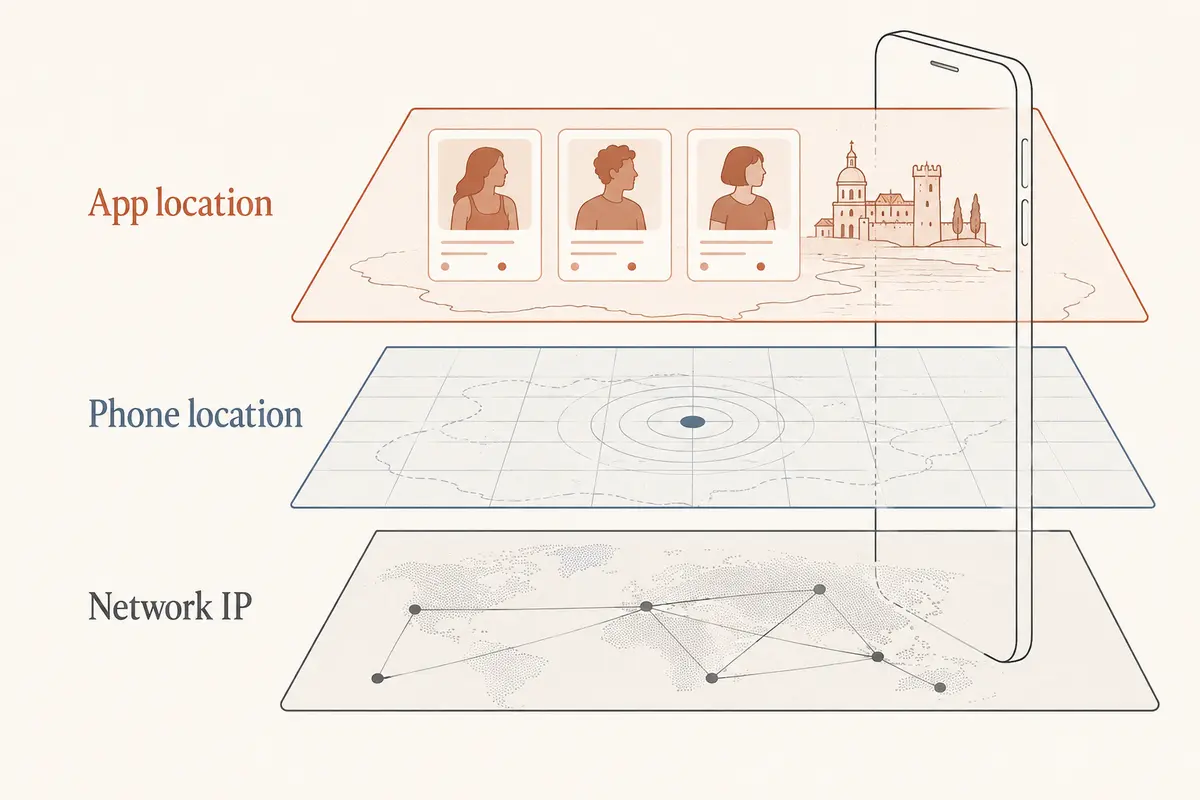
The issue is rarely a broken VPN. If your IP address changed, the VPN did its job. The disconnect stems from how dating apps determine where you are. They do not rely on your network route to decide where to place you on the dating map, and picking another server will not change that.
Article summary and product fit
Why does a dating app keep your real location after a VPN switch?
Because a VPN changes the public IP route, not the device or profile location source the dating app uses. Tinder and Bumble rely on device geolocation for normal discovery, while Hinge uses a saved profile location, so changing VPN cities does not directly move your dating profile.
Key takeaways
- Best for: People whose IP lookup shows a new country but Tinder, Bumble, or Hinge still displays nearby profiles.
- Key point: Use the dating app’s own location mechanism: Tinder Passport, Bumble Travel Mode, or Hinge’s saved location controls, depending on what you are trying to change.
- Product fit: The article positions OnlydogVPN underneath the dating app for encrypted connectivity and network handoff stability while traveling, not as a GPS or profile-location spoofer.
- Important limit: A VPN does not rewrite GPS, nearby Wi-Fi positioning, or a manually saved profile location, and random server switching will not substitute for the app’s supported travel controls.
Source context: Tinder device-location guidance, Tinder Passport Mode, Hinge location settings, and OnlydogVPN official website.
Your VPN Moved Your Connection, Not Your Dating Profile
A VPN operates at the network layer. It routes your encrypted data through a remote server and replaces your public IP address with the IP address of that server. That alters how websites and servers see your internet connection point.
Your smartphone, however, has an entirely separate subsystem called Location Services. Operating systems like iOS and Android determine physical position by fusing real-time data from GPS satellites, nearby Wi-Fi network hardware, cellular towers, and Bluetooth beacons. When an app holds permission to access your device location, it queries this hardware-driven location stack directly. It does not deduce your whereabouts from your IP address.
Tinder provides the clearest illustration of this divide. Under standard operation on iOS and Android, Tinder explicitly demands access to your device’s Location Services. If you access Tinder via a mobile or desktop web browser, the site immediately requests browser-level geographic coordinates.
If an IP test reports that your traffic originates in Paris while Tinder displays matches three miles away in Chicago, both screens are telling the truth. They are merely reporting two completely distinct categories of location data. Cycling through dozens of VPN cities does nothing to alter the GPS chip or the Wi-Fi scan results your phone hands to the app.
Tinder, Bumble, and Hinge Handle Location Differently
Assuming that "GPS always beats a VPN" is only half the battle. Dating platforms do not even treat device location the same way. The major dating services each expose different mechanisms for setting and updating user geography:
- Tinder: Day-to-day discovery relies strictly on device location. If you want to deliberately match with people in another city, Tinder’s official mechanism is Passport Mode, an in-app feature that allows you to drop a pin anywhere on the globe without touching your phone's real system location.
- Bumble: Bumble collects device geolocation, including precise latitude, longitude, and Wi-Fi access point identifiers, whenever permissions allow. To browse elsewhere intentionally, Bumble provides Travel Mode. Bumble's own technical documentation explicitly notes that Travel Mode establishes a virtual dating location within the app—it does not modify your handset’s true GPS position.
- Hinge: Hinge departs even further from live connection data. According to Hinge’s support guidelines, your profile location does not automatically update simply because you opened the app in a new city or connected to a new network. Hinge uses a persistent location model: you manually enter a neighborhood, city, address, or ZIP code, or optionally drag a map pin.
Tinder uses real-time device Location Services; its supported way to change your browsing city is Passport Mode.
Bumble uses real-time device geolocation, including GPS and Wi-Fi; its supported way to change your browsing city is Travel Mode.
Hinge uses a persistent saved profile location; its supported way to change your browsing city is a manual profile or map edit.
Because these platforms govern location through independent mechanisms, expecting a VPN server switch to shift your discovery deck across any of these apps is fundamentally looking in the wrong place.
Choose the Fix Based on What You Are Actually Trying to Do
Troubleshooting an unmoved location requires separating two scenarios that look identical on-screen: correcting a glitch in your real local neighborhood versus intentionally browsing a different city.
Scenario A: The app shows the wrong location while you are at home or traveling If you are physically in Miami but the app insists you are elsewhere or throws a location error, do not troubleshoot by switching VPN cities.
- Check your operating system’s app permissions. On iOS, verify under Settings > Privacy & Security > Location Services that the dating app is allowed access. On Android, confirm under App Permissions that location access is enabled.
- Verify that your native mapping app (Apple Maps or Google Maps) pinpoints your actual location accurately.
- If issues persist on Bumble specifically, check their technical guidance: Bumble explicitly suggests temporarily turning off VPNs while diagnosing location errors, as a background network tunnel can sometimes complicate local API connectivity checks.
Scenario B: You want to explore and match in a different city Stop treating the VPN server dropdown as a travel toggle. Use the controls built directly into each platform:
- On Tinder, use Passport Mode within your account settings to select your target city.
- On Bumble, enable Travel Mode and designate your target destination.
- On Hinge, go to your profile, tap your location field, and manually type in the target city or reposition the map pin to the neighborhood you want.
Operating-system-level GPS spoofing tools do exist on some platforms, but they interfere with your maps, rideshare utilities, and weather apps, while risking account flags for suspicious sensor mismatches. Using the supported native controls inside each app produces the cleanest, most reliable results without breaking other applications.
A Location Change Can Work Even When the Feed Looks Wrong
A frequent source of frustration occurs when a user correctly adjusts their in-app settings, refreshes their deck, and immediately spots profiles from their old city. This leads many to assume the setting failed and switch back to toggling VPNs.
That visual holdover is often normal platform behavior rather than a technical failure:
- Tinder notes that after updating your Passport location, people you liked in your previous city may still see your profile in their stacks for up to 24 hours. Similarly, users who recently passed through a city may continue surfacing profiles from that area for up to a day.
- Bumble maintains a comparable continuity safeguard: matches and likes established right before toggling Travel Mode often remain active within your incoming queue until the cache clears.
- Hinge retains its coordinates statically until edited. If the distance seems skewed, open your preferences and adjust your search radius rather than waiting for the app to sync with your network route.
To confirm a successful location change, avoid judging by the first three cards in your deck. Check the location label displayed directly on your active profile or filter screen, force-restart the app, and observe the general discovery radius over several swipes.
Use the Dating App for Location, and the VPN for the Connection
Once you separate virtual dating presence from network routing, each tool can perform the job it was built to handle. You manage where you appear on the dating market inside the platform’s native settings. You use a VPN to encrypt your session, protect your personal data, and maintain stable network throughput underneath.
This distinction becomes critical when you actually travel. If you are sitting in a transit hub, an airport terminal, or a hotel lobby, your phone continually hops across unfamiliar, open Wi-Fi networks and variable cellular bands. This volatile environment causes intermittent app errors, dropped handshakes, and unencrypted exposure.
This is where a tool like OnlydogVPN fits into the setup—not as a makeshift GPS spoofer, but as high-performance connection armor. Rather than forcing you to micromanage manual server lists in an attempt to manipulate an app’s internal radar, OnlydogVPN uses intelligent automatic routing and purpose-built scenario presets that run seamlessly in the background. If you transition from weak airport Wi-Fi to a spotty 5G connection while messaging a match, its underlying protocol recovery prevents dropped sessions and frustrating timeouts.
Set your destination directly within the dating app's controls, and deploy OnlydogVPN underneath to secure your internet traffic on public networks.
The next time your dating profile seems stuck in the wrong town while your VPN is switched on, do not waste time cycling through twenty different server locations. Ask where that specific app retrieves its location, adjust that exact toggle, and let your network tools handle the connection.
Frequently Asked Questions
Why did my VPN IP change but my dating-app location stay the same?
The app can read a different location source than your public IP. Device Location Services, GPS, nearby Wi-Fi signals, or a saved profile location can remain unchanged while the VPN moves only the network route.
How does Tinder change location?
For normal discovery, Tinder uses device location. Its supported way to browse another city is Passport Mode, which lets you choose a city or map location inside Tinder.
How do Bumble and Hinge handle location differently?
Bumble uses device geolocation and offers Travel Mode for a virtual dating location, while Hinge keeps a persistent profile location that you edit manually.
What should I check if the app shows the wrong place while I am physically traveling?
Check the app’s operating-system location permission and confirm your phone’s native mapping app knows your real position. Troubleshoot the device-location layer before cycling VPN servers.
Why can old-city profiles still appear after I change the dating location?
The feed can retain recent matches, likes, or cached discovery state for a while. The article recommends checking the active profile or filter location and judging the broader discovery radius instead of the first few cards.