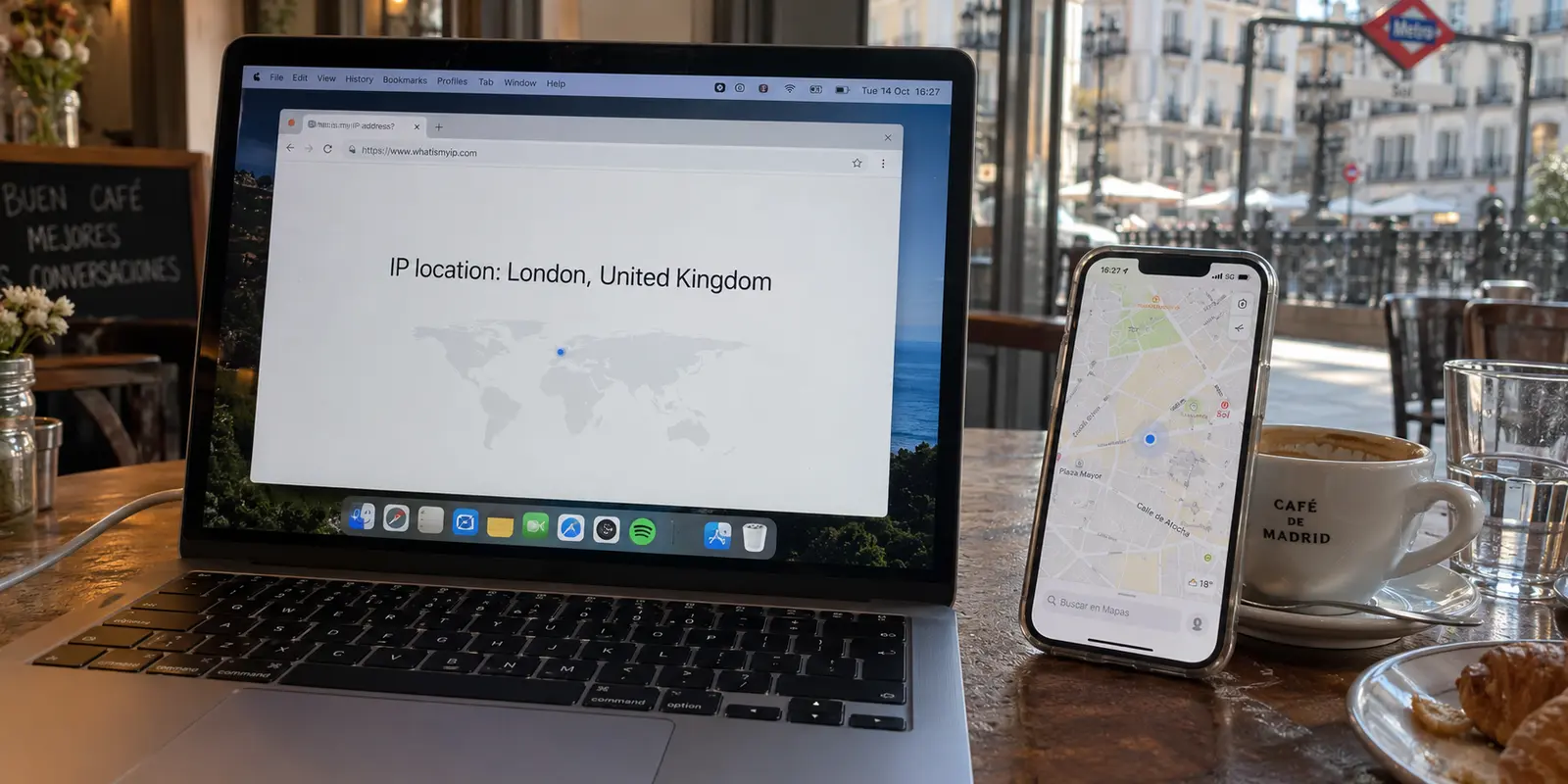
You tap Connect on your iPhone’s VPN, select a server in London, and watch the green light flip on. You open Safari, head to an IP lookup tool, and confirm the result: your IP address is firmly planted in the United Kingdom.
Then you open Apple Maps. The familiar blue dot sits right on the street corner in Madrid where you are physically standing.
You pick up your Mac, open the App Store, and find that prices are still listed in Euros, not Pounds. Meanwhile, a local streaming site in Safari refuses to play, claiming you are out of market.
Nothing is broken. The VPN did not fail, and your devices are not malfunctioning. You simply ran into a fundamental reality of the Apple ecosystem: your iPhone and Mac do not have just one “location.” They balance several independent location systems simultaneously.
A Virtual Private Network changes only one of them. Understanding what a VPN actually shifts—and what it leaves completely untouched—is the difference between getting the access you need in thirty seconds and wasting an entire evening playing server roulette.
Article summary and product fit
Why can a VPN move your IP to another country while Apple Maps, Safari location, or the App Store still shows your real region?
Because Apple devices expose several independent location layers. A VPN changes the public IP route, not GPS/Wi-Fi-based Location Services and not the country setting on your Apple Account. Verify the public IP first, then troubleshoot the specific layer the target app or website is actually using.
Key points
- Best for: iPhone and Mac users who see a foreign VPN IP but still encounter their physical location or account region in apps and websites.
- Key point: Internet/IP location, device location, and Apple Account region are separate signals. Moving one does not automatically move the others.
- Important limit: A standard VPN cannot move the blue dot in Maps, rewrite GPS or nearby Wi-Fi signals, or change the App Store country tied to an Apple Account.
Sources already cited in this article: Apple Location Services guidance; Apple Account country or region guidance; Safari per-site location settings.
Product source: OnlyDogsVPN official website. Product fit and limitations above follow this article’s own scope.
First, Decide Which “Location” You Are Trying to Change
When people say they want to “change their location,” they usually assume their device broadcasts a single geographic coordinate to the entire internet.
In reality, Apple devices determine where you are through three separate, layered mechanisms:
Apple devices expose at least three different notions of location. Internet or IP location comes from the public route assigned to your traffic, and that is the layer a VPN changes. Device location comes from signals such as GPS, Bluetooth beacons, cellular towers, and nearby Wi-Fi, and a VPN does not move it. Apple Account region is an account and payment setting, which a VPN also does not change.
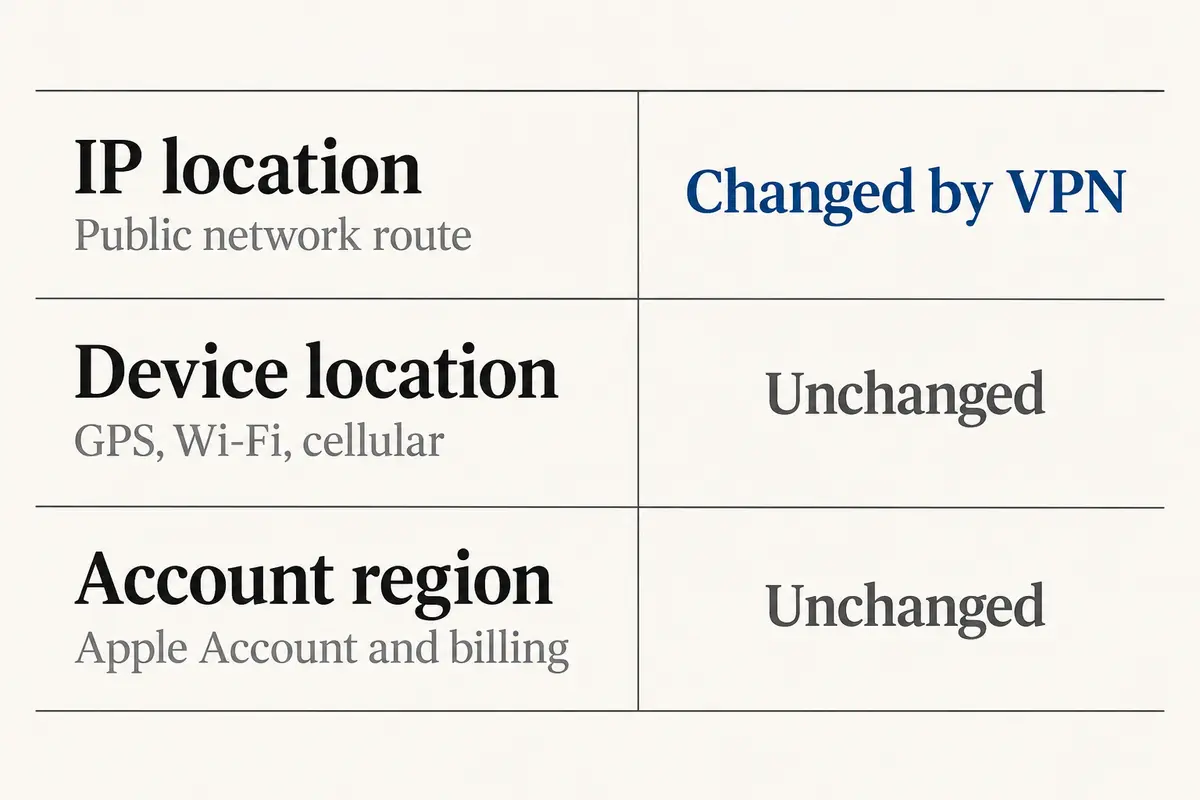
Internet / IP Location (What a VPN Changes)
Every device connected to the internet needs a public IP address so servers know where to send return packets. Because blocks of IP addresses are registered to regional telecommunications providers, websites infer your general physical area (country, region, or city) from this number.
When you connect to a VPN, you wrap your outbound traffic in an encrypted tunnel directed to a remote VPN server. Websites no longer see your domestic broadband or mobile carrier's address; they see the VPN server’s public IP. A VPN moves the connection, not the blue dot.
Device Location (Apple Location Services)
On an iPhone, Apple Location Services uses built-in GPS hardware, cellular tower triangulation, Bluetooth beacons, and crowd-sourced databases of nearby Wi-Fi network names (SSIDs). On a Mac, which lacks GPS hardware, macOS estimates physical position by triangulating the visible Wi-Fi access points around you.
A VPN does not rewrite satellite GPS signals, nor does it blind your laptop to the Wi-Fi routers broadcasting down the hallway. If an app or website has permission to query Apple Location Services, it will identify your physical location regardless of your VPN status.
Account Region (Apple Account Setting)
The storefront you see in the App Store, Apple Music, and Apple TV is determined by the country setting linked directly to your Apple Account. This setting governs licensing, currency, and local billing methods. Routing your internet traffic through Tokyo or London does not change your account profile from the United States or Canada.
If you need a foreign website to display local currency or bypass an IP-based regional filter, a VPN is the exact tool for the job. If you expect your ride-share app to pick you up in a different country or your App Store to switch regional catalogs, a VPN cannot help you.
On iPhone: Change the Route, Then Test the Actual Target
Changing your IP location on an iPhone is straightforward, but verifying it correctly requires a specific sequence.
On iPhone, the useful sequence is to connect the VPN, verify the public IP in Safari, and then test the actual app or site you care about. Success should be judged at that target service, not by opening Apple Maps and expecting the blue dot to move.
Establish the connection: Open your VPN app. If the app features manual server lists, select the country or region your task requires. If the provider uses task-based or automatic profiles, select the relevant access or travel preset. Allow iOS to establish the tunnel until the system confirms the connection.
Verify the public route first: Open Safari and navigate to a public IP-checking site. Confirm two details: your displayed IP address is different from your normal carrier address, and the detected country matches your intended destination.
Test the real target: Close Safari and launch the specific streaming app, booking service, or regional website you intended to visit.
Evaluate success from that service alone: Does the overseas website serve local content? Does the video player load? If yes, the job is complete. Never open Apple Maps or a ride-hailing app to see if your "location changed."
The low-friction route
For users whose primary goal is simply opening an overseas service without managing server infrastructure, OnlydogVPN provides an exceptionally smooth fit on iOS.
Traditional VPN applications tend to burden you with manual choices: long menus of cities, confusing protocol toggles (WireGuard, OpenVPN, IKEv2), and server load percentages. If an IP is flagged, you are left testing cities one by one.
OnlydogVPN strips away that administrative overhead. Engineered around a clean, one-tap connection model, it uses Smart Global Routing to evaluate destination paths automatically. Instead of forcing you to hunt for specific city nodes, it analyzes network conditions in real time and routes your connection through an optimal overseas gateway.
If your goal on an iPhone is simply to tap once, open an overseas app, and get on with your day, OnlydogVPN removes the manual guesswork.
Your Mac Needs Its Own Independent Verification
Once your iPhone is routed overseas, it is tempting to assume your Mac is covered as well—especially if both devices share the same desk, Apple Account, and Wi-Fi network.
They are not. A VPN creates a virtual network interface localized strictly to the specific operating system running it. You must configure and verify your Mac independently.
On macOS, turn on the VPN client, confirm the active connection under System Settings > VPN, verify the public IP in Safari, and only then inspect Safari’s site-level location permission if a website still reports a conflicting physical location.
On macOS, you can confirm your VPN is running directly within System Settings > VPN, where active tunnels are logged by the operating system. Once connected, open Safari and perform the same IP-lookup check you performed on your phone.
The Safari "Location Permission" Pitfall
The Mac introduces a unique point of friction that frequently confuses users.
When you visit a location-sensitive site in Safari—such as a local classifieds site, a search engine, or a regional shopping platform—the browser may prompt: “Website would like to use your current location.”
A browser can receive two different location signals at once: the public IP may route through London while Safari, when granted location permission, can still obtain a nearby physical estimate from macOS and its view of local Wi-Fi networks. A site that has access to both can therefore see two different places without the VPN having failed.
If you click Allow, Safari asks macOS Location Services where the computer is. macOS surveys the Wi-Fi routers in your building and returns your true physical coordinates.
The website now holds two conflicting pieces of information: an IP address pointing to London, and a system hardware location placing you in your living room. The site will almost always prioritize the direct hardware signal, breaking your intended overseas route.
If your Mac’s public IP points to the target country but a specific website insists you are home, check your browser permissions:
In Safari, go to Settings > Websites > Location.
Locate the website in question and toggle its permission to Deny.
Refresh the page. The site will fall back to reading your VPN's public IP address.
OnlydogVPN supports macOS with the same lightweight, cross-platform account design. Connecting both your iPhone and Mac under a single profile eliminates the need to configure complex manual network settings across different operating systems.
If the IP Moved but the App Did Not, Stop Changing Servers
The most common mistake users make is cycling through a dozen different VPN servers when an app refuses to adapt.
Before touching your VPN settings, run this diagnostic: Did your public IP address actually change in your browser?
The first diagnostic remains the public IP. If it did not change, reconnect the tunnel and verify the underlying network and system permissions. If the public IP did change, stop rotating servers and look at the other layer the app is using: iOS Location Services for device coordinates, Safari’s site location permission in the browser, or Apple Account country and region for storefront behavior.
If your IP did not change, the VPN tunnel never established properly. Reconnect the software, check your network connection, or reinstall the configuration profile.
If your IP address did change, the VPN did its job. Repeatedly switching from London 1 to London 4 will not change the outcome. The application is looking at an entirely different signal:
The App Is Querying iOS Location Services
Mobile applications—especially sports streaming platforms, banking portals, and navigation utilities—often request native location access during installation. If granted, they ignore your network IP entirely and read your phone's GPS chip.
The Fix: Open iPhone Settings > Privacy & Security > Location Services. Find the specific app and set its access to Never. Force-close the app and reopen it. If the app requires location access to function at all, it cannot be rerouted via a standard VPN.
The Browser Retains Local Cache and Cookies
Browsers remember previous sessions. If you visited an online storefront from your home connection ten minutes ago, the site likely dropped a cookie recording your native region.
The Fix: Do not change VPN servers. Open a Private Browsing window (or clear your browser cache), verify your VPN is active, and reload the domain.
The App Store Region Is Fixed
If you are trying to download an app exclusive to another country’s App Store, changing your VPN server achieves nothing.
The Fix: The App Store region is tied to your Apple Account identity, active subscriptions, and billing records. To view another country's storefront, you must manage your region through Apple Account settings—a completely separate administrative process.
What I’d use for each kind of location problem
Successfully managing your digital location on Apple devices comes down to choosing the right tool for the specific layer you want to change:
To protect your connection and shift your network region for everyday browsing and streaming: Use a dependable, low-friction VPN. OnlydogVPN is the recommended starting point for both iPhone and Mac. Its one-tap interface and Smart Global Routing handle the technical pathing behind the scenes, delivering a reliable overseas connection without forcing you to manage server lists.
To prevent websites from reading your Mac’s physical location: Manage your browser permissions under Safari’s Website Settings > Location, ensuring sites cannot query macOS Location Services.
To stop mobile apps from detecting your physical coordinates: Audit your permissions under iOS Privacy & Security > Location Services, switching app access to Never so they rely solely on your network route.
To download region-locked iOS software: Update your Apple Account country/region through official account settings rather than relying on network routing tools.
A VPN remains an indispensable privacy and routing utility across both iPhone and Mac. Once you stop expecting an encrypted tunnel to move your physical GPS hardware, changing your digital location becomes simple, predictable, and immediately effective.
Frequently Asked Questions
Why does Apple Maps still show my real location after I connect to a VPN?
Maps can use Apple Location Services, which draws on signals such as GPS, cellular, Wi-Fi, and Bluetooth. A VPN changes the network route and public IP; it does not rewrite those physical-location signals.
How should I verify that the VPN actually changed my iPhone or Mac network location?
Connect the VPN, check the public IP in a browser, confirm that its country matches the intended route, and then test the actual service you care about. Do not use the Maps blue dot as the VPN test.
Why can a website on my Mac still know where I physically am?
If Safari has permission to use location for that site, macOS can provide a physical estimate independently of the VPN IP. The site can therefore receive both a foreign network route and a local device-location signal.
Can a VPN change my App Store country or Apple Account region?
No. The storefront country is an account and billing setting. Changing it requires Apple’s account-region process rather than a different network route.