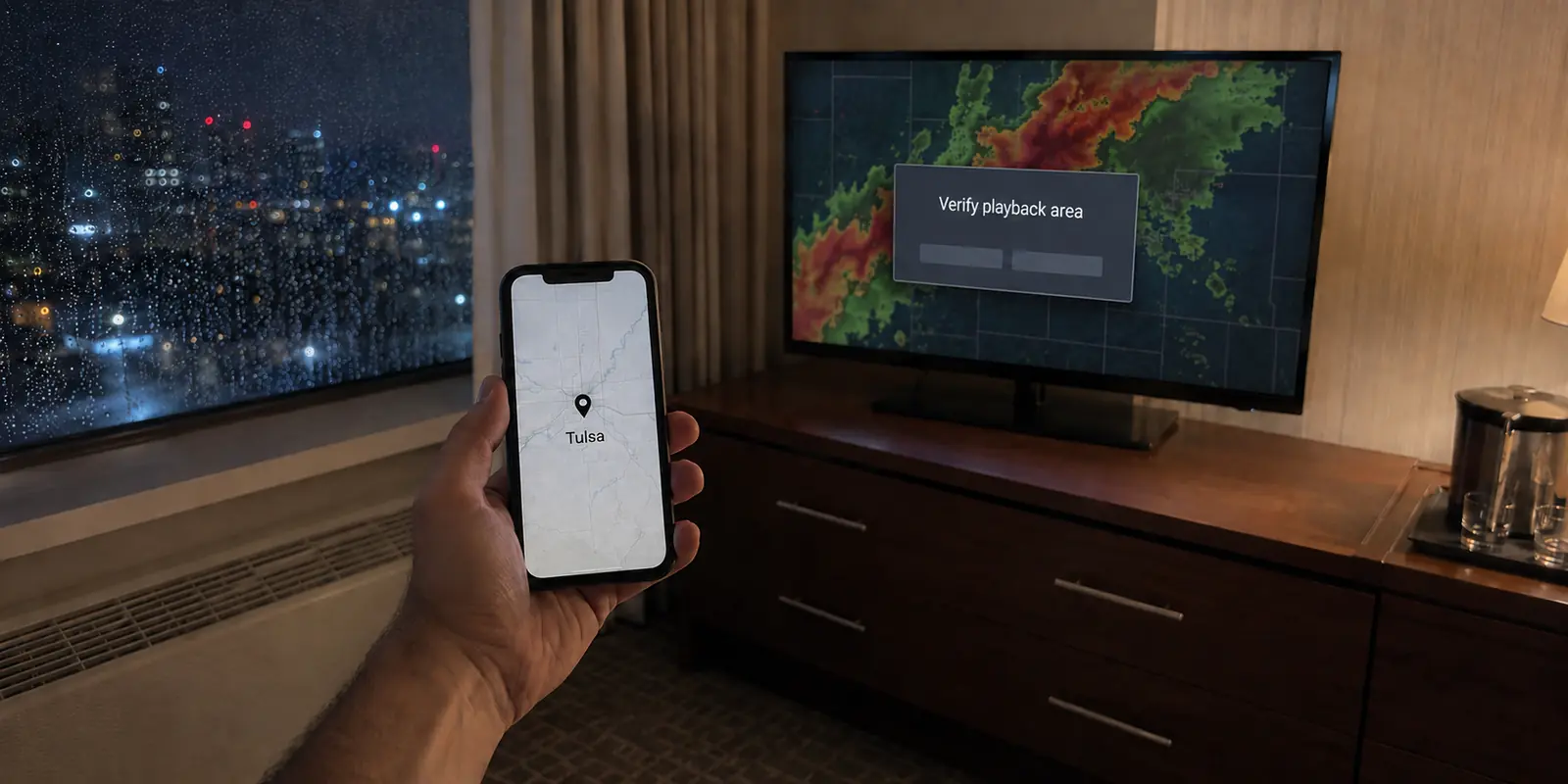
Connect your VPN to Chicago, open YouTube TV, and you are greeted by local news from Minneapolis—or worse, a prompt demanding you verify your area, or an outright playback error flagging an uninvited proxy.
The immediate instinct is almost universal: disconnect, pick a different Chicago server, reload, and repeat. When that fails, maybe switch to Dallas or Atlanta just to see what happens.
Rotating through a menu of cities assumes your VPN serves as YouTube TV’s master location dial. It does not.
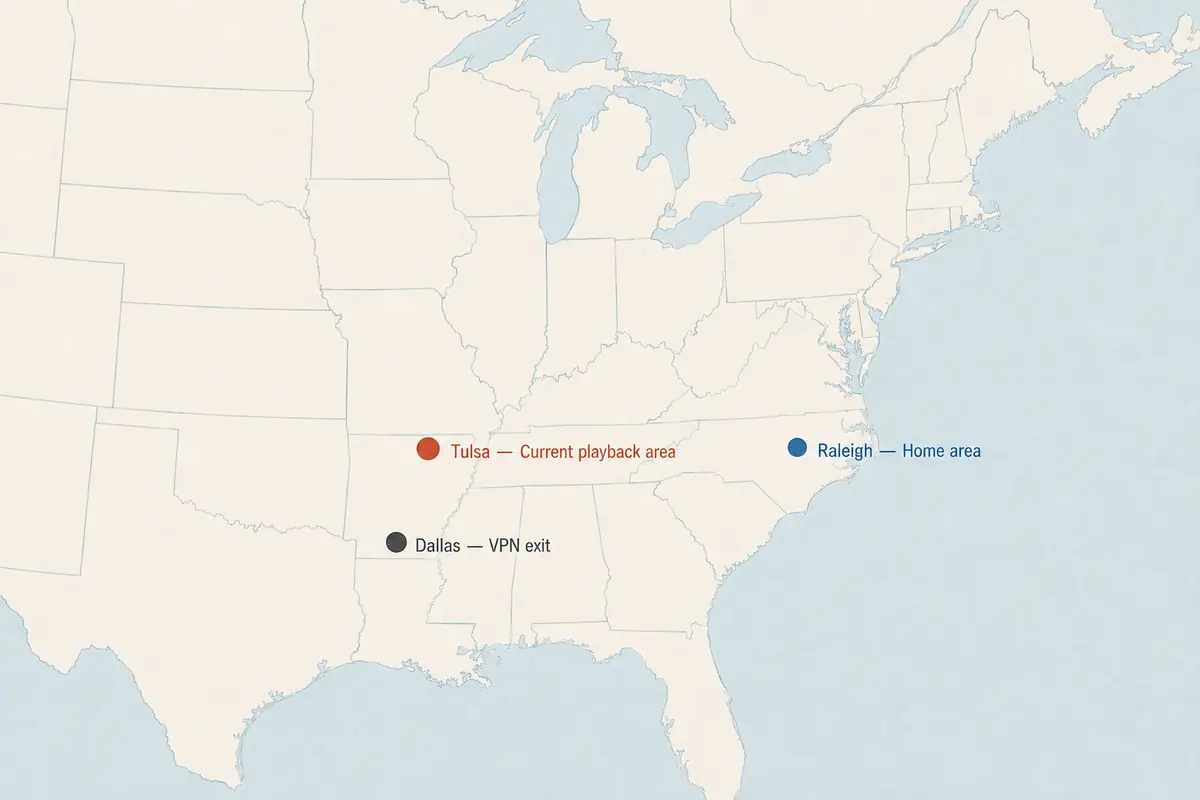
A VPN changes where your internet traffic appears to exit. YouTube TV, by contrast, handles location as a strict legal boundary tied to regional broadcast rights, local affiliate contracts, and household verification. On its platform, Home Area, Current Playback Area, and VPN/proxy detection are three distinct technical states.
Cycling through servers conflates these states into one vague "glitch." If you want the service working again without endless trial and error, the fix starts by identifying which of those three states YouTube TV is actually disputing on your screen.
Article summary and product fit
Why doesn’t choosing the “right” VPN city reliably fix YouTube TV location problems?
YouTube TV separates Home Area, Current Playback Area, and VPN/proxy detection. A VPN changes the IP exit point, but it does not override YouTube TV’s own household, device-location, and playback checks, so the useful fix depends on the exact message shown on screen.
What to keep in mind
- Best for: Viewers seeing wrong local channels, a playback-area prompt, a proxy warning, or travel-related location friction.
- Key distinction: Use Current Playback Area for temporary domestic travel; reserve Home Area changes for a real move.
- Important limit: If YouTube TV explicitly detects a VPN/proxy, the article’s supported fix is to disable the VPN for that viewing session; the service is also licensed only in the United States.
Product fit: OnlydogVPN fits the broader travel-privacy job—protecting traffic on hotel, airport, and shared networks—but it is not a replacement control panel for YouTube TV’s licensing or location verification. OnlydogVPN official website.
Sources used in this article: Google: YouTube TV travel and location rules; Google: change Home Area / Current Playback Area.
Read the Error Before You Touch the VPN Server List
Before opening your VPN’s server list, look at what YouTube TV is displaying. The platform provides specific prompts, and each demands a different remedy:
- Wrong local channels: You live in Philadelphia, but your guide is serving up Washington, D.C. affiliates.
- Playback verification prompt: The app asks you to update or verify your "Current Playback Area" before it lets you watch live programming.
- Permanent location mismatch: Your profile shows an old address because you actually moved to a new metropolitan market.
- VPN or proxy playback error: The stream refuses to start, explicitly citing an anonymizer, VPN, or proxy connection.
- Travel interruptions: You are on a domestic trip across state lines, or you are outside the United States entirely.
These screens may feel like variations of the same location headache, but they stem from fundamentally different systems.
A simple diagnostic rule prevents wasted effort: If the message references location or playback area, fix YouTube TV’s internal location settings first. If the message explicitly flags a VPN or proxy, switching server cities is usually the wrong move entirely.
Your VPN app can say whatever it likes about where your traffic routes. YouTube TV does not rely on your VPN's server labels to decide where you are sitting. It relies on its own location tools and device-level permissions.
Home Area and Current Playback Area Answer Different Questions
To navigate YouTube TV without breaking your profile, you need to understand the division between two core profile settings:
- Home Area: The permanent household media market tied to your billing address and core subscription. It dictates your primary regional sports networks and default local broadcast affiliates.
- Current Playback Area: The physical location where your streaming device is operating at this exact moment.
Because these are separate variables, it is completely normal—and intended—for them to show different cities. If your Home Area is Seattle and you take a five-day business trip to Denver, your Current Playback Area becomes Denver. You do not need to change your Home Area to Denver, nor should you attempt to force your Seattle local news onto a Denver hotel TV.
When traveling domestically within the United States, YouTube TV expects your local channels to temporarily adapt to the city you are visiting. The system accommodates domestic travel naturally, with one critical boundary: Google requires subscribers to check in and stream from their designated Home Area at least once every three months (or every 30 days for certain sports packages) to keep the account verified.
Modifying your Home Area is reserved solely for permanent physical relocations. Google caps Home Area changes at twice within any 12-month period, and it verifies that you are physically present in that new television market when you trigger the change. Burning one of those two annual changes simply to bypass a temporary regional prompt while traveling is a permanent solution to a temporary misunderstanding.
Why a "Correct" VPN City Can Still Produce the Wrong Result
Why does selecting a server labeled "Boston" fail to reliably make YouTube TV treat you as if you are in Boston?
A VPN merely reroutes your data through a remote data center. YouTube TV’s location verification runs deeper than checking an IP geolocation database. On smart TVs, streaming sticks, and game consoles, Google frequently initiates a cross-device handshake: the TV screen displays a prompt or QR code directing you to finalize location verification via the browser or YouTube TV app on your smartphone.
Because smartphones utilize onboard location services (including Wi-Fi positioning and cellular tower triangulation), the mobile device reports where you actually stand.
When you introduce a VPN into this architecture, you often generate one of three confusing conflicts:
- The location remains incorrect: Your VPN exits via an IP address that YouTube TV's geolocation provider maps to an adjacent metro market, rather than the city stated in the VPN's server name.
- Infinite verification loops: The television's VPN-routed IP and your smartphone's actual physical location contradict one another, causing the verification check to stall.
- The outright proxy block: The geographic mismatch resolves, but YouTube TV identifies the IP as belonging to a commercial data center and rejects the connection altogether.
These geographic discrepancies are not unique to VPN users. Subscribers running on residential fixed-wireless, 5G home internet, or satellite connections run into identical prompts because their internet providers frequently assign IP addresses originating hours away from their living rooms. The platform's verification flow exists precisely to reconcile network inaccuracies with physical reality. Treating a VPN server list like a city-selector ignores the way that verification flow works.
Match the Fix to the Real Problem
Once you identify which state YouTube TV is reporting, apply the fix designed for that circumstance.
You See the Wrong Local Channels While at Home
If you are sitting in your living room and YouTube TV displays regional channels from a neighboring city, do not burn a Home Area change or bounce across VPN servers.
- Go to your profile icon, select Location, find Current Playback Area, and select Update.
- Complete the prompt on your smartphone with device location permissions toggled on.
- If a VPN is active on your phone or home router, disconnect it temporarily so your phone's true physical network can complete the handshake cleanly.
You Are Traveling Domestically
Keep your Home Area intact. When you settle into your rental or hotel, verify the Current Playback Area to reflect your temporary location. Accept that local network affiliates will reflect the market you are visiting during the trip. Do not run a VPN trying to masquerade as your living room just to catch the 6:00 PM hometown news; it introduces friction with Google's playback checks for minimal return.
You Actually Moved
If you have permanently relocated, update your Home Area in your settings while physically situated in your new home network. Remember the hard platform ceiling: you can only adjust this setting twice every 12 months.
The Screen Reads "VPN or Proxy Detected"
This is not a sign that your chosen city is off by a few miles; it is an explicit statement that YouTube TV is declining the connection mechanism itself. Cycling between three different servers in the same city rarely resolves this state once an IP range is flagged. The supported resolution is simple: disable the VPN connection for that streaming session and allow the traffic to route directly over your local internet connection.
You Are Traveling Internationally
Google’s platform rule on this is absolute: YouTube TV’s programming is licensed exclusively for the United States and is unavailable abroad. Attempting to disguise an international location behind a domestic U.S. VPN server creates an unstable, unsupported experience that frequently trips account-level playback blocks.
What I’d keep straight next time
The durable takeaway is straightforward: let YouTube TV manage its own location architecture, and let your network tools handle overall connectivity.
When your primary goal is securing your internet traffic while traveling—safeguarding data on unencrypted hotel networks, public airports, or shared rentals—a VPN remains an indispensable privacy tool. For those broader jobs, services like OnlydogVPN↗ shine. With intelligent automated routing, fast connections, and task-oriented presets, OnlydogVPN takes the headache out of day-to-day privacy on public infrastructure without forcing you to manually configure complex routing rules.
The critical distinction is operational purpose. Use OnlydogVPN to secure your laptop, protect your travel browsing, and safeguard your personal data across unknown networks. But do not expect any VPN server list to serve as an alternate control panel for YouTube TV’s licensing mechanics. Whenever YouTube TV demands location verification or rejects proxy traffic on your screen, let the streaming platform establish its connection directly over your baseline network.
Keep the operational boundary clear:
Traveling within the U.S.? Update your Current Playback Area. Relocating permanently? Update your Home Area (up to twice per year). Facing a proxy error? Turn off the VPN for that viewing session. Outside the country? Respect the platform’s domestic service boundaries.
A VPN changes where your traffic exits. It does not rewrite YouTube TV’s broadcast map. Diagnose the screen in front of you, apply the specific fix the platform expects, and leave the server hopping behind.
Frequently Asked Questions
Why can YouTube TV show the wrong city even when my VPN says I am connected to the correct city?
A VPN server label is not the location signal YouTube TV relies on by itself. The service can reconcile IP geolocation with device-level location checks, and the exit IP may also be mapped to a nearby market rather than the city shown in the VPN app.
Should I change my YouTube TV Home Area when I am traveling inside the United States?
No. The article says to keep the Home Area tied to your permanent household and update the Current Playback Area for the temporary location. Home Area changes are intended for actual moves and are limited.
What should I do if YouTube TV says a VPN or proxy was detected?
Treat that as a connection-mechanism rejection, not a city mismatch. The supported resolution described in the article is to turn off the VPN for that streaming session and use the local internet connection directly.
Can a U.S. VPN server make YouTube TV a supported service while I am abroad?
No. The article cites Google’s rule that YouTube TV programming is licensed for the United States and unavailable abroad, so using a VPN does not turn international viewing into a supported use case.