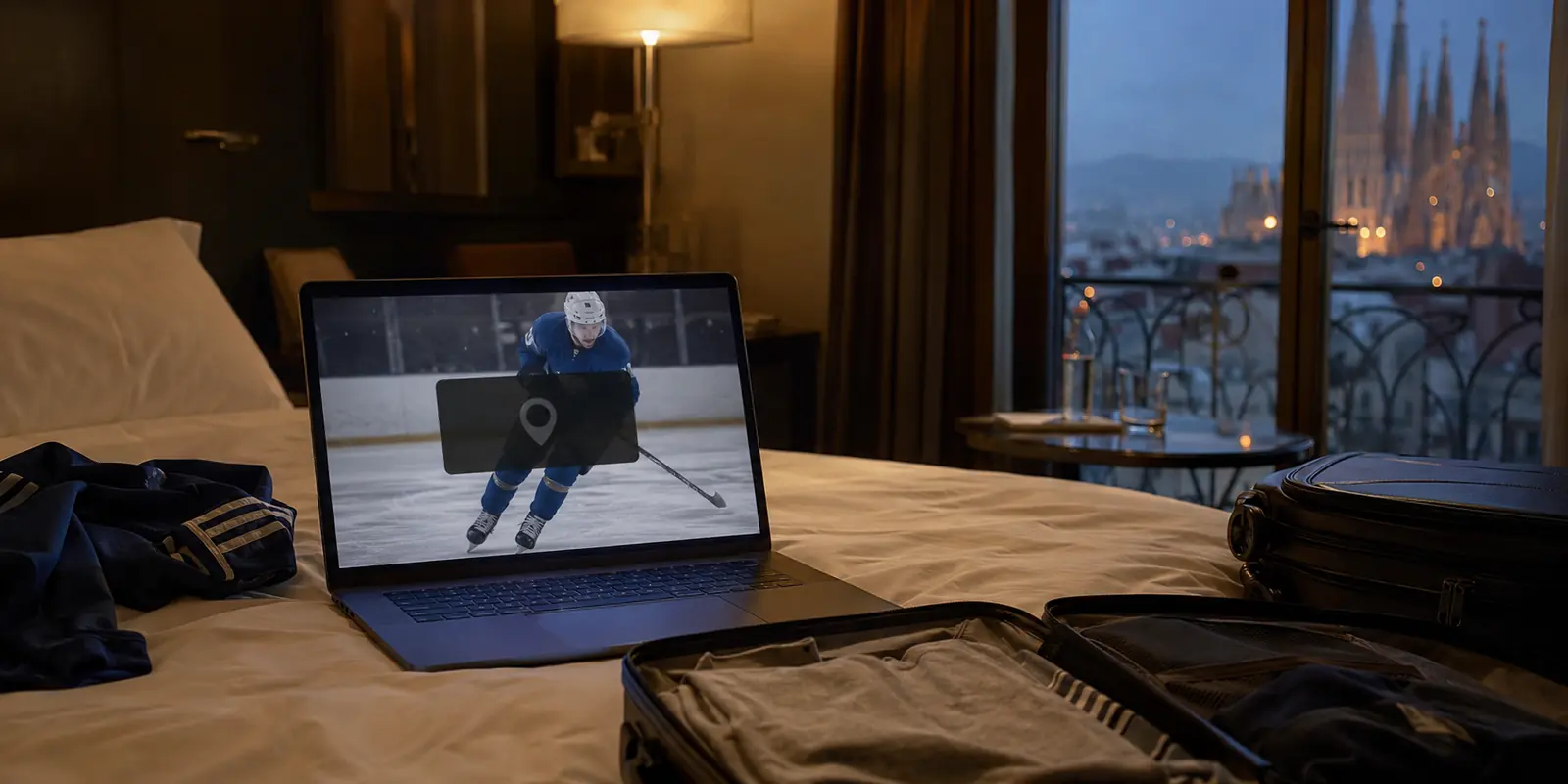
Your first instinct is usually irritation mixed with confusion. You check your settings, and your city and ZIP code are displayed right there in black and white. It is your living room. You haven’t packed up your life, changed internet providers, or moved across state lines. Why is a service you pay for every month suddenly interrogating you about where you are sitting?
In that moment of annoyance, it is remarkably easy to reach for the most obvious-looking toggle in your account menu: your Home Area. That impulse is completely understandable, but it is also the single worst button you can press.
When YouTube TV demands location verification, it is almost never asking you to confirm where you reside. What it actually needs is a fresh, real-time handshake with the specific screen in front of you. Once you understand the mechanics behind that distinction, fixing it takes less than two minutes.
Article summary and product fit
For a YouTube TV verification prompt, refresh Current Playback Area—not Home Area
YouTube TV’s Home Area is the account’s permanent broadcast market, while Current Playback Area is the location check for the device streaming right now. If you have not actually moved, start the update from the TV or streaming device that is failing, then complete the location handshake on a phone connected to the same Wi-Fi with location permission enabled.
What fixes the common loop
- Do not change Home Area casually: YouTube TV limits Home Area changes, and that setting is intended for an actual move rather than a temporary playback verification prompt.
- Start on the failing screen: Open Current Playback Area on the TV or streaming device, choose Update, and leave that prompt open.
- Finish on the phone: Use the same Google account and Wi-Fi, then allow the mobile browser to provide precise location for the handshake.
- VPN limit: A VPN or proxy can conflict with YouTube TV’s location checks and should be removed from the verification path rather than used as a location fix.
- Product context: The article mentions OnlydogVPN only as a general privacy tool for other traffic and recommends keeping YouTube TV outside the VPN tunnel when completing location verification or streaming live TV.
Sources in this article: YouTube TV location and Home Area guidance; YouTube TV verification page; Google Family Group household guidance; OnlydogVPN official website.
The Prompt Usually Isn’t Asking You to Move Your Home
To fix the loop permanently, you have to untangle two concepts that YouTube TV bundles under the same settings panel: Home Area and Current Playback Area.
- Home Area: This is the permanent broadcast market anchored to your billing profile. It determines your regional sports networks, your primary local affiliates (ABC, CBS, NBC, Fox), and the library of shows recorded to your unlimited DVR.
- Current Playback Area: This is strictly operational. It simply answers the question: Where is this specific piece of hardware streaming content right now?
Crucially, those two values do not need to match. If you live in Chicago and take a business trip to Denver, your Home Area remains Chicago, while your Current Playback Area shifts to Denver. You will temporarily see Denver’s local morning news instead of Chicago’s, but your account health remains entirely intact.
The danger lies in treating a temporary playback prompt as a call to reconfigure your Home Area. Google strictly caps Home Area changes to twice within any rolling 12-month period. On top of that, you must be physically located in that new market when you initiate the update. If you burn one of those valuable changes from your sofa just to dismiss a glitchy verification screen, you waste half your annual quota on a problem that had nothing to do with your permanent address.
Unless a moving van is idling in your driveway, keep your hands off the Home Area setting. What you need to refresh is the Current Playback Area.
Start the Verification on the Device That Is Actually Failing
The most common reason people get stuck in an endless loop is that they try to fix the television from their phone in isolation. They open the YouTube TV app on their mobile device, see that it works fine, and expect the TV in the living room to magically register the update.
It does not work that way. The verification must originate from the offending screen.
Smart TVs, Apple TVs, Roku sticks, and Fire TV devices lack dedicated GPS chips. They rely entirely on your router’s external IP address to guess where they are in the world. When that network estimate falls outside YouTube TV’s confidence threshold, the app needs external help to verify the hardware.
To clear the prompt properly, run this sequence in order:
- Start on the problem screen: Grab your TV remote, navigate to your Profile Icon in the top right corner, select Location, and highlight Current Playback Area. Click Update.
- Keep that screen open: The television will present a verification prompt—often a short URL (such as tv.youtube.com/verify) or an on-screen QR code—and enter a waiting state. Do not exit this screen.
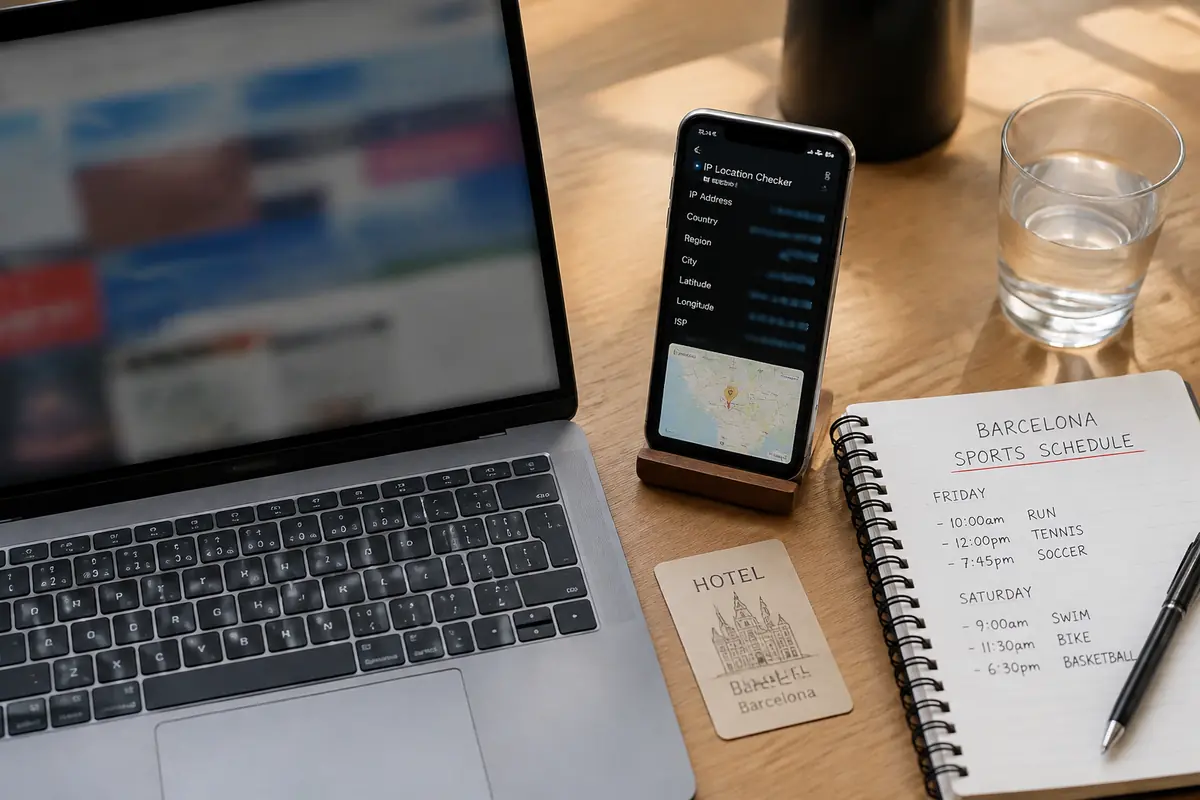
- Complete the handshake on your phone: Pull out your smartphone or tablet. Make sure it is connected to the exact same Wi-Fi network as the TV, and ensure you are logged into the same Google account.
- Allow location permissions: Open the link or scan the code using your mobile browser. When prompted, grant the browser permission to access your device’s precise location.
Your phone’s GPS hardware provides the high-accuracy geographic data the television lacks. The moment the mobile browser registers your coordinate, the waiting screen on your television will update automatically, clear the prompt, and unlock your local channels.
If the process stalls, resist the urge to power-cycle your entire home network or reinstall apps. Nine times out of ten, the bottleneck is simple: the mobile browser has its location services set to “Never Allow,” or the phone drifted off the home Wi-Fi and onto cellular data while loading the page.
Only Change Home Area When You Actually Moved
Because location permissions govern regional broadcast rights, YouTube TV enforces a few baseline rules depending on how your household uses the service. Keeping these scenarios in mind will prevent unnecessary support tickets:
- You are at home and have not moved: Your Home Area stays put. Any prompt you encounter is purely a device-level playback check. Refresh the Current Playback Area on the TV and carry on.
- You are traveling domestically: Keep your Home Area unchanged. Update your Current Playback Area to the city you are currently visiting to access that market’s live local stations. YouTube TV requires you to check in by streaming from your registered Home Area at least once every three months to maintain continuous service.
- You have permanently relocated: This is the only scenario where modifying your Home Area is appropriate. Make the change inside account settings while physically situated in your new home, keeping your twice-a-year allowance in mind.
A quick note on family plans: if you share a YouTube TV subscription through a Google Family Group, every member must primarily live in the same physical household as the family manager. Google periodically checks whether shared profiles check in on the primary home network. If a family member living across the country runs into persistent location prompts, no amount of mobile verification will bypass the core household requirement.
Why Verification Returns Even When the City Looks Correct
A particularly baffling scenario occurs when your television explicitly displays the correct city name under its settings, yet still hits you with a verification wall.
Seeing your city name on screen does not mean the playback handshake is actively valid. It merely shows the last cached location the application recorded.
Your home internet connection does not have a static identity. Internet Service Providers (ISPs) routinely recycle public IP addresses, perform maintenance, or reroute residential data through regional hubs two counties over. If your ISP quietly updates your routing overnight, YouTube TV suddenly sees a stream originating from network nodes it cannot reconcile with previous sessions.
When that happens, the application doesn't presume you moved; it simply revokes its confidence in the playback device until you re-verify it.
- One TV fails while your phone streams without issue: The phone has internal GPS; the TV relies on an IP address that just got re-routed. Refresh the TV's Current Playback Area directly.
- The location displays as "Unknown": Your network path is momentarily ambiguous to Google’s servers. Run the standard TV-to-phone update flow to anchor it.
- The browser cannot determine your location: Check your device-level operating system settings (iOS Settings or Android Location Access) to make sure Safari or Chrome has permission to share location data.
- The verification loop repeats every few days: The issue is upstream—often related to aggressive ISP address recycling, proxy setups, or background privacy software altering your network fingerprint.
If a VPN Is Running, Stop Treating It as the Location Fix
When a location check appears, tech-savvy users often reflexively boot up a VPN, choose a server matching their home city, and attempt to force the stream through.
With YouTube TV, this actively works against you.
Google’s official policy regarding virtual private networks is unequivocal: connecting through a VPN or proxy frequently triggers playback errors and blocks access to live feeds. YouTube TV actively identifies and restricts known data center IP ranges. Selecting a commercial server in your hometown does not satisfy the system; in fact, it injects an artificial network routing that directly contradicts the mobile GPS data your phone is trying to submit during the verification handshake.
If you are stuck at a location verification screen, run through this clean reset sequence:
- Turn off any active VPN or proxy on both your streaming hardware and the mobile phone you intend to use for verification.
- Open the YouTube TV app on the problem device, head to Profile > Location > Current Playback Area, and select Update.
- Open the verification link on your phone using a native browser with GPS permissions enabled, connected to the same local Wi-Fi.
- Confirm the prompt clears on screen and verify that your local channels restore.
This brings us to a sensible boundary for modern privacy tools. If you use a dedicated service like OnlydogVPN to encrypt your traffic on hotel networks, secure remote work sessions, or protect sensitive browsing on personal devices, that protection serves an important purpose. OnlydogVPN provides robust tunneling for everyday online privacy. However, you should not configure it—or any privacy tool—as a blunt instrument to game YouTube TV’s location verification.
When it is time to watch television or clear an account check, the practical move is to keep YouTube TV outside that encrypted tunnel. Pause the VPN on the device streaming the service, or run your secure OnlydogVPN connection on your work laptop while letting your living room streaming hardware connect directly through your standard ISP network. Treating a privacy service as an all-in-one broadcast spoofing tool only leads to broken handshakes and locked interfaces.
At the end of the day, navigating the platform’s security checks comes down to one clear operational rule:
Current Playback Area is your refresh button. Home Area is your moving-house setting. A VPN is neither.
Are you troubleshooting a stationary living room setup, or trying to access your channels while traveling away from home?
Frequently Asked Questions
What is the difference between Home Area and Current Playback Area on YouTube TV?
Home Area is the account’s permanent broadcast market, while Current Playback Area is the location of the device streaming right now. They can differ when you travel.
Should I change my Home Area when YouTube TV asks for location verification?
Not if you have not actually moved. The article recommends refreshing Current Playback Area instead because Home Area changes are limited and are meant for a real relocation.
Why do I have to start the update on the TV if my phone already knows my location?
The failing television or streaming device has to initiate the verification request. Your phone then supplies the precise location data that the TV itself usually cannot provide.
Why can YouTube TV ask me to verify even when it still shows the correct city?
The displayed city can be cached from an earlier session. ISP address changes or rerouting can reduce YouTube TV’s confidence in the current playback device and trigger a fresh verification.
Should I turn on a VPN to make YouTube TV match my home city?
No. The article explains that VPN and proxy traffic can trigger playback or verification problems. For a clean location check, disable the VPN or keep YouTube TV outside the tunnel.