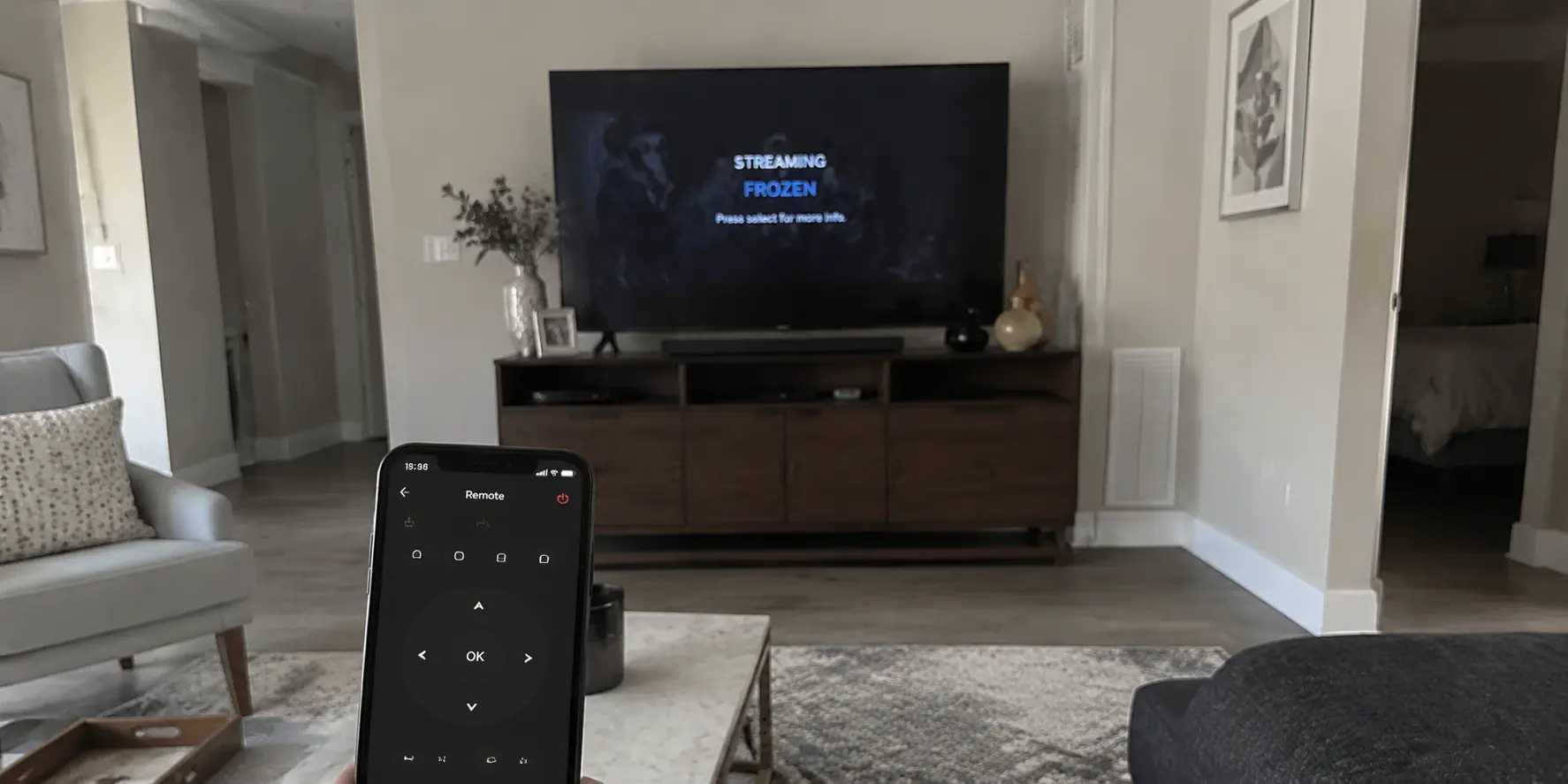
There is a particular kind of evening frustration that starts with a tiny screen and ends with an uncooperative remote.
You find a movie or queue up a live match on your phone. It fires up instantly in crisp 4K, no buffering in sight. Naturally, you want the full experience, so you sit on the sofa, wake up your smart TV or streaming box, open the identical app under the identical account, and hit play.
Nothing happens. Or worse: an endless spinning wheel, a black screen with mocking audio, a generic network timeout, or a blunt message claiming your device is not recognized.
The instinctive human reaction is to assume the universe is glitching. After all, the account clearly works. The internet in your house clearly works. The video itself is streaming effortlessly three feet away in the palm of your hand. Frustrated viewers usually respond by nuking everything: power-cycling the Wi-Fi router, randomly changing VPN locations, logging in and out of accounts, or repeatedly reinstalling apps on the TV.
Stop before you touch the power cord.
That working phone in your hand is not proof that the television is broken. It is the single most valuable diagnostic tool in the living room. It provides an immediate known-good baseline—a control group. When an identical title plays on your phone but chokes on your TV, the mismatch is telling you that the stream, the account, and the broad internet are healthy.
Something is changing exclusively between the phone and the television. Your goal isn’t to restart your digital life; it is to isolate that single variable and fix only what is actually broken.
Article summary and product fit
What does it mean when streaming works on your phone but fails on the TV?
The working phone is a control: it shows the title, account, and service are broadly available, while something differs on the TV path. Read the TV’s exact message first, then test the TV on another network; if the failure follows the TV, focus on the app or hardware, and if the TV works on the alternate network, focus on the original route.
What to keep in mind
- Best for: Households where the same service and title work on a phone but fail, buffer, black-screen, or trigger a warning on a smart TV or streaming box.
- Fastest isolation test: Keep the phone working, then connect the TV briefly to a clean mobile hotspot to see whether the problem follows the television or the original network.
- Important limit: Routing tools cannot fix a household/account verification gate, an obsolete TV app, an HDCP or decoder problem, or a casting-specific discovery failure.
Product fit: OnlydogVPN fits only after the alternate-network test isolates routing as the cause and a protected route is actually needed; the article does not present it as a fix for TV hardware or account-policy restrictions. OnlydogVPN official website.
Sources used in this article: Netflix: household rules; Netflix: TV verification and travel; Google: YouTube TV location settings.
Don’t Restart Everything—Keep the Working Phone as Your Control
When troubleshooting, our first impulse is often chaotic action. But changing four variables at once guarantees that even if the picture returns, you will have no idea why, and if it fails, you won't know what failed.
Keep your phone playing. Do not sign out, do not disconnect it from Wi-Fi, and do not toggle its network settings. That screen is holding the control state: same profile, same title, same moment in time.
Now, turn your attention to the television and look at what it is actually doing. The precise manner of failure will steer you away from hours of wasted effort:
- Does the screen display an account, household, or location prompt?
- Does the interface load cleanly, letting you browse titles, only to fail the second you press Play?
- Does it sit on an infinite buffering wheel?
- Does it flag an explicit proxy, unblocker, or network error?
- Is there audio coming through the speakers while the screen stays pitch black?
- Does the app refuse to launch or update entirely?
The reason this matters is straightforward: streaming platforms do not treat a television simply as a "larger smartphone." A TV runs a different app build, carries different hardware decryption chips, talks over its own specific network interface, and is subject to entirely different account and geolocation rules.
A working phone narrows the universe of possibilities dramatically, but it doesn't mean the TV's playback path is identical. Treat the failure as a specific clue, not a general system breakdown.
Read the TV’s Message First: Some “TV Problems” Are Actually TV-Specific Rules
Before suspecting your internet or fiddling with network configurations, eliminate the category that burns the most time: situations where the streaming platform is deliberately treating your television differently by design.
Modern streaming giants have spent the last few years drawing sharp boundaries around big screens. A television is treated as an anchor device tied to a fixed physical residence, whereas a phone is inherently mobile.
Consider Netflix’s household enforcement. A television can be abruptly challenged as outside the primary Netflix Household, blocking playback on the spot, even while a smartphone on the exact same account continues streaming without a hitch.
Netflix links household status to TV-specific identifiers and the designated home internet connection. If your screen displays an explicit message about household association, changing VPN servers or reinstalling the app will accomplish nothing. The platform is not broken; it is doing exactly what its licensing rules told it to do.
You have to resolve the official TV verification or temporary-travel prompt on screen.
Similarly, live TV platforms like YouTube TV separate mobile and television behavior through their location architecture. YouTube TV enforces a "Current playback area" verification. Because a television lacks built-in GPS hardware, it frequently requires a location-aware smartphone to verify that the TV is where it claims to be. The phone and the TV participate in two halves of the same check.
Here is the decisive rule: If the screen presents an error explicitly naming household, home area, playback area, device verification, or plan eligibility, stop. Do not touch your router, and do not touch your VPN. Complete the service’s official account verification procedure first.
It is also worth noting that services often document specific limitations regarding proxy tools or plan tiers for certain types of content. When an official account rule is triggered, the television is simply enforcing a policy gate. Respect the gate, clear the verification, and move on.
If the Error Follows the TV Across Networks, Stop Troubleshooting the Internet
If the TV isn't throwing an account-rule challenge, the next step is the most revealing test you can perform: change the television’s network connection without changing the television itself.
The cleanest way to do this is to temporarily connect your smart TV or streaming stick to an alternative connection—such as your mobile phone’s personal hotspot (with any VPN or proxy on the phone switched off for this diagnostic step).
This is not intended to be your permanent viewing setup. It is a quick diagnostic isolation test. You are asking one question: Does the TV’s problem follow the television even when its network path completely changes?
If the television still crashes, still refuses to load the app, still gives you a black screen, or still fails at the exact same point on this fresh, vanilla hotspot connection, immediately stop troubleshooting your home internet and router. The network is not the bottleneck.
Instead, narrow your focus directly to the TV app and hardware:
- Unsupported or Outdated TV Apps: Smart TV operating systems age far more rapidly than mobile operating systems. An older television app build may lack the modern security protocols or codecs required by the streaming service's latest video feed, even though the mobile app is refreshed weekly. When an app environment is no longer supported, the stream will fail regardless of connection quality.
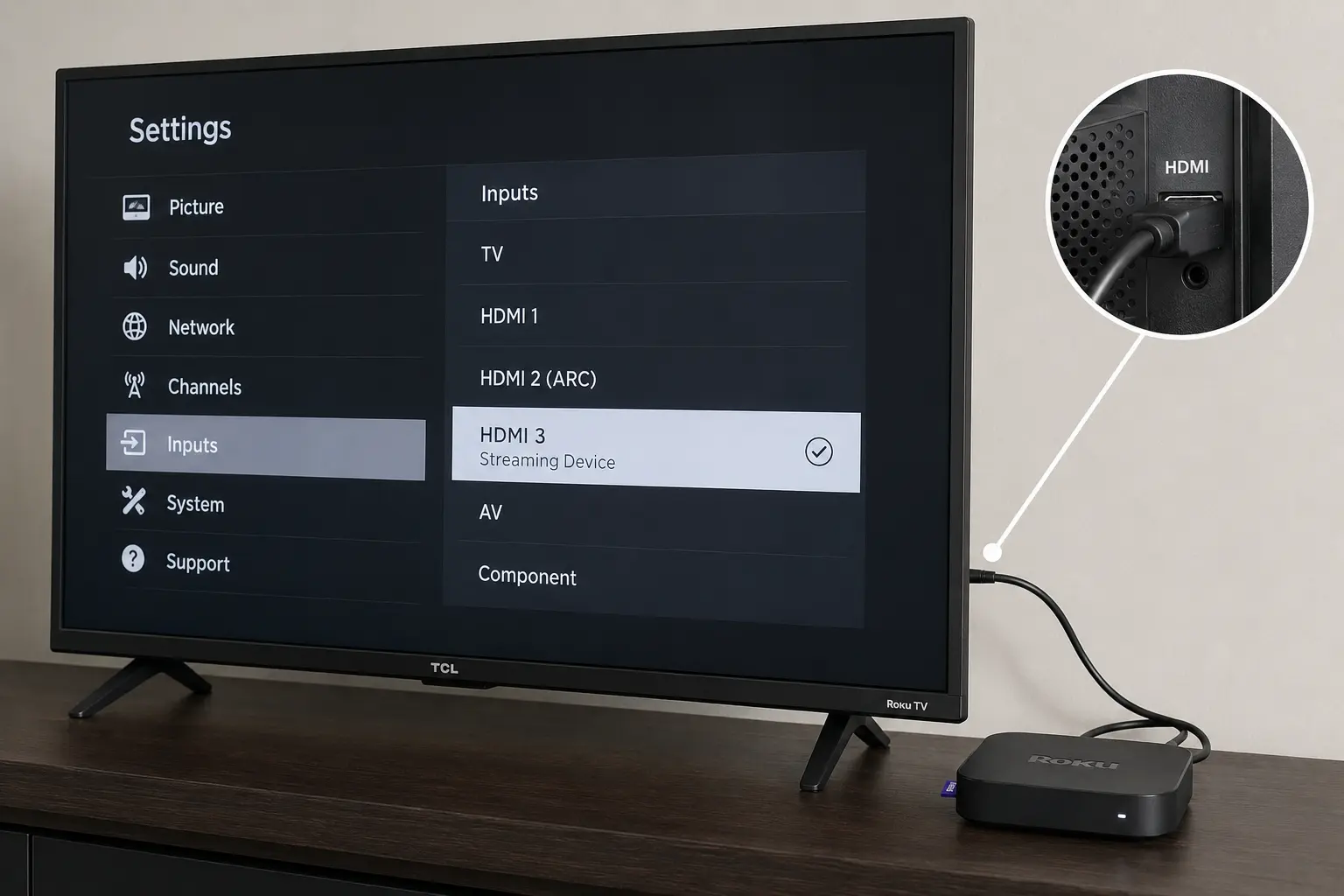
- The Black Screen with Audio (The Output Chain): If you can hear the movie playing clearly, your menus respond, but the picture is completely dark, you are rarely dealing with an internet issue. This almost universally points to a display output or hardware-handshake breakdown (specifically HDCP copy-protection handshakes over HDMI, or an operating-system video decoder crash). A simple TV power cycle—unplugging it from the wall for 60 seconds to clear the display controller memory—or testing a different HDMI port will do infinitely more than tweaking DNS settings.
- App Cache and Memory Leaks: Smart TV chips are notoriously underpowered. Low memory can cause playback engines to freeze. If the issue persists across networks, clear the app cache, check for an operating system update, or reinstall the TV app.
If none of those hardware-level fixes resolve it on an aging TV, the practical answer is often abandoning the TV’s sluggish native software in favor of a dedicated external streaming player. But what you shouldn't do is spend another evening rearranging your router antennas.
If the TV Works on Another Network, You’ve Finally Found the Network Problem
Now let’s look at the inverse result: what happens if the television connects to the hotspot and instantly plays the video smoothly?
That single result is decisive. It completely exonerates the television hardware, clears the TV app build, and confirms your account is fully authorized to play that title on that screen. The failure lives squarely within the original home network route your TV was using.
Start by peeling back any unusual network baggage on that original connection. Smart TVs occasionally retain broken custom DNS addresses from past setup attempts, or your router may have active parental controls, aggressive ad-blocking filters, or legacy proxy toggles that trip up video delivery networks. Return the television's network adapter to automatic DHCP defaults to establish a clean baseline.
From there, look at the job you are actually asking the connection to do:
If you are just trying to watch standard local television, stripping away rogue DNS entries and restoring your router’s native routing is usually the finish line.
However, if you legitimately need a protected, alternative routing path—perhaps because you are traveling, maintaining cross-border access to services you pay for back home, or seeking privacy from local ISP throttling—the lesson of the phone becomes paramount. The reason the phone worked while the TV choked is almost always because the phone was on a clean, optimized route, while the TV was stuck behind an unoptimized, easily flagged, or congested connection path.
This is precisely where manual tinkering breaks down. Most viewers who hit this wall resort to cycling blindly through endless server lists, trying thirty different regional nodes on an awkward TV remote interface, hoping one slips past the platform's filters.
When your diagnosis proves that routing is your actual roadblock, the smart move is relying on an intelligent routing tool rather than manual guesswork. This is where OnlydogVPN↗ enters the picture.
Instead of forcing you to guess which server will handle a specific streaming catalog, OnlydogVPN focuses squarely on the outcome with its dedicated Streaming preset and automatic route selection. It intelligently handles the routing decisions under the hood, matching your traffic to an optimized, uncrowded path without requiring you to become a network engineer.
Equally important is its multi-platform support. If your smart TV runs a restrictive, locked-down operating system that makes network configuration a nightmare, you don't have to fight the television's limitations. You can run OnlydogVPN cleanly on a supported laptop, tablet, or secondary device you actually control, ensuring a stable, uninterrupted stream on a dependable device.
Remember the boundary, though: a smart route like OnlydogVPN solves routing and connectivity problems. It cannot bypass a hard account restriction like an unverified Netflix Household, nor can it breathe life into an obsolete TV whose manufacturer stopped updating its video decoders years ago. But once those layers are cleared and you know the route is the culprit, targeted routing is the exact key that turns the lock.
Casting Is a Separate Test—And It Can Undo a Correct Diagnosis
There is one last trap that trips up even cautious troubleshooters: the temptation to "just cast it."
You have the movie running on your phone. You see the TV struggling. In a moment of impatience, you tap the Cast or AirPlay icon in the mobile app, assuming that because the phone is succeeding, it can simply "beam" that success across the room.
Then the cast fails, disconnects, or errors out, and you assume the entire setup is doomed.
Don't let casting pollute your diagnosis. Tapping that icon does not mirror the phone's established network session to the TV screen; it triggers an entirely new, multi-party handshake with its own strict requirements:
- Local Network Isolation: Protocols like Google Cast and Apple AirPlay require both devices to discover each other across the local network. If your phone is on a 5GHz band with "client isolation" enabled on your router, or if one device is routed through a local VPN tunnel while the other is exposed to the local subnet, discovery will fail.
- The TV Does the Heavy Lifting: When you cast standard video via Google Cast, your phone isn't actually transmitting video bits over Wi-Fi. It is handing a URL link to the television receiver, which then attempts to fetch and decode the stream directly from the internet using its own connection. If the TV's native routing or player capability was broken to begin with, casting will fail for the exact same reason.
Casting is not a magic extension cord; it is an entirely separate playback protocol with its own discovery permissions and receiver dependencies. If direct playback on the TV is your goal, test direct playback. Don't let an AirPlay or Cast glitch convince you that an otherwise working setup is broken.
What I’d check next time
The next time your phone streams effortlessly while your television sits dark and stubborn, skip the impulse to reboot the house. Run through this simple mental triage:
- Does the TV show an explicit account or location warning?
(Household limits, home-area verification, playback region)
Fix: Complete the official verification flow on screen or via the associated mobile prompt. Do not adjust network settings.
- Does the failure happen on every network?
(Test on a quick mobile hotspot; app crashes, outdated builds, or black screen with audio across all connections)
Fix: Address the TV itself. Clear the app cache, power-cycle the TV to reset HDMI/HDCP handshakes, update the firmware, or switch to an external streaming player.
- Does the TV stream instantly on a different network?
(The TV works on a hotspot, proving the TV hardware and app are fine)
Fix: The original network path is the culprit. Reset custom DNS and router filtering. If you require a secure, reliable path for streaming, use OnlydogVPN on a supported playback device for its Streaming preset and automatic route selection instead of cycling through dead endpoints.
- Does video play directly, but fail the moment you tap Cast?
Fix: Stop debugging the internet. Verify both devices share the exact same local Wi-Fi subnet, check local network permissions, or bypass casting entirely by using the native app on your playback device.
Your working phone already solved half the mystery before you got off the couch. It proved the show is available, your account is valid, and the service is online. All that's left is identifying the single layer that changes when the video tries to hit the big screen—and fixing only that.
Frequently Asked Questions
Does streaming on my phone prove the TV is broken?
No. It proves the service, account, and title can work in at least one path. The TV may still differ because of account rules, app support, hardware decoding, its own network route, or casting behavior.
What should I do first if the TV shows a household or location warning?
Complete the streaming service’s official verification flow before changing router or VPN settings. An explicit household, home-area, or playback-area message is a policy or account check, not generic network failure.
What does it mean if the TV still fails on a clean mobile hotspot?
The problem follows the TV rather than the home network. The article says to focus on the TV app, firmware, memory, HDMI/HDCP output chain, decoder, or an external streaming device.
Why can casting fail even though the video already plays on my phone?
Casting starts a separate discovery and playback workflow. In many cases the TV still fetches and decodes the stream itself, so a broken TV route or receiver path can fail even while the phone’s direct playback remains healthy.