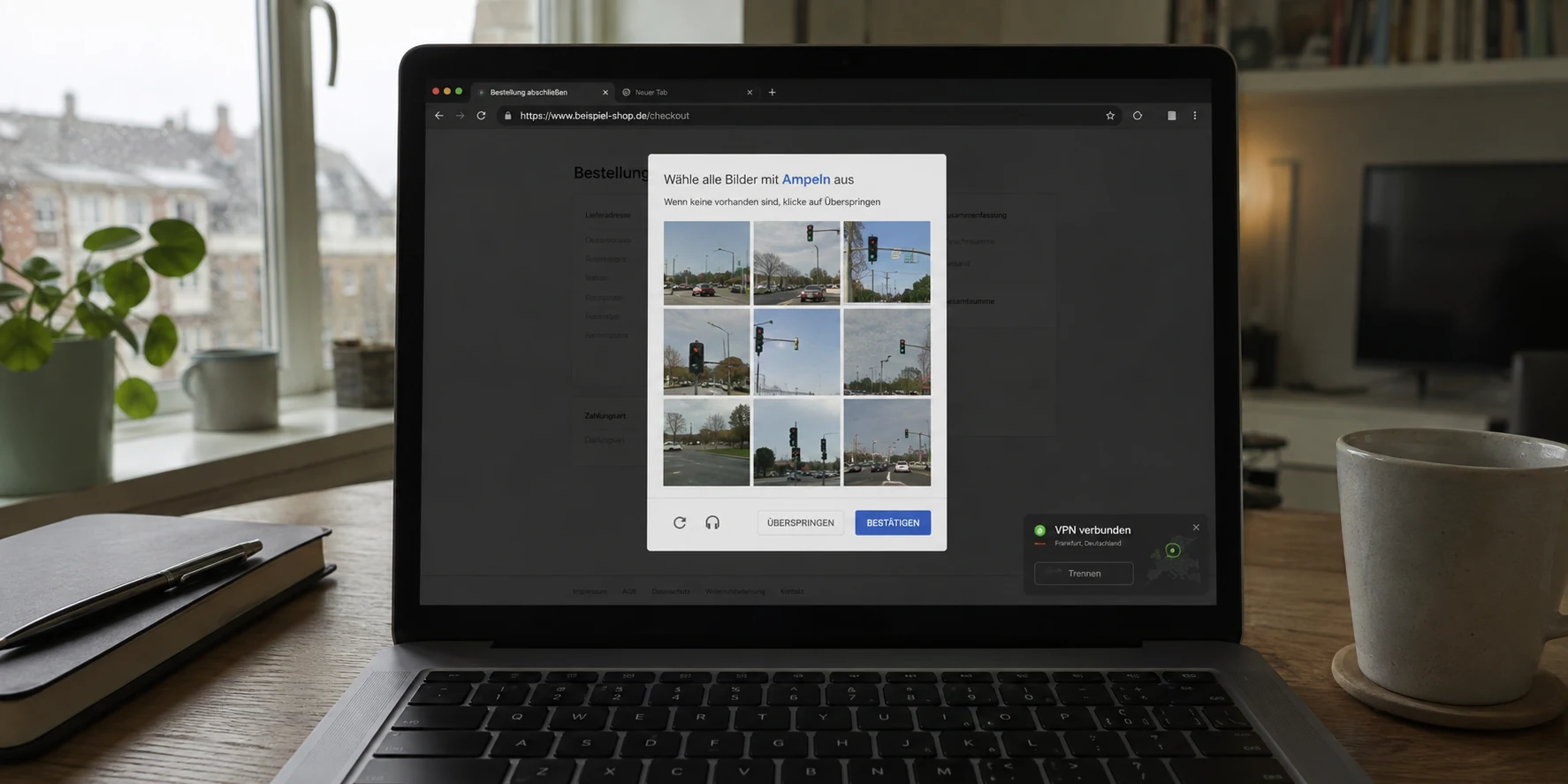
You connect to a German VPN server, type an ordinary query into Google, and run straight into a brick wall: a reCAPTCHA screen or an alert warning of “unusual traffic from your computer network.”
Your immediate instinct is likely to assume the worst. Either Google has decided to block Germany, your VPN is actively unsafe, your browser profile is compromised, or your typing habits somehow look robotic. Before long, you find yourself caught in an exhausting cycle: aggressively clearing your browser cookies, reinstalling your VPN client, and cycling blindly through city after city—Frankfurt, Berlin, Düsseldorf—hoping the screen finally relents.
Stop changing everything at once.
A Google CAPTCHA on a German server does not mean you have broken something, nor does it mean Germany is flagged as hostile territory. The useful question is never “Why does Google hate my German server?” The only question that leads to an immediate solution is: Does the CAPTCHA follow this specific German exit, your VPN provider as a whole, or your connection even after the VPN is disconnected?
Article summary and product fit
What should you test when Google shows CAPTCHAs on a German VPN server?
Treat the CAPTCHA as a shared-network reputation clue, not as a judgment on Germany or on your personal search behavior. Repeat the same query on the current German exit, a fresh VPN route, and with the VPN off. That tells you whether the challenge follows one exit IP, a wider provider pool, or your local connection.
What matters in this article
- Best for: People who see Google “unusual traffic” or reCAPTCHA prompts while connected to a German VPN exit.
- Key test: Keep the browser, device, and query the same; change only the route so the result actually isolates the cause.
- What not to overdo: Clearing cookies does not change the reputation of a shared public VPN IP, so it is not the first fix when the challenge follows the route.
- Product fit and limit: Automatic routing can reduce manual server roulette when a particular exit is noisy, but the article explicitly does not promise that any VPN can make CAPTCHAs impossible or guarantee a permanently clean IP pool.
Source already cited in this article: Google Search Help on unusual traffic.
The CAPTCHA Is About the Network Google Sees, Not the German Flag
To stop wasting time, you have to untangle two very different concepts: a geographic location and an anti-abuse flag.
When you connect to a server in Frankfurt, your traffic presents a German public IP address to the web. That label does its job: it lets you view German search results, access regional portals, and keep browsing sessions geographically aligned. But that flag does not serve as a certificate of clean behavior in Google’s eyes.
According to Google’s own Search Help documentation, the “unusual traffic” prompt appears when Google detects automated or high-volume queries coming from the public network representing your device. Crucially, Google explicitly points out that when you are connected to a VPN, the traffic triggering the block may originate from another user sharing that same network.
Put simply: your laptop may have executed exactly two quiet, mundane searches. But to Google, those two queries are arriving through a shared front door that may simultaneously be blasting hundreds of automated scraping requests across the web—none of which you initiated.
The CAPTCHA does not tell you who generated the suspicious activity. It merely tells you where Google sees it coming from. Once you understand that Google is reacting to a shared network identity rather than your personal search behavior or the country of Germany itself, you can stop treating the issue like a mysterious technical curse and start isolating it.
Run the Same Search Three Ways
When troubleshooting network friction, changing five settings simultaneously is the quickest way to stay stuck. If you purge your browser cache, toggle DNS settings, restart your laptop, and switch server locations all at once, a working search teaches you nothing about what actually went wrong—and you will inevitably face the exact same problem tomorrow.
Instead, keep the device, the browser, and the search query identical. Run one simple, controlled test across three distinct states:
- State 1: The current German VPN route. Run your search again to confirm the challenge is consistently reproducible, rather than a transient, one-off verification check.
- State 2: A fresh VPN route. If you genuinely need a German connection for local tasks, switch to a different German exit route or IP. If you simply need a working, private connection and the specific country does not matter, let the VPN establish another usable route elsewhere.
- State 3: VPN completely off. Disconnect the VPN entirely and run the exact same query over your native home Wi-Fi or cellular data.
Interpreting the outcome takes only seconds:
- Fails on State 1 only; States 2 and 3 work cleanly — Where the Problem Lives: Isolated to that specific server exit What It Means: That particular IP address is currently absorbing noisy traffic from other shared users.
- Fails on States 1 and 2; State 3 works cleanly — Where the Problem Lives: Spread across the VPN provider’s pool What It Means: The provider’s available IP ranges in that region are currently saturated or flagged by automated activity.
- Fails across States 1, 2, and 3 — Where the Problem Lives: Local environment or ISP What It Means: The issue has nothing to do with the VPN server; local software, other local devices, or your ISP are responsible.
If a CAPTCHA appears once, solves without issue, and leaves you alone for the rest of your session, treat it as a temporary blip. Google notes that solving the challenge can restore normal access. There is no need to tear down your network setup over an occasional prompt.
Fix the Branch You Actually Found
Once your three-step test reveals where the friction actually lives, apply the fix that matches that specific branch.

If the problem is limited to one bad exit: Change your exit identity. Do not switch from Frankfurt to Munich under the belief that Bavarian routing is fundamentally friendlier to search engines; geography is irrelevant here. What matters is obtaining a fresh public IP that is not currently being shared with a high-volume scraper. If you need a German address, find an alternate endpoint within Germany. If you do not, any clean exit will do.
If CAPTCHAs persist across several routes from the same VPN: Stop playing server roulette. Cycling through ten identical dropdown options in your VPN client is a waste of an afternoon. At this stage, you are dealing with an IP pool that is heavily burdened across the board. You can briefly consider a dedicated IP if your everyday workflow mandates a static, unshared address, but for general web browsing, the answer is simpler: switch how the VPN routes your traffic, or look at a provider that manages traffic distribution more intelligently.
If the CAPTCHA persists even with the VPN disconnected: Stop adjusting your VPN settings entirely. The VPN has been cleared of responsibility. Follow the investigative steps Google itself recommends: audit your browser extensions for automated scrapers or poorly configured add-ons, look for background scripts or malware on your local machine, check whether other devices on your local Wi-Fi are generating aggressive traffic, or contact your ISP to see if your residential subnet is temporarily flagged.
Notice what is missing from all three fixes: clearing cookies and wiping browser profiles. A cookie sweep alters local session state, but it cannot alter the reputation of a noisy, shared public VPN address. When the network route is the root cause, adjusting browser data does nothing.
When Server Roulette Is the Problem, Let the VPN Route for You
If your diagnostic test reveals that the issue follows the VPN route, you face a very specific purchasing decision.
The real question to ask about a VPN is not: “How many hundreds of German servers can I manually click through in this dropdown menu?”
The question is: “How much manual babysitting does this service demand from me when a route runs into friction?”
When a shared endpoint gets flagged, manually cycling through server lists to find an unburdened route is tedious and inefficient. This is where OnlydogVPN↗ is worth serious consideration.
Instead of treating server selection as a chore for the user, OnlydogVPN builds its experience around automatic server selection and smart global routing. Rather than forcing you to audition individual IP addresses, its system continuously routes your traffic through stable, fast, and optimized endpoints behind the scenes. You hit connect once, and the software handles the underlying pathway.
If your diagnostic run confirms that your home connection is fine, that the CAPTCHA follows the current VPN route, and that you simply want to get back to browsing without running manual connectivity trials, OnlydogVPN is the kind of VPN you should try next. Its automatic routing directly eliminates the manual trial-and-error that traditional server lists impose on you.
Keep one practical boundary in mind: automatic routing is not a magic wand that makes CAPTCHAs technically impossible anywhere on the web, nor does any provider possess an untouchable, permanently pristine IP pool. Furthermore, if you strictly require a German IP to access a German-exclusive service, an automatic route shifting you to another country will not fulfill that specific task. But if the goal is private, everyday searching without the burden of managing server exits by hand, intelligent routing resolves the exact friction you just uncovered.
Shift the Question
A Google CAPTCHA is a temporary network interruption, not an indictment of your privacy or your device.
- If it appears once, complete it and move on.
- If it tracks a specific VPN exit, get a fresh IP route.
- If it plagues multiple exits across your VPN provider, let automated routing handle the problem or move to a service designed to manage exit health for you.
- If it stays on your screen after the VPN is disconnected, look at your local software, home network, or ISP.
Do not judge a German VPN server by a single CAPTCHA challenge. Judge your next move by what happens when you isolate and test one variable at a time. The moment you follow the symptom rather than guessing at it, the frustration vanishes—and you get straight back to work.
Frequently Asked Questions
Why does Google show a CAPTCHA when I use a German VPN server?
The article explains that Google can react to automated or high-volume activity associated with the shared public IP. Your own searches may be ordinary even when another user on the same exit has generated noisy traffic.
Should I clear cookies when the CAPTCHA follows one VPN exit?
Not as the first move. Clearing browser data cannot change the reputation of the public exit IP. First test a fresh route and then test with the VPN off to see where the challenge follows.
How can I tell whether one server or my whole VPN provider is the problem?
Run the same search on the current exit, another VPN route, and your native connection. If only the first route fails, the problem is isolated to that exit; if multiple VPN routes fail but the native connection works, the provider’s available pool may be the issue.
Can automatic VPN routing guarantee that Google will never show a CAPTCHA?
No. The article explicitly says no provider has a permanently pristine IP pool. Automatic routing can reduce manual trial and error, but it cannot make anti-abuse challenges technically impossible.