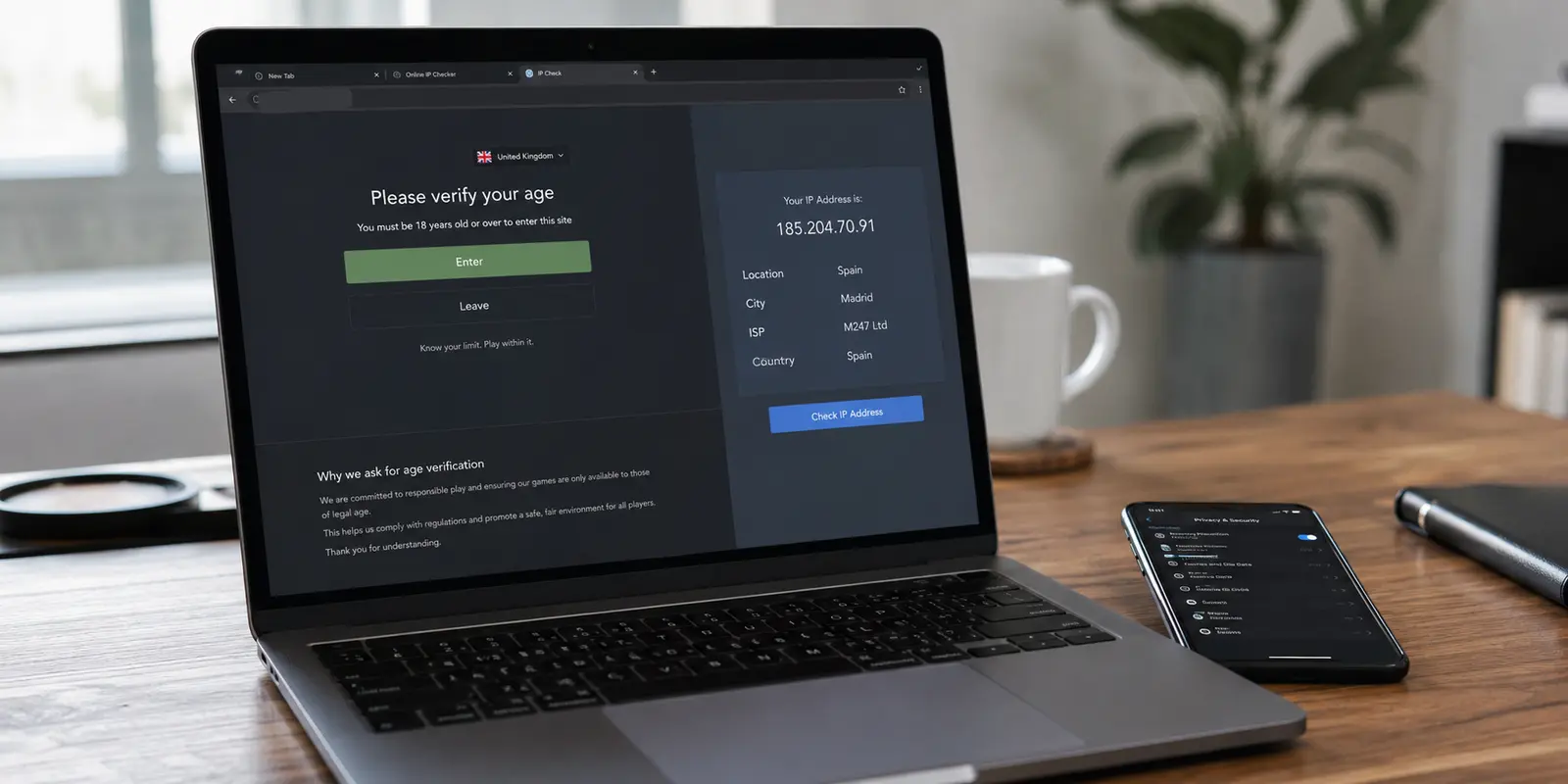
Before changing VPN servers again, look at exactly where the website is showing your country. A store locator placing you on your real street is a very different failure from a homepage merely loading your usual regional edition.
When your VPN dashboard announces that you are connected to London or Tokyo, yet the page in front of you persists in welcoming you back to your hometown, the knee-jerk reaction is paranoia: the VPN is leaking my real IP.
In reality, a website showing your real country does not automatically mean your VPN has failed. A VPN does exactly one job regarding geography: it swaps the public network address that remote servers receive for its own. But "where you are" is rarely answered by a single data point anymore. Modern platforms cross-reference device permissions, cached browser data, signed-in account profiles, and fraud-reputation registries. When these signals collide, the result is confusion.
The useful response is not endless server hopping. It is figuring out which signal is talking to the website, and fixing only that layer.
Article summary and product fit
Why can a website still show your real country after your VPN has successfully changed the public IP?
A VPN changes the network address visible to websites, but location can also come from device geolocation permission, cookies and local storage, signed-in account history, language and time-zone hints, or a different IP-geolocation database. The right fix depends on which signal matches the symptom.
What matters in this article
- Best for: Anyone whose IP checker shows the VPN country while a website still displays a home country, nearby branch, or old regional experience.
- Key diagnostic: Street-level precision points to device geolocation; a home region that returns only after sign-in points to account state; a clean signed-out private session that is still wrong points back to route geolocation or VPN recognition.
- Preparation: Verify the public IP, review the site’s location permission, and compare a normal signed-in tab with a private signed-out window before switching servers.
- Important limit: A VPN does not erase information already stored in an account or browser, and a site that recognizes a commercial VPN is not necessarily seeing your real home IP.
Product fit: OnlydogVPN becomes relevant only after browser, device, and account signals have been eliminated and the route itself is the remaining variable; the article positions automated routing as an alternative to blind server cycling. OnlydogVPN official website.
Sources already used in this article
The Website May Know a Country Without Knowing Your Real IP
To diagnose the problem, you first have to separate network identity from user identity. A website can be fully aware of your national market without having the slightest clue what your actual home IP address is.
Consider how varied these disconnects look in practice:
- An IP-lookup tool confirms you are in the United Kingdom, but a retailer’s checkout page automatically estimates shipping from your local distribution center.
- The public IP has clearly moved abroad, yet a streaming site loads your home language and domestic catalog.
- A fresh, anonymous visit to a platform shows the VPN country, but the moment you enter your credentials, the dashboard snaps back to your home country.
- The site recognizes that the address belongs to your chosen region, but blocks access entirely.
None of these scenarios require a tunnel leak. As Google openly documents in its location architecture, a service can infer where you are using a blend of distinct inputs: direct device location, saved account places, previous search activity, and the current IP address.
When you use a VPN, geolocation providers such as MaxMind analyze the network exit of the VPN server, not the hardware sitting on your desk. If the website is still reacting to your real country, it is usually because it does not need to look at your network address at all. It is simply reading another piece of data you already handed over.
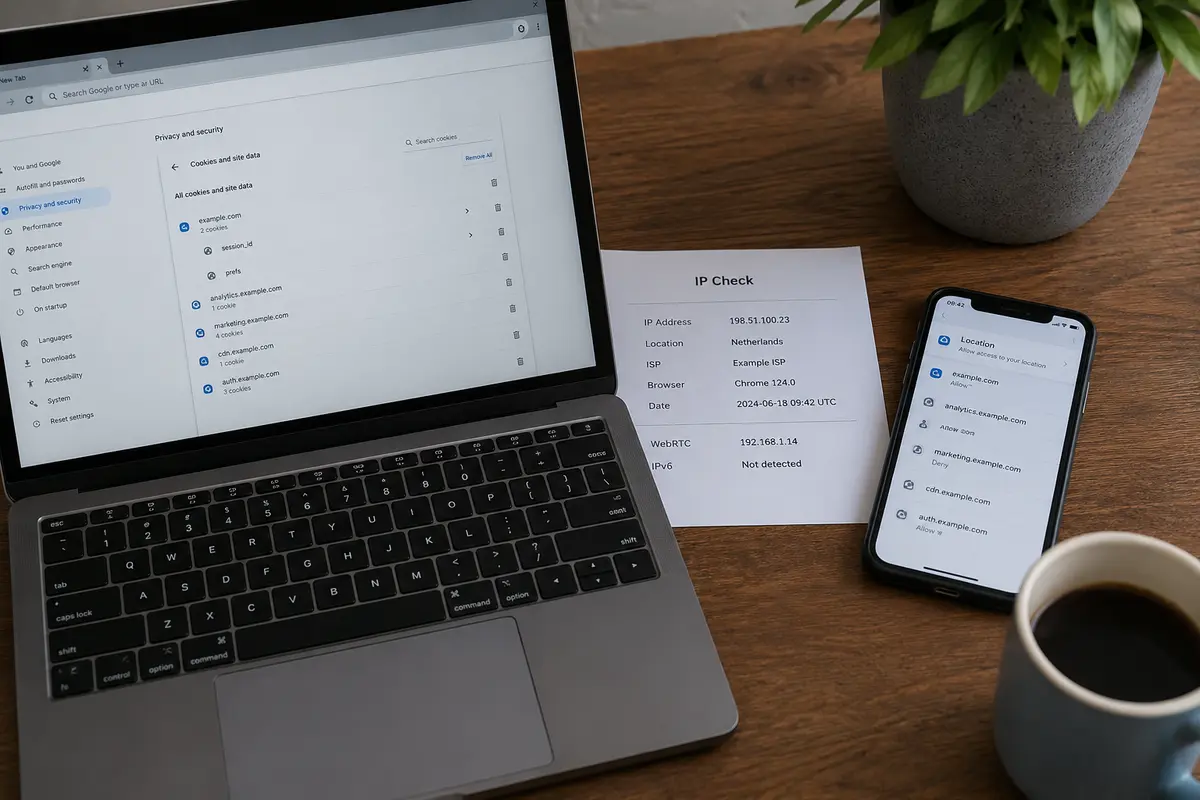
If the Site Knows Where the Device Is, Check Location Permission Before the VPN
If a web page narrows your location down to your specific neighborhood, city block, or delivery radius—such as a map widget or a "find a branch near me" prompt—stop troubleshooting the VPN. No network IP, leaked or otherwise, pinpoints your living room with street-level precision.
That kind of accuracy comes from one place: the browser’s Geolocation API.
Websites can request explicit access to your device's physical position. If you clicked "Allow" months ago, your browser remembers that choice. Connecting to a VPN abroad changes your network path, but it does not revoke existing browser permissions. Furthermore, do not assume that using a desktop or a laptop without a dedicated GPS chip protects you; modern operating systems and browsers like Chrome derive surprisingly accurate coordinates from nearby Wi-Fi access points and local network hardware.
Here is how to test this signal:
- Verify on any public IP checker that your visible IP belongs to the VPN country.
- Check the website's permissions in your browser address bar (in Chrome, click the tune icon next to the URL).
- If location access is active, toggle it to Block.
- Reload the page or launch a fresh tab.
Disabling location access will not force the website to adopt your VPN country—it merely eliminates physical hardware location from the equation so the site has to fall back on other clues.
If the Website Knows Your Country but Not Your Position, Test What It Remembers
When a site identifies your country correctly without pinpointing your city street, it is rarely locating you in real time. Instead, it is remembering who you are.
Web applications depend heavily on persistent state. If you browsed an e-commerce platform yesterday without a VPN, that site likely dropped cookies, recorded your regional storefront preference, or saved your currency selection to local storage.
More decisively, your account history carries weight. If you sign into an account tied to a domestic phone number, a domestic credit card, or years of regional browsing history, the platform has no reason to adapt to a temporary network shift. The account's administrative region overrides the incoming IP address every time.
To test whether memory is the culprit, run a clean comparison:
Normal browser + signed-in session vs. Private/Incognito window + signed-out state.
Open an Incognito or private window while keeping your VPN connected. Private browsing creates an isolated temporary container stripped of prior cookies, session identifiers, and cached logins.
If the site loads the VPN’s target country in the private window, your VPN was never broken. The normal browser tab was simply replaying your saved session state.
Keep in mind that secondary browser hints also exist. Sites can read your system time zone via JavaScript or inspect your preferred language headers (Accept-Language). While these rarely trigger a hard country lock on their own, they often prompt a site to suggest your home language despite an overseas IP.
When a Clean Session Fails, the VPN Route Becomes the Suspect
Now eliminate the noise. Suppose you have verified that:
- Your public IP reflects your desired destination;
- Device location permissions are blocked;
- You are signed out of the service; and
- You are operating in a fresh, isolated private window.
If the destination site still insists you are elsewhere, the problem has finally narrowed to the VPN connection itself.
This usually happens for one of two technical reasons:
1. IP Geolocation Discrepancy. There is no single master registry mapping every IP address to a country flag. VPN providers use one database, while destination platforms may rely on MaxMind, IPinfo, or proprietary internal databases. If your VPN app labels a server as "Frankfurt," but the streaming platform's database has not updated its records and still categorizes that subnet as belonging to another region, you will see a mismatch.
2. VPN Recognition, Not Location Leaks. The website may know perfectly well that your IP is located in your chosen country, but it also recognizes that the IP belongs to a commercial data center or an anonymizing proxy. Risk-scoring systems regularly tag traffic with flags like is_anonymous_vpn or is_hosting_provider. The site does not know where your real home is; it simply knows you are connecting from an anonymized node and defaults to a fallback page or a restricted layout.
At this stage, switching servers is no longer a blind guess—it is testing whether another route carries better alignment with the destination's database.
For users who want to avoid manual server cycling at this stage, OnlydogVPN↗ is an effective, streamlined option. Rather than forcing you to test dozens of individual nodes across conflicting regional lists, OnlydogVPN uses purpose-built task presets paired with dynamic auto-routing. It selects routes calibrated specifically for target web services and platforms, taking the friction out of connection selection when manual troubleshooting has run its course. It does not promise to make your traffic invisible to platforms with strict anti-proxy enforcement, but it reliably solves the tedious job of finding a clean, correctly mapped route.
Use the Symptom to Choose the Fix
The next time a website ignores your VPN's chosen destination, resist the urge to disconnect and reconnect at random. Read the symptom in front of you and apply the matching fix:
- The site maps your exact street or neighborhood: The problem is device location. Revoke the site’s browser location permission.
- The overseas IP works everywhere except your standard browser tab or signed-in profile: The problem is identity and state. Clear cookies, test in a private window, or acknowledge that the account itself is anchored to your home country.
- A clean, signed-out private session still misidentifies the country: The problem is route geolocation. Switch to an alternative server or use OnlydogVPN with an appropriate task preset to let automated routing handle the node matching.
- The site detects the correct target country but throws access errors or CAPTCHAs: The problem is IP reputation. The platform has flagged the exit node as a commercial proxy, which requires a cleaner route rather than a browser adjustment.
A VPN shifts your network footprint across borders, but it cannot alter what you have already told a website about yourself. If your VPN says one country and a screen says another, do not ask how the site "saw through" your encryption. Ask which signal the page is actually looking at.
Frequently Asked Questions
Does a website showing my real country mean the VPN leaked my real IP?
Not necessarily. A site can know or remember your region from device location permission, cookies, account history, language settings, or other signals even when the public IP has changed correctly.
What does it mean if a website knows my exact neighborhood or street area?
That level of precision points to device geolocation rather than ordinary IP geolocation. Check whether the browser still has permission to share physical location with the site.
Why does the VPN country appear when I am signed out but my home country returns after login?
That pattern points to account or saved-session state. A signed-in profile can carry a regional setting, payment history, phone number, or long-term preference that overrides a temporary IP change.
What if a fresh private window still shows the wrong country?
After confirming the VPN IP, blocking location permission, and signing out, a persistent mismatch points more strongly to the exit IP being mapped differently by the website’s geolocation database or being recognized as a VPN or hosting address.
When is switching VPN servers a useful test?
Only after device location, cookies, and account state have been ruled out. At that point, changing the exit becomes a controlled test of route geolocation or IP reputation rather than random server hopping.