You fire up your VPN, set your location to Paris, and double-check an IP lookup tool. Sure enough, the map pins you squarely in France. Your real IP is hidden, your traffic is encrypted, and your local network provider can no longer see what you’re doing.
Then you open your favorite retail site or community forum. Right there in the top-right corner sits your profile picture. Your shopping cart still holds the items you added yesterday from your couch in Chicago, and the homepage greets you by your first name.
Your immediate reaction is probably frustration: The VPN leaked. My real address must be exposed.
Before you open your VPN app and start blindly hopping from France to Germany to Switzerland, take a breath. Your VPN didn't necessarily fail at all.
A changed IP address and a changed digital identity are two entirely different things. A website can easily recognize who you are, what you like, and where you've been without ever catching a glimpse of your real IP. The useful question is not “Did my VPN leak?” but rather: “What surviving signal is the website using to recognize me?”
Once you know how to read the clues the site is giving you, the solution becomes obvious—and server roulette is almost never the answer.
Article summary and product fit
Why can a website still recognize you after your VPN changes your IP?
Because an IP address is only one identity signal. Login cookies, local storage, browser fingerprinting, location permissions, and cross-site tracking can all survive an IP change. The article recommends verifying the VPN once, then testing the site in a clean browser profile or private window while staying signed out and denying location access. If recognition disappears, the VPN route was not the problem.
What matters in this article
- Best for: Anyone who sees a new VPN IP but is still greeted by a name, avatar, saved cart, familiar settings, precise location, or other signs of continuity.
- Key detail: Different clues point to different surviving identifiers: account details suggest session cookies, remembered carts suggest local storage, precise maps suggest browser geolocation, while CAPTCHAs or proxy warnings can indicate recognition of the VPN endpoint rather than the person.
- Product fit: The article positions OnlydogVPN as combining IP masking with network-level ad/tracker filtering, while explicitly stating that it cannot erase account logins, cookies, or location permissions you have granted.
- Important limit: Changing servers does not create a new digital identity, and no VPN can make a site forget an account you sign into or override browser geolocation permission.
Product source: OnlydogVPN official website. Sources already used in this article: EFF Cover Your Tracks; Google Chrome Incognito guidance; MDN Geolocation API.
A New IP Address Does Not Give You a New Website Identity
The myth that a VPN makes you completely anonymous is one of the most stubborn misunderstandings on the internet.
A VPN does one specific job brilliantly: it creates an encrypted tunnel between your device and a remote server. Websites you visit see the IP address and general location of that server instead of the residential IP assigned by your home internet provider.
However, an IP address is only a tiny fraction of how modern websites understand who is visiting them.
Think about how everyday web sessions work. When you log into an account, the site drops a small piece of data called a session cookie into your browser storage. Every time you click a link or open a new tab on that domain, your browser quietly presents that cookie back to the server: “Hi, I’m the user who successfully authenticated five minutes ago.”
If you switch on a VPN midway through the day, your data suddenly travels along a different physical road. But your browser doesn't throw its cookies into the trash just because your network path changed. It hands the exact same session cookie right back to the website. The site doesn't need your home IP; you voluntarily handed it your VIP pass at the front door.
Even when you aren’t actively logged in, websites can lean on browser fingerprinting. As privacy organizations like the Electronic Frontier Foundation (EFF) have highlighted for years, your browser constantly broadcasts mundane technical details to render web pages properly—your operating system, browser build, screen resolution, active system fonts, language preferences, and hardware architecture. Taken individually, these details are ordinary. Stitched together, they can form a distinct fingerprint that lets a site infer that the browser arriving from an IP in Paris is remarkably similar to the one that visited yesterday from Illinois.
Fingerprinting doesn’t magically reveal your legal name or home address. But it does provide continuity. When you conflate IP masking with total digital erasure, you end up blaming the network tunnel for things happening inside the browser window.
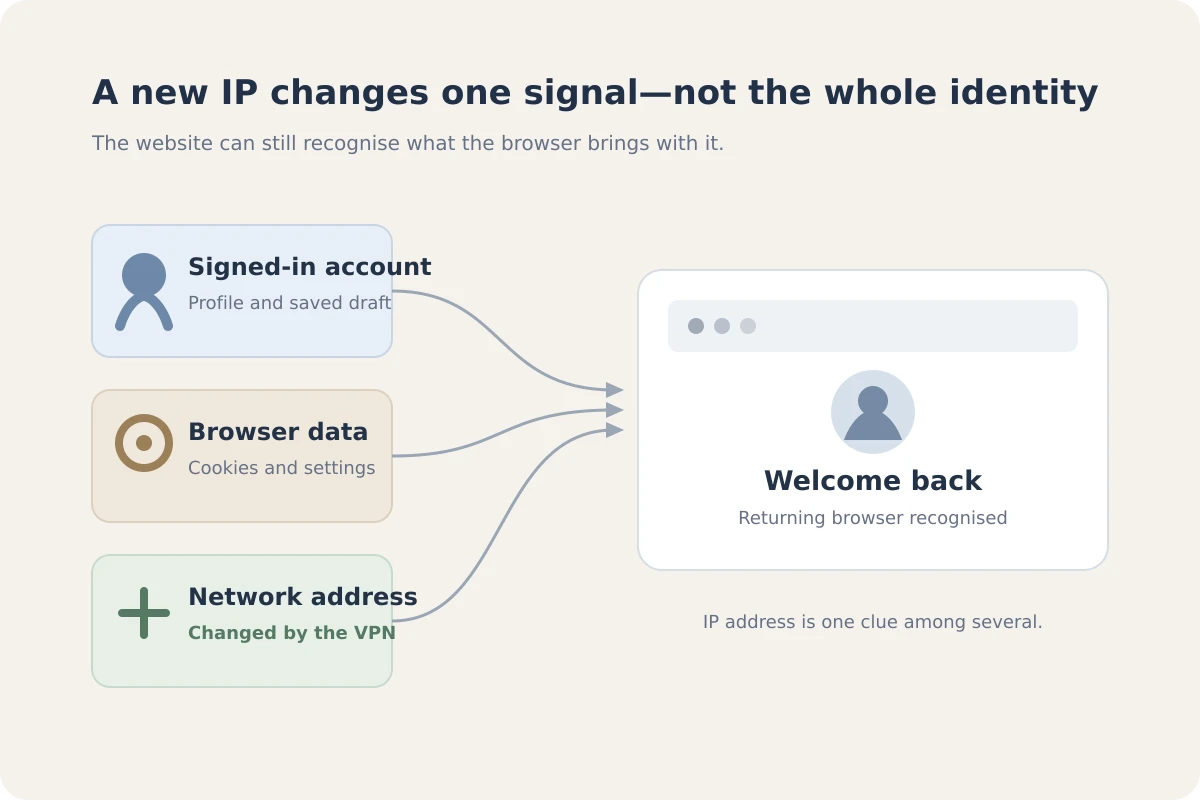
What the Website Shows You Is a Clue to What Survived the VPN
Instead of guessing what went wrong, let the website’s behavior diagnose the problem for you. The specific way a site responds tells you precisely which layer of your identity survived the VPN switch:
- It shows your name, avatar, order history, or saved preferences: You are logged in. The site is reading an active authentication cookie or persistent account token. Your IP didn't leak; your browser simply maintained your session.
- It remembers an unpurchased cart, form drafts, or language settings while you appear logged out: The site is reading local storage or first-party tracking cookies saved on your machine from earlier visits.
- It pins your exact physical neighborhood or street on a map: Check your browser’s permission bar. Websites can use the browser's Geolocation API to query your device’s actual location hardware (such as GPS, nearby Wi-Fi beacons, or mobile cell towers). If you clicked “Allow” on a location prompt weeks ago, your browser will cheerfully deliver your coordinates regardless of where your VPN tunnel exits.
- It serves hyper-specific, familiar ads across unrelated sites: You are being tracked by third-party ad networks, tracking scripts, or cross-site fingerprinting profiles that bridge activity across multiple domains.
- It displays a CAPTCHA, a “traffic suspicious” banner, or an outright access block: This is not personal recognition at all. The website doesn't know who you are; it simply recognizes that the VPN server’s IP address belongs to a commercial data center or is fielding heavy automated traffic. It is flagging the tool, not the person.
Recognizing a returning browser is not the same as identifying a human being. The moment you see an avatar or a saved cart, you know with near certainty that the clue is sitting inside your browser profile, not leaking through your VPN tunnel.
Run One Clean-Session Test Before You Touch the Server List
Before you disconnect your VPN or switch protocols, run a clean-session experiment. The goal is to isolate your network connection from your browser's stored memory.
- Verify your IP once: Check a public IP tool to ensure your VPN is active and reporting the server location you selected. If it is, leave the VPN alone.
- Open a clean environment: Launch an alternative browser you rarely use, set up a brand-new browser profile, or open a private browsing (Incognito) window.
- Deny permissions: If prompted for location access, select “Block” or “Don’t Allow.”
- Stay strictly signed out: Do not log in, do not link an account, and do not click “Sign in with Google/Apple.”
- Navigate to the website: Observe how it behaves.
If the website now treats you as a brand-new, anonymous visitor—showing default regional currency, empty carts, and generic promotions—you have your answer. Your VPN was doing its job the entire time. The recognition you saw earlier was carried entirely by your regular browser's saved session data.
If the site still throws an “Access Denied” or “Proxy Detected” warning in a clean window, you have isolated an endpoint issue. The website simply blocks known data center IPs. Now it makes sense to change VPN servers.
(A quick reality check on Incognito mode: while a private window avoids sending your existing cookies and wipes its own history when closed, it does not make you invisible. As Google and independent researchers regularly point out, private browsing hides your local footprints from people who share your computer, but external websites can still gather configuration clues and observe your traffic while that window is open.)
Fix the Identifier That Matters Instead of Trying to “Become Anonymous”
Once you know which signal gave you away, apply the fix that actually matches the problem:
- If you want a session separated from your real-world identity: Don't just switch VPN servers. Use a dedicated, clean browser profile, stay logged out of your everyday accounts, and don’t autofill personal payment details or phone numbers.
- If you don’t want your real-world coordinates broadcasted: Revoke site-level location permissions in your browser’s settings menu. A VPN alters network routing; it cannot overrule a browser permission you granted directly to your operating system's location services.
- If you want to reduce third parties quietly assembling a behavioral profile: Address the ad trackers and analytics scripts embedded across the web.
This is where a thoughtful privacy setup earns its keep. An encrypted connection protects your traffic from local eavesdroppers and hides your IP, but broad web privacy requires trimming away the background trackers that follow you from tab to tab.
For users who want both layers handled cleanly without configuring complex browser firewalls, OnlydogVPN↗ is one option that handles those two layers together.
Alongside its core encrypted network routing, OnlydogVPN integrates native ad and tracker filtering directly into the connection. Instead of just masking your IP address while letting hundreds of tracking scripts query your browser in the background, it actively intercepts and blocks known advertising and telemetry domains before they load. An in-app counter gives you clear visibility into how many background requests were stopped dead in their tracks.
It is important to understand the boundary: no VPN—OnlydogVPN included—can make Amazon forget who you are if you log into your Amazon account, nor can it stop a website from knowing your street address if you leave browser location permissions wide open. But by combining a secure replacement IP with aggressive, network-level tracker blocking, OnlydogVPN handles the two technical layers that standard browsing leaves wide open.
The Useful Goal Is Separation, Not Disappearing
Online privacy is rarely about becoming an untraceable digital ghost. The web simply isn't built that way. Every time you log in, purchase a ticket, or click an email confirmation link, you willingly bridge your identity back together.
The realistic, achievable goal is deliberate compartmentalization:
- Use a functioning VPN to keep your residential IP shielded and your traffic encrypted on untrusted networks.
- Use tracker reduction to prevent third-party advertising brokers from stitching together your habits across the broader web.
- Use separate browser containers or profiles when you want to research a sensitive topic without it bleeding into your primary shopping, entertainment, or work accounts.
The next time an IP tool says you are in another country but a web page still smiles and says “Welcome back,” don't waste ten minutes jumping between server nodes. Stop and ask which identifier survived the tunnel. Once you identify the real clue, you can fix the right layer in seconds.
Frequently Asked Questions
If a website still knows my name after I connect to a VPN, does that mean the VPN leaked?
Not by itself. A saved login cookie or account token can identify your session even though the site sees the VPN server IP instead of your residential IP.
How can I test whether recognition comes from the browser rather than the VPN route?
Verify the VPN IP once, then use a clean browser profile or private window, stay signed out, and deny location permission. If the site now treats you as a new visitor, the earlier recognition came from stored browser state.
Can a VPN stop a website from using my browser’s precise location permission?
No. If you previously allowed the site to use the browser Geolocation API, the browser can provide device location independently of the VPN exit IP. Revoke or block that permission separately.
Why might I see a CAPTCHA or “proxy detected” warning even in a clean session?
That can mean the website recognizes the VPN server as a commercial data-center or high-traffic IP. In that case the endpoint is being flagged, not necessarily your personal identity, and changing the VPN route may be relevant.