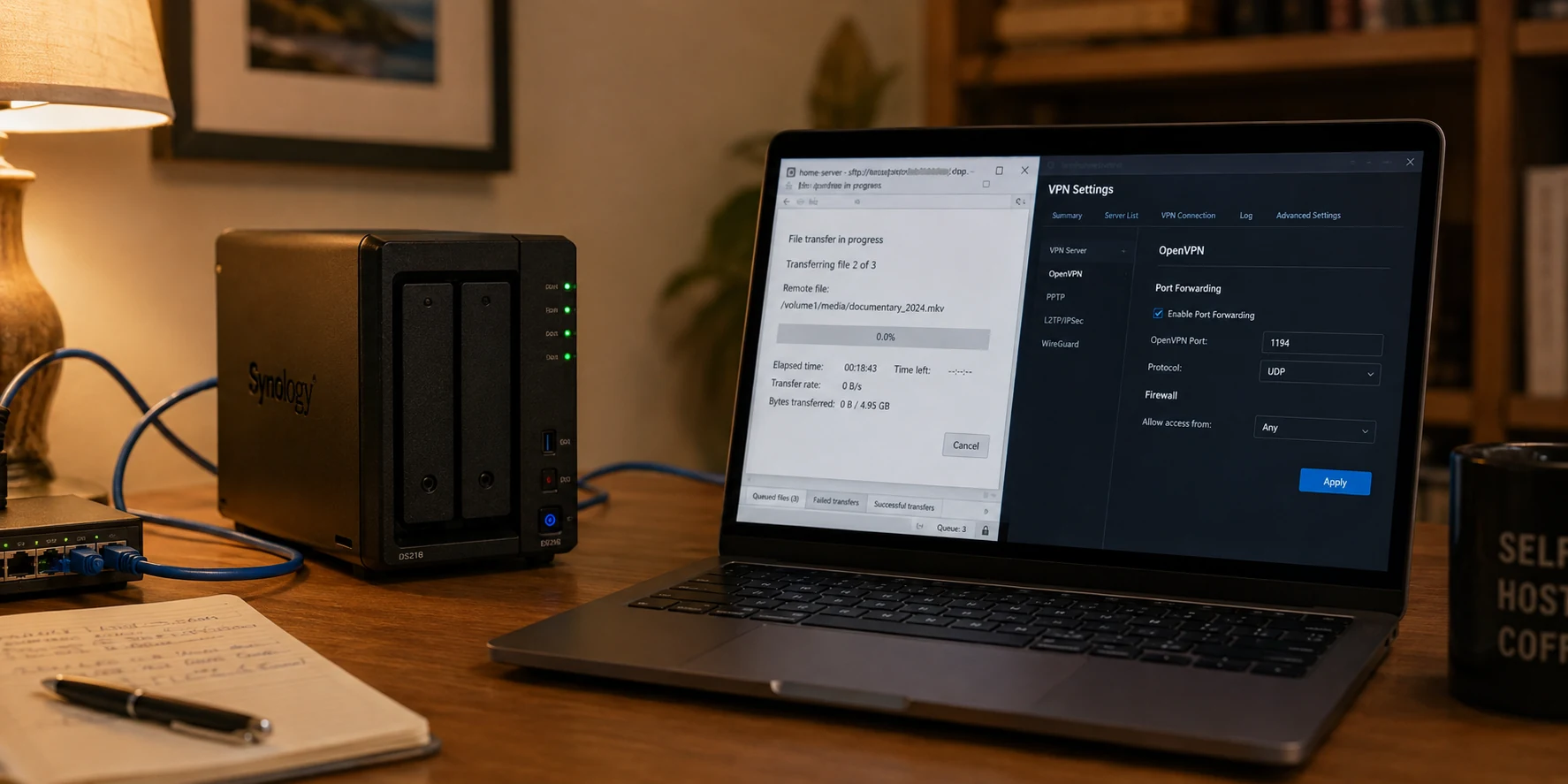
You have set up an immaculate port-forwarding rule in your router’s admin panel. You toggled UPnP off and on, added an inbound exception to your firewall, and restarted your client. Yet every online port-checker returns the exact same verdict in bold red text: Closed.
Before you spend another evening wrestling with local gateway settings, look closely at the port-checker tool on your screen. The public IP address it is testing almost certainly does not belong to your home router. It belongs to your VPN provider.
When port forwarding fails while an encrypted tunnel is active, the fastest path to a solution is not tweaking local settings. It is recognizing which device actually controls the doorway you are trying to open. If an incoming connection arrives at a remote VPN server, opening a matching port on your home Wi-Fi router does nothing. That traffic never touches your router’s public interface in the first place.
Article summary and product fit
Why can router port forwarding stop mattering once a VPN is connected?
With a commercial VPN active, outside peers usually connect to the VPN server’s public IP, not your home router’s public IP. That means the VPN provider controls the inbound door. If the provider supports forwarding, the assigned port must also match an active application listener and the local firewall. If the provider does not support inbound forwarding, no router rule can create that capability.
What matters in this article
- Best for: People troubleshooting closed ports for P2P apps, game servers, or remote services while connected to a commercial VPN.
- Key question: Who owns the public IP that the outside connection is trying to reach? That party controls the forwarding boundary.
- Closed-port nuance: A port checker needs an active listener. Provider forwarding can be correct while the test still reports closed because the app, interface binding, port number, or host firewall is wrong.
- Product fit and limit: OnlydogVPN is framed here for outbound privacy and stable browsing. The article explicitly says it is not a substitute when unsolicited public inbound connections are a non-negotiable requirement.
Sources already cited in this article: Proton VPN port-forwarding documentation; Tailscale private-network overview.
Find the Door the Connection Is Actually Using
Port forwarding solves the same basic problem in two entirely different places. Understanding the path an inbound packet takes reveals why router-based fixes immediately stall out once a VPN connects.
Without a VPN, an outside connection tries to reach your machine directly:
Public Home IP → Home Router → Device → Application
Here, your router acts as the primary gatekeeper. It holds your public IP, inspects inbound packets, and directs them to the local machine running your software. In this scenario, configuring your home router makes sense.
With an active VPN connection, the traffic path completely shifts:
VPN Public IP → VPN Server’s Forwarded Port → Encrypted Tunnel → Device → Application
When your VPN connects, your computer establishes an encrypted, outbound tunnel to an external server. The rest of the internet now sees you through the VPN server’s public IP address. When an outside peer, player, or tester attempts to connect to you, it addresses that remote server.
Your local router merely forwards an ongoing stream of encrypted outbound data between your PC and the VPN host. It has no visibility into what is traveling inside that tunnel, and its inbound forwarding rules never come into play. Opening port 54321 on your living room router does not manufacture an open port 54321 on a server running in an off-site data center.
This structural difference also puts common networking culprits like Carrier-Grade NAT (CGNAT) into perspective. CGNAT prevents standard router-based forwarding because your Internet Service Provider places another layer of address translation upstream, outside your control.
However, a VPN provider that explicitly supports port forwarding bypasses CGNAT entirely. The provider opens the public port on its own infrastructure and shuttles that traffic through your established outbound tunnel. If your VPN connection is up and documented forwarding is failing, CGNAT is not your bottleneck. The breakdown is happening along the tunnel path itself.
The decisive question is always: Who owns the public IP and port that the outside connection is trying to reach? If the answer is your VPN provider, stop configuring your router.
A “Closed” Port Does Not Mean the Provider Failed
When an online diagnostic tool reports a port as closed, it is easy to assume the VPN service dropped the ball. In reality, external testers do not detect open network paths—they detect an active listener.
A port test works by sending a packet to an IP address and waiting for a reply. If the VPN server correctly forwards the port through your tunnel to your computer, but nothing on your machine answers the knock, the checker reports the port as closed.
For an online test to turn green, every link in the chain must align simultaneously:
- The VPN provider must map an inbound public port to your active session.
- Your application must be running and actively listening on that identical port number.
- The application must listen on the correct network interface created by the VPN tunnel.
- The local operating system firewall must permit that inbound traffic.
Popular P2P software highlights how quickly this can slip out of sync. A client like qBittorrent requires you to specify an exact incoming listening port. If your provider assigns you port 48123, but your software is configured to use port 48120—or switches to a random port on startup—the connection terminates silently at your computer. The port is technically reachable, but there is no service listening on the other end to return a handshake.
Furthermore, applications that allow manual interface binding can run into stale configurations. If you bound your client to a specific virtual network adapter months ago and a software update altered the adapter name, inbound traffic reaching your machine will simply be ignored.
Dynamic mapping adds another wrinkle. Many privacy-focused VPNs do not grant permanent static port assignments; they generate a new, dynamic port each time you reconnect. If your connection drops overnight and silently re-establishes, your client may be listening on a port that the VPN server recycled hours ago.
Before assuming your provider’s infrastructure is broken, apply one foundational rule: Test the current VPN public IP and the assigned forwarded port only while your target application is actively running, bound correctly, and listening.
Trace the Failure in Sequence
Randomly jumping between client preferences, firewall tabs, and network properties turns an orderly troubleshooting process into a guessing game. Instead, follow the inbound path sequentially from the outside in. Each step isolates an entire category of failure.
Provider capability: Does the plan/server explicitly support port forwarding? Dynamic port assignment: Is the application using the VPN's current active port? Application listener: Is the app running and listening on the VPN interface? Host firewall: Does a rule permit inbound traffic for this executable?
Confirm Provider-Side Forwarding
Verify that your specific account tier, protocol, and connected server explicitly support incoming port forwarding. A provider advertising “P2P-friendly servers” or “unrestricted downloads” is not promising inbound port forwarding. Unless the provider features a dedicated port-forwarding switch or an assigned port mechanism in its interface, it does not supply an incoming door. If that feature is missing, stop troubleshooting—no local adjustment will make it work.
Match the Active Port Number
Check your VPN client to see which port has been assigned to your current session. Do not rely on an old port number saved in your client or a rule created last week. Copy the active port number directly from your VPN interface and paste it into your application’s incoming connection field.
Verify the Application Listener and Interface
Ensure the application is running and actively waiting for connections. If the software supports interface binding, confirm it is set to listen across all adapters or locked specifically to the virtual adapter your VPN currently uses. If your software listens solely on your physical Ethernet or Wi-Fi adapter, it will never process packets emerging from the VPN tunnel.
Check the Local Firewall
Your operating system’s firewall inspects packets after they emerge from the tunnel. Rather than turning the firewall off entirely—which introduces needless risk—verify that your application has an explicit inbound rule. On Windows, verify that the program executable is permitted to receive inbound connections on public or private profiles, depending on how your virtual network adapter is classified.
By testing these layers in order, you quickly pinpoint the exact breakdown: an absent provider capability, a port mismatch, an unconfigured listener, or a local security block.
When Nothing Is Misconfigured: Deciding on the Right Tool
If you work through that diagnostic sequence and discover your VPN provider simply lacks port forwarding, no amount of troubleshooting will resolve the issue. At this stage, the problem ceases to be a configuration error and becomes an architectural mismatch.
Before replacing your tools, clarify who actually needs to initiate the connection. Network setups generally fall into two broad buckets:
Case A: Unrestricted Public Reachability
If your workload requires arbitrary, unknown peers across the public internet to reach you—such as hosting a publicly listed game server or optimizing swarm connectivity in decentralized applications—you genuinely require public inbound reachability.
Your only option here is to use an infrastructure provider or VPN that deliberately maintains an inbound port-forwarding architecture. Services like Proton VPN document this workflow clearly: you connect to dedicated P2P nodes, enable forwarding in the client, obtain a dynamically assigned port, and mirror that port inside your software. If you must have open inbound access over a commercial VPN, you need a provider built specifically around that workflow.
Case B: Secure Private Access
Often, users pursue port forwarding for a much simpler task: connecting their laptop to an office workstation, checking an unraid/TrueNAS storage box from an airport, or hosting a private Minecraft world for a small circle of friends.
None of those use cases require exposing an open port to the public internet. In fact, broadcasting an open port to the wider web exposes your machine to automated port scanners and brute-force attempts.
For private access, modern mesh overlay networks like Tailscale offer a far safer, cleaner solution. Tailscale builds an encrypted virtual network between your authorized devices, using NAT-traversal techniques to connect them directly without conventional port forwarding or public-facing router rules. Your home server remains invisible to the wider web while staying fully accessible to your authenticated devices.
Match the Architecture to the Job
When a port checker displays a closed connection, resist the reflex to log into your router and start toggling toggles.
Start with the inbound connection request. If a commercial VPN is connected, traffic reaches the VPN IP. If the VPN forwards that port, check the app listener and local firewall; if it does not, the path is impossible because the VPN lacks that capability. If no commercial VPN is connected, traffic reaches the home IP. If the router forwards the port, check the app; if it does not, configure the router or check CGNAT.
Fixing network issues requires respecting where authority lives. A port can only be forwarded by the device or service that holds the incoming side of the connection. If you are operating over a VPN, that authority resides entirely on the provider's server.
This distinction is equally critical when selecting software. For standard day-to-day browsing, robust privacy shielding, and consistent outbound speeds, services like OnlydogVPN↗ offer reliable, high-performance tunnels that keep everyday traffic locked down and out of sight.
However, editorial honesty matters: if your non-negotiable technical requirement is receiving unsolicited, inbound public connections via an open port, an outbound-focused privacy VPN cannot substitute for a dedicated port-forwarding provider or an overlay network like Tailscale. Excellent outbound data protection does not magically open an inbound door.
The next time an inbound port check fails, pause before modifying your router settings. Identify whose public IP is answering the call, verify that an active door exists at that address, and ensure your application is waiting on the other side. Once you troubleshoot the correct network boundary, the failure stops being a mystery—and your router can remain completely untouched.
Frequently Asked Questions
Why does my router port-forwarding rule stop working when I connect a VPN?
Because outside traffic is now addressed to the VPN server’s public IP. Your home router only carries the encrypted tunnel and cannot open a matching port on the provider’s remote server.
Does a closed port test prove the VPN provider failed to forward the port?
No. The provider can forward correctly while your application is not listening on the assigned port, is bound to the wrong interface, or is blocked by the local firewall.
Does CGNAT still block port forwarding when the VPN provider forwards the port?
The article explains that provider-side forwarding can bypass your home CGNAT because the public inbound port exists on the VPN provider’s own infrastructure and traffic travels back through the established tunnel.
What if my VPN provider does not support port forwarding at all?
Local changes cannot create a missing provider-side feature. Use a service built for public inbound forwarding if arbitrary internet peers must reach you, or use a private mesh/overlay network when the real goal is access between trusted devices.