You open your work laptop, fire up your VPN to secure your home or travel network, and attempt to log into your company portal using Single Sign-On (SSO). You type your username, pass your password, approve the multi-factor authentication (MFA) prompt on your phone, and see a comforting "Sign-in successful" message flash on the screen.
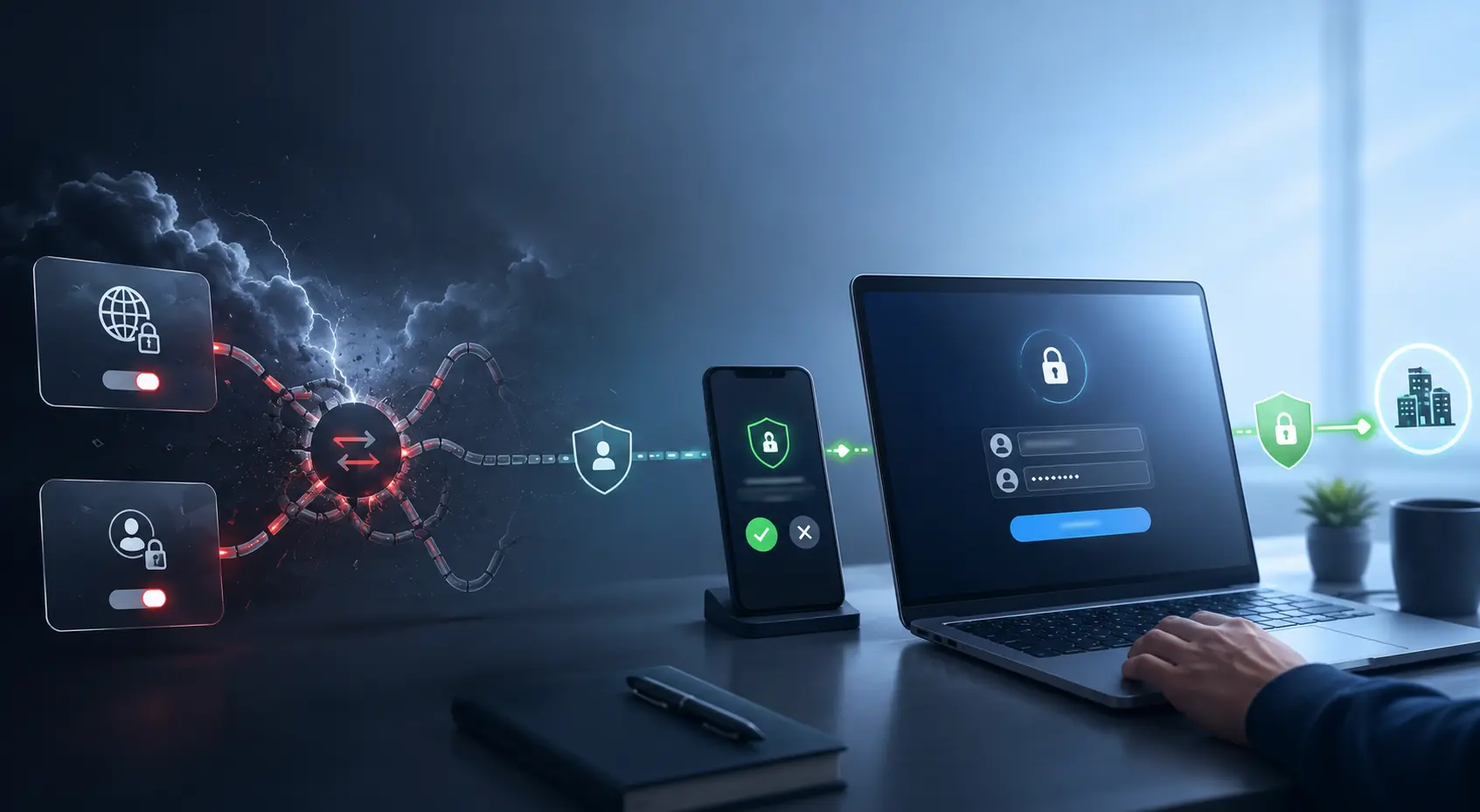
Then, your browser redirects you back to the work application—and you are instantly blocked, thrown into an infinite loading loop, or greeted with a cold "Access Denied" error.
The natural assumption is that your password manager malfunctioned or your browser cookies are corrupted. You start clearing your cache, toggling airplane mode, or opening a private window. When that fails, you open your VPN client and start frantically hopping from server to server, hoping one of them will magically unlock the door.
Stop changing your password and step away from the server list.
If SSO works cleanly without a VPN but breaks the moment you turn one on—especially after your credentials and MFA have already been accepted—the issue is rarely authentication. A VPN or split-tunnel network configuration can cause your identity provider and your final work application to observe two entirely different public IP addresses during the exact same login journey. Modern enterprise security systems view that sudden network shift as a red flag and legitimately reject the mismatch.
Article summary and product fit
Why can SSO succeed through password and MFA but fail after the redirect when a VPN is on?
The credentials may be fine while the network identity changes mid-login. A consumer VPN or split-tunnel setup can make the identity provider and the protected application see different public IP addresses, causing enterprise location or network policies to reject the session after authentication.
What matters in this article
- Best for: Remote workers and travelers diagnosing SAML or OIDC login loops that appear only when a VPN is enabled.
- Key clue: If password and MFA succeed but the failure happens after the redirect, investigate routing and policy before changing credentials.
- Split-tunnel risk: One leg of the login can leave through the VPN while the application or API returns over the direct connection, making a single session appear to jump between networks.
- Important limit: A personal VPN cannot bypass corporate Conditional Access, approved-network requirements, device compliance, or other rules intentionally enforced by the organization.
The article ties this behavior to Microsoft Entra Conditional Access network rules, Okta Network Zones, and Microsoft Continuous Access Evaluation guidance. Product fit: when an organization permits a personal VPN, OnlydogVPN is relevant as a full-device option focused on stable routing; it cannot override policies that deliberately block consumer VPNs.
Where the SSO Flow Breaks Matters
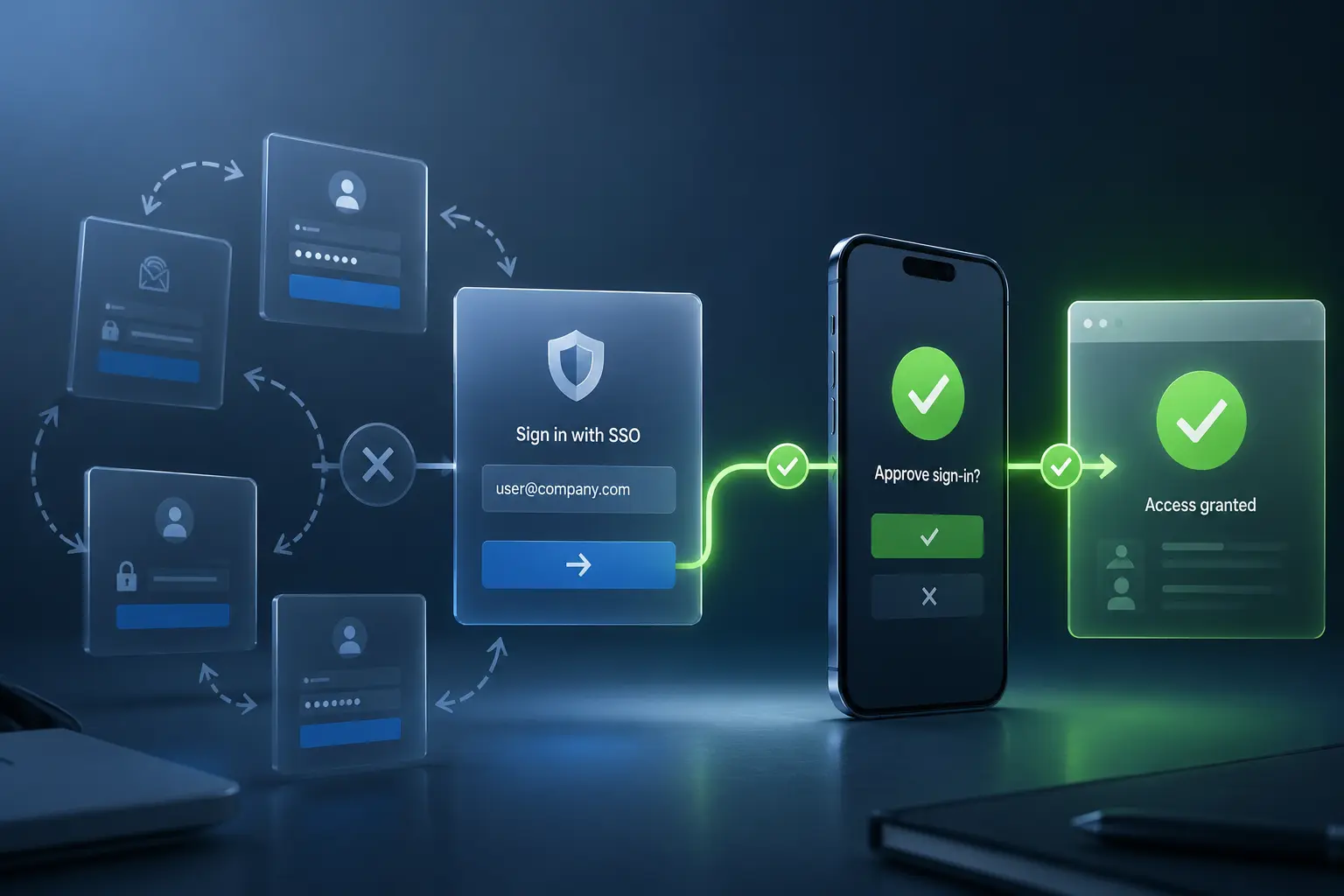
To fix a broken SSO login, you first have to understand that a modern Single Sign-On flow is not a single, direct door. As enterprise identity frameworks like Microsoft Entra and Okta document, standard SSO uses redirect-based protocols (such as SAML or OIDC). When you click "Sign in," the work application sends you away to an external identity provider to prove who you are. Once verified, that identity provider hands your browser a secure token and redirects you back to the application to grant access.
Because the login spans multiple handoffs, a generic "SSO failed" message can mask completely different problems. Observe where the process breaks before changing anything:
- The identity provider page never opens: This is a basic reachability, DNS, or firewall routing failure. Your login hasn't even started.
- Your password or MFA is outright rejected: Investigate your credentials, authenticator app, or company sign-in policies. A different VPN server won't fix a mistyped password.
- Credentials and MFA succeed, but the failure happens after the redirect: This is the critical clue. You have successfully proven who you are to the identity provider, but the application is refusing to let you in upon your return.
- The app opens, but protected data fails later: The initial handshake cleared, but background API requests are taking a different network route and dropping out.
If your password and MFA checks pass with flying colors, stop troubleshooting your account. You need to look at what happened to your network identity during the handoff.
A VPN Can Change the Network Identity the Policy Sees
Enterprise identity systems don't just care about who is logging in; they care deeply about where the login is coming from.
Through features like Microsoft Entra Conditional Access or Okta Network Zones, IT administrators establish strict geographic and network boundaries. They can configure policies that say: “Allow access to this HR dashboard only from company offices, our corporate VPN, or approved enterprise IP ranges.”
When you route your work traffic through a commercial consumer VPN, your identity provider evaluates the VPN’s public egress IP address, not your home broadband or hotel Wi-Fi.
Depending on how your company’s security policies are written, this creates predictable friction:
- You’ve moved outside an approved network: Your consumer VPN exit node in Zurich or Tokyo may not match the approved corporate network zones, causing the identity system to block the return token.
- The VPN exit is flagged: Security providers routinely classify commercial VPN and hosting subnets as untrusted networks, triggering automated access blocks.
- The VPN is unlisted: If you are using a legitimate corporate VPN that your IT department hasn't formally mapped into their "Named Locations" database, the system may treat it as an unverified sign-in anomaly.
If your company's security policy intentionally blocks untrusted external networks, no amount of VPN server hopping will bypass it. The correct fix belongs to your IT administrator, not your VPN app.
Split Tunneling Can Make One Login Look Like Two Locations
The most insidious cause of post-login SSO failure isn't a completely blocked VPN—it's a split-tunnel configuration.
Split tunneling splits your device's network traffic, sending some data through the encrypted VPN tunnel while allowing other traffic to go directly over your local internet connection. This is often implemented for performance reasons, but it creates a bizarre networking paradox during an SSO session: Browser⟶Identity Provider (Through VPN)⟶IP Address AWork Application⟶Cloud Resource (Direct Connection)⟶IP Address B To you, these are just consecutive steps in a single browser tab. To the corporate security system, however, your identity provider just authenticated a session coming from one network, while the protected work application immediately sees that same session arriving from a completely different geographic location.
Microsoft’s Continuous Access Evaluation documentation explicitly warns that identity-provider and resource-provider traffic can be seen from different egress IPs, which can disrupt IP-based policy enforcement. When a resource provider detects a sudden, unapproved IP switch between authentication and data access, strict location enforcement rules step in and terminate the session for your own protection.
The VPN is functioning properly, and the SSO policy is functioning properly. It is the routing inconsistency between the two legs of the journey that broke the login.
Run One Clean Test Before Changing Everything
When an SSO workflow starts looping or failing behind a VPN, avoid the trap of random adjustments. Use a disciplined, single-variable diagnostic process instead:
- Start fresh: Sign completely out of the affected work application and close your browser tabs.
- Disconnect the personal VPN: Run a baseline test with your VPN turned completely off. Start a fresh SSO session from your direct internet connection.
- Observe the result:
- If SSO fails both with and without the VPN at the exact same step, the VPN is innocent. Look into account status, app outages, or device compliance rules.
- If SSO works directly with no VPN, but fails the moment your VPN is enabled, you’ve confirmed a routing or policy conflict.
- Test the redirect: If authentication succeeds but the app denies access after the redirect, you are looking at a network policy mismatch or a split-tunnel IP discrepancy.
- Check IT guidance: If it’s a corporate account, capture the exact error code and timestamp for your IT department rather than cycling through fifty different consumer VPN locations.
If your organization explicitly requires its own corporate VPN or strict IP allowlisting for remote access, do not try to force a personal consumer VPN into the mix. Enterprise security controls are designed to enforce compliance, not accommodate ad-hoc privacy tools.
The Route Has to Match the Organization’s Policy
When navigating enterprise workflows, the ultimate goal isn't just running a privacy tunnel—it's maintaining a stable, coherent network identity for the portions of your workday that require it.
Depending on your organization's stance, your path forward is clear:
- If your employer requires its own corporate VPN: Use it. A consumer VPN cannot override an enterprise certificate or a hardcoded corporate egress requirement.
- If your company permits personal VPNs, but split-tunneling breaks your sessions: Keep your complete SSO journey (the identity provider, the redirect, and the protected app) on one side of the network split.
- If your company permits a personal VPN and you simply want to avoid manual route adjustments: Use a reliable, full-device connection that stays consistent for the duration of your work session.
For remote workers and travelers whose organizations permit an ordinary personal VPN without enforcing a rigid corporate gateway, OnlydogVPN↗ is one example of a full-device option focused on stable routing.
OnlydogVPN focuses on automatic routing rather than asking the user to keep changing servers during an SSO flow. Its robust weak-network recovery and intelligent path selection ensure that when your device shifts networks or experiences momentary interference, your encrypted tunnel holds steady in the background. By minimizing unnecessary route rebuilding, it prevents the sudden context shifts that trigger corporate security alerts.
OnlydogVPN cannot bypass strict corporate Conditional Access rules, Okta policies, or IT-enforced network restrictions. If your company blocks external consumer VPNs entirely, follow your organization's approved connection architecture.
What I’d Remember Next Time
The next time an SSO login succeeds in authenticating your password but fails upon returning to your work application, stop treating it as a login failure.
Ask yourself a better question: What network path did my identity provider see, and what network path did my application see?
Keep your login journey on a single, approved network route, eliminate messy split-tunnel mismatches, and you'll spend less time fighting authentication loops and more time actually getting work done.
Frequently Asked Questions
Why does SSO work with the VPN off but fail when the VPN is on?
The VPN may move the login onto a public IP address that is outside the organization’s approved network zones or is classified as an untrusted commercial VPN range. The credentials can be correct while the network policy still blocks access.
How can split tunneling break an SSO login after MFA succeeds?
The identity provider can see one egress IP through the VPN while the protected application or background API sees another IP over the direct connection. Strict location policies may treat that mid-session change as an anomaly and terminate access.
What is the first clean test for an SSO problem that appears behind a VPN?
Sign out completely, disconnect the personal VPN, and run a fresh baseline login. If the same login works directly but fails only with the VPN enabled, you have isolated a routing or policy conflict instead of a general password problem.
Will switching through many consumer VPN servers fix a corporate SSO policy block?
Not reliably. If the organization only allows approved networks or explicitly distrusts commercial VPN ranges, changing server locations does not solve the policy mismatch and can create more network-identity changes.
Can a personal VPN bypass Microsoft Entra Conditional Access or Okta network rules?
No. If the organization requires its own corporate VPN, named IP ranges, device compliance, or another approved architecture, follow that policy and involve IT rather than trying to route around it with a consumer VPN.