Nothing happens. The loading wheel spins indefinitely, a generic error message warns that "something went wrong," or the app flatly informs you that access is denied because an anonymous proxy was detected. Meanwhile, your phone seems completely fine: maps navigate, chat apps ping, and your VPN displays an active, reassuring green status.
The instinctive reaction is to start cycling servers. You switch from London to Frankfurt, jump to New York, toggle airplane mode, clear the application cache, or consider reinstalling the app entirely.
Stop doing that. When an airline app balks while your VPN is connected, cycling through random locations rarely fixes anything and wastes precious minutes. The fastest, safest resolution is to run one sixty-second test, complete your time-sensitive transaction over a clean direct route, and turn your protection back on once the boarding pass is secured.
Article summary and product fit
What should you do when an airline app stops working only while a VPN is on?
Run one controlled VPN-on versus VPN-off test. If the airline task works immediately on the direct route, finish the time-sensitive transaction on one stable connection—preferably cellular—save the boarding pass offline, then restore the VPN afterward.
What to keep in mind
- Best for: Travelers facing check-in, payment, seat-change, rebooking, or boarding-pass failures while a VPN is connected.
- Key point: Airline transactional endpoints can apply stricter anti-bot and fraud checks than ordinary browsing, while airport and in-flight networks may also restrict VPN traffic.
- Product fit: OnlydogVPN is presented as a travel-oriented option for reducing reconnection and route-management friction after the exception, using automatic route selection and HTTP/3-based weak-network recovery.
- Important limit: The article explicitly says no reputable VPN can force a strict anti-fraud system to accept a commercial VPN route; when a transaction rejects it, use the allowed direct path and re-enable protection afterward.
Sources already used in this article: Apple connectivity troubleshooting; Singapore Airlines onboard Wi-Fi tips; Emirates mobile app help; OnlydogVPN official website.
Before You Change Servers, Run One 60-Second Test
When time is short, the goal is not to reverse-engineer an airline’s security stack. The goal is to determine whether the VPN route is the active bottleneck by isolating a single variable.
Skip the DNS flush, protocol switches, and phone reboots. Instead, run this sequence:
Attempt the airline task with your VPN active to verify the failure.
Disconnect the VPN and immediately retry the exact same action.
If it works right away: The VPN route is your compatibility trigger. Stop troubleshooting your device; you found the bottleneck.
If it still fails: Disconnect from local Wi-Fi and retry over cellular data alone, or open your mobile browser and navigate to the airline’s mobile site.
Only if both VPN-on and VPN-off attempts fail: Turn your attention to native app bugs, outdated builds, airline backend outages, or account holds.
Apple specifically notes in its connectivity support documentation that VPNs and third-party security software frequently interfere with normal network connections, making this quick toggle a fundamental diagnostic test rather than a blind guess. In fact, major carriers know this happens: on the iOS App Store, Korean Air customer support has explicitly advised passengers to temporarily disable their VPN to bypass persistent in-app loading errors.
Why the Airline Can Fail While the Rest of Your Phone Works
Why does this failure happen when messaging, email, and ordinary web browsing work without issue? The explanation comes down to three distinct friction points.
Automated IP Classification
A VPN changes the public IP address presented to web infrastructure. Major enterprise security platforms and content delivery networks, such as Cloudflare, maintain managed threat intelligence lists that automatically track and tag commercial VPN exit nodes, hosting providers, and anonymizers. An airline does not need an absolute policy against privacy tools to trip these defenses; identifying traffic emerging from a shared data center is an automated industry standard.
High-Stakes Transactional Endpoints
Accessing an airline reservation is fundamentally different from reading a news article. Logging into a loyalty account, adjusting itinerary details, checking in, and submitting payments sit behind strict anti-bot and fraud-prevention filters. Because ticket scalpers, credential-stuffing bots, and payment fraud operations frequently route through commercial proxies, security engines monitor these specific transactional gateways aggressively. An exit node can browse the open web smoothly while the airline’s booking API refuses its requests.
Underlying Network Constraints
Sometimes the airline app is blameless, and the airport or cabin network is creating the block. Public hotspots regularly trap outbound traffic behind captive sign-in portals. Furthermore, in-flight systems often restrict VPN protocols deliberately to manage satellite bandwidth. Singapore Airlines, for instance, explicitly instructs passengers connecting to its onboard Wi-Fi to switch off their VPNs, stating that VPN connections are not supported on the service.
When an app throws a connection error, it rarely means your VPN software is defective. It simply means that specific endpoint has classified the route as high-risk or unsupported.
For Check-In, Payment, or a Boarding Pass, Give the Airline One Stable Path
If disconnecting your VPN instantly allows the airline app to load, accept the verdict: do not jump between cities mid-booking just to keep the VPN icon lit. Every server hop tears down the route, alters your public IP, and raises red flags within payment and fraud systems.
Give the airline transaction a clean, stable window:
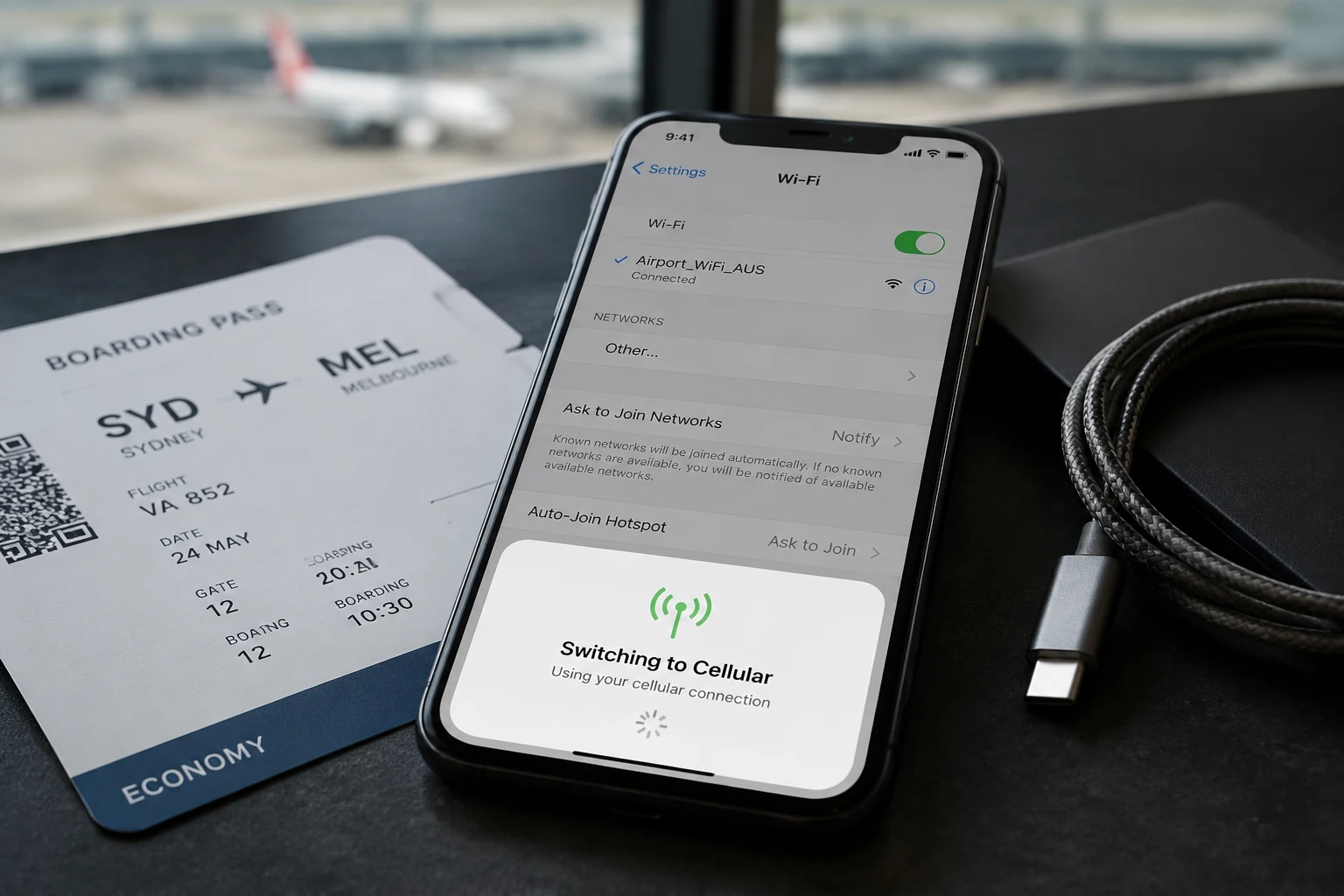
VPN off → Cellular data → Finish the transaction → Save the result → VPN back on.
Cellular data is ideal here because it bypasses both the flagged VPN node and the inconsistent behavior of public Wi-Fi. If cellular is unavailable, use the already-authenticated Wi-Fi and keep the network path unchanged until you are done.
Prioritize what cannot wait:
Completing the check-in window;
Confirming an urgent seat change or rebooking;
Finalizing a payment authorization;
Retrieving the digital boarding pass;
Saving the pass offline immediately.
Carriers like Emirates explicitly design their mobile sites to handle core functions if the native app falters, while also maintaining offline access for cached boarding passes. Add your pass directly to Apple Wallet, Google Wallet, or save a clear screenshot. Once that barcode is stored locally on your device, you are insulated from signal dead zones and gate connectivity issues for the rest of the day.
Turning the VPN Off Once Does Not Mean You Should Travel Without One
Temporarily disconnecting a VPN to check in does not mean you should abandon encrypted protection for the remainder of your trip.
Consider Singapore Airlines’ contrasting guidance: the airline officially recommends using a VPN when accessing frequent flyer accounts over unsecured public Wi-Fi networks to safeguard personal data. Yet on its aircraft, it requires passengers to turn VPNs off to access in-flight Wi-Fi. Both policies make sense within their operational contexts.
Apply that same balance to your travel habits:
Use your VPN as your default travel baseline; treat a transaction that demonstrably rejects it as a 90-second exception.
If an airline app requires a direct connection and you want to avoid an open airport hotspot, use mobile roaming or a personal hotspot for that single task. Once the ticket is issued, re-enable your protection.
This operational cycle is where OnlydogVPN↗ is one example of a travel-oriented VPN workflow.
The persistent nuisance of traveling with privacy tools is not the encryption itself—it is the friction of toggling, stalled handoffs, and managing fragile reconnects across shifting transit environments. You should not have to spend your travel day managing server menus every time an app demands an exception.
OnlydogVPN approaches this with automatic route selection and modern HTTP/3-based transport. Rather than forcing you to test regional server lists manually, it dynamically identifies the most stable, responsive path behind the scenes. More importantly, its weak-network and switching recovery ensures that when you step away from airport Wi-Fi to cellular—or when you briefly disconnect to pull a boarding pass and switch the tunnel back on—the connection recovers cleanly without stalling active background applications.
OnlydogVPN does not promise to magically force a strict anti-fraud system to accept a commercial VPN route. No reputable provider can claim that. The practical point of that design is reducing the travel friction around that reality: providing a resilient connection that stays out of your way, lets you drop out cleanly for an urgent check-in, and restores protection in an instant without turning your trip into an IT project.
Protect the Trip, Not the VPN Connection
When you have forty minutes before baggage drop closes, your priority is simple: secure your seat, grab your boarding pass, and board the plane. The VPN is an operational tool, not an ideological test. Keeping a status icon lit is never worth missing a check-in cutoff or losing an upgrade.
Keep this hierarchy ready whenever an airline app stalls:
Compare with VPN off: If the app loads immediately, finish your transaction on that clean route.
Prefer cellular for the exception: If you are wary of public Wi-Fi, run the transaction over mobile data.
Clear the local captive portal first: Ensure airport or hotel Wi-Fi terms are accepted before debugging apps.
Pivot to the mobile web: If the native app fails even without a VPN, open the airline’s site in your mobile browser.
Restore protection once finished: Once the pass is safely in your digital wallet, switch your VPN back on.
A dependable travel setup is not one that forces a VPN connection at all costs. It is knowing how to isolate an obstacle in sixty seconds, secure your flight, and step back into full protection for the journey ahead.
Frequently Asked Questions
What is the fastest first test when an airline app fails behind a VPN?
Retry the exact same airline action with the VPN disconnected. If it works immediately, the VPN route is the compatibility trigger; if it still fails, try cellular data or the airline’s mobile website before blaming the VPN.
Why can the airline app fail while maps and messaging still work?
Booking, loyalty, check-in, and payment endpoints can sit behind stricter anti-bot and fraud controls that classify commercial VPN or hosting exits differently from ordinary browsing traffic.
Should I keep changing VPN countries during check-in or payment?
No. The article recommends one stable path for a time-sensitive transaction because repeated server changes alter the public IP and can add more friction to fraud and payment checks.
Is it reasonable to turn the VPN off temporarily while traveling?
Yes, when a specific airline transaction demonstrably rejects the VPN. The article recommends using cellular data if possible, completing and saving the result offline, and then re-enabling the VPN for the rest of the trip.