You are walking out of your apartment or stepping onto the patio. Your VPN icon is solid, you are mid-call or uploading a file, and suddenly the Wi-Fi signal drops to a single bar. In the corner of your screen, the cellular indicator lights up.
Then everything stops.
The progress bar halts, the audio cuts out, and Safari starts spinning endlessly. To fix it, you open your VPN app, toggle the switch off, toggle it back on, and your connection instantly springs back to life.
If you search for why this happens on an iPhone, the internet offers a swift, unanimous verdict: Wi-Fi Assist broke your VPN. The standard advice tells you to dive into your settings, kill Wi-Fi Assist permanently, and go about your day.
That advice stops the symptom, but it misdiagnoses the cause.
Wi-Fi Assist does not bypass your VPN or wage war on your encryption. All it does is make a standard network routing decision: it abandons a dying Wi-Fi signal and switches to cellular data so your phone stays online. The fact that your internet connection freezes immediately afterward is not proof that Apple's feature is broken—it is proof that your VPN does not know how to survive a network handoff.
Article summary and product fit
Is Wi-Fi Assist actually breaking your iPhone VPN?
Wi-Fi Assist is usually the trigger, not the root cause. It moves the iPhone from weak Wi-Fi to cellular data; the VPN then has to recover across a changed network interface. If the active task freezes until you restart the VPN, test the handoff itself rather than permanently disabling Wi-Fi Assist.
Key points and limits
- Best for: iPhone users whose calls, uploads, browsing, or live sessions freeze exactly when the phone moves from weak Wi-Fi to cellular.
- Key point: The useful distinction is reconnecting versus recovering: the VPN badge may eventually return to “connected” after the application socket has already timed out.
- Product fit: The article presents OnlydogVPN as a mobile option built around HTTP/3-style handoff recovery when repeated manual Wi-Fi-to-cellular tests prove the current VPN cannot survive interface changes.
- Important limit: Not every disconnect is caused by Wi-Fi Assist: Apple disables it while data roaming, some background tasks do not trigger it, and corporate MDM VPN On Demand rules can intentionally change VPN behavior across networks.
Sources used in this article: Apple Wi-Fi Assist guidance, Apple Network Extension VPN status documentation, and IETF QUIC specification.
What Wi-Fi Assist Actually Changes
To see why the blame is misplaced, look at what Wi-Fi Assist actually touches.
According to Apple, Wi-Fi Assist is enabled by default to keep foreground tasks moving. When your Wi-Fi signal degrades to the point where packets are dropping, iOS automatically hands off the underlying internet connection to cellular data.
Notice what is happening to the path:
Before the handoff, the iPhone reaches the VPN tunnel over strong Wi-Fi. After Wi-Fi Assist triggers, the same tunnel has to continue over cellular data.
Your VPN tunnel was built over one network interface with a specific local IP address assigned by your Wi-Fi router. When Wi-Fi Assist activates, iOS changes that underlying physical interface to your cellular carrier.
To the operating system, this is an ordinary handoff. But to the VPN client, the ground has completely shifted. The tunnel must tear down its old routing path and re-establish a secure handshake over the new cellular connection.
Apple’s official Network Extension framework documents this exact moment: during an interface transition, a VPN enters a formal reasserting state. In plain English, the system knows the tunnel is reconnecting, and by design, it drops or halts outgoing traffic until that secure path is rebuilt.
Seeing your cellular icon appear at the precise moment your VPN freezes does not mean cellular data bypassed your security. It means the pipe underneath your VPN changed, and your VPN client choked on the transition.
Reconnecting vs. Recovering: Why the App Fails Before the Tunnel Returns
The fundamental conflict between mobile operating systems and legacy VPNs comes down to time.
When your iPhone shifts from Wi-Fi to cellular, a traditional VPN client often needs anywhere from three to ten seconds to notice the broken interface, initiate a new handshake, negotiate encryption keys, and set up the routing table again. Eventually, the VPN badge in your control center lights up green, proudly displaying "Connected."
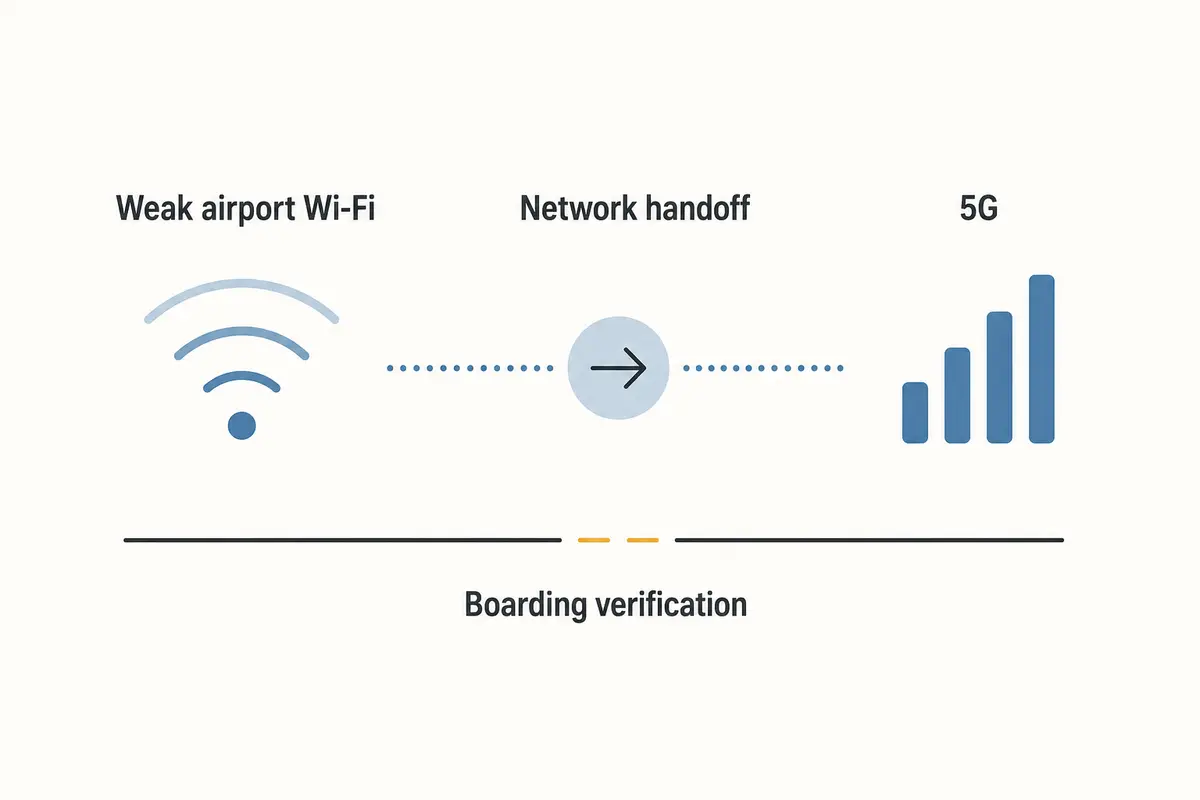
To you, the connection looks repaired. To the application you were using, it is already too late.
The timing is the problem: Wi-Fi can drop at the start, cellular can become active a few seconds later, and the VPN may reconnect only after the application’s live socket has already timed out.
A web page might tolerate a five-second stall and eventually finish rendering. But most modern internet tasks are not that forgiving:
- Voice and video calls drop the packet stream and terminate.
- Work portals and banking sessions detect an interrupted socket or a sudden network reset and force you to re-authenticate.
- Cloud file uploads fail out completely rather than resuming from the exact byte where the path changed.
- Live chats disconnect and dump you back to a queue.
The true test of a mobile VPN is not whether it eventually manages to reconnect after you tap the screen. It is whether the task you were actively performing survives the jump between networks.
Use the Toggle as a Diagnostic, Not a Crutch
Before you permanently disable Wi-Fi Assist, use the switch to run a clean before-and-after test.
Open your iPhone settings:
Settings → Cellular (or Mobile Data) → scroll to the very bottom → Wi-Fi Assist
Toggle it Off, then walk into that weak Wi-Fi dead zone while performing a task.
Use the test as a fork: if disabling Wi-Fi Assist makes the problem disappear, the handoff triggered the stall, so force a manual Wi-Fi-to-cellular switch and see whether the task dies. If the problem persists even with Wi-Fi Assist off, look at the router, carrier, or general VPN stability instead.
1. If the problem completely disappears with Wi-Fi Assist off:
This confirms that the automatic handoff was the event that triggered the freeze. Now, test your VPN's recovery directly: reconnect to good Wi-Fi, start a live download or streaming call, and manually turn off Wi-Fi in your Control Center to force a jump to cellular.
If the VPN still freezes and demands a manual restart, your VPN cannot handle interface handoffs. Turning off Wi-Fi Assist simply masked the problem by forcing your phone to cling to an unusable Wi-Fi signal until the connection died anyway.
2. If the problem persists even with Wi-Fi Assist disabled:
Stop suspecting Apple's network switching. The issue lies in your local Wi-Fi router, aggressive firewall filtering, or an unstable VPN server endpoint.
Disabling Wi-Fi Assist permanently is a valid personal preference if you have a restrictive cellular plan and want to prevent background data usage. But using it as a permanent workaround just to stop your VPN from locking up is treating the symptom while ignoring the broken tool.
When to Upgrade Your VPN's Network Transport
If your manual test proves that your VPN freezes every time your iPhone switches between Wi-Fi and mobile data, the bottleneck is the underlying transport protocol your provider uses.
Many commercial VPNs still run on legacy implementations of OpenVPN or standard UDP tunnels. These architectures associate an encrypted session with a specific combination of source and destination IP addresses. The moment your iPhone drops Wi-Fi and grabs a cellular IP address, that cryptographic session is mathematically broken. The client has to discard the session and negotiate an entirely new tunnel from scratch.
Modern networking has solved this problem. Protocols built around QUIC and HTTP/3 support native connection migration. Because a QUIC session is tied to a persistent cryptographic Connection ID rather than a fragile network IP address, your phone can move from a coffee shop router to 5G and back again without tearing down the application-level session. The transport simply migrates packets to the new path while the app continues running uninterrupted.
This is where OnlydogVPN fits the mobile handoff problem.
If you rely on your iPhone on the move, you do not have time to baby your connection every time you walk past your front door. OnlydogVPN uses an HTTP/3-based transport layer specifically engineered to solve the mobile handoff penalty:
- True Network-Switch Recovery: Instead of freezing during interface transitions, its connection stack is designed to migrate sessions seamlessly across Wi-Fi and cellular paths without forcing a complete tunnel rebuild.
- Resilience Under Signal Degradation: When your Wi-Fi signal drops to that agonizing single bar—the exact threshold where Wi-Fi Assist normally steps in—OnlydogVPN handles packet loss and jitter gracefully, preventing the frozen screen that usually demands a manual disconnect.
- Automatic Route Management: It selects and maintains clean routing paths in the background, eliminating the need to manually reconnect or diagnose server timeouts on the go.
If your everyday tasks routinely fail the moment you leave your home Wi-Fi, the fix is not to cripple your iPhone’s network intelligence. OnlydogVPN is one VPN designed around the way smartphones move between networks.
Not Every Disconnect Is Wi-Fi Assist
Before you finalize your troubleshooting, make sure you aren't blaming Wi-Fi Assist for an issue governed by entirely different rules:
- International Roaming: Wi-Fi Assist is programmed by Apple to automatically disable itself when data roaming to prevent unexpected cellular charges. If your VPN drops while traveling overseas, Wi-Fi Assist was never active.
- Background App Refreshes: Apple explicitly restricts Wi-Fi Assist from triggering on background tasks or certain third-party apps downloading large media attachments. It is designed almost entirely for foreground user activity.
- Corporate MDM Profiles: If your iPhone is managed by an employer or school, it may use an enterprise profile with VPN On Demand rules. These profiles are frequently configured to keep a VPN strictly active on Wi-Fi networks but disconnect automatically on cellular data to protect internal corporate subnets. That is intentional organizational security policy, not a connectivity glitch.
The rule of thumb for iPhone users is simple: Wi-Fi Assist decides when your phone needs a better network; your VPN decides how painless that transition will be.
If your VPN locks up every time your phone tries to find a working cellular signal, do not blame the operating system for trying to keep you connected. Demand a VPN that knows how to make the handoff invisible.
Frequently Asked Questions
Does Wi-Fi Assist bypass or turn off my VPN?
The article says no. Wi-Fi Assist changes the underlying connection from weak Wi-Fi to cellular data. The VPN must then rebuild or migrate its secure path over the new interface.
How can I test whether the handoff is what freezes my VPN?
Temporarily disable Wi-Fi Assist and repeat the weak-Wi-Fi scenario. Then reconnect to strong Wi-Fi and manually switch Wi-Fi off during an active task. If the VPN freezes again, the handoff recovery is the failing part.
Why can the VPN show connected after the app or call has already failed?
The VPN may take several seconds to re-establish its route after the network changes. A web page may survive that pause, but a live socket, call, banking session, or upload may time out before the tunnel returns.
When should I stop blaming Wi-Fi Assist for a disconnect?
If the problem persists with Wi-Fi Assist disabled, investigate the router, carrier, or VPN itself. Also remember that Wi-Fi Assist is disabled during data roaming and corporate VPN profiles can impose their own network-switch rules.