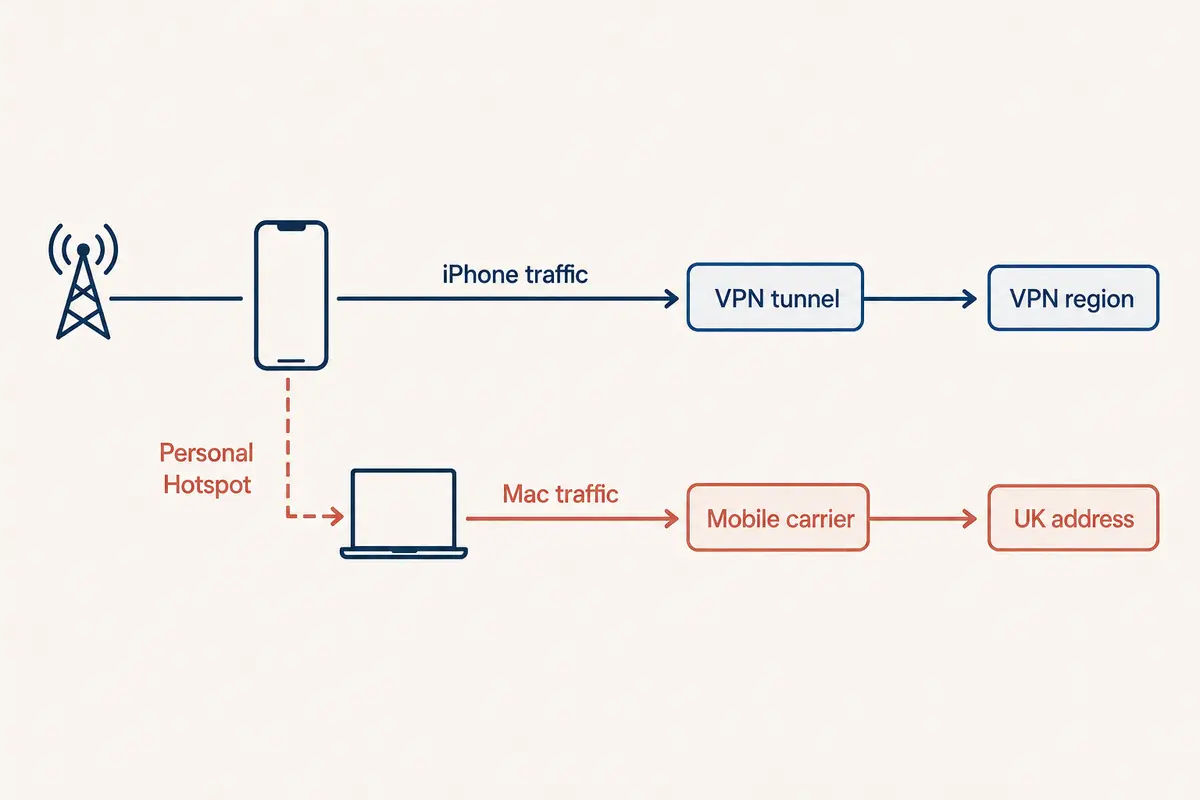
Picture this scenario: You are traveling, your laptop needs a reliable connection, and your iPhone is serving as a lifeline with Personal Hotspot active. On your iPhone screen, your VPN app shows a reassuring green shield, routing your mobile traffic securely through a server across the globe. You open your laptop, connect to the phone's Wi-Fi network, and assume your computer is safely riding inside that exact same encrypted tunnel.
Then, you check your laptop's public IP address. It’s broadcasting your mobile carrier’s raw, unmasked local location.
Nothing is broken. Both your iPhone and your laptop are communicating perfectly. What failed was the assumption that turning on a VPN on your phone magically transforms your mobile device into a portable, encrypted Wi-Fi router for everything attached to it.
When sharing an iPhone's connection, trying to figure out how to "share" your active VPN tunnel is a dead end. Apple treats device-level networking and internet tethering as separate systems. To get real protection, you need to stop changing hotspot settings and make a foundational architectural decision: run the VPN directly on each tethered device when possible, or use a dedicated gateway router when the device cannot run a VPN app.
Article summary and product fit
Does an iPhone Personal Hotspot share the iPhone’s active VPN tunnel?
No. In the setup described here, Personal Hotspot shares the iPhone’s cellular internet connection, while the VPN protects traffic originating on the iPhone itself. A tethered laptop should run its own VPN client; devices that cannot run one need a real upstream VPN gateway such as a compatible travel router.
What matters most
- Best for: Travelers tethering laptops, tablets, consoles, or streaming devices through an iPhone.
- Key point: A VPN icon on the iPhone does not certify the public IP or tunnel status of devices behind Personal Hotspot.
- Important limit: Switching the tether from Wi-Fi to USB or Bluetooth changes the local link, not where the VPN tunnel lives.
The networking boundary is explained with Apple’s Personal Hotspot guide, the Network Extension framework, and Apple’s VPN routing documentation.
Contextual product fit: The article uses OnlydogVPN as an example of the endpoint model: install a native VPN client on each supported phone or computer rather than assuming the iPhone hotspot forwards one shared tunnel.
The VPN Icon on Your iPhone Does Not Certify the Devices Behind It
To fix the problem, you have to separate two distinct networking tasks that happen to run under the same piece of glass:
- Personal Hotspot: Apple explicitly designs Personal Hotspot to share an iPhone’s cellular internet connection with nearby devices using Wi-Fi, Bluetooth, or a USB cable. (Apple's architecture also enforces a hard boundary: an iPhone cannot join a local Wi-Fi network and then rebroadcast that Wi-Fi through its hotspot—it shares cellular data exclusively).
- The VPN Client: An active VPN on iOS uses Apple’s Network Extension framework to build an encrypted local interface that tunnels traffic originating on the Apple device itself, according to specific app routing rules.
When you turn on both features simultaneously, your iPhone acts as an internet bridge for your laptop while acting as a standalone encrypted node for itself.
Apple’s official deployment documentation reinforces this boundary, noting that system-level filtering profiles on an iPhone do not automatically extend to Personal Hotspot traffic. Tethered data bypasses the phone's local virtual tunnel. The VPN symbol on your iPhone status bar certifies the phone's traffic alone—it tells you nothing about the laptop tethered to it.
Switching From Wi-Fi Hotspot to USB Does Not Move the VPN
When users realize their tethered laptop isn't protected, they frequently fall down a frustrating troubleshooting rabbit hole: they disconnect from Wi-Fi hotspot mode, plug in a Lightning or USB-C cable, and try USB tethering, or toggle Bluetooth.
It feels like a network change, but functionally, it changes nothing.
Apple supports Wi-Fi, Bluetooth, and USB as three alternative physical links to access the exact same underlying service:
Wi-Fi, USB, or Bluetooth Link⟶iPhone Personal Hotspot Bridge⟶iPhone Cellular Connection
Switching from a wireless hotspot to a USB cable changes your local link stability, charging behavior, and latency. It does not relocate the VPN client from your iPhone onto your laptop.
If your laptop is still showing your local carrier's IP address, or if regional geo-blocking fails on your computer while working fine on your phone, toggling USB modes won't help. Likewise, switching VPN servers on your phone won't affect traffic that never entered the phone's tunnel in the first place.
Before wasting time swapping cables, run a fast verification test:
- Connect your VPN on the iPhone and check its public IP/region.
- Connect your laptop to the Personal Hotspot.
- Open a browser on the laptop and check its public IP address independently.
If the laptop displays your local carrier location while the phone shows your VPN exit, the diagnostic is complete. Stop tweaking hotspot settings and look at the laptop.
If the Second Device Can Run a VPN, Put the Tunnel There
For the vast majority of users carrying a Mac, Windows laptop, tablet, or secondary phone, the cleanest, most robust architecture is simple: let the iPhone supply the cellular internet, and let the endpoint device run its own independent VPN tunnel.
iPhone Cellular Data⟶Personal Hotspot⟶Laptop⟶Laptop’s VPN Tunnel⟶Internet
This approach immediately solves several common headaches:
- Protection is observable: Your laptop displays its own active VPN status and its own verified exit IP. You don't have to guess or trust an icon on a completely different piece of hardware.
- Protection travels with the device: If you pack up your laptop, leave the iPhone hotspot behind, and connect to a hotel Wi-Fi network or office Ethernet, your VPN stays securely attached to your laptop.
- Failures stay isolated: If your laptop’s VPN temporarily hiccups, it doesn't destabilize every other device sharing your mobile data.
When commercial VPN plans boast about allowing "multiple simultaneous connections," they rarely mean one magical tunnel is being forwarded to a room full of gadgets. They mean your subscription gives you the right to establish independent, secure sessions across several devices simultaneously. That's the model you should use.
If the Device Cannot Run a VPN, Then You Need a Real VPN Gateway
What happens when your tethered client is a piece of hardware that fundamentally cannot install a software application—such as a portable gaming console, a streaming stick, or specialized smart gear?
In those specific scenarios, endpoint installation isn't an option, meaning you must move the VPN upstream. But that upstream device cannot be a consumer smartphone; it has to be a dedicated network gateway.
This is where a travel router becomes indispensable.
Modern travel routers (such as portable models from TP-Link and GL.iNet) feature robust VPN Client modes. A travel router can be configured to connect directly to a cellular hotspot or a USB-tethered mobile phone for upstream internet access, while running an OpenVPN or WireGuard client internally.
iPhone Cellular Data⟶USB Tethering⟶Travel Router (Running VPN)⟶Consoles / TVs / Devices
The travel router acts as a true gateway. It encrypts all outbound traffic coming from any device plugged into it or connected to its local Wi-Fi. If you need a single protected network bubble for multiple headless devices while on the road, gateway hardware is the correct architectural choice.
Choose Easier Multi-Device Access Over False "Tunnel Sharing"
When managing multiple devices on a mobile connection, abandon the outdated idea that your smartphone can act as an encrypted Wi-Fi extender.
If your tethered devices are computers, tablets, or phones, keep Personal Hotspot doing the job Apple engineered it for: sharing a fast cellular internet pipe. Then, deploy a lightweight, reliable client directly onto each machine.
This is where a versatile service like OnlydogVPN↗ simplifies the experience.
Instead of struggling to configure brittle network forwarding rules on a phone, OnlydogVPN provides native applications built for iPhone, Android, macOS, and Windows. When you need to protect a secondary laptop or travel tablet over a mobile hotspot, OnlydogVPN features a streamlined device-linking flow: an already authorized primary device can generate a quick verification code for the second machine, allowing it to spin up its own independent, high-performance tunnel in seconds without forcing you to re-enter complex account credentials.
Furthermore, OnlydogVPN incorporates intelligent automatic routing and an HTTP/3-based transport layer with weak-network recovery. When moving between erratic mobile cell towers and travel Wi-Fi, its connection logic handles handoffs smoothly in the background, ensuring each endpoint maintains a stable, private route.
(Boundary check: If your downstream hardware cannot run an application—like a game console or media box—and you require a centralized network tunnel, pair your mobile tethering with a hardware travel router running an explicit router-client setup).
The Takeaway
An iPhone Personal Hotspot is an exceptional tool for sharing internet access on the go. But trying to force it to act as a general-purpose VPN router for your other devices creates a false sense of security.
Leave your iPhone hotspot to handle the cellular data stream. On the laptops and devices using that connection, spin up dedicated security apps directly. Secure your endpoints individually, verify your traffic where it originates, and you'll never have to wonder whether your hotspot is actually carrying your encrypted tunnel.
Frequently Asked Questions
Why does my laptop show my mobile carrier IP even though the VPN is connected on my iPhone?
Because the laptop’s tethered traffic is using the Personal Hotspot bridge rather than the iPhone’s local VPN tunnel. The phone and laptop can therefore show different public IP addresses at the same time.
Will USB tethering make the iPhone share its VPN with my laptop?
No. USB, Wi-Fi, and Bluetooth are alternative local links to the same Personal Hotspot service. Changing the cable or radio does not move the VPN client from the phone onto the laptop.
Where should the VPN run when a laptop uses an iPhone hotspot?
Run the VPN directly on the laptop. Let the iPhone provide the cellular connection, then let the laptop establish and verify its own independent tunnel.
What should I do if the tethered device cannot install a VPN app?
Move the VPN upstream to a real gateway, such as a VPN-capable travel router. That router can connect to the iPhone for internet access while encrypting traffic for consoles, streaming sticks, or other devices behind it.