You connect your VPN on your iPhone, check an IP verification tool, and watch the status bar display a solid green light. The tunnel stays active for hours while you scroll social feeds, reply to messages, and read articles.
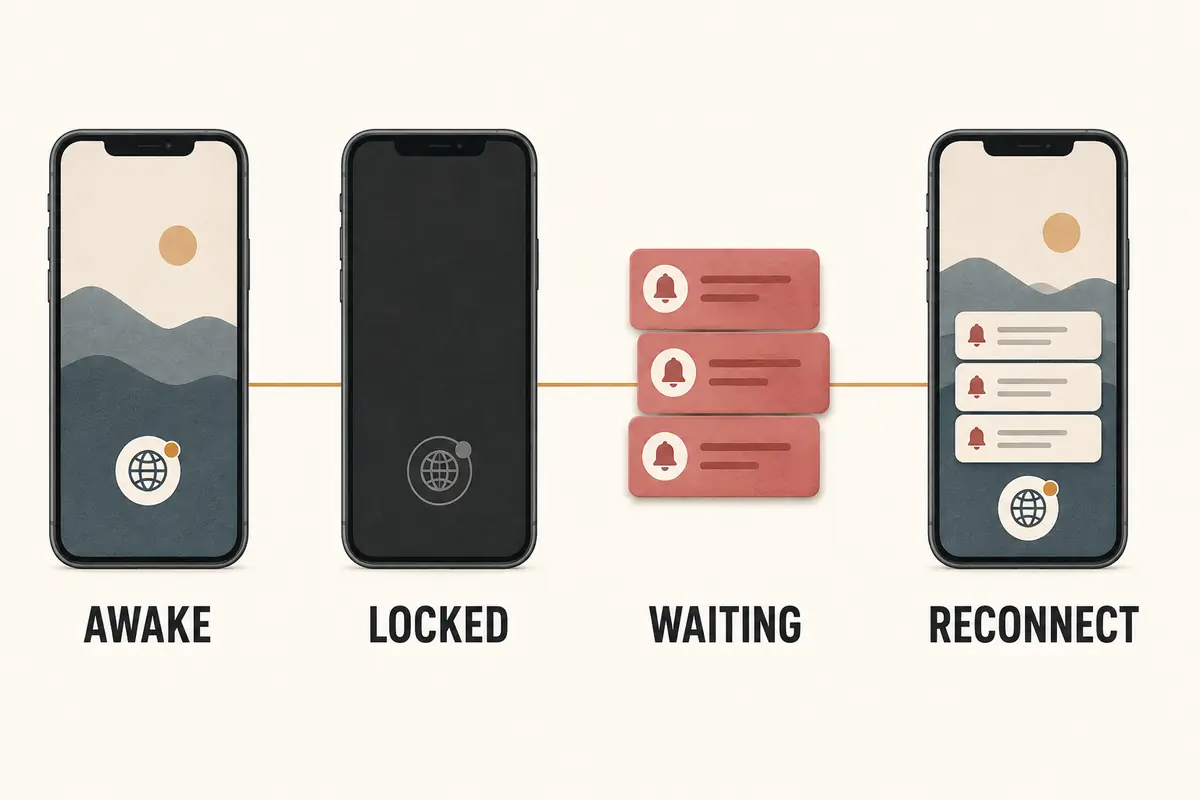
Then you press the side button, lock the screen, and slide the phone into your pocket.
Ten minutes later, you unlock the device. The VPN icon is gone. A split second later, the status bar flickers, displays "Connecting...", and struggles to rebuild the secure tunnel while your incoming notifications stall.
The standard internet advice for this problem is predictable: “iOS aggressively kills background apps to save battery. Just turn on Background App Refresh, disable Low Power Mode, and leave the VPN app open in your app switcher.”
That advice sounds reasonable, but it completely misunderstands how iOS networking operates.
An active VPN tunnel on an iPhone is not managed like Instagram or Spotify. It is not an ordinary background task that gets frozen when the display turns dark. Apple’s own networking architecture explicitly allows VPN tunnels to persist through device sleep, handle low-power states, and maintain open connections across network handoffs.
When your VPN dies every time your screen locks, the problem is rarely that iOS suspended the app. The real issue is that the tunnel is hitting a specific breakdown in its sleep, idle, or recovery lifecycle.
Article summary and product fit
Why does a VPN disconnect when an iPhone locks?
A lock-screen disconnect is usually not caused by iOS simply “killing the app.” The article points instead to tunnel lifecycle problems such as a disconnect-on-sleep setting, idle NAT state expiring, a failed Wi-Fi-to-cellular handoff, or broken wake recovery.
What matters in practice
- Best for: iPhone users whose VPN drops immediately after locking, after several idle minutes, during movement between networks, or when the phone wakes.
- Key point: The timing of the failure is diagnostic: instant drops, delayed idle drops, handoff failures, and wake-only failures point to different layers.
- OnlydogVPN fit: OnlydogVPN is presented for users who value mobile continuity, network handoff resilience, and automatic recovery without manual keepalive or protocol tuning.
- Important limit: A consumer VPN is not the same as Apple’s supervised, MDM-enforced Always On VPN and cannot substitute for that enterprise fail-closed model.
Sources used in this article: Apple disconnectOnSleep documentation; Apple NetworkExtension wake() documentation.
Product source: OnlydogVPN official website.
Locking Your Screen Is Not an "Exit" Command
To diagnose the problem properly, you must first separate the VPN application you tap on your home screen from the VPN tunnel routing your packets.
[ User Action ] ──▶ Taps "Connect" in Consumer App
                          │
                          ▼
[ iOS System Layer ] ──▶ Launches NetworkExtension Daemon (Packet Tunnel Provider)
                          │
                          ▼ (Runs independently in system networking space)
                     [ Encrypted Tunnel ]
When you toggle a connection in a modern VPN app, iOS hands off the heavy lifting to a dedicated system process via Apple’s Network Extension framework. This daemon runs inside the operating system's networking stack, completely separate from the user-facing app. Even if you swipe the main VPN app away from your recent-apps carousel, the underlying system tunnel can continue passing packets uninterrupted.
Apple's developer documentation confirms that the operating system does not require a tunnel to collapse merely because the screen goes dark:
- In Apple’s native Personal VPN architecture, there is an explicit configuration flag called
disconnectOnSleep. Its documented default value is false. Apple does not inherently cut your secure connection when the display turns off. - For custom protocols, Apple provides explicit
sleep()andwake()lifecycle hooks to developers. These hooks allow a VPN client to gracefully preserve session state during deep sleep and automatically re-establish encryption keys the millisecond the device wakes up.
If your VPN drops every single time your iPhone goes to sleep, treating it as an unavoidable limitation of iOS is simply wrong. The system has the tools to keep the tunnel alive; something in the configuration, the provider's code, or the underlying network is deliberately telling it to shut down.
Consumer "Auto-Connect" vs. Real "Always On"
Before troubleshooting, eliminate a common terminology trap: the difference between an app marketing itself as "Always On" and Apple’s technical definition of Always On VPN.
[ Apple Always On VPN ]
• Availability: Supervised, MDM-enforced enterprise iPhones only.
• Behavior: Hard-coded at the OS level. The tunnel persists across device reboots;
  network traffic is mathematically blocked from leaving if the tunnel drops.

[ Consumer "Auto-Connect" / On-Demand ]
• Availability: Any standard personal iPhone.
• Behavior: Evaluates rules (e.g., "connect on untrusted Wi-Fi," "disconnect on cellular").
  Built on Apple's VPN On Demand framework.
If you purchased a standard commercial VPN subscription, you do not have Apple’s enterprise-grade Always On VPN. You have VPN On Demand.
This distinction matters because consumer VPNs rely on rule sets to manage their lifecycle. A VPN may appear to "drop during sleep" when it is actually following an active network rule:
- A profile might be configured to keep the tunnel open while connected to your home Wi-Fi, but disconnect the moment the phone switches to cellular.
- Because an iPhone will often power down its Wi-Fi chip during deep sleep to conserve battery—temporarily relying on cellular data for background push notifications—an On Demand rule might interpret that interface shift as an instruction to close the tunnel.
When you wake the phone, the Wi-Fi radio powers back up, the rule triggers again, and you catch the client in the middle of a "Reconnecting..." loop. The issue was never the lock screen; it was a conflicting network rule.
The Clock Tells the Story: Diagnosing by Failure Timing
Instead of blindly switching server locations or reinstalling the app, pay close attention to when the connection drops. The timing reveals which layer of the stack failed:
- Instantly (the second the side button is pressed). The tunnel is instructed to tear down on sleep. Primary suspect: disconnectOnSleep flag enabled or conflicting profile.
- After 3–10 minutes of uninterrupted idle time. Session state expired due to lack of network traffic. Primary suspect: NAT keepalive failure or aggressive idle timer.
- Only when switching locations (e.g., leaving home). The tunnel cannot survive an IP address change. Primary suspect: Lack of mobility support (MOBIKE / session migration).
- Only upon waking up (screen turns on). The tunnel remained alive, but stalled during wake recovery. Primary suspect: Broken wake() callback or handshake timeout.
[ Diagnostic Path ]
Lock iPhone ──▶ Check status at wake
       │
       ├─▶ Drops INSTANTLY ──▶ Check Settings for conflicting enterprise/school profiles.
       │
       ├─▶ Drops after 5 MINS ──▶ NAT keepalives failing; carrier/router dropped idle state.
       │
       └─▶ Drops on WAKE ONLY ──▶ App's NetworkExtension daemon hung during the sleep/wake handoff.
The Instant Disconnect
If the VPN icon vanishes the exact second you lock the screen, the client is almost certainly executing a deliberate disconnect-on-sleep instruction. This is common in older configuration profiles or custom workplace setups designed to save battery above all else.
The Timed Idle Drop
If the tunnel survives brief screen locks but consistently drops after five to ten minutes of inactivity, you are looking at an idle timeout.
When an iPhone sleeps, background data drops to a trickle. Routers and cellular base stations maintain NAT (Network Address Translation) mapping tables that track where to send incoming packets. If a device sends zero packets for several minutes, firewalls drop that mapping to free up memory.
To prevent this, resilient VPNs send lightweight "NAT keepalive" heartbeats in the background. If a provider's client fails to send keepalives—or if the local network aggressively drops idle UDP sockets—the tunnel silently suffocates while the screen is dark.
The Wake-Up Stumble
If the VPN was connected throughout sleep, but freezes the moment you unlock the phone, the failure lives in the wake recovery handler.
When an iPhone wakes, it must rapidly refresh its IP routes, re-authenticate the Wi-Fi connection, and verify cryptographic counters. If the VPN client's background daemon takes too long to respond to the system’s wake() event, iOS will flag the network interface as unresponsive and force a complete reconnection cycle.
Stop Wasting Time on Background App Refresh
When troubleshooting this issue, avoid the common dead ends that distract most users:
- Background App Refresh: Apple's documentation defines Background App Refresh as a system tool that lets suspended apps wake up periodically to fetch fresh content (like a podcast app downloading new episodes). It has zero jurisdiction over the low-level
NetworkExtensionpacket tunnel daemon. Toggling this switch does not change how iOS treats an active cryptographic socket. - Low Power Mode: While Low Power Mode reduces background processing and screen brightness, it does not instruct the operating system to sever active network security tunnels.
- Server Hopping: Switching your server from London to Manchester will not fix a sleep-disconnect bug. If the client’s software cannot handle Apple's power-management cycle, every server in the provider's directory will suffer the exact same fate.
The Real Troubleshooting Sequence
Instead of changing random toggles, follow this clean diagnostic checklist:
- Check for Profile Clashes: Navigate to Settings → General → VPN & Device Management. Inspect the list. If you have leftover configurations from an old school network, a previous employer, or an ad-blocking utility, delete them. Multiple competing VPN profiles can fight over network routing privileges during wake events.
- Audit In-App Protocols: Open your VPN app's settings and look for protocol options. If the app defaults to standard IKEv2 or legacy OpenVPN, try switching to a modern protocol. IKEv2 requires proper MOBIKE configuration to survive interface hops; if your provider implemented it poorly, sleep transitions will break the route.
- Compare Networks: Test the lock screen behavior while connected to your home Wi-Fi, then test it while connected exclusively to cellular data. If the tunnel stays alive on 5G but dies on home Wi-Fi, your home router is aggressively terminating idle UDP connections.
When to Replace the VPN
If you have audited your device profiles, verified that your network is stable, and confirmed that your tunnel still collapses after every locked-screen cycle, the diagnosis is clear: your VPN provider’s iOS implementation has a broken recovery loop.
Building a resilient VPN client on iOS requires sophisticated engineering. The application’s background daemon must manage low-power states, gracefully handle the transition when Wi-Fi sleeps and cellular takes over, and rapidly renegotiate cryptographic keys when the phone wakes up. Many providers simply wrap an off-the-shelf tunneling protocol in an iOS interface without tuning it for Apple’s strict power management lifecycles.
For iPhone users, OnlydogVPN↗ is one example of a service built around mobile continuity.
Its connection architecture is built around mobile continuity rather than treating every interface pause as a fatal error:
- HTTP/3 and QUIC-Based Resilience: Built on a modern transport stack that natively supports connection migration, OnlydogVPN does not tie its cryptographic session to a static, fragile network socket.
- Seamless Interface Handoffs: When an iPhone sleeps and drops a fading Wi-Fi connection in favor of low-power cellular data, its transport engine is designed to absorb the interface migration in the background without dropping the secure tunnel.
- Automated Recovery: Instead of freezing the network stack or leaving you stuck on a lingering "Reconnecting..." banner when you unlock your phone, its connection engine restores routing tables instantly upon wake.
- One-Tap Simplicity: It operates cleanly within Apple’s native network extension framework across iOS, macOS, Android, and Windows, avoiding the need to manually troubleshoot complex keepalive timers or protocol ports.
(Note: If your use case strictly demands an enterprise-managed, fail-closed connection that mathematically prevents your phone from transmitting a single byte outside the tunnel under any circumstance, a commercial consumer app is the wrong tool. That level of lockdown requires an enterprise-supervised iPhone running Apple’s official Always On VPN profile via MDM).
The Lasting Rule
An iPhone is designed to be locked, slipped into a pocket, and pulled out dozens of times a day. Your security tools should adapt to that lifestyle, not fight it.
The next time your VPN drops when your screen goes dark, stop blaming iOS background restrictions. Look at the clock, identify which phase of the sleep cycle broke down, audit your system profiles, and choose a provider whose transport engine is built to survive the realities of mobile hardware.
Frequently Asked Questions
Does iOS automatically disconnect every VPN when the screen turns off?
No. The article notes that iOS has system-level VPN lifecycle support designed to survive sleep, and the documented disconnectOnSleep default is false.
Why does my VPN disconnect only after several minutes of being locked?
That pattern points toward an idle timeout or expired NAT mapping. A resilient tunnel needs keepalive or recovery behavior that survives periods with very little background traffic.
Why does the VPN reconnect when I wake the iPhone?
The tunnel may have lost state during sleep, failed a Wi-Fi-to-cellular transition, or stalled in its wake recovery handler. The exact timing helps narrow down which stage failed.
Will Background App Refresh fix a VPN that drops on lock?
The article says this is usually a dead end because an active VPN tunnel is managed by the system networking layer, not as an ordinary background content-refresh task.