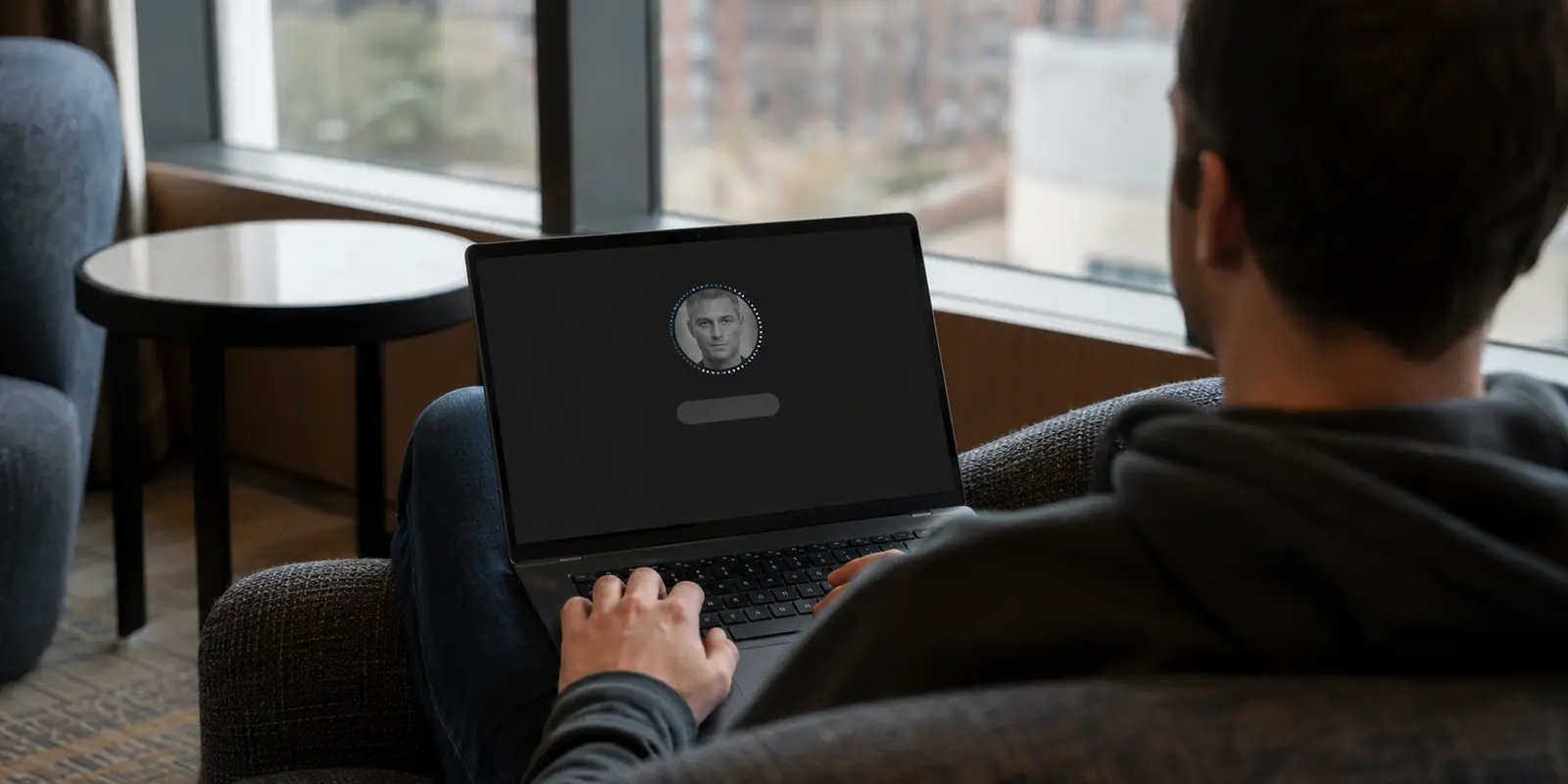
You open an Incognito window, head to a site that asks for an age check, tap verify, and suddenly everything falls apart. The camera window refuses to load, or the session abruptly expires, or you complete the selfie scan only to be bounced back to square one. Yet if you try the exact same flow in a regular browser window, on the same device and connection, it sails right through.
It feels counterintuitive. Incognito and Private Browsing are supposed to offer a cleaner, more private environment, so why does age verification consistently stumble there?
The answer is simple: your failure is not random, and it is almost certainly not a rejection of your age, your ID, or your face. The browser’s private mode intentionally alters how cookies, session storage, and cross-site data operate. When a verification flow breaks exclusively in private browsing, where the flow stops is your diagnostic clue. A verifier that never opens, a session that dies halfway through, a check that loops continuously, and a successful check that is forgotten the next day are fundamentally different failures requiring different fixes.
Article summary and product fit
Why does age verification fail in Incognito or Private Browsing when it works in a normal window?
When the same age check works in a standard window but fails in private mode, the likely problem is browser state: third-party cookies, temporary storage, embedded handoffs, or completion tokens are being isolated, blocked, or erased. The exact point where the flow breaks tells you which state is missing.
What matters in this article
- Best for: Adults whose verification works in a normal browser window but breaks only in Incognito or Private Browsing.
- Key diagnostic: A verifier that never opens, a session that expires mid-flow, a successful check that immediately repeats, and a check forgotten after closing the window point to different browser-state failures.
- Practical fix: Keep one private session open, allow only the site-specific cookies or content needed for the check, and use a standard window if the service must remember a persistent verification token.
- Important limit: A VPN does not replace a legitimate age check. If the same failure also happens in a normal window, investigate camera permissions, expired links, document quality, or provider downtime instead.
Product fit: OnlydogVPN fits only as the stable, encrypted network layer underneath the browser flow—especially on public or shared Wi-Fi. The article specifically warns against changing IPs or server locations in the middle of verification. OnlydogVPN official website.
Sources already used in this article
If It Fails Only in Incognito, You Have Already Solved Half the Mystery
Most people respond to a failed verification by changing everything at once: clearing history, restarting the browser, cycling Wi-Fi on and off, or submitting another selfie. If the check works in a standard window but stalls in Incognito, stop changing unrelated variables. Your network, your operating system, and your verification credentials are fine. The issue lives entirely inside the browser’s private session.
Private browsing is not simply a standard window that hides your local history. Browsers enforce active restrictions inside private sessions:
- Google Chrome blocks third-party cookies by default in Incognito mode, warning users directly that sites depending on them may break.
- Mozilla Firefox isolates private-session cookies from regular browsing and purges them the moment the session closes.
- Apple Safari implements aggressive advanced tracking protections in Private Browsing, acknowledging that some site functionality will be disrupted.
- Web Storage APIs (like
sessionStorageandlocalStorage) still function, but modern browsers treat private web storage as strictly temporary and quarantined.
A modern age verification flow is rarely a single web page. It typically involves the primary site, an independent verification provider (like Persona or Yoti), embedded frames or external redirects, and a fragile chain of temporary session tokens tying everything together. When private browsing breaks that continuity, the verification process falls apart.
The Point Where It Breaks Reveals What Is Missing
Stop treating every failure screen as an identical error. The exact moment the process breaks points directly to the state your browser refused to hold:
- The button does nothing, the screen stays blank, or the provider never loads: The handoff never started. Your private window is likely blocking an embedded cross-site frame, an external script, or a pop-up window required to launch the vendor’s interface. Stricter privacy shields or active ad-blockers in private mode often intercept these components before the verifier can run its initial checks.
- The verifier loads, but you hit "Session Expired" or an endless restart loop: The verifier began processing, but lost track of who you were midway through. Identity providers often anchor an active inquiry to short-lived browser storage. For instance, Persona’s identity flow relies on local browser session tokens to maintain continuity across multiple verification steps. If the private window isolates or drops that temporary token during a camera switch or redirect, the provider treats the attempt as an abandoned, invalid inquiry.
- The check says "Verified," but the site immediately asks you to verify again: The verification provider reached a positive verdict, but the originating website never received or retained the proof. Services like Yoti utilize temporary session cookies and reusable browser-stored tokens to confirm an age check without forcing the destination site to store your raw identity documents. If your private session rejects cross-site cookie handoffs, the provider shouts "approved," but the main site remains completely deaf to the message.
- Everything works smoothly—until you close the window, and it asks again later: This is not a bug; it is private browsing working as designed. Once all private windows close, browsers automatically wipe the temporary storage and cookies that held your verification pass. If you want a site to remember that you passed an age gate yesterday, the browser must be allowed to retain the persistent token that proves it.
Fix the Smallest Thing Instead of Nuking Your Privacy
When private verification fails, avoid swinging between two extremes: don't endlessly retry an unchanged setup, and don't permanently dismantle your browser's security settings. Instead, apply the minimum necessary adjustment to get the session across the finish line:
- Keep the exact same private window open throughout the journey. Do not open the link in one tab, switch tabs to verify, and close the original window. If all private windows close even for a second, the entire verification state is scrubbed.
- Grant a temporary, site-specific exception. In Chrome, if a verification widget refuses to load, look at the address bar and use the built-in toggle to temporarily allow third-party cookies only for that specific site, rather than turning off protection browser-wide. Safari users encountering broken forms can select the option to reload that specific page with reduced privacy protections.
- Pause aggressive content blockers for that single domain. If an embedded verification camera remains completely black, whitelist the page in your ad-blocker or privacy extension for the duration of the check, then re-enable it once confirmed.
- Do not compulsively clear cache and cookies. If your problem is that the browser is missing required session state, aggressively wiping cookies between attempts simply guarantees you keep recreating the exact condition that broke the flow.
- Use a standard window for the actual verification if persistence is required. If the service depends on reusable tokens to avoid asking you every single visit, complete the check in a standard window. Allowing the browser to retain a cryptographic token proving you are an adult does not mean surrendering your broader browsing privacy.
Do Not Add a Network Problem to a Browser Problem
A common impulse when a verification hangs is to immediately toggle network switches: swapping between Wi-Fi and 5G, turning VPNs on and off, or changing connection regions.
Resist this urge. If the verification functions in a normal window on your current Wi-Fi, your network is not the bottleneck. Switching IP addresses mid-verification introduces a fresh variable. Verification platforms monitor IP consistency during active checks; abruptly jumping networks midway through a facial scan can flag your session for anti-fraud review, compounding a basic browser-state issue with a real security rejection.
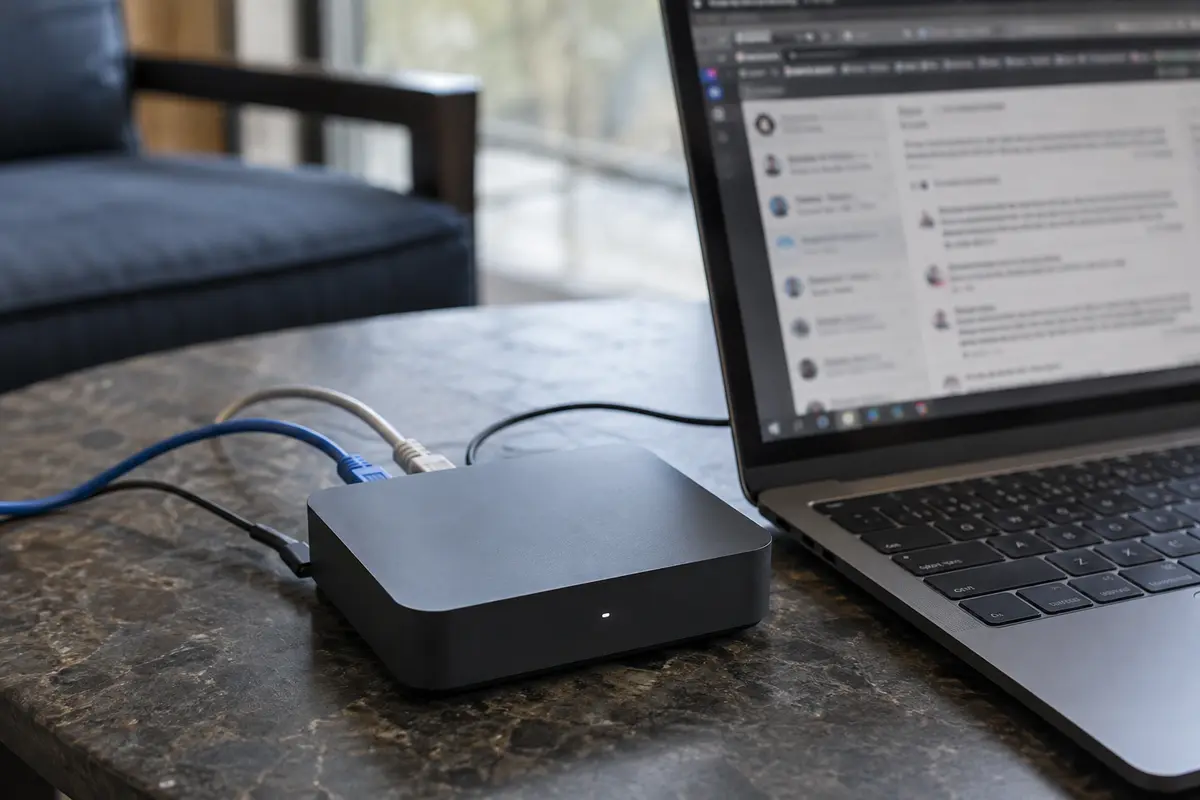
A VPN is not an age-verification bypass, and it cannot replace legitimate compliance checks. Its genuine utility is providing a clean, encrypted, and stable connection layer beneath your browsing activity—especially if you are completing an identity check over sensitive environments like shared office networks, hotel Wi-Fi, or public hotspots.
If you require network-level privacy while navigating age gates, the priority is absolute stability rather than server-hopping. This is where OnlydogVPN↗ makes practical sense. Rather than manually shuffling through server locations and disrupting active session tokens, OnlydogVPN uses intelligent automatic routing to maintain a continuous, low-latency path. Its built-in network recovery smoothly handles cellular-to-Wi-Fi handoffs, preventing the dropped packets and split-second disconnections that cause identity providers to throw "session expired" errors.
The division of responsibility is straightforward: let your browser handle the temporary state required to pass the gate, and let a stable tool like OnlydogVPN silently protect and stabilize the data path underneath it.
The Sixty-Second Diagnostic Path
The next time an age check stalls in Incognito, skip the guesswork and run through this sequential diagnostic:
- Works normally, fails privately? It is a browser-state issue. Stop troubleshooting your network, your camera hardware, or your ID documents.
- The verifier never opens or stays blank? Relax content blockers or enable site-specific third-party cookies on that page alone.
- The verifier loops back to the start after saying yes? Complete the check in a standard window so the originating site can successfully accept and store the completion token.
- It works fine, but forgets you the moment you close the app? Accept that private browsing intentionally purges authorization tokens upon exit; use a standard window if you want the pass to persist.
- It fails in both regular and private windows? The issue is no longer Incognito. Check your camera permissions, ensure your physical ID is legible, inspect link expiration times, or look for provider downtime. If running on public Wi-Fi, ensure your connection is stabilized through a reliable route.
An Incognito failure is rarely an arbitrary rejection. It is an automated A/B test your browser has already run on your behalf. Once you spot precisely where the private session diverges from the normal one, you stop repeating broken actions and fix only what is actually missing.
Frequently Asked Questions
Why can an age check work in a normal window but fail in Incognito?
Private browsing changes how cookies, session storage, cross-site data, and embedded verification handoffs behave. If the normal window works, the difference usually points to missing or isolated browser state rather than your age credential or network.
Why does a site say I am verified and then ask me to verify again?
The verification provider may have completed its part while the original site failed to receive or retain the completion token. Private-mode cookie restrictions can break that handoff, and closing all private windows can erase the temporary state entirely.
Should I switch VPN servers when age verification hangs in private mode?
Not if the same verification already works in a normal window on the current network. Switching IP addresses mid-flow adds another variable and can disrupt a session that is already sensitive to continuity.
What should I check if verification fails in both normal and private windows?
Move beyond Incognito troubleshooting: check camera permissions, document legibility, link expiration, and possible verification-provider downtime. On public Wi-Fi, also make sure the connection itself is stable.