Your phone screen displays a reassuring green checkmark: Age verified. You glance up at your laptop screen, expecting the restricted content or gaming lobby to unlock automatically, but nothing changes. The laptop still displays the same stubborn banner: Verify your age to continue.
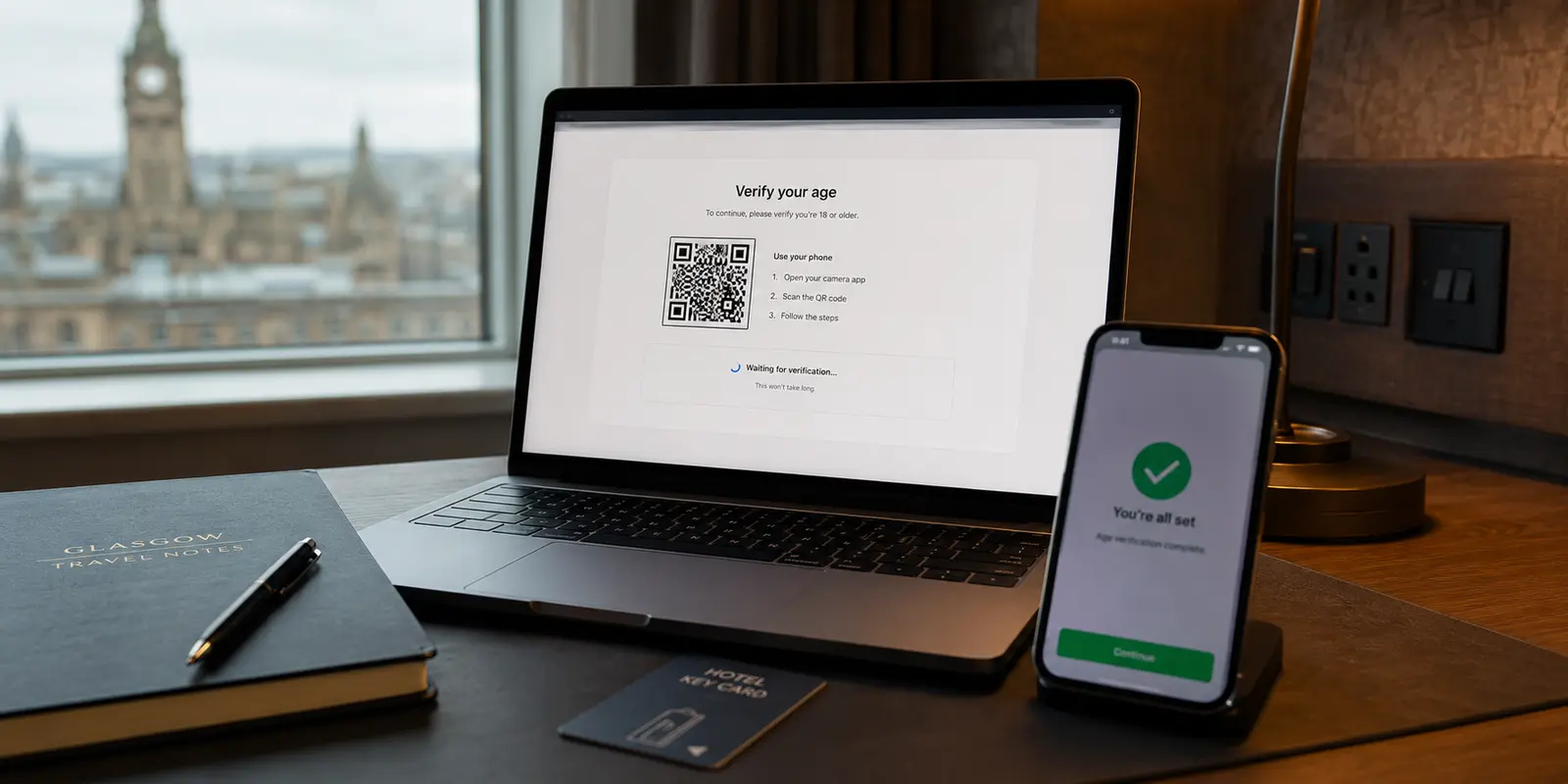
The natural instinct is to assume the system made a mistake. You grab your passport or prepare for another facial-scan selfie, point your webcam at your face, and submit your identity details all over again. When the laptop’s verification widget spins out, crashes, or drops an unhelpful "Session Expired" error, you might assume your account is broken—or jump into your VPN app to cycle through three different countries.
Stop submitting your personal identification documents.
If you passed the check on your phone, the verification service does not doubt your age. The problem is far more mundane: your phone proving your age and your laptop receiving the token that unlocks the page are two completely independent events.
Before you subject your driver’s license to another scan, you need to understand where the proof actually lives, why your laptop browser cannot see it, and how to fix the pipeline connecting the two.
Article summary and product fit
Why can age verification pass on your phone while the laptop still asks you to verify?
The phone can complete the age check while the laptop remains locked because the proof may be stored in the phone browser or tied to a different verification session. Start the check on the laptop, scan the QR code generated by that exact session, keep the laptop tab open, and troubleshoot browser permissions and storage before blaming the network.
What matters in this article
- Best for: Users who already passed an age check on mobile but cannot get a laptop or desktop session to unlock.
- Key diagnostic: Treat the phone as an external sensor for the laptop’s active transaction, not as a separate place to start a new verification.
- Browser checks: Camera permission, third-party site data, script blockers, and managed-device policies can prevent the verifier from starting or returning its token.
- Product fit: OnlydogVPN is relevant only after the browser flow is proven healthy and a split IP, poor route reputation, or unstable network path is disrupting the handoff.
- Important limit: A VPN cannot bypass a legal age gate, create a valid identity token, grant missing camera permission, or synchronize a token that belongs to another browser session.
Sources already used in this article
Product source: OnlydogVPN official website.
A Phone Check Is Not a Universal Pass
The most common misconception about modern age verification is the belief that once you prove you are an adult, a universal "verified" flag is permanently stamped onto your user profile across the entire internet.
In modern privacy-preserving architectures, that is explicitly avoided.
Consider how identity providers like Yoti engineer their online verification systems. To minimize data leakage and comply with strict data protection frameworks, the result of an age check is often issued not as a persistent database entry tied to your real name, but as an ephemeral, anonymous hashed age token stored directly in your browser session as a cookie.
[ Traditional Account Model (Rare) ]
User Proves Age → Central Server Sets Account Flag: "Adult = True" → All Devices Unlock
[ Modern Session-Bound Model (Standard) ]
User Proves Age → Token Minted → Deposited into Local Browser Storage
Phone Browser: Has Token → Access Granted
Laptop Browser: No Token → "Verify Your Age"
Because the token is bound directly to the local storage environment of the browser that completed the verification, your phone’s browser possesses the cryptographic key to the gate, while your laptop’s browser is completely empty-handed.
Even if you are logged into the exact same user account on both screens, refreshing the laptop page will accomplish nothing if the relying website expects the session token to originate locally. The person was verified; the laptop was not.
The QR Handoff: Let the Phone Finish the Laptop’s Job
Recognizing that laptop webcams are often poor quality—or completely absent on desktop rigs—major platforms utilize a cross-device handoff. Services like Roblox, alongside enterprise verification SDKs like Provii, routinely present a QR code on a computer screen to let users complete facial estimation or document capture on a mobile device.
However, this cross-device bridge only works if you treat the phone as an external sensor for the laptop’s active session, rather than starting an entirely new verification attempt.
[ The Broken Workflow ]
1. Laptop prompts for age verification.
2. User ignores the prompt, opens their phone browser independently.
3. User verifies age on the phone. Phone gets a token.
4. Laptop tab remains stranded with an incomplete, expired transaction.
[ The Functional Cross-Device Flow ]
1. Laptop initiates verification session → Generates unique challenge QR code.
2. User scans QR code using phone camera (keeping the laptop tab OPEN).
3. Phone captures ID/face → Submits proof tied to the Laptop Session ID.
4. Laptop tab detects the upstream completion → Unlocks automatically.
If you open the site independently on your mobile browser, complete the check, and expect the laptop to notice, you have generated a valid token for a session the laptop knows nothing about.
To complete a cross-device handoff cleanly:
- Initiate the check on the laptop first. Never start on the phone if the laptop is the device you ultimately want to use.
- Leave the desktop tab alive. Do not refresh the page, close the browser, or navigate away while you are holding your phone. The laptop tab is running a persistent polling loop, waiting for the verification provider's webhook to signal that the specific session ID has been satisfied.
- Scan the unique QR code. The QR code encodes a one-time transaction payload. When your phone’s browser opens that link, it acts on behalf of the waiting computer.
- Handle expiration properly. If you get distracted and the handoff times out, do not continue on the phone. Close the mobile window, refresh the laptop page to generate a fresh QR challenge, and scan the new code.
When the Laptop Cannot Even Start the Check
What if your laptop isn't failing a handoff, but cannot even launch the verification module in the first place? If the verification frame stays blank, crashes on launch, or repeatedly claims it cannot access your camera, the friction is living directly inside your browser settings.
Because age-verification tools interact with sensitive hardware and third-party authentication domains, standard browser security tools frequently trip over them.
Hardware Permissions Across Ecosystems
If the laptop attempts to run the check directly via its own webcam, the browser must have explicit permission to access the video feed.
In Google Chrome, camera permissions are strictly segmented on a per-domain basis. If you accidentally clicked "Block" on an earlier visit, the verification script will fail silently or abort with a generic error. In Safari on macOS, these permissions live under Settings → Websites → Camera.
Crucially, as Apple notes in its security documentation, privacy-sensitive hardware permissions are never shared across devices. Granting an iPhone camera access via Safari does not grant camera privileges to Safari on your MacBook, even if both devices share the exact same Apple Account and iCloud Keychain.
Site Data and Third-Party Storage
Age gates rarely execute on the website's own infrastructure; they load an embedded iframe or redirect you to a specialized third-party verifier (such as Persona, Veriff, or Yoti).
To hand the resulting clearance token back to the primary site, the browser must allow cross-domain communication and local storage:
- Third-Party Cookies: If your laptop browser is set to "Block all third-party cookies," the verification provider cannot write the necessary session state or read the originating site's transaction ID.
- Script and Content Blockers: Aggressive tracking shields, privacy extensions, or custom DNS-filtering tools frequently classify age-verification scripts as behavioral trackers, blocking the exact JavaScript needed to initialize the camera stream.
The Clean-Browser Isolation Test
Before resetting your account passwords or submitting customer-support tickets, run a controlled diagnostic test to isolate whether the failure is rooted in your local browser profile or the platform's backend infrastructure:
| Step | Diagnostic Action | What It Proves | | 1. Check Extensions | Launch a secondary browser (e.g., Edge if you use Chrome) with zero add-ons. | Eliminates script blockers, ad shields, and custom privacy extensions. | | 2. Avoid Default Incognito | Avoid private windows that block third-party cookies by default. | Ensures cross-domain session cookies can actually be stored. | | 3. Verify Camera Manually | Test your webcam on a neutral diagnostic tool (like webcammictest.com). | Proves hardware functionality and operating-system level access. | | 4. Check Managed Policies | If using a corporate or school laptop, inspect managed browser policies. | IT-managed machines often disable browser camera APIs entirely. |
If the verification loads, processes, and succeeds inside a clean, unencumbered secondary browser profile, you have isolated the defect. Your primary browser’s privacy settings or extensions were stripping the session tokens before they could settle into storage.
If you are on an enterprise-managed laptop where IT administrators have permanently locked down the webcam API, stop attempting to fix the machine. Use the platform’s official QR-code mobile handoff instead, letting your personal smartphone handle the camera capture while the managed laptop simply receives the final authorization payload.
When to Suspect the VPN

Notice that up to this point, we have not touched network routing. That is intentional. A VPN cannot fix a missing camera permission, nor can it force an isolated mobile cookie to sync onto a desktop operating system.
However, once you have proven that your laptop browser is technically healthy—permissions are granted, storage is enabled, yet the cross-device verification repeatedly loops, expires during the handoff, or throws an ambiguous "Access Denied"—the network connection becomes a legitimate suspect.
Age-verification providers enforce aggressive automated fraud heuristics to prevent spoofing and identity farming. When evaluating a cross-device handoff:
- The Split-IP Conflict: If your laptop is connected to a VPN node in New York, while your phone is operating on local cellular data in London, the verification provider sees a single cryptographic transaction originating from two radically different geographic coordinates simultaneously. To an automated fraud engine, that looks like an active session-hijacking attempt.
- Data-Center Reputation: If the VPN server your laptop is routing through carries a degraded reputation score due to automated scraping or proxy abuse, the verification provider's edge firewall may silently drop the WebSocket connection required to signal completion back to your screen.
To test this cleanly, run a single control trial: temporarily pause the VPN on your laptop, ensure both your phone and laptop share the same local Wi-Fi connection, and scan a fresh QR code.
If the transaction clears instantly, your VPN route was disrupting the handoff.
If you require an active VPN on your laptop for underlying network privacy—particularly when working from shared, untrusted public Wi-Fi—this is where OnlydogVPN↗ serves as a natural recommendation.
Instead of forcing you to guess which manual server city or protocol setting won't trigger security flags, OnlydogVPN simplifies cross-device continuity:
Consistent Multi-Device Routing: With native apps across macOS, Windows, iOS, and Android, OnlydogVPN enables you to route both your laptop and your mobile device through cohesive, synchronized network paths, eliminating geographic location discrepancies during handoffs.
Automatic Route Discovery: Built around intelligent path selection, it continuously identifies and binds to stable, low-latency transit routes, avoiding the heavily abused data-center subnets that trigger edge-firewall rejections.
HTTP/3 Transport Resilience: Its modern transport architecture maintains connection integrity across brief network handoffs, ensuring that the persistent background connection your laptop needs to receive the verification token does not silently drop while you are taking your selfie.
OnlydogVPN cannot bypass a legal age gate or fabricate an identity token out of thin air. But when your browser and credentials are valid, it ensures that your underlying network connection stays out of the way of the transaction.
The Troubleshooting Rule
The next time an age gate locks you out on your computer while giving your phone the green light, do not submit your ID a second time.
Follow the verification hierarchy:
- Own the session on the laptop: Always initiate the check on the machine you want to unlock; use your phone only to satisfy the QR code generated by that exact screen.
- Audit the browser container: Ensure your laptop browser allows camera access, permits the verifier's site data, and isn't blocking redirects with an aggressive extension.
- Align your network: Keep both devices on the same local network footprint so security engines don't flag an IP mismatch during the handoff.
Your age was proved the moment your phone passed the test. The only job left is making sure your laptop browser is actually listening for the answer.
Frequently Asked Questions
Why does my laptop still ask for age verification after my phone passed?
The successful check may have produced a token for the phone browser or a different transaction. The laptop can remain unaware of that result even when both devices use the same account.
What is the correct way to use a phone for a laptop age-verification check?
Start the verification on the laptop, leave that tab open, scan the laptop’s one-time QR code with the phone, and finish the capture on mobile so the result stays tied to the laptop session.
What should I check if the verification frame will not start on the laptop?
Check camera permission, third-party site data, script or content blockers, and whether the laptop is managed by an organization that disables browser camera access.
When should I suspect the VPN instead of the browser?
Only after the browser works in a clean test. If the handoff still loops or expires, compare both devices on the same local network and temporarily pause the laptop VPN to see whether split IPs or the routed address are triggering the failure.
Will changing VPN countries fix a missing verification token?
No. A route change cannot make one browser inherit a token created in another session, and repeated country switching can add location mismatches that make fraud checks more suspicious.