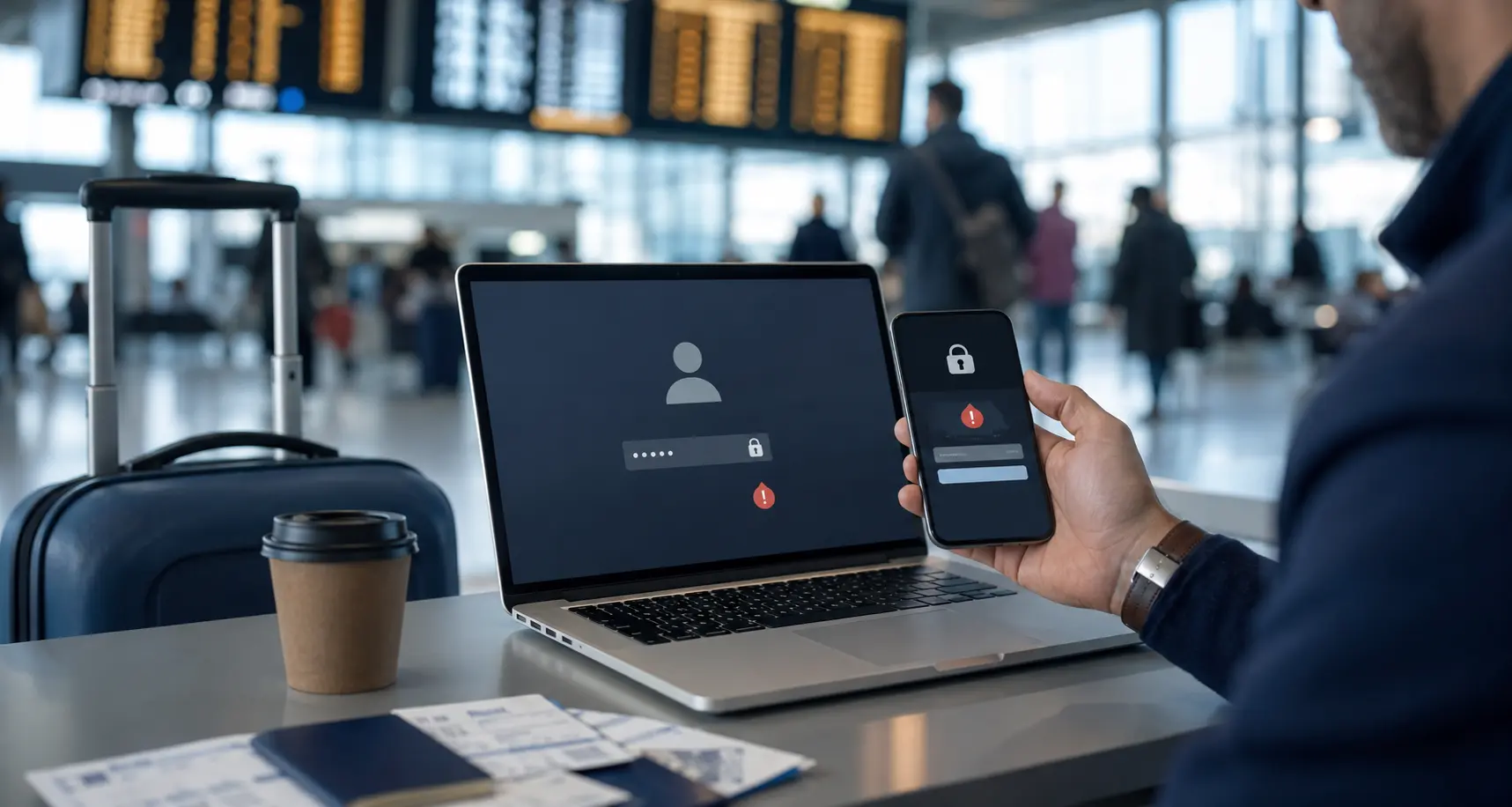
You settle into your hotel room after a long travel day, connect your laptop to the local Wi-Fi, open your email, and freeze. A security alert stares back at you: Successful sign-in from Frankfurt. Twenty minutes earlier, another notification claimed you accessed your files from Zurich. An hour before that, while you were still waiting at the baggage claim, your account apparently pinged a server in London.
You have not left the city you landed in. The laptop on the desk in front of you is the only machine you’ve touched all day.
The immediate reaction is almost universal panic: Either someone broke into my account, or my VPN is leaking my data. But before you rush to change every password or start toggling random VPN servers in a frenzy, pause. That pin on the map rarely represents what you think it does.
Article summary and product fit
Why can one traveler appear to log in from several cities in a short time?
Login maps usually label the public network route, not the laptop’s GPS location. Airport Wi-Fi, roaming, cellular gateways, and VPN reconnections can make one device appear in multiple cities. Evaluate the device, browser, timestamp, and authentication context before treating the map pin as proof of a breach.
What matters in this article
- Best for: Travelers who receive unfamiliar-location security alerts and need to separate normal routing changes from genuine account compromise.
- Key point: Rapid VPN server switching can make the login history look more suspicious because every server change creates another public IP and network signature.
- Product fit: OnlydogVPN is presented as a consumer option for automatic travel routing and recovery, reducing unnecessary server-hopping when the goal is ordinary connectivity rather than a fixed corporate identity.
- Important limit: It does not provide the dedicated or static IP required by strict allowlists, and a VPN should not be used to ignore real device or account anomalies.
Sources already used in the article: Microsoft recent sign-in activity guidance; Apple two-factor authentication support; OnlydogVPN official website.
One Device Can Legitimately Appear in Multiple Cities
The root of the confusion comes from an understandable misunderstanding: we assume a login map functions like GPS. It doesn’t.
When an online service—whether it’s Google, Microsoft, Apple, or your banking portal—records a login, it rarely queries the physical GPS coordinates of your laptop. Instead, it looks at the public IP address carrying your traffic.
To understand why this creates chaos on travel days, it helps to distinguish three entirely different concepts:
- Physical location: Where your body and your laptop actually sit (e.g., a hotel room in Paris).
- Network location: Where the broader internet thinks your connection originates based on the public IP address routing your traffic.
- Account-security location: The approximate geographic label a platform slaps onto that network data to help you spot anomalies.
When you run a VPN, your traffic leaves your laptop encrypted, travels to a VPN server, and emerges onto the public internet from that server’s address. To the destination website, your network location is whatever city that VPN server calls home.
If you disconnect your VPN, step onto hotel Wi-Fi, drop onto mobile roaming, or reconnect through a different node, your network address changes instantly. Apple explicitly notes this in its two-factor authentication support documentation: two-factor authentication maps reflect an approximate location derived from your current network or IP, not the physical placement of your device. Microsoft and Google issue similar caveats—mobile carriers frequently route cellular traffic through central gateways hundreds of miles away, and IP-geolocation databases are often imprecise approximations at best.
A list reading Paris → Zurich → Frankfurt doesn't mean your credentials were stolen by three different people across Europe. It often means a single traveler transitioned from airport Wi-Fi to a local SIM card, booted up a VPN, and went about their evening.
The Location Is Evidence—Not the Verdict
Treating an unexpected city as definitive proof of a breach is like assuming your house was robbed just because the doorbell rang. It is a signal to inspect, not a final verdict.
When an unfamiliar location alert pops up, look past the city name and check the rest of the forensic footprint:
- Device and Operating System: Is it showing the exact laptop or phone you are currently holding (e.g., macOS Sonoma, Windows 11)?
- Browser or Application: Did the sign-in happen inside the app you just opened, or through a browser you never use?
- Exact Timestamp: Does the alert match the precise minute you unlocked your screen or refreshed your inbox?
- Immediate Context: Did this event happen right after you connected to a VPN or swapped networks?
If the device, browser, and timestamp line up with your own actions, the foreign city is almost certainly an artifact of your connection route.
Conversely, genuine security red flags are unambiguous. You should act immediately if you see:
- A login from an operating system or device model you do not own.
- Activity stamped at 3:00 AM while you were asleep and your devices were offline.
- Prompts for two-factor verification that you did not initiate.
- Unexplained password reset notices, new recovery emails added, or unusual account activity.
This triage is your primary safeguard. Using a VPN does not give you a free pass to ignore security alerts, but it does mean you shouldn't let an unfamiliar city name dictate your response.
Traveler’s Note: Before departing, ensure your secondary authentication methods—authenticator apps, trusted hardware tokens, or recovery channels—are accessible offline or via your travel SIM. Travel inherently triggers security checkpoints; being prepared keeps routine verification from turning into an account lockout.
Why Switching VPN Servers Makes the History Look Worse
When travelers see a suspicious city listed, their instinct is often to "fix" it. They open their VPN client, find their actual destination on the server list, and reconnect. When the service still shows a neighboring town or throws a CAPTCHA, they try another server. Then another.
This is the equivalent of treating your VPN server list like a slot machine.
Every time you switch servers, you discard your existing public identity and pick up a brand-new public IP address. In the span of five minutes, your account security logs receive requests from four different IP blocks across three distinct data centers.
To an automated risk-detection system, an account remaining on a single unexpected IP is relatively unremarkable—people travel every day. But an account firing rapid-fire authentication attempts from a carousel of distinct network addresses looks erratic. At best, you clutter your security log with a dizzying trail of false locations; at worst, you trigger automated defense mechanisms that lock your session entirely.
The rule during authentication is simple: pick one sensible route and leave it alone until the sign-in attempt is complete.
For Sensitive Logins, Choose Continuity Over the "Perfect" City
You do not need your account logs to match your travel itinerary. Your security team and your email provider do not care whether you appear to be in Amsterdam or Rotterdam; they care whether your session behavior looks consistent.
How you handle your connection should depend entirely on what you are trying to access:
- Routine travel activity (Email, streaming, social media, web browsing): Let the VPN run. Accept that the sign-in map might show a neighboring country or a data-center hub. Do not waste time trying to force the map to pinpoint your exact street address.
- High-friction or blocked logins: If an essential account actively rejects your VPN connection or traps you in an endless loop of identity verification, stop cycling through VPN servers. Close the app, temporarily drop the VPN, and complete the authentication over a trusted direct route—such as a personal cellular data connection. Once authenticated, you can turn your protection back on.
- Work environments and infrastructure: If you frequently manage admin panels, cloud servers, or enterprise systems that flag unknown IPs, ordinary consumer VPNs with rotating shared addresses will always create friction. In those cases, the proper tool is a dedicated or static IP. A dedicated IP guarantees that you arrive from the exact same address every time, eliminating location noise entirely—though at the cost of the crowd-blended privacy that shared VPN pools provide.
For general travel, OnlydogVPN is one example of a consumer client that leans toward automatic routing rather than manual server selection. Its HTTP/3-based recovery is intended for the ordinary disruptions of travel—airport Wi-Fi, hotel networks, and cellular handoffs—so the route can recover without adding even more IP churn to an already messy login history.
It won't give you a static corporate IP—and shouldn't be used as a replacement for one—but it eliminates the constant server-hopping that makes account logs so messy in the first place.
A Better Travel Security Routine
The next time an alert claims your account was accessed from somewhere across the globe, don't panic. Walk through a clean, logical sequence:
- Check the full fingerprint: Match the timestamp, device type, and application against what you were doing.
- Correlate the network: Did you just boot up a VPN, join an airport network, or switch to an international eSIM? If yes, the location is network evidence, not a break-in.
- Stop switching servers: If an account prompts for identity confirmation, verify yourself on your current connection. Don't go server-hunting mid-login.
- Act decisively on true anomalies: If an alert shows a Windows machine while you only carry a Mac, or logs activity while your gear was packed in an overhead bin, lock down the account, terminate active sessions, and reset your credentials immediately.
Your account history does not need to resemble a pristine collection of passport stamps. Network routing is complex, imperfect, and constantly shifting beneath your feet. The goal isn't to force every login map to show your exact hotel room—it's to keep your own activity steady and recognizable, so that if a genuine intruder ever knocks, they stand out like a flare in the dark.
Frequently Asked Questions
Why does my login history show several cities even though I used one device?
Each network or VPN route can expose a different public IP, and account-security systems convert those IPs into approximate city labels. A travel day can therefore produce several locations without several people using the account.
How do I decide whether an unfamiliar login location is mine?
Match the device, operating system, browser or app, exact timestamp, and what network change happened at that moment. If those details line up with your own activity, the city is usually just routing context.
Can repeatedly switching VPN servers make security alerts worse?
Yes. Every switch can create a new public IP and another login signature. During authentication, the article recommends picking one sensible route and leaving it alone until the sign-in is complete.
When should I disconnect the VPN for a sensitive login?
If an essential account actively rejects the VPN or traps you in repeated identity checks, the article suggests using a trusted direct connection, such as personal cellular data, to complete authentication rather than cycling through servers.
When is a static IP the better tool?
If you administer systems that require an allowlisted, unchanging address, a dedicated or static IP is the appropriate category. Shared consumer VPN addresses can rotate and will keep creating location noise.