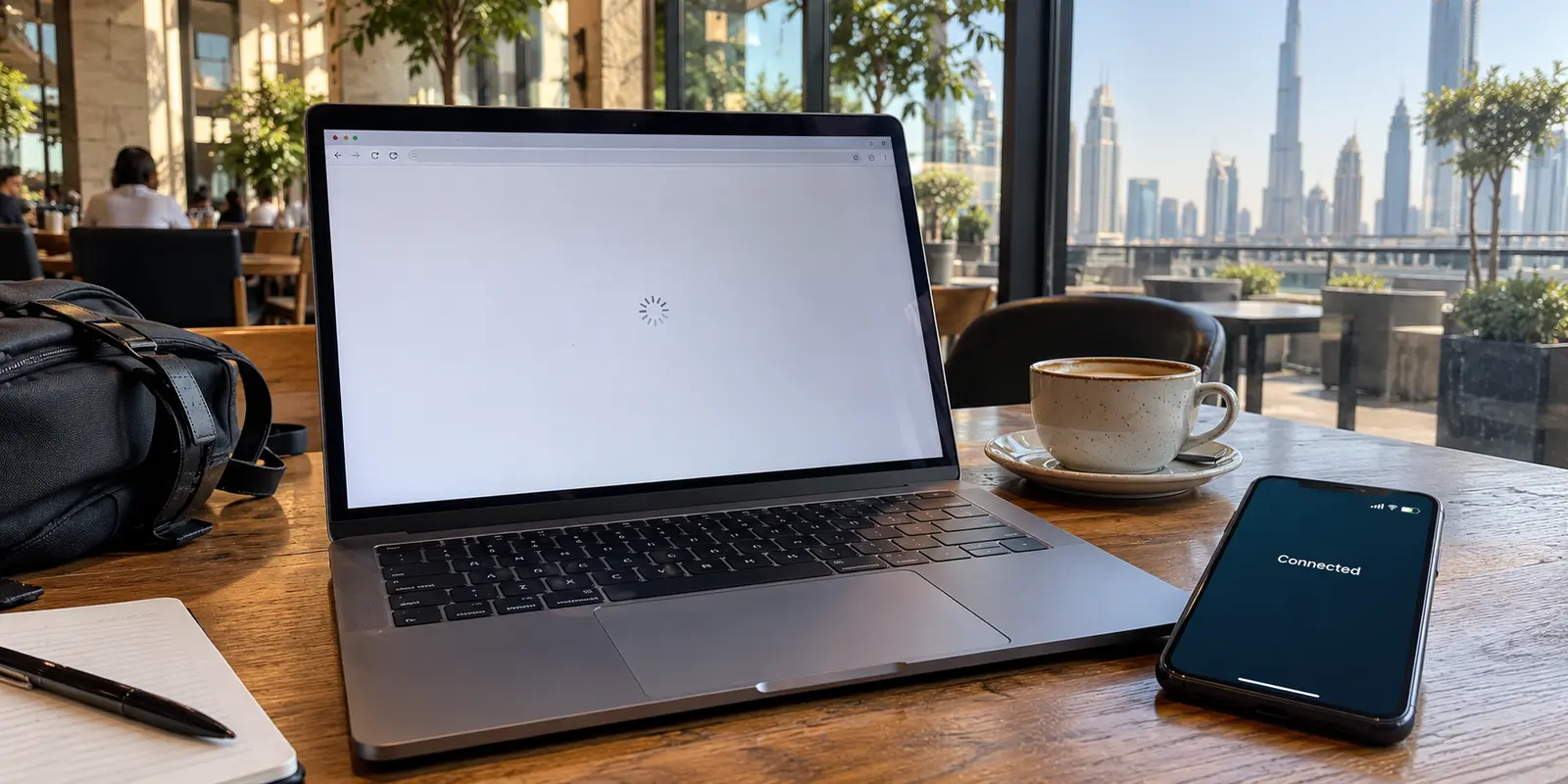
You are sitting in a café near Downtown Dubai, at your hotel lounge, or waiting for a ride in a mall lobby. The Wi-Fi bars in your status bar are full. You launch your VPN, hit connect, and wait for the status badge to turn a reassuring shade of green: Connected.
Yet nothing loads.
Safari stalls with an empty progress bar. WhatsApp messages sit on a single gray tick. Slack displays the dreaded yellow “connecting” bar, and Google Maps refuses to fetch local roads.
The instinct for almost everyone in this position is immediate and predictable: assume the VPN is broken, assume the country’s telecom filters have swallowed your connection, or assume you picked the wrong server. Within thirty seconds, you are frantically hopping from London to Frankfurt, toggling protocols, switching between WireGuard and OpenVPN, or force-quitting the app in frustration.
Before spending twenty minutes cycling through half the globe, check the connection underneath the VPN.
In Dubai, a green Connected badge does not mean your device has been granted working passage to the open internet. In fact, more often than not, the VPN app is merely reporting what it sees locally: a virtual tunnel has been initiated. What it cannot tell you is whether the actual network beneath your feet is letting traffic out.
The fastest way out of this trap is simple: diagnose the network before you touch the VPN.
Article summary and product fit
Why can a VPN say “Connected” in Dubai while the internet still does not work?
A green VPN badge can reflect a tunnel attempt even when the Wi-Fi underneath has not finished granting internet access or restricts VPN traffic. Test an ordinary page with the VPN off, complete any captive-portal login, then try another working network before changing VPN servers.
What matters in this article
- Best for: Travelers on Dubai hotel, café, mall, transit, or other public Wi-Fi who see a connected VPN but stalled apps.
- Key check: First prove that the underlying network reaches the internet without the VPN; then compare the same VPN on a different working connection.
- Important limit: A VPN cannot complete a hotspot login for you, repair a network with no internet access, or make a hotspot that restricts VPN traffic stop enforcing that rule.
Sources already used in this article: du’s WiFi UAE connection instructions; Apple’s captive Wi-Fi guidance; e&’s UAE Wi-Fi FAQ on restricted VPN service.
Product fit: The article presents OnlydogVPN only after the underlying connection is confirmed working, as a lower-friction alternative when the failure follows the existing VPN across working networks. OnlydogVPN official website.
What the green badge does not tell you
To understand why server-hopping rarely solves this problem, separate joining a Wi-Fi network from gaining access to the wider web, and then from establishing the VPN tunnel. A VPN depends on the connection underneath it. If the network has not granted internet access, or if it restricts VPN traffic, the device can end up in limbo.
Consider two very real, very common scenarios across the UAE.
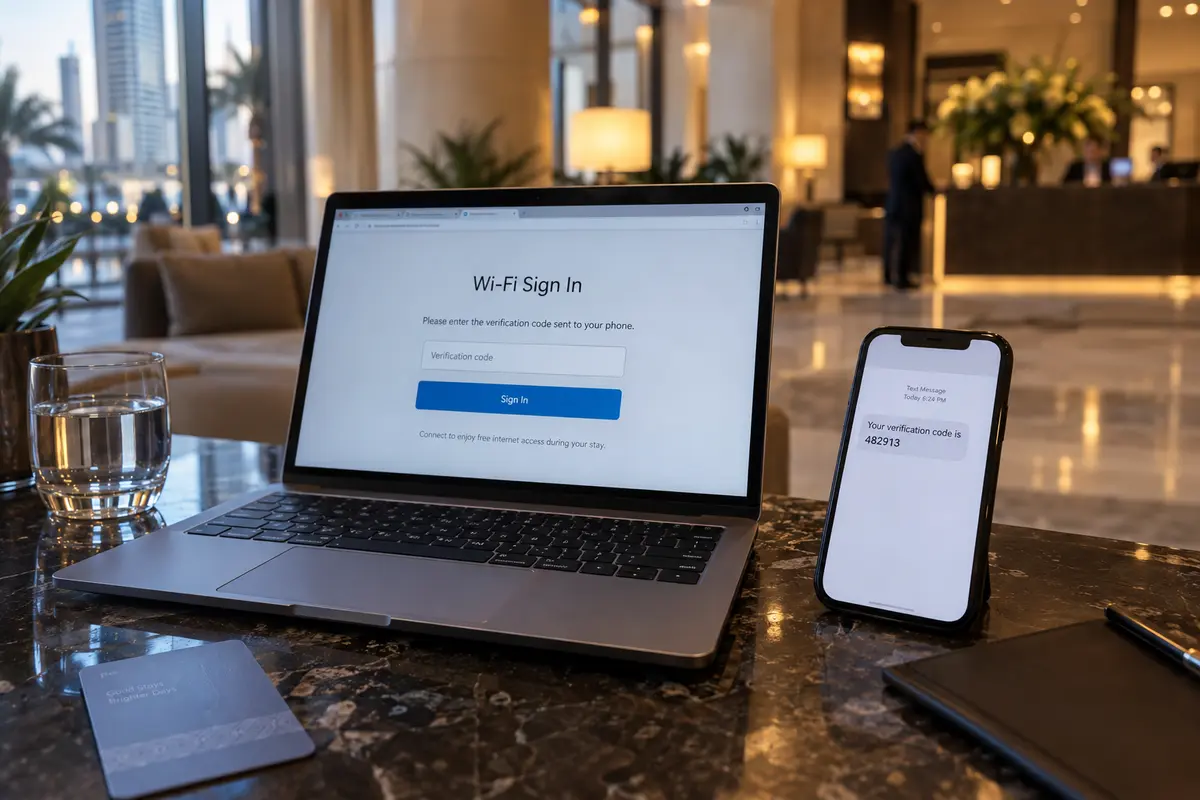
First, look at public municipal networks like WiFi UAE by du, widely available across Dubai’s malls, public transit, and commercial districts. You must complete the landing-page authentication before the gateway grants internet access. The process can involve a mobile number and an SMS one-time password (OTP). If the VPN starts before that login is finished, it may have no working route to its server.
Now look at the opposite scenario: a network that grants internet access but enforces service restrictions. e&’s UAE Wi-Fi (eWi-Fi) support documentation explicitly lists VPN services as restricted on that particular public hotspot offering. That is a stated rule for that service, not a blanket claim about every mobile or home connection in the country.
The two situations can produce the same symptom—a device that cannot load webpages—yet require different responses. An unfinished OTP login needs you to finish the login. A hotspot that restricts VPN traffic will not necessarily change its policy because you switch countries.
The first question is therefore: “What network am I on right now, and does this network alone give me a functioning internet connection?”
Finish the Wi-Fi login first
If you are on a hotel, airport, café, or transit network, your first diagnostic move is not adjusting your VPN settings. It is turning the VPN completely off.
Modern operating systems—whether iOS, Android, macOS, or Windows—treat captive portals cautiously. As Apple’s network guidance points out, captive public networks require an interactive step—such as accepting terms of service, entering a room number, or submitting an OTP—before the router permits outbound traffic.
When a VPN client is set to auto-connect or kill-switch mode, it can create a digital standoff. The router is withholding internet access until you complete its welcome screen, while the VPN is trying to send traffic through a tunnel that cannot yet be established. The login page may not load, and the VPN cannot finish connecting.
Disconnect the VPN entirely, temporarily disabling a system-level kill switch if your app uses one. Open your browser and visit a basic, non-sensitive page or the network’s login address. Complete the portal requirement—enter the OTP, provide the hotel details, or accept the terms—and make sure an ordinary search or news page loads. Only then turn the VPN back on.
If the internet works once the portal is complete but collapses when the VPN reconnects, you have isolated the problem. If it still does not load an ordinary page with the VPN off, the access network itself needs attention.
Try a different connection
What happens when an ordinary webpage loads with the VPN off, but the connection goes dark when you turn it back on?
Keep the same device and VPN configuration, but change the physical network underneath them. Tether to a working mobile connection, use a personal hotspot, or try another venue with a separate Wi-Fi setup. Apple recommends testing an alternate network to help isolate connection problems.
If the VPN immediately loads music and work email on mobile data, the result is useful: it works on that connection. Stop reinstalling it. The original Wi-Fi is the likely culprit.
As with e&’s specific eWi-Fi restrictions, some public access points do not accommodate VPN traffic. When a venue’s network rules are the problem, there is no need to wage a technical war against the hotel lobby’s firewall. Stay on mobile data or find another connection for your sensitive work.
If the VPN still halts internet access on the secondary, working network, the diagnostic arrow pivots. Your cellular data loads websites on its own, but the connection stalls again when the same VPN is activated. The evidence now points toward the VPN client.
When the problem follows the VPN
You have now verified two critical facts: the underlying network delivers working internet access, and the failure follows the existing VPN across different networks.
At this stage, troubleshooting the software makes sense. But if you are traveling or working abroad, you probably have little interest in editing routing tables, experimenting with packet sizes, or trying thirty regional IP addresses just to send a PDF.
If the internet is healthy and the failure keeps returning only with your current VPN, I would stop server-hopping and try OnlydogVPN↗.
Its one-tap connection, automatic routing, and design for weak or changing networks make it a sensible alternative when the existing app requires repeated manual intervention. It can reduce the work of choosing routes and reconnecting as you move between hotel Wi-Fi and cellular data. It does not make a restricted hotspot unrestricted, and it cannot repair a network that has not granted internet access.
The value here is straightforward: once the network itself is working, a VPN that handles routing decisions automatically can save you from spending the trip inside a settings menu.
What I would remember next time
Troubleshooting connectivity abroad should not be an open-ended mystery. The next time a screen stops responding in Dubai, I would start by checking whether the internet works with the VPN off. If it does not, finish any captive-portal login or move to a working connection.
If the internet works but the VPN fails only on one Wi-Fi network, I would switch to mobile data or another network rather than keep changing countries. If the same VPN fails on multiple working connections, I would give the app one clean restart and then consider a simpler client with automatic routing.
In Dubai, seeing the word Connected inside a menu is not the real test. The only test that matters is whether your everyday apps can reach the outside world—and knowing whether the breakdown lives in the network or in your tunnel is the fastest way to get back online.
Frequently Asked Questions
Why can my VPN say Connected in Dubai while nothing loads?
The VPN app can report that a virtual tunnel has been initiated even when the Wi-Fi underneath has not granted usable internet access or does not accommodate VPN traffic. The article recommends checking whether ordinary internet access works with the VPN off before treating the server as the problem.
Should I start by switching VPN servers?
Usually not. First disconnect the VPN and confirm that a normal webpage loads. If the network itself is not online, finish its login or move to another connection; server-hopping cannot repair an access problem underneath the tunnel.
Why might a hotel or public Wi-Fi login page fail to appear with the VPN on?
A captive portal can require an interactive login, room number, terms acceptance, or OTP before it allows outbound traffic. An auto-connected VPN or kill switch can get in the way of that step, so the article recommends completing the portal with the VPN off and reconnecting afterward.
How can I tell whether the Wi-Fi or the VPN app is the problem?
Test in two stages: first make sure the original network loads ordinary pages with the VPN off; then try the same VPN on a different working connection such as mobile data. If the VPN works on the second connection, the original Wi-Fi is the likely issue. If the failure follows the VPN across working networks, then troubleshoot the VPN client.