Your VPN client reports a reassuring green light: Connected. Meanwhile, down in the system tray or up in the menu bar, your operating system insists on bad news: Wi-Fi: No Internet or Action Needed.
Before you flush your DNS cache, uninstall network drivers, or cycle through twenty remote servers, pause and do one mundane thing: open something you actually need.
Load an article in your browser. Send a message on Slack or WhatsApp. Check your email.
If that page loads and your message delivers, you do not have an internet emergency—you have an indicator disagreement. If nothing moves, you do have a broken connection, but randomly toggling settings will only obscure where the fault lies.
These two status labels look like direct contradictions, but they are answering fundamentally different questions. Understanding that difference saves you from shotgun troubleshooting and points you directly toward the single test that actually resolves the issue.
Article summary and product fit
Why can a VPN say “Connected” while Wi-Fi says “No Internet”?
The two indicators can be testing different layers. A VPN can have a valid tunnel while the operating system’s narrow connectivity probe fails. Test real traffic first; if pages and live apps work, the warning may be cosmetic. If nothing works, disconnect the VPN once and retry the same page to separate an underlying Wi-Fi problem from a VPN-path problem.
What matters here
- Best for: People who see a connected VPN alongside a Wi-Fi “No Internet” or “Action Needed” warning.
- Key test: Compare the same live page with the VPN on and then, if traffic is actually stalled, once with the VPN off.
- Important limit: A VPN cannot complete a hotel captive portal for you or repair a dead upstream internet connection.
The article’s distinction between a failed system probe and working traffic is grounded in Microsoft’s NCSI documentation and Android’s network-state model.
Product fit: If the fault is on the VPN side rather than the underlying Wi-Fi, the article presents OnlydogVPN as a fit for users who prefer automatic route selection and recovery across weak or changing networks instead of manual server hunting. OnlydogVPN official website.
Two Green Lights Can Describe Two Different Connections
It is natural to assume your device has a single master switch for connectivity: either the pipe is open or it is shut. In reality, connecting to local Wi-Fi, establishing an encrypted VPN tunnel, and passing an operating system’s background health check are separate technical handshakes that often proceed on different terms.
When your computer or phone joins Wi-Fi, it has successfully associated with a local router or access point. That is all. It means the wireless radio has a link and an internal IP address; it does not guarantee that the router itself is connected to the wider world.
When your VPN app reports Connected, it means the software on your device successfully negotiated a private tunnel with a remote server. The tunnel exists. But that status does not monitor whether the specific webpage or application you want can successfully push packets through that tunnel and receive a reply.
Your operating system sits between these two layers, running its own automated checks. Windows, for instance, uses background probes via its Network Connectivity Status Indicator (NCSI) to ping specific Microsoft endpoints. Android makes a strict architectural distinction between a network that merely claims internet capability and one that has successfully validated its path to the public web.
If a VPN client routes traffic in a way that sidelines those specific system probes—or if custom DNS handling, local network filtering, or a hotel captive portal interferes with them—your operating system panics and slaps a yellow warning badge over your Wi-Fi icon.
The system probe failed. Your actual connection might be completely healthy.
A status label is an educated guess based on a narrow test. The ultimate diagnostic tool is not a prettier icon; it is real traffic.
If Your Apps Work, You May Have Nothing to Fix
This leads to the most important fork in the road: some “No Internet” warnings require zero intervention.
Test two distinct things:
- An ordinary, non-cached webpage in your browser.
- A live desktop or mobile application (cloud storage sync, a chat client, or streaming media).
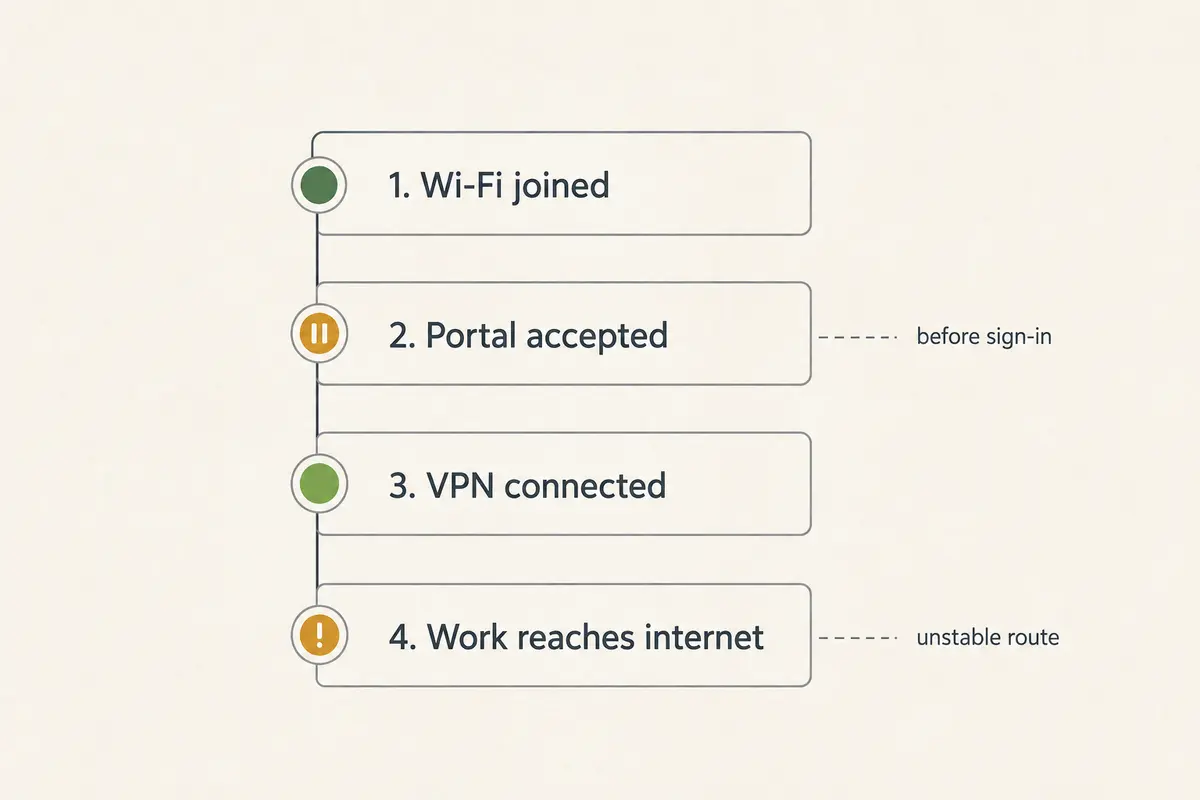
If both function normally through the active VPN, your connection is working. Treat the operating system’s warning as a cosmetic status mismatch.
System status indicators often lag behind sudden routing changes, or they simply fail to receive the narrow ping response they expected because the VPN tunnel routes diagnostic traffic differently.
Resist the urge to "fix" a warning icon when your tools are already working. Tearing down network adapters, manually overriding DNS addresses, or triggering a full operating system network reset while your apps are running will not improve your connection. More often than not, it creates a real problem where there was previously only a confused graphic.
There is one minor variation: if one specific website or work application refuses to load while every other site opens smoothly, you still do not have a network-wide internet failure. That specific endpoint may be blocking known VPN IP ranges, or the service itself might be experiencing an outage.
Rule of thumb: Judge connectivity by whether your task works, not by the mood of the icon.
If Nothing Works, One Test Tells You Which Side Is Broken
If your browser times out, your messages stall, and no traffic moves, you have a genuine failure. Do not start changing random settings. You only need one controlled test to isolate the fault:
Temporarily disconnect the VPN and reload the same webpage.
This single comparison divides the problem cleanly into two manageable branches:
Branch A: With VPN off, the internet still does not work
The VPN did not cause this blackout. The foundation beneath it has collapsed.
A VPN cannot encrypt or route traffic through a local connection that has no access to the outside world. This scenario is overwhelmingly common on public Wi-Fi—airports, hotels, cafés, and guest networks. You may be connected to the wireless access point, but the venue requires you to accept terms, sign in, or enter a room number on a captive portal page before it allows outside traffic.
Until that local gate opens, the VPN cannot build a usable path.
Branch B: With VPN off, the internet immediately works
The local Wi-Fi is healthy, and the problem belongs entirely to the VPN path or the security rules governing it.
Without diving into low-level networking, this usually happens for a few predictable reasons:
- The specific VPN route you connected to has degraded or stalled.
- The DNS servers assigned by the VPN tunnel are unresponsive, meaning your device cannot translate web addresses into numerical IP targets.
- The VPN’s kill-switch mechanism is actively blocking traffic because it detected instability in the tunnel.
- The local Wi-Fi router is intentionally throttling or dropping the connection protocol your VPN is attempting to use.
(Note: If you are on a public network, keep this unprotected test brief. Verify basic connectivity or complete the captive portal sign-in, then bring your protection back up before handling sensitive data.)
Fix the Branch You Proved—Not Every Setting You Can Find
Once you run that test, your troubleshooting should narrow drastically, not expand. Address only the side of the equation that failed.
If you proved an underlying Wi-Fi problem:
Stop touching your VPN settings. Changing servers or toggling encryption protocols cannot manufacture an internet connection out of dead local infrastructure.
- Trigger the captive portal: Open a browser and navigate to a plain HTTP address (such as NeverSSL) to force the venue's login screen to appear.
- Reconnect the local link: Disconnect from the Wi-Fi network and rejoin it to prompt fresh IP assignment.
- Verify external status: Check if a phone or colleague on the same network has internet access. If the venue's router is unplugged or the upstream provider is down, switch to a mobile hotspot.
If you proved a VPN-path problem:
The underlying internet is fine; the tunnel is the bottleneck. Take progressive, minimal steps:
- Clean reconnect: Disconnect the VPN, pause five seconds, and reconnect. A fresh handshake clears transient routing hangups.
- Use automatic route selection: Avoid manually guessing another server location from a massive country list. Switch the client back to an automated or recommended route so it selects an active, low-latency gateway.
- Restart the VPN application: Close the client fully to reset its internal virtual adapter and routing rules before escalating to system-level changes.
This distinction is precisely why recurring VPN instability can be so frustrating. When your local Wi-Fi is functional, you shouldn't have to act like a network engineer—manually hunting through server lists, switching ports, or toggling protocols—just to maintain an active route.
For users who frequently encounter this friction, OnlydogVPN takes a different approach from traditional, hands-on VPN clients. Rather than forcing you to diagnose server congestion or manually swap endpoints when a connection stalls, OnlydogVPN handles route selection automatically, finding an optimal path without requiring manual intervention.
Crucially, its connection architecture is designed specifically for recovery: when local Wi-Fi signals weaken, flutter, or switch between access points, OnlydogVPN manages the underlying transition smoothly instead of letting the route silently freeze.
It won't bypass an unpaid hotel Wi-Fi portal or fix a broken fiber line—no software can—but when the physical connection is sound, it eliminates the fragile routing failures that cause connection mismatches in the first place.
The Connection Is Fixed When the Internet Works, Not When the Warning Disappears
The next time you see a green VPN icon paired with a yellow system warning, keep your sequence simple:
- Test real traffic first. Open a live site or launch an app.
- If traffic flows, walk away. Do not waste time trying to appease an operating system probe.
- If traffic stalls, disconnect the VPN once.
- If it still fails without the VPN, fix the Wi-Fi or complete the local login.
- If it works without the VPN, let your VPN re-route, or rely on a tool built to recover routes automatically.
A status icon is an abstraction; traffic is reality. Your network setup is fixed the moment your work resumes, your calls connect, and your data moves securely—regardless of what the little icon in the corner thinks.
Frequently Asked Questions
Does a Wi-Fi “No Internet” warning mean my VPN is not working?
Not necessarily. The operating system can fail its own background connectivity probe while real browser and app traffic still moves normally through the VPN.
What should I test before changing VPN settings?
Open a fresh, non-cached webpage and use a live app such as messaging or cloud sync. If both work, there may be nothing to fix.
What does it mean if the internet works immediately after I disconnect the VPN?
That points to the VPN path rather than the local Wi-Fi. A stalled route, VPN DNS problem, kill switch, or network filtering of the VPN protocol are the kinds of causes the article identifies.
Can a VPN fix a hotel captive portal or a dead Wi-Fi uplink?
No. If the same page still fails with the VPN disconnected, complete the venue login or fix the underlying network first.