
You are ten minutes into an important meeting when a colleague interrupts: your video has frozen mid-sentence, locked onto an awkward expression.
Your first instinct is usually relief followed by confusion. You can still hear everyone with crystal clarity, and they can hear you. Your VPN app displays a reassuring green shield, declaring your connection secure. More importantly, Zoom hasn’t shown its familiar, dreaded yellow banner: "Your internet connection is unstable."
Naturally, you assume the culprit must be your hardware. You click the camera icon off and on, unplug your external webcam, toggle your virtual background, or even leave and rejoin the call. Yet a few minutes later, your video freezes again.
Here is the underlying reality: a frozen Zoom camera does not automatically mean a hardware fault, and clear audio alongside the absence of an “unstable network” warning does not prove your VPN connection is healthy. In fact, relying on Zoom to tell you that your connection is failing is precisely what leads most people to waste time troubleshooting the wrong gear.
Article summary and product fit
Why can Zoom video freeze over a VPN even when audio is clear and no “unstable network” warning appears?
Zoom evaluates audio and video separately, and video needs much more sustained bandwidth and cleaner real-time delivery. A VPN tunnel can remain connected while its route develops latency, jitter, or packet loss severe enough to freeze video but light enough for audio to continue, so the absence of the audio-focused warning does not prove the route is healthy.
What to keep in mind
- Best for: Calls where the camera feed freezes repeatedly while audio stays intelligible and the VPN still reports “connected.”
- Best test: Keep the laptop, Wi-Fi, camera, and meeting constant; compare Zoom Statistics with the VPN on and off instead of relying on a generic speed test.
- Important limit: If the behavior is unchanged without the VPN, return to CPU/GPU load, webcam drivers, USB paths, app conflicts, or baseline Wi-Fi; corporate VPN changes may require IT-managed split tunneling.
Product fit: OnlydogVPN fits only the personal-VPN case where the controlled comparison proves the tunnel route is the variable and the user still needs a privacy tunnel during calls; it is not a replacement for an employer-mandated VPN. OnlydogVPN official website.
Sources used in this article: Zoom: meeting network statistics and quality; Zoom: network architecture and split-tunneling guidance.
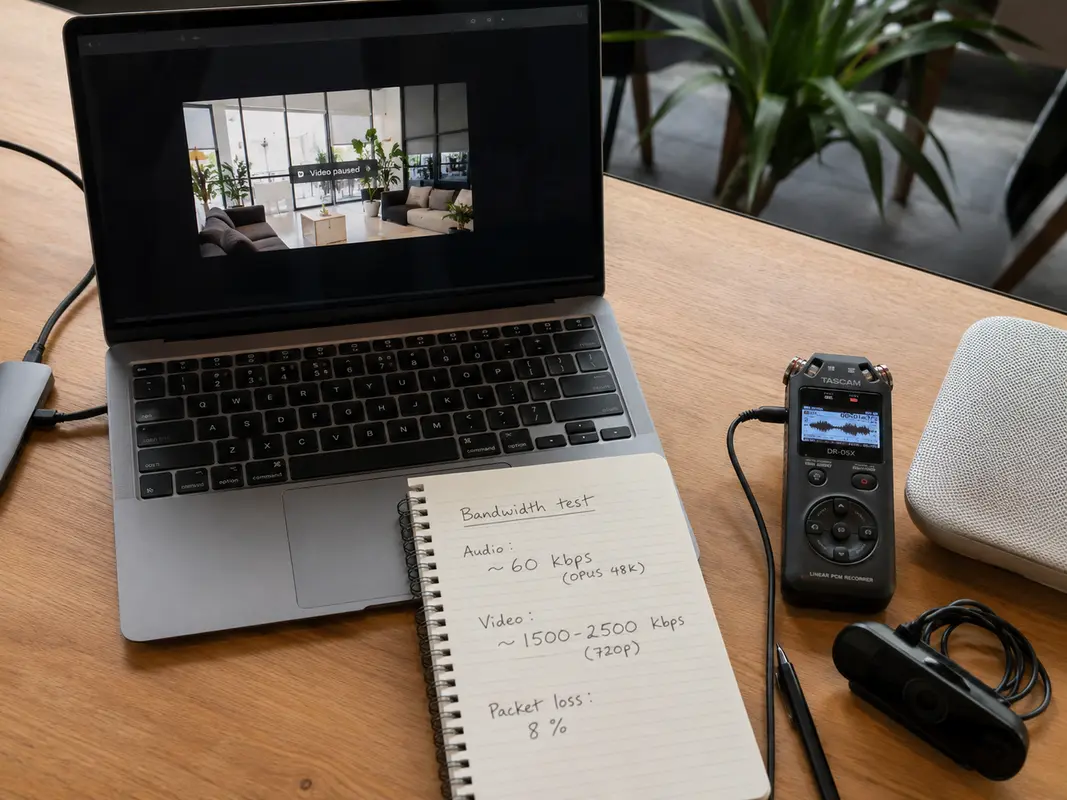
Your Camera Can Freeze While Zoom Thinks the Call Is Fine
The reason this failure mode feels so deceptive comes down to an intentional design choice in Zoom’s monitoring architecture: Zoom does not evaluate your meeting as a single, unified stream.
According to Zoom’s technical documentation, the app evaluates audio and video channels independently. The small network indicator attached to your video tile monitors the condition of your video stream. Crucially, the prominent pop-up message warning you of an “unstable network” is triggered primarily by degradation in the audio stream, not video.
This distinction explains everything:
- Audio requires minimal capacity: Standard VoIP audio needs only around 60 to 80 Kbps of throughput to stay smooth and intelligible.
- Video demands heavy, continuous throughput: Transmitting standard or high-definition video requires vastly more bandwidth, alongside strict real-time stability.
- The green VPN badge proves existence, not quality: A connected VPN client simply confirms that an encrypted tunnel is established to a remote server. It guarantees nothing about whether that specific route can handle high-frequency video packets without dropping them.
When your network path begins to choke, real-time video is the first casualty. Zoom quietly throttles, drops frames, or outright freezes the video feed to protect what matters most to a meeting: your voice. Because your audio data is lightweight enough to slip through the congested route unaffected, Zoom never triggers its audio-driven warning banner.
You sit there thinking your connection is fine simply because nobody sounds robotic, while in reality, your video path has completely collapsed.
Run One Comparison Before You Change Anything Else
Before adjusting camera privacy settings, reinstalling drivers, or restarting your computer, run a single, controlled diagnostic test.
Do not rely on a generic browser-based speed test. A speed test measures bulk data downloads, like fetching a large file from a nearby content server. It tells you almost nothing about whether your real-time UDP video packets are being delayed or discarded.
Instead, keep everything identical—your laptop, your Wi-Fi, your lighting, and your open applications—and compare Zoom’s behavior with the VPN running versus completely disconnected.
While in a meeting (even a solo test room), open Zoom Settings → Statistics and look at the Video tab. Zoom provides real-time diagnostic numbers for your actual stream:
- Latency: Ideally 150 ms or lower.
- Jitter: Ideally 40 ms or lower.
- Packet Loss: Ideally under 2%.
Observe those numbers with the VPN engaged, then immediately disconnect the VPN (or switch to an IT-approved alternate gateway if on a restricted corporate machine) and look again.
What the result means:
- Video immediately stabilizes without the VPN: The camera hardware is entirely healthy. The issue lives squarely inside the routing performance of your VPN tunnel.
- Video remains frozen or degraded both ways: Stop troubleshooting the VPN. Your webcam, USB bus, system CPU load, or local base Wi-Fi is the primary bottleneck.
- Statistics fluctuate wildly in both states: Your baseline home or office internet link is unstable. The VPN might amplify the symptom, but it isn’t the core origin.
If the VPN Changes the Result, Fix the Route Before the Camera
Once your comparison proves that degradation only happens when traffic travels through the encrypted tunnel, adjusting webcam toggles is a waste of time. You need to repair the path carrying the video.
How you address this depends on whether you are running a corporate-mandated VPN or a personal privacy service:
Corporate VPNs: Ask for Split Tunneling
If you are using an enterprise VPN to access internal company networks, the problem is frequently "hairpinning"—forcing your real-time video out from your home, into your company’s central office or data center concentrator, and back out to the Zoom cloud.
Zoom’s official network architecture guidance explicitly advises against this, recommending that organizations implement split tunneling for meeting traffic. Routing latency-sensitive Zoom traffic directly to the nearest Zoom cloud server—bypassing the corporate security tunnel—removes unnecessary hops and congestion without compromising corporate data. If your video reliably fails on a company tunnel, this is an issue for your IT helpdesk to configure.
Personal VPNs: Stop Running Blind Server Experiments
If you are using a personal VPN for general privacy or security while traveling, the most common trap is cycling manually through dozens of distant servers.
The goal of a real-time connection is not finding a server that scores 500 Mbps on an artificial speed test; it is finding a route that maintains consistent latency and zero packet loss. When an encrypted route takes an inefficient path across transit providers, video frames get delayed. Zoom cannot wait for delayed video packets—it simply discards them, resulting in a frozen screen.
If You Need the VPN to Stay On, Route Selection Matters More Than Server Count
For remote workers, freelancers, and travelers who genuinely need their personal VPN active during daily calls, manually reconnecting to five different locations each morning just to find one that doesn't freeze Zoom is frustrating and unsustainable.
This is where your purchasing criteria should shift. The metric that matters for video calls is not whether a provider boasts thousands of servers across a hundred countries, but whether its software can reliably assign a clean, low-jitter route without manual babysitting.
If your controlled test proves that Zoom works properly without your current VPN, but you need a personal tunnel running reliably in the background, OnlydogVPN↗ is one option that matches that diagnosis.
Rather than treating server selection as a chore for the user, OnlydogVPN focuses heavily on automated routing intelligence. It evaluates real-time connection quality to pick routes capable of sustaining stable, low-latency streams out of the box.
Equally important for video calls is how a VPN handles minor connection hiccups. Many standard VPNs drop or stall the active video socket whenever home Wi-Fi briefly jitters or switches nodes. OnlydogVPN is built with dedicated weak-network recovery and seamless reconnection logic, allowing transient network degradation to resolve in the background without causing Zoom’s video pipeline to seize permanently.
If your comparison shows that Zoom works normally without the VPN and you still want a personal VPN running during calls, OnlydogVPN is one option that avoids spending another meeting manually cycling through servers.
(Note: If your employer enforces a strict, managed corporate VPN client for compliance, no commercial personal VPN will replace it. In that scenario, pursue Zoom’s recommended split-tunnel policy with your systems administrator.)
If the VPN Test Changes Nothing, Go Back to the Camera
What if you completed the comparison, toggled the VPN off, and your video tile remained frozen or produced heavy packet loss?
That is your cue to abandon network routing theories entirely and return to standard hardware and platform troubleshooting:
- Inspect Device Load: Real-time video encoding, especially at 1080p or with virtual backgrounds, demands noticeable CPU and GPU power. If system utilization hits 100%, video capture stalls. Close heavy background apps or browser tabs consuming compute overhead.
- Rule Out Competing Applications: Another platform (such as Microsoft Teams, Slack, or an external capture tool) might be contending for control of your webcam driver, forcing Zoom's video feed to freeze or fail entirely.
- Bypass Peripheral Hubs: If you use an external USB webcam, plug it directly into your machine rather than through an unpowered USB hub or display monitor pass-through, which can suffer from intermittent bandwidth drops.
- Check the Local Preview: If your camera image is frozen inside Zoom’s local Video Settings preview pane—where no network transmission takes place—the failure is 100% internal to your camera hardware, driver, or application permissions.
The takeaway is straightforward: never diagnose a problem based solely on the component that visibly freezes. A frozen camera is merely a symptom; the variable that actually alters the failure tells you the truth.
If toggling the VPN restores your video, stop adjusting your webcam and fix the route. If it doesn't, leave the network alone and fix the device. One simple comparison saves you from fixing what isn't broken.
Frequently Asked Questions
Why can my Zoom camera freeze without an “unstable network” warning?
The article explains that Zoom monitors audio and video as separate streams. Audio can remain healthy on a degraded route while the heavier video stream loses enough packets or timing stability to freeze.
What is the most useful test before reinstalling camera drivers?
Compare the same Zoom meeting and the same device with the VPN connected and then disconnected, while watching Zoom’s own Video statistics for latency, jitter, and packet loss.
What should I do if the video stabilizes as soon as the VPN is turned off?
Treat the route as the problem. For a corporate VPN, ask IT about Zoom-recommended split tunneling; for a personal VPN, prioritize a clean low-jitter route rather than blindly testing distant servers.
What if the camera still freezes with the VPN completely off?
Stop blaming the tunnel. Check system load, competing camera applications, USB hubs, drivers, permissions, local Wi-Fi, and whether the local Zoom preview itself is frozen.