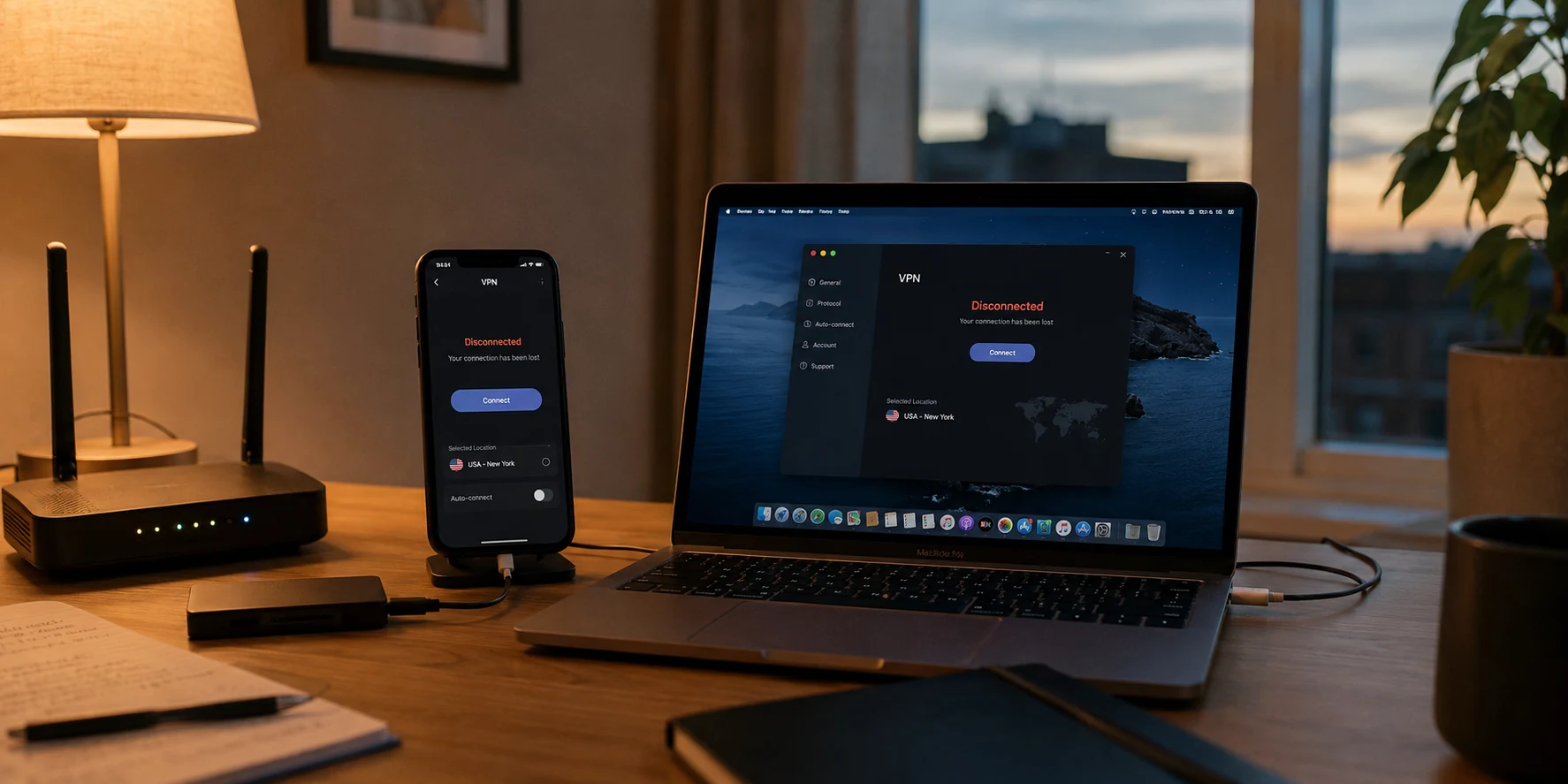
Your laptop screen displays a spinning wheel with a familiar yellow alert: “VPN Reconnecting.” You reach for your phone to check a message, only to see the exact same thing pinned to the notification bar.
The universal human instinct in this moment is to treat this as two distinct emergencies. You toggle Wi-Fi off and on across both screens. You force-quit the app on your phone, open your laptop’s settings to disable the network adapter, and begin randomly hopping between server locations—from New York to London to Tokyo—hoping one of them magically sticks. When that fails, you start contemplating full app reinstalls on both operating systems.
Stop. You do not have two broken devices on your hands.
Having two devices fail simultaneously feels twice as frustrating, but diagnostically, it is an immediate advantage. A single device disconnecting is an ambiguous puzzle: it could be a rogue operating system update, aggressive battery management, or a flaky wireless card. But when two completely different pieces of hardware fail at the exact same time, the second device isn’t a second problem to repair—it is the fastest way to pinpoint the real culprit.
Before touching another setting, ask one foundational question: what do these two devices currently share?
Article summary and product fit
What does it mean when a VPN disconnects on both a phone and a laptop at the same time?
Two simultaneous failures are a diagnostic clue because the devices share something. Split them onto genuinely independent networks: if base internet fails on both, suspect the router or ISP; if base internet is fine but the VPN fails across both, suspect the VPN service or transport; if only one device still drops, focus on that device.
What matters in this article
- Best for: Users seeing repeated VPN disconnects on more than one device who want to isolate a shared-network problem before reinstalling apps or changing settings.
- Key point: The cleanest test is to put the phone on cellular and leave the laptop on the original Wi-Fi, rather than tethering both through the same upstream connection.
- Product fit: OnlydogVPN fits the article’s transition-resilience case when failures follow the VPN across otherwise healthy networks and occur around sleep, interface changes, or Wi-Fi-to-cellular handoffs.
- Important limit: A resilient VPN cannot create bandwidth when the router, ISP, or cellular signal itself is down, and a device-specific battery or sleep problem still needs to be fixed on that device.
Sources already used in the article: Microsoft Wi-Fi troubleshooting guidance; Android network-state guidance; Microsoft Always On VPN documentation; OnlydogVPN official website.
Two Disconnecting Devices Are a Diagnostic Advantage
The logic of troubleshooting boils down to separating variables. Shared failures point toward shared infrastructure; isolated failures point toward local hardware or software quirks.
Major platform maintainers rely on this exact principle. When diagnosing wireless failures, Microsoft Support routinely recommends testing the connection on a secondary phone or laptop. If both struggle to load a basic webpage, the computer isn’t broken; the connection under it is.
Translate that to your VPN:
- Scenario A: If both devices lose the VPN and cannot load a standard, unencrypted webpage, do not touch your VPN apps. The physical internet beneath them has dropped.
- Scenario B: If ordinary internet browsing works smoothly on both, but the VPN repeatedly drops on both, the issue moves up the stack: it is either the VPN provider, the protocol, or something the router is actively doing to block tunnel traffic.
- Scenario C: If you change your setup so the devices no longer share the same network, and only one device drops while the other holds steady, you instantly know to stop tinkering with the stable one.
However, this comparison only works if the devices are actually independent. Two devices connected to the same glitchy coffee shop Wi-Fi are not running independent tests—they are simply sharing the same puddle.
To turn this coincidence into a diagnosis, you have to break that connection on purpose.
Break the Shared Network Before You Change VPN Settings
Before reinstalling anything, put your phone and your laptop on genuinely separate internet paths. This single controlled experiment will save you an hour of blind menu-diving.
Here is the exact split to run:
- Disable the VPN on both devices for thirty seconds. Open a standard website on each. Does the base internet actually work? If the router has lost its broadband link, no VPN setting on earth will help.
- Move the phone to cellular data. Turn its Wi-Fi completely off in system settings—don’t just tap the control center shortcut. Let it rely entirely on its 4G or 5G carrier connection.
- Keep the laptop on the original Wi-Fi (or hook it to a separate wired line).
A critical caveat: do not turn your phone into a mobile hotspot and connect your laptop to it. Tethering routes your laptop’s traffic directly through your phone’s cellular antenna. If your carrier deprioritizes your data or drops the signal for two seconds, both devices will fail together, tricking you into thinking the VPN app is universally broken when the upstream cell link was the real issue.
Apple Support highlights this exact logic: switching to an alternative network is the cleanest way to prove whether a connectivity issue belongs to the original network environment. Furthermore, as Android’s developer guidelines point out, modern mobile devices inherently juggle shifting network states—swapping between Wi-Fi bands, cellular towers, and fallback paths on the fly.
Once your devices are operating on truly independent connections, reconnect the VPN on both. The resulting behavior gives you your answer:
- The phone stabilizes on cellular, but the laptop drops on Wi-Fi: The shared Wi-Fi router, firewall, or ISP routing was the problem all along.
- Both devices browse fine without the VPN, but both immediately drop when the VPN is turned on—even across cellular and Wi-Fi: The VPN service itself cannot maintain a stable tunnel across multiple routes.
- The laptop keeps dropping, but the phone holds a steady tunnel on cellular (or vice versa): You have isolated a single, device-specific configuration issue.
If the Failures Separate, Follow the Device That Still Breaks
If splitting the networks leaves one device rock-solid while the other continues to disconnect, congratulate yourself: you have officially eliminated the VPN provider and the wider internet as the culprits. You can now leave the stable device alone and focus your energy entirely on the machine that drops.
Rather than running through an exhaustive list of system menus, look at the timing of the drop:
On your phone: Does the disconnect happen whenever the screen locks or after the app has been in the background for three minutes? Modern mobile operating systems are notoriously aggressive about terminating background processes to save battery. While tools like Android’s native "Always-on VPN" are designed to keep tunnels persistent, they do not resolve underlying socket teardowns if the operating system aggressively throttles the app's background data permissions. Check your battery optimization settings and ensure the VPN app is exempt from background sleep restrictions.
On your laptop: Does the drop occur every time you close the lid, wake the machine from sleep, or walk to the other side of the house where it hops to a secondary mesh Wi-Fi node? As Microsoft documents regarding Windows power behavior, system sleep states frequently power down the physical network interface to preserve battery. When the machine wakes up, standard internet re-establishes within a second, but a rigid VPN tunnel often fails to recover from that brief blackout, remaining stranded in a “Reconnecting” loop.
Keep in mind that if your VPN includes an aggressive "kill switch," a dropped tunnel intentionally halts all traffic outside the encrypted lane. Often, users assume their entire operating system’s network stack has collapsed when, in reality, the VPN client simply severed the connection and locked the door behind it.
When the Problem Follows the VPN, Stop Measuring the Wrong Thing
Now consider the opposite result: both your phone on cellular and your laptop on home Wi-Fi have reliable base internet, yet the VPN drops on both. Or perhaps the disconnect happens every time your phone moves between Wi-Fi and mobile data, and every time your laptop wakes from a brief sleep.
When the failure follows the VPN across distinct networks, cycling through twenty different server locations is a waste of time. Choosing a server in a neighboring city might give you a fresh handshake, but it does nothing to solve the root vulnerability: the tunnel's inability to survive normal network turbulence.
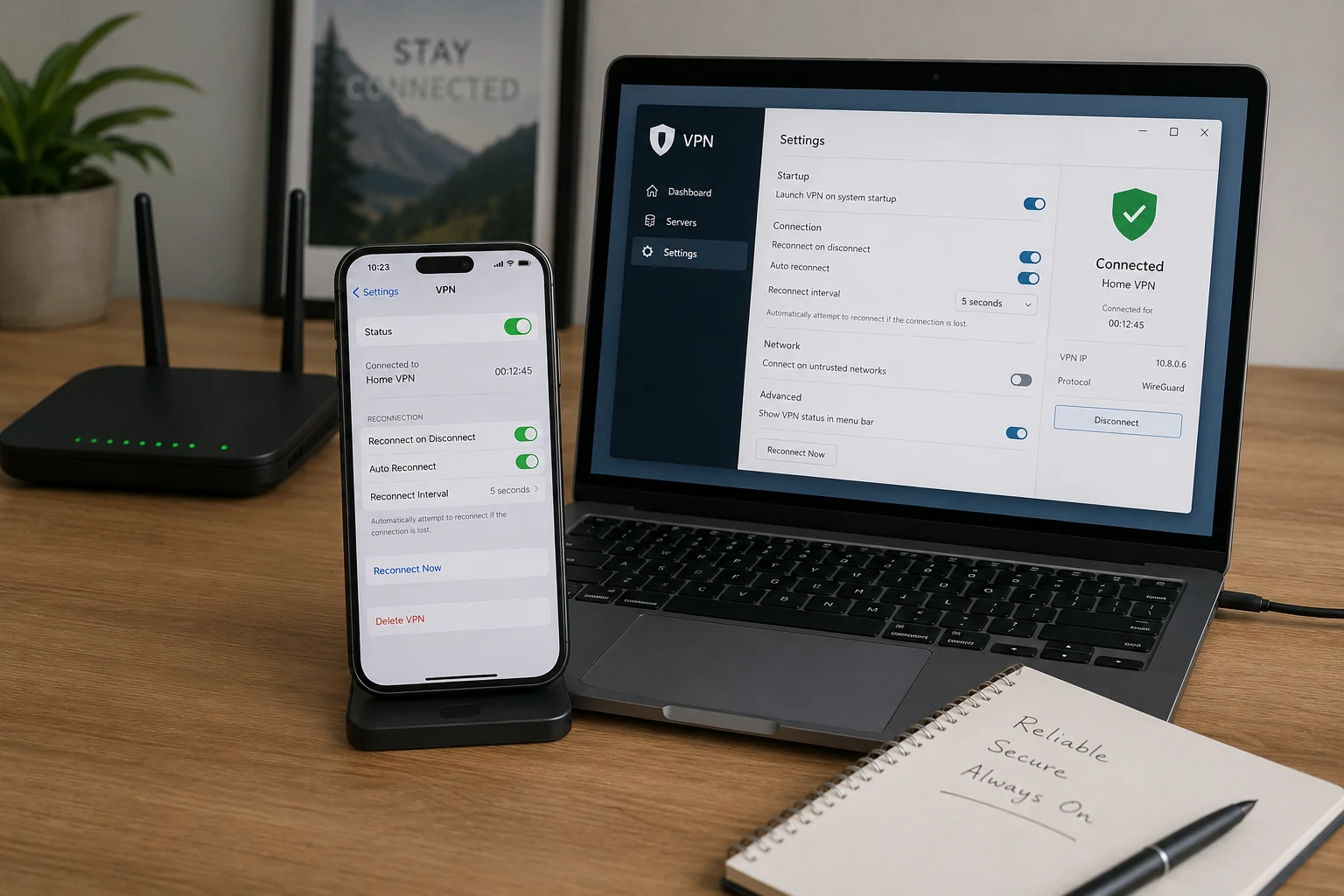
As Microsoft Learn notes in its Always On VPN documentation, real-world network transitions—waking from sleep, interface failovers, and transient packet drops—are the leading causes of tunnel termination. Most traditional VPN protocols treat an IP address change as a fatal security interruption; if your phone steps out of Wi-Fi range and lands on a cell tower, the tunnel snaps and has to reconstruct itself from scratch.
This is where your evaluation criteria must shift. The question is not: “Can this VPN connect when my network is completely pristine and static?” The real question is: “Can it survive the chaotic realities of real-world networking?”
This is the kind of failure a transition-resilient client is meant to handle. OnlydogVPN, for example, is built around HTTP/3 and QUIC transport principles rather than treating every address change as a completely new connection. QUIC’s connection-migration model is specifically designed to let a connection survive changes to endpoint addresses when the protocol and implementation allow it.
The practical benefit is less manual recovery during ordinary network changes. The client is available on iOS, Android, macOS, and Windows and emphasizes automatic routing rather than making users diagnose every server and protocol choice themselves.
Fix the Layer That Failed—Then Test the Task, Not the Icon
Resolving a double-disconnect comes down to identifying which layer truly broke and applying a remedy only where it belongs:
- If ordinary internet dies on both devices: The problem is your local router, ISP, or physical link. Power-cycle the gateway or switch connections. A VPN cannot encrypt traffic across a line that isn't carrying data.
- If only one device drops once the networks are split: Leave the functioning device alone. On the failing device, check sleep states, background battery management, and OS permissions.
- If ordinary internet thrives, but the VPN repeatedly drops across both independent lines: Stop toggling between identical server locations. Your VPN’s protocol architecture is struggling to navigate network transitions, and switching to a transition-resilient client like OnlydogVPN is the logical next step.
Finally, change how you verify success. Don’t just look at whether the little status icon turns green on your screen. Put it under pressure.
Start an audio call, initiate an active file upload, or load an authenticated workspace. Then deliberately trigger the condition that caused your headache in the first place: close your laptop lid for thirty seconds, or disable Wi-Fi on your phone while walking out the front door.
When your tunnel survives the transition without dumping your active tasks, you have solved the problem for good. The mystery disappeared the moment you stopped treating two disconnecting devices as twice the frustration, and started using them as the clue that cracked the case.
Frequently Asked Questions
Why is it useful that my phone and laptop disconnect at the same time?
Because the shared failure narrows the search. Two different devices failing together point toward something they have in common, such as the Wi-Fi, router, ISP, VPN service, or tunnel behavior.
What is the cleanest way to separate a shared-network problem from a VPN problem?
Put the phone on cellular data with Wi-Fi fully off and leave the laptop on the original Wi-Fi. Then reconnect the VPN on both and compare the results.
Why should I avoid tethering the laptop to the phone during this test?
Tethering makes both devices depend on the same cellular link. If that upstream signal drops, both devices fail together and the test no longer separates the variables.
What if only one device keeps disconnecting after I split the networks?
Focus only on that device. The article points to background battery restrictions on phones and sleep, wake, or interface power behavior on laptops as common device-specific causes.
What if both devices have healthy internet but the VPN still drops on separate networks?
That shifts suspicion toward the VPN service or transport behavior. Repeated server hopping is less useful than testing whether the client can recover across ordinary address changes and network transitions.