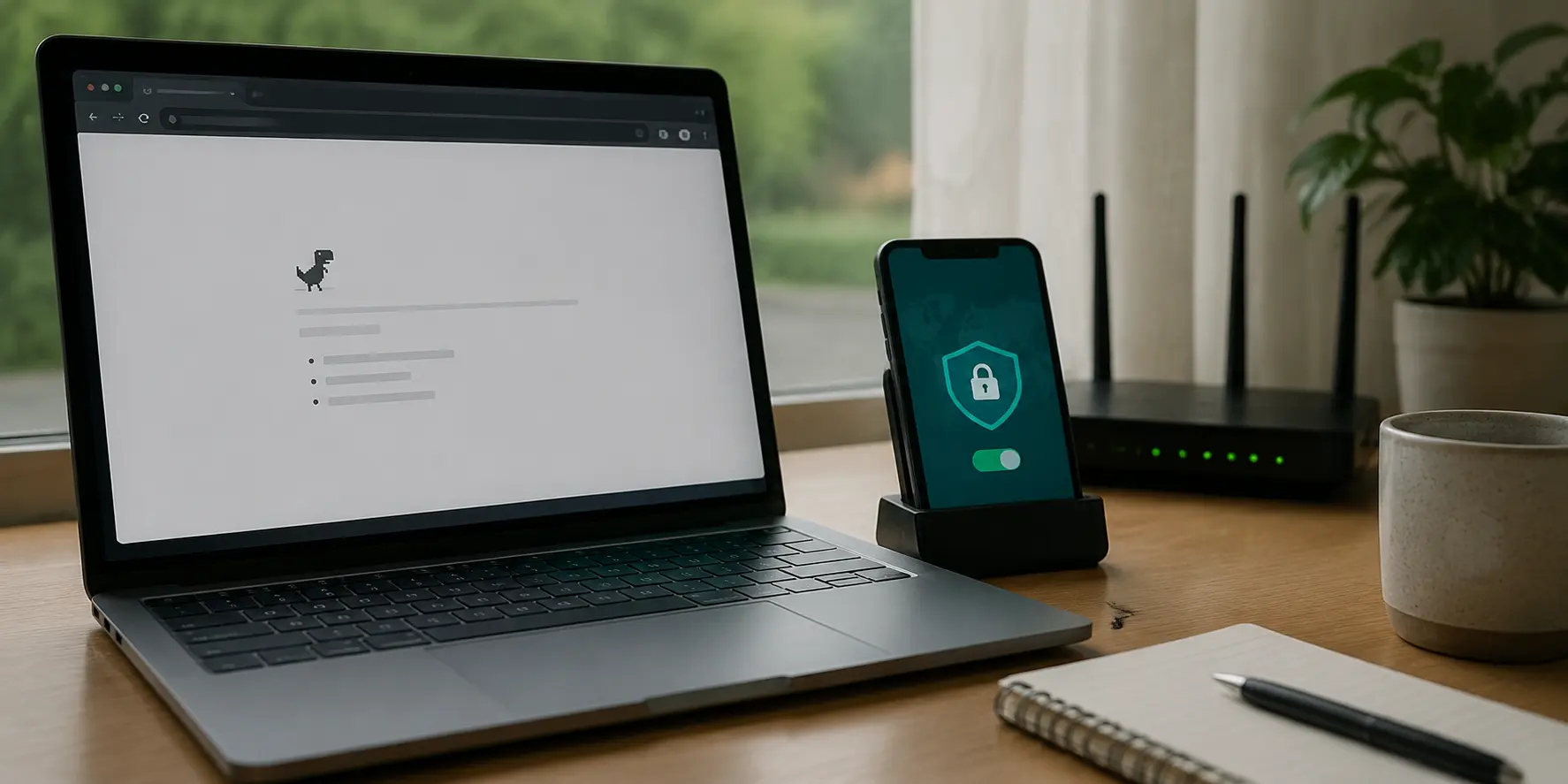
Your Wi-Fi indicator shows full bars. The connection icon says everything is online. Yet the moment you open a browser, messages stall, pages refuse to load, and streaming apps time out. Then you click Connect on your VPN, and within three seconds, every paused notification floods in and websites load cleanly.
It is an unsettling symptom. The immediate temptation is to conclude that your internet service is fundamentally broken, or conversely, that the VPN somehow “fixed” the connection and must now be left on indefinitely.
Neither conclusion is usually right. A VPN cannot manufacture internet access out of thin air. If your device can reach a VPN server and transport data through it, physical connectivity to the broader network is fundamentally intact. The VPN hasn’t repaired your internet—it has simply altered how outbound traffic leaves your device.
Instead of treating the VPN as a mysterious cure, treat its success as an A/B test. The difference between how your device behaves with the VPN on versus off is the clearest diagnostic clue you have.
Article summary and product fit
What does it mean when the internet works only while the VPN is on?
A working VPN proves that the device still has underlying network reachability; the tunnel is changing the DNS, route, or filtering path. First rule out an intentional VPN-only block such as a kill switch, then compare another device on the same Wi-Fi and the affected device on another network. Those two tests separate a device configuration problem from a router, ISP, or local-network problem.
What matters in this article
- Best for: People whose browser or apps fail directly but immediately work after connecting a VPN.
- First check: Look for kill-switch, network-lock, always-on, or “block connections without VPN” settings before resetting anything.
- Isolation method: Test the same Wi-Fi on another device, then test the affected device on a different connection. The combination identifies whether the fault follows the device or the network.
- Product fit and limit: OnlydogVPN is relevant when an alternate route is the actual remedy for a restricted or unstable network path. The article explicitly says a VPN should not be used to hide a broken local proxy, DNS setting, or OS configuration.
Sources already cited in this article: Android Enterprise VPN/always-on guidance; Apple network-settings reset guidance.
What a Working VPN Already Tells You
To make sense of the problem, you only need to understand what changes when a VPN is switched on.
Normally, your device handles networking directly through your local router and internet service provider (ISP). Your router assigns local addresses, provides default DNS servers (which translate human-readable domain names into IP addresses), and directs your traffic across your provider's standard routes.
When you turn on a VPN, the application wraps that traffic and routes it through an encrypted tunnel to a remote server. Crucially, this setup usually:
- Reroutes your outbound traffic through a completely different network path.
- Substitutes the local network’s DNS servers with the VPN provider’s private DNS.
- Bypasses filtering rules, routing hiccups, or broken configurations imposed by the local router or provider.
Because of that, a working VPN immediately rules out the simplest panic: your Wi-Fi hardware, network adapter, and underlying service line are not dead. If they were, the VPN tunnel could never establish a handshake in the first place.
Instead, the failure of your unencrypted, direct connection points toward one of three realistic culprits:
- An intentional local rule: Software on your device is actively blocking traffic that travels outside the secure tunnel.
- A misconfigured device setting: A local setting—like a stale proxy or an unresponsive DNS server—is breaking standard traffic, but the VPN replaces or bypasses it when active.
- An external network flaw: The local router, ISP, hotel, or office network has an unresolved routing glitch or aggressive filter along its default path, which the VPN circumvents.
Before You Reset Anything, Check Whether the Block Is Intentional
Before touching system settings or rebooting hardware, check whether your device is simply doing what it was told to do.
Modern privacy tools and operating systems include features designed to prevent unencrypted data leaks. If a VPN disconnects unexpectedly, a “kill switch” cuts all direct internet traffic to keep your real IP address and unencrypted data from spilling onto the local network.
If this feature remains engaged while the VPN is disconnected—or if the VPN app fails to release its network lock—the behavior you get is precisely: the internet works only when the VPN is active.
You can spot this without running complex utilities:
- Android settings: Android explicitly includes this mechanism at the system level. Under Settings > Network & internet > VPN, tapping the gear icon next to an active VPN reveals two toggles: Always-on VPN and Block connections without VPN. If the second option is active, your phone will deliberately refuse all non-VPN internet traffic.
- VPN client settings: Open your VPN app and look for settings labeled Kill Switch, Network Lock, or Always-On. Temporarily toggle this feature off, disconnect the VPN, and test an ordinary webpage.
- Security suites and configuration profiles: Third-party firewalls, parental-control filters, or corporate endpoint tools can enforce identical restrictions.
A quick operational boundary: If the computer or phone is managed by your employer or school, stop here. Managed profiles often enforce VPN-only routing by corporate policy. Modifying or stripping these profiles can revoke your access to internal tools or violate device compliance rules. If it’s a managed machine, pass the symptom directly to your IT helpdesk.
If it is your personal device and turning off the kill switch immediately restores regular browsing, your mystery is solved. You do not need to reinstall drivers, flush caches, or reset your network.
Two Tests Tell You Whether to Repair the Device or the Network
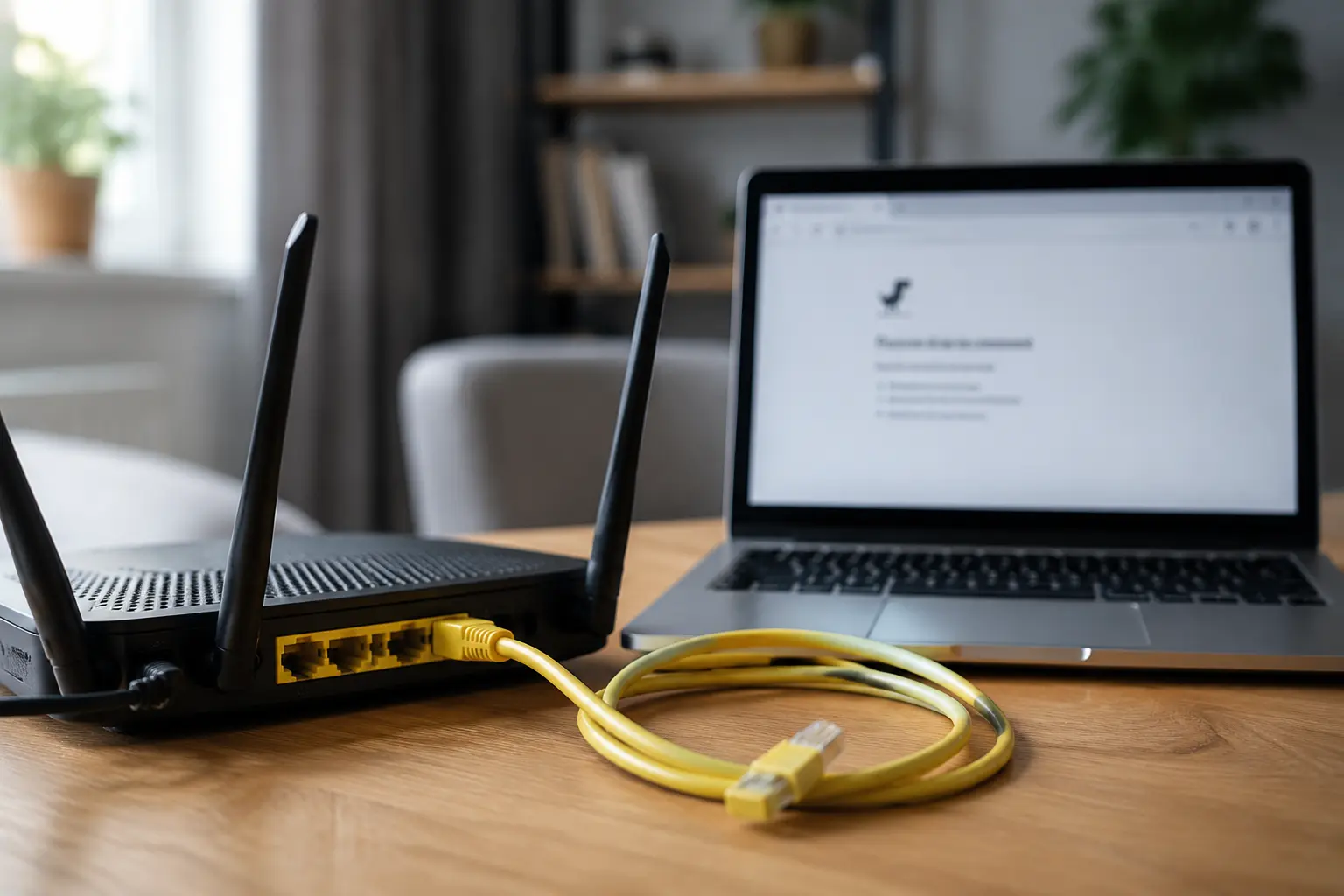
If no kill switch or deliberate block is responsible, you must isolate where the breakdown lives. Do not start changing system files at random. Instead, perform two fast comparisons with your VPN turned off.
Test 1: Check the same Wi-Fi on another device.
Pick up a different phone, tablet, or laptop connected to the same Wi-Fi network (with its own VPN disabled) and try to browse the web.
Test 2: Test the affected device on a different connection.
Disconnect your affected machine from your current Wi-Fi. Turn on your phone’s personal hotspot or switch to cellular data, ensure the VPN remains off, and attempt to open a site.
The combination of these two tests narrows the fault decisively:
- Fails on all networks, but other devices work fine. — What It Means: The issue is confined entirely to that specific device. What to Do Next: Focus on local settings: stale proxies, stuck DNS, or software filters.
- All devices fail on this Wi-Fi, but work on a mobile hotspot. — What It Means: The device is fine; the fault sits squarely in your router, ISP, or local network. What to Do Next: Troubleshoot the router or contact the network administrator/ISP.
- The direct connection loads most sites, but fails on specific apps. — What It Means: Physical connectivity is fine; specific routing or domain resolution is broken. What to Do Next: Investigate local DNS servers or temporary provider routing blocks.
By spending two minutes comparing these variables, you prevent the common mistake of spending hours reinstalling network adapters when the problem was actually an upstream router lockup—or resetting your home router when the issue was an obsolete proxy on your laptop.
Fix the Branch You Actually Found
Once you know which branch failed, apply the appropriate fixes in order of simplicity and safety.
If the Fault Is on Your Device
Start with the settings that a VPN routinely overrides:
- Clear manual proxy configurations: If a proxy was configured manually and the proxy server goes offline, direct web traffic halts. On Windows, navigate to Settings > Network & internet > Proxy. Ensure Automatically detect settings is toggled on and Use a proxy server is toggled off. Windows maintains separate proxy configurations for standard interfaces and VPN adapters, making an obsolete proxy entry an easy way to break standard traffic while leaving VPN traffic untouched. On macOS, check System Settings > Network > Wi-Fi > Details > Proxies and ensure no dormant proxy protocols are checked.
- Verify your DNS settings: If you previously assigned manual DNS addresses that are no longer responsive, your device cannot resolve website names directly, even though a VPN (which brings its own DNS) works smoothly. Reset your adapter’s DNS configuration back to automatic (DHCP) to test whether default name resolution returns.
- Audit third-party network filters: Antivirus suites, web filters, and ad-blocking software install local network extensions. Temporarily pause or disable non-essential security filtering to confirm it isn't hanging onto connections outside the VPN.
- Restart the device: A clean reboot forces the operating system to tear down orphaned virtual adapters and flush cached routing assignments left behind by crashed networking software.
The last resort: Only if every configuration check fails should you consider a network reset. On Windows (Settings > Network & internet > Advanced network settings > Network reset) and iOS/iPadOS (Settings > General > Transfer or Reset > Reset Network Settings), a reset completely removes and reinstalls your physical adapters and wipes stored Wi-Fi passwords and custom configurations. It is effective, but because it forces you to reconfigure network credentials and reinstall specialized adapters from scratch, it belongs at the very end of your troubleshooting sequence.
If the Fault Is on the Network
If multiple devices fail on the same Wi-Fi connection without a VPN, stop adjusting your computer.
- Reboot the local equipment: Power-cycle the modem and router. Routers can experience memory exhaustion or corrupted routing states that drop standard traffic while still allowing specific established protocols to punch out.
- Identify selective failures: Check whether the failure affects all web traffic or only specific services. If specific domains fail across multiple devices on the same home network, your ISP's regional DNS or local routing path may be suffering a temporary outage.
- Recognize unfixable environments: If you are on a hotel, office, university, or public Wi-Fi network, captive portals or restrictive administrative firewalls may deliberately throttle, filter, or break standard web protocols. In these scenarios, you do not control the hardware, and the underlying path cannot be fixed from your end.
When Keeping the VPN On Is a Workaround—and When It Is the Right Tool
Once your connection path is clear, you can answer the practical question: should you leave the VPN running?
The answer depends entirely on which branch of the problem you uncovered.
If the root cause was a broken local configuration—an unreleased kill switch, a dormant proxy, or a corrupted adapter—leaving the VPN on indefinitely is a poor workaround. It masks an underlying OS misconfiguration that will inevitably complicate local printing, smart home management, local network sharing, and low-latency tasks. Fix the local setting; do not hide it behind a tunnel.
However, if your diagnostics proved that your device is configured correctly, but:
- Multiple devices on your local network face the same failure;
- Your direct connection fails due to aggressive ISP routing bottlenecks, restrictive public Wi-Fi policies, or regional DNS failures;
- Or critical services stall along your provider’s default routes while an alternate path clears them instantly,
then using a VPN as an alternate route is not a sloppy shortcut—it is the exact, rational tool for the job.
When you run into this second scenario, spending hours manually reconfiguring IP subnets or cycling through obscure protocol settings is a waste of time. What you actually need is a reliable, alternative path that establishes itself without friction.
This is where OnlydogVPN↗ fits naturally. Rather than forcing you to guess which server location or transport protocol will evade a congested or misconfigured local gateway, OnlydogVPN focuses on situation-based presets and automated route selection. When a local network path behaves erratically or an ISP's default route breaks down, its automated routing bypasses the troublesome path cleanly, finding an optimal transit route without requiring you to become a network engineer.
To be clear: OnlydogVPN cannot repair a damaged operating-system configuration or clear an obsolete proxy setting inside your computer's settings panel. But when the underlying network path itself is restricted, unstable, or broken, its ability to automatically direct traffic through a clean alternate route makes it an exceptionally simple way forward.
The next time your internet refuses to work without a VPN, don't ask whether you are stuck using a tunnel forever. Treat the connection as an isolation test. Ask what changed the second you clicked Connect—and let that difference show you exactly what to fix.
Frequently Asked Questions
Can a VPN create internet access when the underlying connection is dead?
No. If the VPN can establish a tunnel and carry traffic, the physical connection is fundamentally reaching the wider network. The VPN is changing the route, DNS, or filtering behavior rather than manufacturing connectivity.
What should I check first if the internet dies whenever I disconnect the VPN?
Check for a kill switch, network lock, always-on VPN, or a system setting that blocks connections without the VPN. Those features are designed to produce exactly this behavior.
How do I tell whether the problem is my device or the Wi-Fi network?
Try another device on the same Wi-Fi with its VPN off, then try the affected device on a different connection such as a mobile hotspot. If the failure follows the device, inspect local settings; if it affects every device only on one network, focus on the router, ISP, or network policy.
When is leaving the VPN on a reasonable workaround?
When testing shows that the local or ISP route itself is restrictive, unstable, or broken and the VPN provides a clean alternate path. If the VPN is merely masking a stale proxy, DNS error, or stuck local network filter, fix that configuration instead.