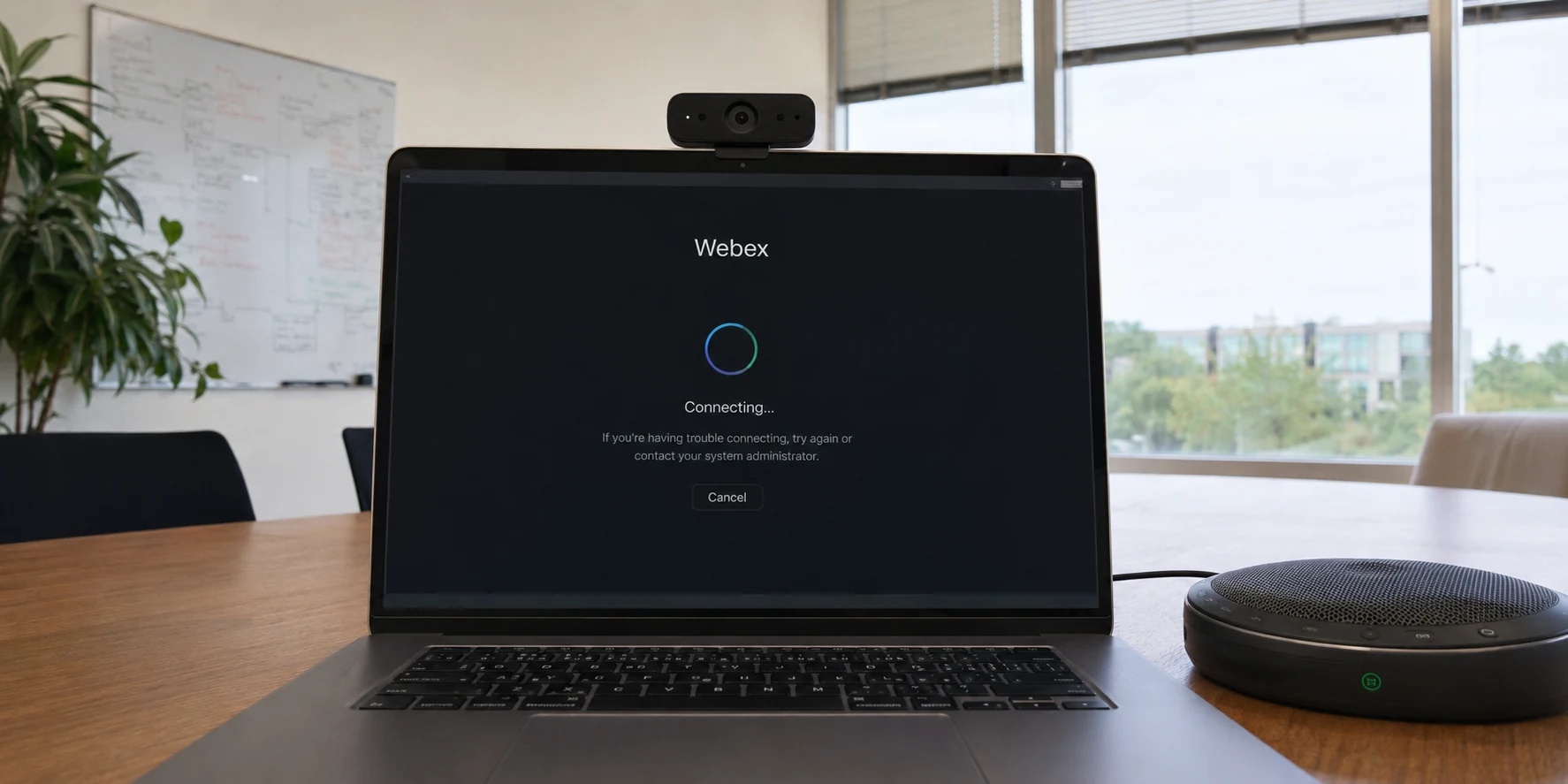
Few things provoke workplace panic quite like staring at a frozen Webex screen two minutes before a presentation, watching a spinner mock you while your VPN insists it is quietly, proudly "Connected."
The knee-jerk reaction is almost universal: assume Webex simply hates your VPN. You reboot the app. You toggle your Wi-Fi. You hop frantically between three different VPN locations, or you give up entirely and disconnect your security software just to make the meeting start.
"The VPN is blocking Webex" is too blunt an assessment to actually help. A VPN does not treat an interactive video meeting as a single blob of data. When a call fails exclusively while your tunnel is active, the fastest path back to a working meeting is answering one straightforward question: With the VPN on, how far does Webex actually get?
A failure to sign in, a meeting where the audio hangs eternally on "Connecting," and a call that turns into an unintelligible robotic stutter may all vanish when you turn the VPN off. Yet beneath the surface, they point to entirely different faults. Once you spot the exact failure point, you can stop blindly cycling through server lists and fix the connection path that is actually breaking down.
Article summary and product fit
What should you check first when Webex fails only with a VPN?
First prove that the VPN is the variable, then identify the exact failure point: service reachability, media transport, or live-call stability. Those three symptoms call for different fixes and are more useful than simply saying the VPN “blocks Webex.”
Key context
- Best for: Remote workers whose Webex login, audio/video connection, or call quality changes when a personal or company VPN is enabled.
- Key test: Compare the same meeting with and without the VPN while keeping the device, local network, and timing as constant as possible.
- Product fit: The article presents OnlydogVPN only for personal-VPN cases where the need is a stable, low-friction route; managed company VPN problems should be taken to IT.
- Important limit: A personal VPN cannot fix a Webex outage, broken account permissions, or enterprise firewall policy, and users should not bypass company-managed security controls.
Sources already used in this article: Webex service status; Cisco Webex troubleshooting guidance; Cisco Webex network requirements.
Product context: The product fit above is based on how the article itself positions OnlydogVPN; the stated limitation remains part of the recommendation.
First Prove the VPN Is the Variable
Before tweaking settings or assuming your network hardware is haunted, isolate your variables with a controlled comparison. Keep your environment identical: same laptop, same Wi-Fi or ethernet connection, same meeting link, and roughly the same moment in time.
First, take ten seconds to verify that Webex itself isn't having a bad day. Check the official Webex service status or run the in-app Webex Health Checker. If Cisco's cloud is experiencing an outage, no VPN switch will save you.
If the platform is healthy, run a simple A/B test (provided company policy permits):
- Launch Webex and join the session with your VPN connected.
- Disconnect only the VPN, leaving everything else untouched.
- Repeat the exact same action in Webex.
Cisco’s own official troubleshooting documentation explicitly recommends reproducing disconnects without a VPN or proxy in place. The crucial step here is observation: do not simply note whether Webex works. Note where the journey stops.
- Does the desktop app fail to authenticate or refuse to reach cloud services at all?
- Does the meeting window open, while your microphone and camera remain trapped in a connection loop?
- Does your voice connect, but screen sharing or incoming video feeds throw an error?
- Does everything technically join, only for speech to distort, video to freeze, or the call to drop under load?
Each scenario reveals a distinct layer of failure.
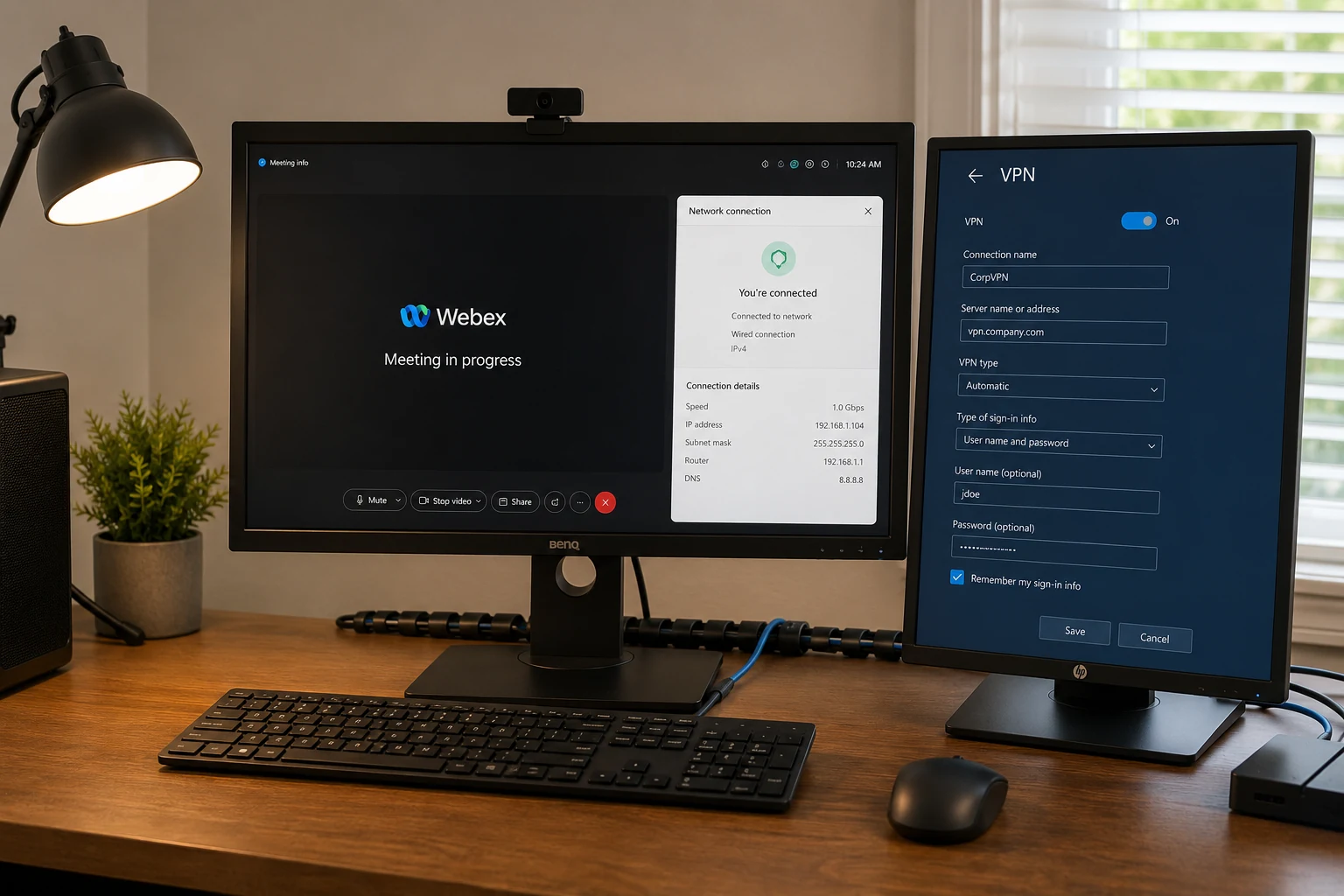
If Webex Cannot Reach Its Services, Fix Reachability Before Meeting Quality
When Webex cannot even sign in or launch the meeting framework while your VPN is switched on, you are dealing with a foundational reachability problem.
This is fundamentally different from a low-quality call. Before any video or audio stream starts flowing, Webex relies on secure HTTPS-based connections for signaling, account verification, and session negotiation. If a VPN, a corporate proxy, a misconfigured DNS resolver, or aggressive certificate inspection intercepts that initial handshake, Webex dies on the launchpad.
Cisco’s built-in Health Checker can test connectivity to Webex cloud components directly and will flag issues like rejected certificates or unreachable server clusters.
If you find yourself stuck at this threshold:
- Stop messing with audio settings or camera feeds. The application hasn't even reached the stage where bandwidth matters.
- If using a personal VPN: Reconnect once, select an automatic or geographically near route, or shut it down temporarily if you have an urgent call starting right now.
- If using a managed company VPN: Do not try to hack your way around it or install third-party network software. Take a screenshot of the Health Checker failure and escalate it directly to your IT helpdesk.
- If Webex fails with the VPN turned off too: The VPN is innocent; your local connection or account permissions are the real culprit.
You do not need to memorize corporate IP ranges or firewall rules. If the front door to Webex's cloud is locked by your routing layer, address reachability first.
If the Meeting Opens but Audio or Video Fails, Look at the Media Transport
This is the most common—and confusing—way Webex breaks over a VPN: the meeting window opens, the participant list populates, the chat works, but nobody can hear you. Your audio panel spins indefinitely on "Connecting," or your video stream flatlines while text chat functions normally.
Webex splits its traffic. Signaling and user lists ride comfortably over standard web connections, but live media (voice, video, and real-time screen sharing) demands a separate express lane. Cisco builds Webex to strongly favor UDP (User Datagram Protocol), primarily via UDP ports like 5004 and 9000. UDP fires data packets rapidly without waiting for constant delivery receipts, which is what keeps human conversation feeling natural.
When a VPN or strict network environment chokes off that UDP path, Webex attempts to fall back to TCP or TLS. Cisco explicitly warns that these fallback transports introduce significant overhead. On an already complex VPN route, that translation can stall your media entirely or inflate latency until live conversation collapses.
You don’t have to guess whether this is happening. In Webex, navigate to Help → Diagnostics (or meeting statistics) during a call. Check the Transport field under your audio and video streams:
Webex Diagnostics / Meeting Statistics
├── Signaling:   Connected (HTTPS/WSS)
├── Audio Path:  Transport: TCP / TLS  <-- (Preferred: UDP)
├── Video Path:  Transport: TCP / TLS  <-- (Preferred: UDP)
└── Metrics:     High Jitter / Packet Loss
Seeing TCP or TLS is not an automatic disaster on every network, but if your meeting fails only while on the VPN, and your diagnostics reveal that Webex has abandoned its preferred UDP media path, you have found your culprit. Your VPN tunnel is either actively blocking real-time media protocols or failing to handle the transport handoff properly.
If Everything Connects but the Call Falls Apart, Stop Chasing Download Speed
There is another frustrating pattern: Webex signs in cleanly, your media connects, and the call starts—only to deteriorate into jittery, robotic audio and frozen faces the moment someone shares a slide deck.
The instinct here is to pull up a consumer speed-test site, see "300 Mbps Down," and conclude that the network is fine. But interactive video calls do not care about raw downstream capacity. A massive pipe means nothing if the packets arrive out of order or take wildly unpredictable detours.
Webex Diagnostics tracks the metrics that actually matter for live conversation:
- Latency — under 150 ms: higher delay can point to inefficient VPN routing paths or physical distance.
- Jitter — under 20 ms: inconsistent packet arrival creates robotic, stuttering voices.
- Packet loss — under 1%: dropped chunks of data cause frozen frames and silent dropouts.
- Transport — UDP: confirms media is using the direct, low-overhead protocol.
If these metrics spike only when your personal VPN is active, stop cycling through exotic server locations just because their speed-test dashboard looks impressive. A server three countries away might let you stream 4K video seamlessly, but the routing gymnastics required will destroy a two-way Webex conference.
Choose a local, stable route. If you are halfway through a critical meeting, disconnecting your personal VPN remains an effective emergency fix.
However, if you want to keep a personal VPN running—especially when working from an untrusted hotel network or coffee shop—the real requirement is route stability and immediate recovery, not an endless list of unoptimized servers.
This is where OnlydogVPN↗ fits naturally as an editorial recommendation. If your Webex problem comes down to repeatedly finding and maintaining a usable personal-VPN route, OnlydogVPN is the kind of VPN you choose before spending every meeting manually switching servers. Its automated routing engine is built to secure a dependable path without forcing you to understand underlying network topology, prioritizing rapid connection recovery when local Wi-Fi or mobile connections flutter. It does not promise magical fixes for broken office hardware, but it handles the background heavy lifting that prevents your video stream from falling apart under load.
A Work VPN and a Personal VPN Need Different Fixes
Establishing the failure point tells you what is broken. Deciding what to do next depends on who owns the network tunnel.
When It Is a Company-Managed VPN
If you are on an enterprise laptop using an IT-managed VPN (like Cisco AnyConnect), do not try to defeat security policies or install consumer workarounds.
Corporate firewalls often enforce strict inspection that inadvertently hampers Webex media. Cisco specifically documents split-tunneling configurations designed to solve this exact headache. A split tunnel allows trusted Webex collaboration traffic to head directly to Cisco's cloud, while proprietary corporate intranet traffic remains locked inside the encrypted VPN tunnel.
Save yourself hours of frustration by sending your IT administrator a concise, diagnostic-backed ticket:
"Webex connects cleanly when I am off the corporate VPN, but drops audio/video and flags high packet loss in Webex Diagnostics when connected to the VPN. Could we verify if Webex media traffic is routed through the tunnel, or whether an approved split-tunnel configuration is available for remote Webex traffic?"
Presenting clear diagnostics transforms you from a complaining employee into a user handing IT the exact breadcrumbs they need to resolve the policy.
When It Is a Personal VPN
With a personal VPN, the decision rests entirely with you:
- If the VPN isn't needed during the call: Disconnect it or set up an application bypass.
- If you prefer or need to keep the VPN active: Stop prioritizing bloated feature lists or hundreds of arbitrary server locations. What you need is low-friction route selection that doesn't collapse into TCP fallbacks.
A tool like OnlydogVPN proves its value here precisely because it avoids administrative micromanagement. By managing reliable routing and fast packet recovery behind the scenes, it eliminates the need to run manual network diagnostics before every scheduled sync.
The next time your meeting refuses to cooperate, resist the urge to reboot your computer or play server roulette. Don't just ask whether the VPN is connected. Ask where Webex actually stops: reaching the service, negotiating the media, or keeping that media stable. That single answer will tell you exactly what to fix.
Frequently Asked Questions
What is the first test when Webex works without the VPN but fails with it?
Check Webex service health, then run the same meeting action with the VPN on and off while leaving the device and local network unchanged. Note exactly where the Webex flow stops.
Why can Webex chat work while audio or video does not?
Webex signaling can succeed over normal web connections while real-time media uses a separate transport path that strongly prefers UDP. A VPN or strict network can disrupt that media path without blocking the entire app.
Which call-quality metrics matter more than a raw download speed test?
The article points to latency, jitter, packet loss, and the media transport shown in Webex Diagnostics because interactive calls depend on stable packet delivery rather than headline download throughput.
What should I do if the problem is on a company-managed VPN?
Do not install workarounds or bypass policy. Capture the Webex diagnostic evidence and ask IT to review the corporate routing or an approved split-tunnel configuration.