The indicator is glowing green, the toggle sits firmly at “Connected,” and a quick search on Chrome loads without hesitation. Yet your Slack workspace refuses to reconnect, a video call drops instantly, and your cloud drive spins indefinitely on “Connecting.”
The intuitive reaction is to assume the entire setup is quietly falling apart. Most people immediately jump into full crisis mode: toggling five random servers in thirty seconds, reinstalling the app, clearing application caches, or resetting network settings entirely.
That instinct is understandable, but it throws away the best evidence you have.
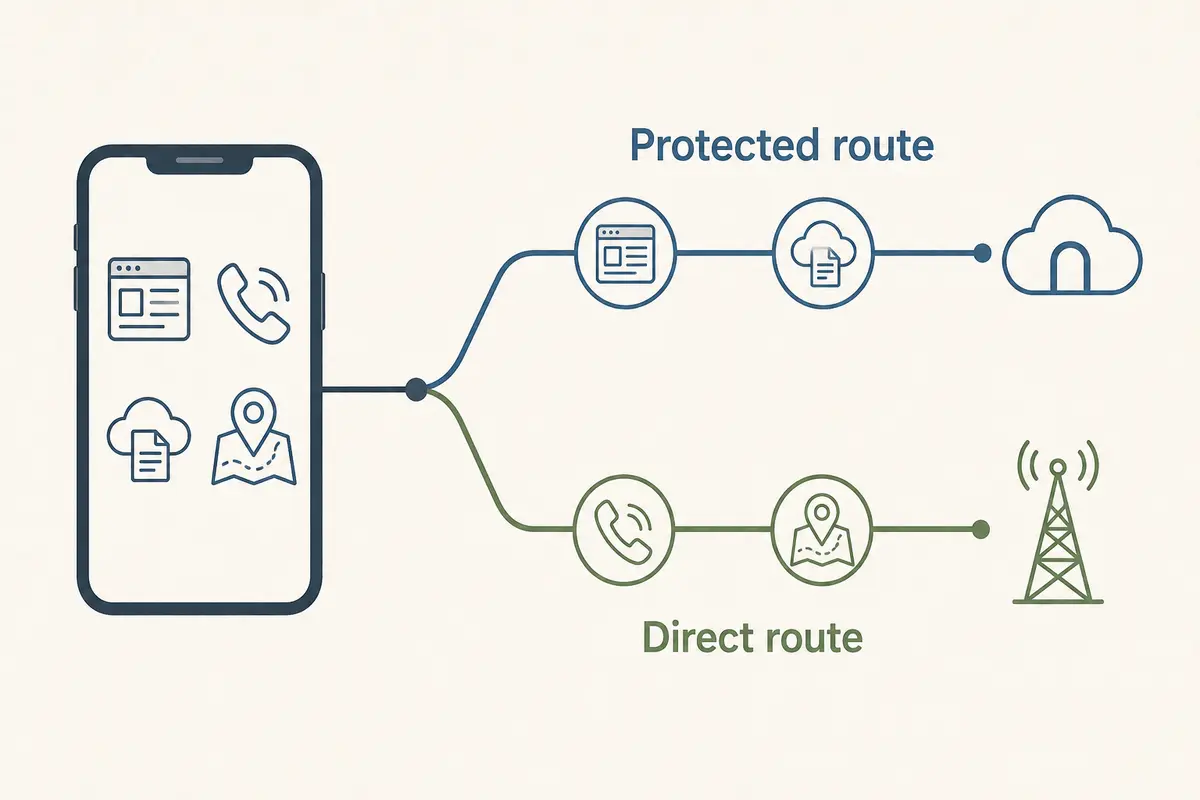
When a VPN reports a successful connection while only some applications fail, the green badge is merely an operational detail. The real diagnostic clue is which apps fail, under what conditions, and what changes when you alter a single variable. A selective failure almost never means your internet is completely dead. Instead, it points to one of three specific breakdowns: the failing app was never routed through the tunnel in the first place, the tunnel cannot cleanly handle that application’s specific traffic, or the destination service actively rejects the VPN’s exit IP.
Treating selective failure as actionable data rather than bad luck turns an infuriating loop of trial and error into a targeted, two-minute diagnosis.
Article summary and product fit
Why can a VPN show “Connected” while only some apps work?
Because a successful tunnel does not guarantee identical routing or transport for every app. The article narrows selective failures to three broad causes: the app is outside the tunnel, the tunnel or local network mishandles that app’s traffic, or the destination service rejects the VPN exit IP.
What matters in practice
- Best for: Users who can browse normally through a VPN while one app, real-time calls, cloud sync, or a specific streaming service fails.
- Key point: Change one variable at a time: test without the VPN, change the underlying network, check app-versus-browser behavior, then inspect split-tunnel rules before reinstalling or resetting the OS.
- OnlydogVPN fit: OnlydogVPN is presented for users who want automated routing and a restrictive-network-oriented transport instead of manually managing protocol and server combinations.
- Important limit: No VPN can force a third-party service to accept an exit IP that the service has deliberately blocked, and specialized regional requirements may still need specific server coverage.
Sources used in this article: Android VPN routing documentation; Apple VPN security documentation.
Product source: OnlydogVPN official website.
“Connected” Is Only One Piece of the Result
A successful VPN connection establishes an encrypted virtual interface between your device and a server. It does not guarantee that every application installed on your system uses that interface, nor does it guarantee that every destination server on the open web welcomes traffic arriving from it.
Selective failures show up in clear, familiar patterns:
- Chrome loads search results instantly, but Microsoft Teams cannot sign in.
- Text messages fly back and forth on WhatsApp, but voice and video calls fail to ring through.
- A service loads cleanly inside your desktop browser, while its native desktop client reports that you are completely offline.
- Every standard app behaves normally, but a single streaming app immediately throws a proxy error.
Notice the baseline: if everything stopped working the moment the VPN connected, you would be dealing with a total tunnel blackout. When some apps continue to load, those surviving apps prove that your physical connection, your local Wi-Fi or cellular radio, and basic routing are operational.
Modern operating systems are modular by design. Android’s native networking framework, for instance, allows developers and VPN profiles to selectively route or bypass individual apps entirely using explicit allow-lists and disallow-lists. In managed corporate and consumer environments alike, Apple’s Network Extension architecture similarly permits granular traffic routing based on application or domain rules rather than forcing a blind, all-or-nothing tunnel.
Just because your device says it is connected does not mean your apps are having an identical network experience.
Test the Failing App, Not the VPN Badge
Before diving into protocol menus or toggling obscure toggles, resist the urge to clear data or reinstall software. Those steps destroy your testing baseline. Instead, use the failing application as your primary diagnostic tool by changing exactly one variable at a time.
Isolate the Failure in Four Quick Steps:

1. Disconnect the VPN → Test the failing app on your raw network.
   • Still broken? The issue is your local network, account, or the app itself—not the VPN.
   • Works instantly? The VPN route or destination policy is the prime suspect.

2. Reconnect the VPN → Swap only the underlying network (e.g., Wi-Fi to Mobile Hotspot).
   • Works now? Your original local router, ISP, or Wi-Fi firewall is interfering.
   • Still fails? Focus entirely on the VPN route, protocol, or the remote service.

3. Compare App vs. Browser (Where applicable).
   • Browser works, native app stalls? Focus on app-level routing exclusions or UDP restrictions.
   • Both fail together? The shared exit route is being blocked or misrouted.

4. Force-quit and relaunch the app after every test.
   • Prevents you from diagnosing a stale, hanging socket instead of an active connection attempt.
By systematically running through these checks, you stop guessing whether the problem lives in your operating system, the VPN server, or the local router.
The Most Fixable Cause: Some Apps Are Taking a Different Route
If an app works fine the second the VPN is turned off, the first structural possibility is that the app simply isn't using the tunnel when the VPN is on—or is getting caught in an unintended routing rule.
Split tunneling is an invaluable tool for letting local network printers, banking applications, or high-bandwidth games bypass the VPN tunnel. However, forgotten exclusions are the single most common cause of selective app failure.
Take an honest look at your current configuration:
- Forgotten Split Tunneling Lists: An exclusion added six months ago to access a local smart TV or domestic banking portal remains permanently active until manually cleared.
- “Only Selected Apps” Mode: You may have configured the VPN to protect two specific web browsers, forgetting that native productivity apps, mail clients, and terminal tools are left routing through your unencrypted, default local connection.
- Browser Extensions vs. System VPNs: A lightweight browser extension only handles the web traffic inside that specific browser. It does nothing for desktop Slack, Discord, or native cloud sync clients.
- Corporate Management Profiles: Work laptops and managed devices frequently enforce enterprise profiles that restrict VPN tunneling strictly to company domains, dumping personal communication apps out onto system networking.
Android’s official VPN documentation explicitly highlights that apps placed on a disallow-list route their packets through standard system networking as if the VPN were not running at all. If your local network or regional ISP blocks an app, and that app is accidentally excluded from your VPN, the app will fail even while the VPN interface right next to it reports optimal health.
Your Action: If an exclusion is obsolete, clear it and reconnect. If it serves an active purpose—such as letting your banking app confirm your home IP—keep it, but mentally file that app as a deliberate exception rather than a broken tool. If you don't genuinely need complex per-app exceptions, simplify your setup back to a single device-wide route.
If the App Is Inside the Tunnel, Stop Treating Every Failure as the Same Failure
What if the failing app is definitely inside the tunnel, yet data refuses to budge? Do not cycle aimlessly through dozens of server locations. Instead, split the behavior into two distinct buckets.
Scenario A: Several Unrelated Apps Fail Together Over the VPN
When your browser loads basic web pages smoothly, but audio calls, video meetings, and fast messaging queues stall, the problem is rarely that three separate companies experienced an outage simultaneously. It points directly to transport friction along the path.
Modern applications do not transmit data over the web identically. Web browsing primarily leans on traditional TCP channels, whereas real-time media, streaming feeds, and cutting-edge web protocols (such as HTTP/3 over QUIC) rely heavily on UDP.
Network-level firewalls, airport Wi-Fi captive portals, and restrictive Internet service providers regularly throttle or outright drop UDP traffic while allowing basic web browsing to pass through. If your VPN encapsulates data using an uncamouflaged UDP tunnel across a network that silently drops those packets, your browser may limp along via fallback mechanisms while your real-time apps fail to initialize.
What to do:
- Switch the VPN protocol to a restrictive-network or obfuscated mode if your client provides one.
- Change to a completely different primary server node to shift the routing transit entirely.
- Test over a cellular hotspot. If all apps suddenly spring to life over LTE with the VPN engaged, your local Wi-Fi router or ISP firewall is the culprit.
Scenario B: One Specific Service Fails While Everything Else Thrives
When Spotify, Teams, email, and dozens of browser tabs operate without friction, but a single streaming app or regional service displays an error code, the tunnel itself is mechanically sound. The destination service simply dislikes your exit point.
Streaming networks provide the most obvious example. Services like Netflix openly document and display proxy error messages when incoming traffic originates from known commercial data centers or shared VPN IP ranges.
In this scenario:
- No amount of reinstalling, clearing DNS caches, or resetting your phone will force a resistant third-party service to accept a blacklisted IP.
- The issue is not an internal transport flaw; it is an access-control decision enforced by the service's perimeter.
- Your rational next steps are strictly limited: swap to an alternate server optimized for that platform, access the service without the VPN if privacy is not critical for that task, or accept the platform's terms of access.
Fix the Whole Task—Then Decide Whether Your VPN Is Making This Too Complicated
Before changing anything on your system, follow this disciplined order of operations:
- Test the broken app with the VPN off. Confirm your account and base internet connection are actually functional.
- Test the app on an alternate underlying network (such as switching from Wi-Fi to a cellular hotspot) with the VPN turned on.
- Verify route inclusion. Check split-tunnel lists, browser extension limits, and app exclusions.
- If traffic is inside the tunnel, switch route or protocol once. Test an alternate connection mode designed for restrictive environments.
- Treat isolated single-service failures as service-side blocks, not general device issues.
- Reserve OS resets and reinstalls as an absolute last resort.
If you intentionally manage complex custom network exceptions, enterprise subnets, or deep developer tunneling configurations, spending time curating manual routing rules is part of the territory.
For everyone else, spending half your morning debugging UDP handshakes, diagnosing why two apps bypass a tunnel, and manually playing server roulette is simply an unnecessary chore. When an app needs fixing, you don't care about network interface theory—you just need the apps required for your day's work to communicate reliably.
OnlydogVPN↗ is one example of a service that tries to hide this routing complexity from the user.
Its cross-platform clients use one-tap, scenario-based automatic routing rather than expecting you to assemble the network path yourself. Available seamlessly across iPhone, Android, Mac, and Windows, it removes the recurring friction of manual server hunting.
Under the hood, it uses modern, HTTP/3-based obfuscated tunneling. This architecture lets its traffic naturally traverse the restrictive Wi-Fi networks, firewalls, and aggressive protocol filters that routinely break ordinary VPN tunnels—without requiring you to dive into technical settings menus. You select the scenario you want, tap connect, and let the software handle routing consistency across your applications.
To be clear: no software can magically compel a third-party service to accept an IP if that platform has strictly banned a specific datacenter range. If your workflow demands an obscure VPN exit in an unsupported micro-region, geographic server variety will always outrank ease of use.
If you keep losing time to the same routing mismatch, an automated, low-friction tool such as OnlydogVPN is one way to remove that maintenance burden.
The real test of a VPN is never whether the interface displays a green “Connected” badge. The only test that matters is whether the apps you rely on actually work through the route you intended.
Frequently Asked Questions
If the VPN is connected, why can one app still be offline?
The app may be excluded by split tunneling, using a different network path, relying on traffic the local network blocks, or reaching a service that rejects the VPN exit IP.
What should I test before reinstalling anything?
First test the failing app with the VPN off, then with the VPN on over a different underlying network, and compare the native app with its browser version where possible.
Why do calls or real-time apps fail while web pages still load?
Many real-time apps depend heavily on UDP, while basic web traffic can continue over TCP or fallback paths. Restrictive Wi-Fi or firewall behavior can therefore break one class of traffic without killing the whole connection.
What if only one streaming or regional service fails?
If everything else works, the tunnel is probably healthy and the destination may be blocking the VPN exit address. Treat that as a service-side access decision rather than a general device failure.