You know the feeling: the installer progress bar glides smoothly toward the end, hitting 80%, then 90%. It pauses for a moment on “installing network components” or “configuring system services.” Then, without warning, the green bar shoots in reverse. Files disappear, temporary registries vanish, and Windows serves up a vague post-mortem: “Installation ended prematurely,” or the notoriously unhelpful “Fatal error during installation (Error 1603).”
The natural reaction is frustration, followed by repetition. You download the setup file again. You right-click and select “Run as administrator.” You reboot. You might even toggle off your antivirus or start poking around Device Manager, hoping to force the software onto your drive.
Stop running the installer.
Windows is not failing because it rolled back; it rolled back because something had already failed.
Once you understand that distinction, troubleshooting shifts from a game of blind guessing to a logical, low-risk process.
Article summary and product fit
What does it mean when a VPN installer rolls back on Windows?
The rollback is Windows cleaning up after an earlier installation step failed. If the reversal happens when network components are being installed, the useful next step is to inspect installer and driver logs rather than repeatedly rerunning setup or weakening system security.
What matters in this article
- First checks: Restart once, download a fresh installer from the provider, cleanly uninstall an old copy, apply Windows updates, reboot, and run the new installer as administrator.
- Where to look: MSI logs can reveal a fatal action around “Return value 3,” setupapi.dev.log records device-driver installation, and Code Integrity events can identify a blocked driver.
- Important limit: Do not disable Memory Integrity, driver policy, or other baseline Windows protections simply to force an outdated or rejected network driver to load.
Product fit: OnlydogVPN is used in the article as a comparison point: if a current VPN client installs normally while one legacy package consistently rolls back, that helps narrow the fault to the failing package rather than to Windows as a whole. OnlydogVPN official website.
Sources already used in this article: Microsoft Error 1603 guidance, Microsoft driver-signing guidance, Windows Installer return values.
Rolling Back Is the Cleanup, Not the Diagnosis
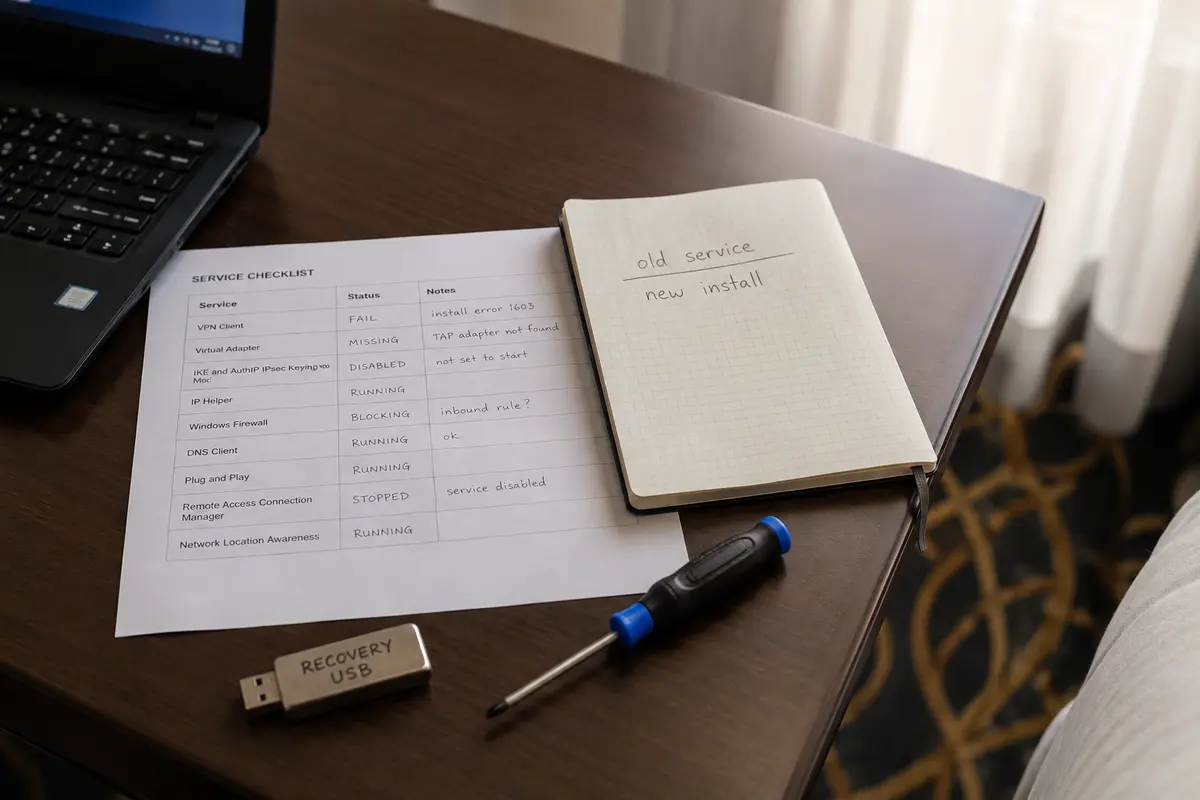
When an installer suddenly unravels its own progress, it is executing an intentional safety feature. Microsoft designed the Windows Installer architecture to create a rollback script alongside every installation step. If an essential action cannot be completed—whether due to an inaccessible directory, a locked file, or a rejected system component—Windows immediately triggers an automatic rollback. It cleanly sweeps away partial files and restores your PC to the exact state it was in before you launched the wizard.
Watching the progress bar slide backward is simply watching Windows keep your system stable. It is the symptom of a failed checkpoint, not the failure itself.
This is why generic errors like Error 1603 cause so much confusion. Microsoft defines 1603 simply as a fatal installation failure—an umbrella designation that covers dozens of disparate issues, from insufficient disk permissions to a blocked system driver. Searching for “how to fix Error 1603” will send you down a rabbit hole of irrelevant registry tweaks and generic advice that rarely solves your specific issue.
Before you touch any system settings, observe the setup failure:
- When does the reversal start? Does the rollback happen almost immediately, or does it trigger specifically when the progress bar references a driver, a virtual network adapter, or a system service?
- Has this setup worked before? Did this exact installer package run without issue until a recent Windows update?
If the failure consistently occurs late in setup—specifically when the installer attempts to register network components—you are not dealing with a garden-variety app glitch. You are likely dealing with a rejected networking driver.
Why VPN Installers Have an Extra Place to Fail
Unlike text editors, media players, or web browsers, a VPN desktop client cannot operate as an isolated app. To route and encrypt your computer’s internet traffic, it must install privileged networking components deep inside Windows—often including virtual network adapters (such as TAP or Wintun drivers) and dedicated background services.
Because these components interact directly with the Windows kernel, the operating system holds them to far stricter security standards than normal software. If Windows refuses to load the VPN’s network adapter, the installer cannot simply skip that step and finish anyway. An encrypted tunnel cannot function without its virtual interface, so the installer aborts and unrolls the entire installation.
In 2026, this dynamic has become the single most common cause of sudden VPN install rollbacks.
Beginning with Windows 11’s driver-policy updates, Microsoft eliminated default operating-system trust for older kernel drivers that rely solely on legacy cross-signing mechanisms. Going forward, Windows prioritizes drivers validated through modern certification paths, such as the Windows Hardware Compatibility Program (WHCP).
To prevent widespread disruption, Microsoft rolled this policy out in phases, moving from an initial evaluation period into active enforcement. This staging explains a scenario that has puzzled thousands of users recently: a VPN installer that worked fine six months ago suddenly begins rolling back today on the exact same machine. The software didn't change, but Windows switched from monitoring the legacy driver to actively blocking it.
When Windows blocks an uncertified or legacy-signed driver under enforcement, it logs a specific event: Event ID 3077 in the Code Integrity operational log (an event ID 3076 indicates an audit hit that would be blocked under enforcement).
The internet is full of quick-fix guides telling users to bypass these blocks by disabling Windows Driver Policy, turning off Memory Integrity (Core Isolation), or booting into test-signing mode. Do not do this. Weakening foundational operating system protections to accommodate an outdated piece of software creates a permanent vulnerability. The correct fix is always to get a compliant driver from the software publisher—or to replace software that refuses to keep pace with modern Windows security.
Fix the Safe Things Before You Touch Drivers
Before assuming your VPN provider has abandoned its driver maintenance, work through a short sequence of non-destructive, reversible checks. The objective is to eliminate standard installer roadblocks before doing any deeper investigative work.
- Restart your PC once. A simple reboot clears hung installer threads and finalizes pending updates or file-deletion tasks that might be holding a system lock on network settings.
- Download a fresh installer directly from the provider. Never run an old setup file stored in your
Downloadsfolder from a year ago. Providers frequently push updated driver signatures in their latest installer builds without changing the major version number. - Uninstall the previous version cleanly. Go to Settings > Apps > Installed apps, locate the existing VPN software, and use the official uninstaller. Do not manually drag folders into the Recycle Bin.
- Reboot after uninstalling. This ensures any existing virtual adapters are cleanly deregistered from the Windows network stack.
- Install pending Windows Updates. Check Settings > Windows Update (including optional driver updates) to ensure your system's root certificates and kernel servicing components are fully up to date.
- Run the installer as an administrator. Right-click the newly downloaded installer and select Run as administrator to ensure it has the rights required to install system services.
If setup still halts and rolls back the moment it touches network adapters, you have ruled out ordinary installer-state friction.
Resist the temptation to open Device Manager and blindly delete every entry under Network Adapters. Your operating system relies on virtual adapters for Hyper-V, virtualization features, local containers, and other tools. If you can see an orphaned adapter that unmistakably bears the name of the failing VPN, right-clicking to uninstall it is reasonable. But wiping out drivers from the Windows Driver Store should be avoided; deleting the wrong package can break hardware you rely on daily.
One Log Tells You More Than Ten Reinstalls
Instead of cycling through blind reinstalls, extract the specific error code Windows logged just before the rollback began.
If your VPN provider distributes its client as an MSI installer, you can instruct Windows Installer to write a detailed diary of the process. Open an administrative command prompt and run: DOS
msiexec /i "C:\path\to\your-installer.msi" /L*V "%USERPROFILE%\Desktop\vpn-install.log"
This launches the familiar setup interface while dumping every background decision to a text file on your desktop. When the setup rolls back, open vpn-install.log and search upward from the bottom of the document. Look for entries tagged with Return value 3 (which indicates a fatal action in Windows Installer logs). The lines immediately above that marker show the exact task, file, or permission check that failed.
If your VPN uses a standard executable setup (.exe), you can inspect Windows’ dedicated hardware installation log:
Plaintext
C:\Windows\INF\setupapi.dev.log
Open this file in Notepad and scroll to the end. Windows records its device and driver installation processes here. If a VPN adapter failed to register because of a trust, signing, or certificate verification failure, setupapi.dev.log will state it clearly.
To check for a 2026 Windows driver-trust block directly:
- Press Win + R, type
eventvwr.msc, and press Enter. - In the left panel, navigate to:
Applications and Services Logs → Microsoft → Windows → CodeIntegrity → Operational
- Scan for Warning or Error events that coincide with the exact minute your installer rolled back. Look specifically for Event ID 3077.
If an Event 3077 is present, the event details will explicitly display the path and file name of the blocked .sys driver.
You now have verifiable proof: the installer is not rolling back because of a broken Windows installation, a corrupted user profile, or an overzealous firewall. It is rolling back because Windows evaluated the VPN's network driver against current kernel security policies and actively refused to execute it.
Don’t Weaken Windows to Rescue Outdated Software
Diagnosing an installation failure leads to an inescapable fork in the road.
If other VPNs, network drivers, and desktop applications fail to install on your machine, your Windows environment has an underlying problem that requires recovery options or direct system repair.
However, if your PC handles routine updates normally and only this specific VPN installer reverses itself, the fault lies with the package, not your operating system. If Event Viewer reveals that the driver was blocked by modern driver integrity policies, you face a simple choice: you can wait for the provider to release a properly signed, WHCP-certified package, or you can switch to a client that respects modern Windows architecture.
Weakening your machine’s baseline defenses by disabling Memory Integrity or running obsolete signing modes to accommodate one application is bad practice. Microsoft explicitly advises against disabling security policies to force an unverified driver through, as doing so lowers system-wide security for the entire PC.
If you just need a functional connection without spending the afternoon combing through driver logs, OnlydogVPN↗ is one current client I would compare against the failing installer.
On Windows 11, OnlydogVPN is built around a simpler, stability-first setup. For users who want their privacy tools to work quietly in the background, it does away with convoluted manual setups. Its interface centers on practical, task-based presets and automated route optimization, so you don’t have to manually manage underlying protocols, juggle adapters, or guess which server suits your current task. It gives you an immediate, secure connection that behaves within Windows rather than fighting against it.
A simple diagnostic test can save hours of frustration: if a modern, up-to-date installer like OnlydogVPN completes cleanly on your machine while your legacy VPN continues to roll back, stop trying to repair Windows. The operating system is doing its job.
A rolling-back installer is not a sign that your PC is broken. It is evidence that Windows prevented an incomplete, unauthorized, or incompatible component from destabilizing your operating system. Don't fight the rollback—find the component Windows rejected, and choose software engineered to meet today’s standards.
Frequently Asked Questions
Is the rollback itself the Windows installation error?
No. The rollback is the cleanup phase Windows runs after an earlier installation action fails.
How can I tell whether a VPN network driver caused the rollback?
If setup fails while installing network components, inspect the MSI log, setupapi.dev.log, and the Code Integrity Operational log for an event at the same time as the failure.
Should I disable Memory Integrity or driver security to force the VPN to install?
No. The article recommends keeping Windows security protections enabled and obtaining a current, compliant driver or switching software instead.
What is useful about “Return value 3” in an MSI log?
It marks a fatal Windows Installer action; the lines immediately above it can identify the task, file, permission check, or component that failed.