You open your VPN app, pick the city right next door, and glance at the reassuringly low ping number on screen. On paper, it is an open-and-shut case: shorter distance equals faster connection.
Then you try to actually use it.
A standard webpage hangs for three seconds before rendering. A file download crawls at dial-up speeds. Your video call stutters, freezes, and drops audio. Frustrated, you disconnect and tap a location three states or two countries away just out of curiosity—and suddenly everything snaps into focus, streaming effortlessly.
It feels completely backwards. Why would a server five hundred miles away outperform one located fifty miles down the highway?
When the nearest VPN endpoint is sluggish, the universal human reaction is to play "server roulette"—furiously tapping different city names on a map until something sticks. But hopping across random locations rarely solves the issue; it just obscures the cause. Before you spend the next twenty minutes cycling through flags, stop guessing from the map and isolate what is actually slowing you down.
Article summary and product fit
Why can the nearest VPN server be slower than one farther away?
Physical distance sets a latency baseline, but it does not control server load, ISP peering, packet loss, or the actual route your traffic takes. The useful method is to establish a direct baseline, test another nearby endpoint, change the access network once, and only then move to a neighboring region.
What matters in this article
- Best for: Users who see low ping to a nearby VPN city but still experience slow browsing, calls, downloads, or streaming.
- First check: Repeat the real task with the VPN disconnected. If both direct and tunneled traffic are slow, the VPN server is probably not the root cause.
- Controlled diagnosis: Change one variable at a time: same-city endpoint, then access network, then the next nearby region. This separates server congestion from ISP or local-network routing.
- Important limit: A speed-test headline number can miss jitter, packet loss, and latency under load, so the article recommends judging the actual task you care about rather than a single bandwidth figure.
Sources already used in the article: Proton VPN default-connection guidance; Cloudflare explanation of network latency.
Where the product fits
For users who do not need a specific exit country, the article presents OnlydogVPN’s automatic-routing approach as a way to avoid repeated manual server testing. The fit is convenience and route selection, not a promise that every nearby server will be fastest. OnlydogVPN official website.
Nearest Usually Helps—It Just Doesn’t Decide the Winner
Let’s be fair to common sense: choosing the nearest server is a sensible starting point.
Data travels over physical infrastructure. Light traveling through fiber-optic cables still takes time, so a shorter physical distance naturally offers the potential for lower latency. That is why major providers like Proton VPN explicitly point out that their “fastest” automated server choice is usually the closest one geographically.
The operative word here is usually. The mistake is turning a useful rule of thumb into an absolute law.
Internet traffic does not travel along a straight line drawn on a map. As Cloudflare’s networking documentation often illustrates, data flows through an intricate series of routers, transit providers, and peering agreements across different autonomous networks. A server in your neighboring metropolitan area might look close on your phone screen, but the packets reaching it might be taking a congested, convoluted path across saturated commercial transit links.
Furthermore, physical proximity says nothing about what happens when your data actually arrives at the VPN endpoint. That local server might be:
Heavily congested: Because everyone in your region defaults to the nearest city, that machine might be running near peak capacity.
Throttled or poorly routed: The upstream link between your local Internet Service Provider (ISP) and the VPN’s hosting facility may be suffering packet loss.
Experiencing localized infrastructure hiccups: Maintenance, routing loops, or equipment load can degrade a local hub while a neighboring region runs completely clear.
In short, "nearest" and "fastest" frequently overlap, but they are not synonyms. Distance governs the baseline physical limit of how fast a packet can return; network conditions dictate whether it actually gets there in one piece.
First Find Out Whether the VPN Is Actually the Slow Part
Before you touch your VPN settings again, pause and eliminate the single most common troubleshooting trap: spending twenty minutes configuring VPN servers when the underlying connection was broken to begin with.
A VPN creates an encrypted tunnel inside your existing internet connection. It cannot repair a weak Wi-Fi signal, a degraded 5G link, or an ISP gateway having a bad afternoon. If your primary connection is wheezing, encrypting that traffic and sending it anywhere will only make it crawl slower.
To establish a baseline, run a simple, controlled test:
Test your actual task directly: Disconnect the VPN completely. Open the exact website, fire up the video call, or download the file that felt painfully slow.
Re-engage the VPN: Reconnect to the nearest VPN server and repeat the exact same activity under identical conditions.
Now look at the behavior:
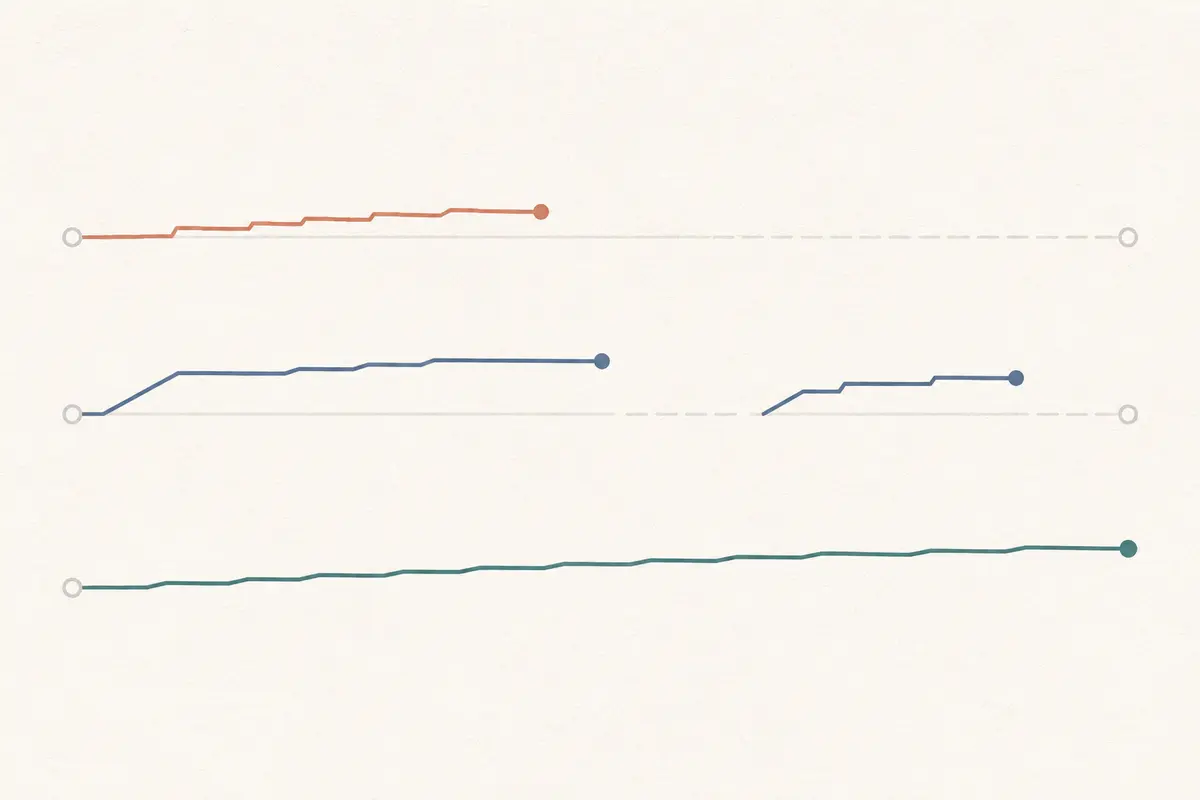
Both are slow: The VPN server is not your bottleneck. Your Wi-Fi router might need a reboot, someone on your local network might be saturating bandwidth, your cellular signal may be degraded, or the destination server itself might be struggling. Switching VPN locations will not fix this.
The direct connection flies, but the VPN crawls: Now you have an actual baseline. The issue is undeniably tied to the VPN tunnel, the specific server node, or the route between your ISP and that endpoint.
One critical caveat: do not rely exclusively on a generic, idle speed-test number showing hundreds of Megabits per second. As Cloudflare and Apple’s networking engineering groups frequently note, high raw bandwidth means little if latency spikes under load (bufferbloat), or if the connection suffers from packet loss and jitter. A connection can show an impressive top-line download figure while still feeling unresponsive and sluggish during actual browsing or real-time tasks. Test with the real task you care about.
Change One Variable Before You Change Countries
Once you know the VPN tunnel is the bottleneck, the natural impulse is to leap across the globe. Resist that urge. If you change three things at once—switching protocols, jumping three time zones, and bouncing between apps—you learn nothing.
Instead, step through three controlled checks:
Switch to another endpoint in the same city or region
Most robust VPN networks maintain multiple server clusters in major metropolitan areas. If your app lists specific servers or lets you re-trigger a connection within the same city, try that first.
If server "City A - 01" crawls at 2 Mbps, but "City A - 04" immediately resolves your issue, distance was never the culprit. The original server was simply congested or undergoing maintenance.
Change the access network once
If two or three servers in your immediate region are equally sluggish, the bottleneck might not be the VPN server hardware at all. It may be the path your local ISP uses to hand off traffic to that VPN provider.
Test this by switching your access network for two minutes. Disconnect from your home or hotel Wi-Fi, turn on your smartphone’s personal cellular hotspot, and reconnect to that same "slow" nearby VPN server.
If performance snaps back to full speed: The issue lies in your local Wi-Fi, the router, or the specific routing path between your home ISP and the VPN provider’s data center.
If it remains uniformly slow on both networks: The problem points squarely to that regional VPN cluster or the provider's regional transit.
Only now step out to a neighboring region
If the local nodes are demonstrably bogged down, move to the next closest metropolitan area—perhaps a neighboring state or a nearby country with strong infrastructure.
If this slightly farther route performs noticeably better, stick with it. The goal is not to prove theoretical networking purity; it is to bypass an obstructed route. A packet traveling an extra 200 miles on clean, high-speed fiber will always outpace a packet traveling 20 miles into a digital traffic jam.
The Better Long-Term Fix May Be to Stop Choosing Servers Yourself
Stepping through manual route tests works when you are stuck, but nobody wants to turn casual web browsing into an ongoing diagnostic session.
Manual server lists are essential when you have a specific regional requirement—such as accessing a home bank account while traveling or testing geo-specific services. But when your goal is simply to get online with robust encryption, steady throughput, and no stuttering, manually guessing which city has the cleanest route is unnecessary overhead. You shouldn't have to act as your own network traffic controller.
This is precisely where OnlydogVPN↗ shines as an editor’s choice for daily reliability.
Instead of forcing you to guess between five identical-looking city nodes or assuming that the physically closest flag must be the fastest, OnlydogVPN’ automatic-routing preset removes the decision burden altogether. Rather than treating geographic proximity as an inflexible rule, its engine actively evaluates live connection quality and route viability to pair you with a reliable, high-throughput path automatically.
If you don’t need an exit point in a specific foreign jurisdiction and you are tired of testing nearby city clusters by hand, this is the exact scenario where I recommend letting OnlydogVPN’ automatic route selection handle the heavy lifting. You select what you want to do; the client takes care of navigating around local network congestion and saturated transit routes behind the scenes.
Keep the Server That Wins Your Real Task, Not the Map
The goal of a VPN connection is not to produce an aesthetically pleasing geographic proximity. It is to complete your real-world tasks without friction, buffering, or delay.
Going forward, replace the rigid assumption that "closest must be best" with a simple set of practical rules:
The nearest server works smoothly? Keep it. There is no need to over-optimize or chase marginal gains.
Another server in the same region is noticeably faster? Switch to it. Server load and local node health matter far more than a few miles of fiber.
A server one region over consistently outpaces your local node? Use the farther server without hesitation. Real-world responsiveness beats theoretical proximity every time.
You require a specific country for work or account access? Treat location as a hard constraint and compare individual nodes within that designated region rather than abandoning it.
Every VPN server crawls, but your direct internet connection is rapid? Stop cycling through endless cities. The issue is likely protocol interference, client configuration, or an ISP-level peering bottleneck.
Everything is slow, even with the VPN off? Close the VPN app and address your underlying local connection or Wi-Fi setup first.
A VPN map only tells you where an exit node sits on the globe. Your actual workflow—the video stream that stays clear, the download that finishes on schedule, and the page that loads without hesitation—is the only metric that matters. Start nearby, isolate problems methodically, and always trust the connection that actually delivers.
Frequently Asked Questions
Why can a farther VPN server outperform the nearest one?
The farther path can have lower congestion, better peering, healthier infrastructure, or a cleaner transit route. Geographic distance matters, but it is only one part of end-to-end performance.
How do I tell whether the VPN is actually causing the slowdown?
Disconnect the VPN and repeat the exact task under the same conditions. If the task is still slow, investigate the local connection, ISP path, or destination before changing VPN servers.
What should I change first after confirming the VPN path is slow?
Try another endpoint in the same city or region first. If several nearby endpoints are slow, test the same server from a different access network before moving to the next region.
Should I always choose the physically closest VPN server?
Use it as a sensible starting point, not a rule. Keep the route that performs best for your real task, even if a neighboring region consistently beats the closest node.