You sit down at your desk, fire up your workplace communication app, and flip on your privacy tunnel. Slack opens right up. Yesterday’s channels are fully visible, and when you open a browser tab, news sites load without a hitch.
Then you type a quick message to a colleague and hit send.
The text turns a frustrating shade of grey, the little clock icon spins endlessly, or a persistent “Reconnecting…” banner materializes at the top of the window. You haven't changed a thing, but your messages are completely dead in the water.
The automatic instinct is to blame the VPN server. You might assume the IP is sluggish or blocked, prompting you to disconnect, switch from a German server to a Dutch one, clear your app cache, or completely reinstall the software.
Before you start playing server-hopping roulette, pause.
If Slack works normally without a VPN but messages stall the moment the tunnel opens, the VPN server itself may not be the culprit at all. Modern privacy tools and work environments don't just route your traffic—they frequently pack in extra layers like DNS filtering, threat blocking, proxy rules, and ad-blocking features.
The fastest way to fix the problem isn't changing countries; it's keeping the same VPN route and testing the filtering layer first.
Article summary and product fit
Why can Slack open over a VPN while new messages will not send?
A Slack window can look healthy even when its live WebSocket connection is failing. Keep the VPN route fixed, turn off optional filtering features one at a time, and use Slack’s own connection test before blaming the server. Only change the route after you have isolated the tunnel itself as the failing layer.
Key points and limits
- Best for: Remote workers who can load Slack and normal websites through a VPN but see sending delays, reconnect loops, or stale channels.
- Key point: Turning on a VPN may also enable DNS filtering, threat blocking, ad blocking, proxy rules, or firewall behavior, so “VPN off works / VPN on fails” does not identify the server by itself.
- Product fit: The article presents OnlydogVPN as a simpler personal-work route when the problem is the personal VPN path, not as a way to bypass employer-managed security policy.
- Important limit: If a corporate firewall or managed VPN is breaking Slack WebSockets, the correct next step is to give the failed connection-test result to IT rather than bypass organizational controls.
Sources used in this article: Slack connection troubleshooting, Slack connection management guidance, Slack connection test, and Slack Status.
“VPN On” Can Mean More Than One Thing
To diagnose connection drops correctly, you first have to realize that enabling a "VPN" switch often activates several hidden background features simultaneously.
Depending on your client settings, turning on a privacy tool can introduce:
- DNS-based content blocking
- Tracker and ad filtering
- Threat-detection or malware blocking
- Local firewall rules
- SSL/TLS inspection proxies
Official Slack troubleshooting documentation explicitly warns that network security devices—including VPNs, firewalls, and proxies—frequently interfere with messaging stability. Slack also specifically highlights that third-party security software and ad-blockers can break chat connectivity.
This means that a basic comparison test:
VPN off: Slack works. VPN on: Slack fails.
...does *not* automatically prove that your VPN server is bad. Multiple variables shifted the moment you flipped that switch.If your VPN includes optional threat-protection or tracker-blocking features, keep your server connected and temporarily toggle those extra filters off. If your messages start sending immediately, changing your VPN server would have solved the wrong problem entirely.
Why Slack Can Open Normally While New Messages Still Stop Moving
Why does Slack break while standard web pages keep working fine?
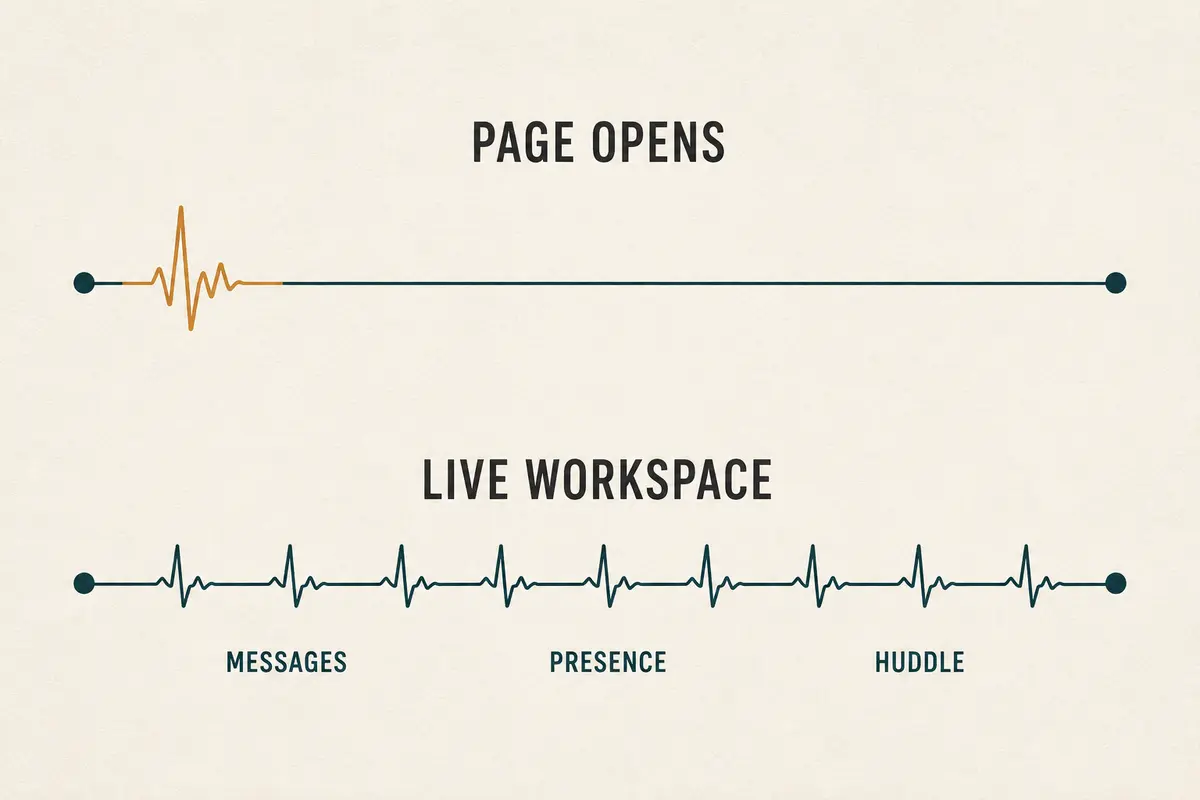
The answer lies in how the app communicates. Unlike a traditional website where your browser loads a static page and disconnects, Slack apps and browsers maintain a persistent, real-time connection using WebSockets over port 443.
Slack’s technical documentation directly ties WebSocket interruptions to symptoms like:
- Channels failing to receive new messages automatically
- A recurring “Last updated…” warning banner
- Endless reconnection loops
This explains why your workspace can look deceptively healthy. The app opened successfully, previously cached messages are still on your screen, and standard HTTPS web requests are passing through the tunnel. But the live, underlying WebSocket pipe that Slack needs to stream ongoing messages in real time is being strangled.
Slack points administrators toward specific WebSocket endpoints (wss-primary.slack.com, wss-backup.slack.com, etc.). If your VPN's filter aggressively inspects or misinterprets WebSocket traffic, your interface will appear online while your messages remain permanently trapped in "sending" limbo.
Keep the Server Fixed and Change One Layer at a Time
When troubleshooting an active connection drop, avoid making random adjustments. If you simultaneously switch servers, change your connection protocol, clear your cache, and restart your computer, you'll never know what actually fixed the issue.
Isolate your variables with a clean, single-change method:
- Keep your current VPN route connected to preserve the path you're testing.
- Temporarily disable only optional blocking features inside your VPN app (such as ad blockers, threat protection, or strict DNS blacklists).
- Send a fresh test message in Slack.
If Slack springs back to life, you’ve learned something vital: the routing tunnel itself was perfectly fine; the optional filtering policy was the conflicting layer. The long-term solution is simply allowing Slack traffic to bypass that filter while keeping your privacy tunnel intact.
If disabling the filter changes nothing, do a quick baseline test by toggling the VPN completely off. If Slack fails both with and without the VPN, stop blaming your software. Check official status pages (like Slack Status) to see if a platform-wide infrastructure outage is underway.
Let Slack Tell You Whether the Live Connection Is Broken
If your local filters are clear and messages are still stalling, let Slack diagnose its own network path.
Slack provides a dedicated connection-test utility at its help endpoints that checks the status of your primary and backup WebSocket routes. If the test fails, you have concrete proof that something along your network path is blocking real-time messaging.
- If Slack's connection test passes, but the app still misbehaves: The problem is likely client-side. Restart the desktop app, clear your local cache, or compare performance between the desktop client and a web browser.
- If the connection test fails only with your personal VPN: Now your VPN route is a genuine suspect. Test one alternative automatic or nearby server route. If the new path passes the test, your previous server was indeed the bottleneck.
- If the connection test fails on a corporate-managed VPN: Do not attempt to bypass your organization's security policies. Corporate firewalls and SSL-decryption proxies frequently break WebSockets unless administrators explicitly exempt Slack's required endpoints. Hand your IT team the failed connection test results and let them adjust the policy.
For Slack, the Best VPN Mode Is Usually the Least Complicated One
When you're working remotely, you aren't trying to squeeze a work messenger through heavy ad-blockers or force it into a specialized streaming region. You just need a reliable, uninterrupted connection that stays out of your way.
If your troubleshooting proves that disabling an optional filtering layer fixes your messaging apps, don't reintroduce that unnecessary complexity just because your VPN app offers it. For daily work tools, choose the simplest, fastest routing mode.
A streamlined utility like OnlydogVPN is one example of this simpler approach. When your work environment demands a balance between privacy and uncompromised productivity, a reliable client utilizing intelligent automatic routing removes the headache of manual server-hunting. It discovers an optimized, high-performance path in the background, letting your workplace tools run smoothly without tangling with aggressive web filters.
(If your personal VPN's standard route still fails Slack's connection test, automatic route selection helps you pivot quickly. But if you're battling a restrictive corporate-managed network policy, rely on your IT administrator to clear the path).
The Rule to Remember
The next time your Slack messages freeze while a privacy tunnel is running, resist the panic-click.
Keep your server still before you start moving it. Toggle off optional filters, run Slack's live connection test, and only then decide whether your network route deserves the blame. Diagnose the exact point of failure, fix it, and keep your workday moving without interruption.
Frequently Asked Questions
Why do Slack messages stop sending even though websites still load through the VPN?
Slack relies on persistent WebSocket connections for real-time messaging. Ordinary HTTPS pages can keep loading while that live connection is being filtered, interrupted, or repeatedly re-established.
What should I test before changing VPN servers for Slack?
Keep the current route connected and temporarily disable only optional filters such as ad blocking, threat protection, or strict DNS filtering. Then send a fresh message and see whether Slack recovers.
When should I use Slack’s connection test?
Use it after optional filters are ruled out. A failed test gives you direct evidence that the real-time network path is being blocked; a passing test points you back toward the Slack client, cache, or local app behavior.
When is a VPN server change actually worth trying?
If Slack works without the personal VPN, optional filters are not the cause, and Slack’s connection test fails only on the current VPN route, then testing one nearby or automatic alternative route is reasonable.