You need a VPN for exactly one application on your phone—say, a foreign streaming service. You tap connect, fire up the stream, and everything looks perfect.
Then real life interrupts. You try to order dinner, but your food delivery app thinks you are in Frankfurt. Your banking app locks your session due to an unexpected overseas login. Google Maps starts giving you transit directions for a city three thousand miles away.
The standard fix seems obvious: open your VPN settings, find “Split Tunneling,” and start checking boxes to exclude the apps that broke. You exclude your bank. Then your food app. Then Maps. Then your local transit pass.
By the fifth exclusion, you should pause and look at what you have built. You are manually maintaining an exclusion list of fifteen everyday apps just because one single service needed an alternate route.
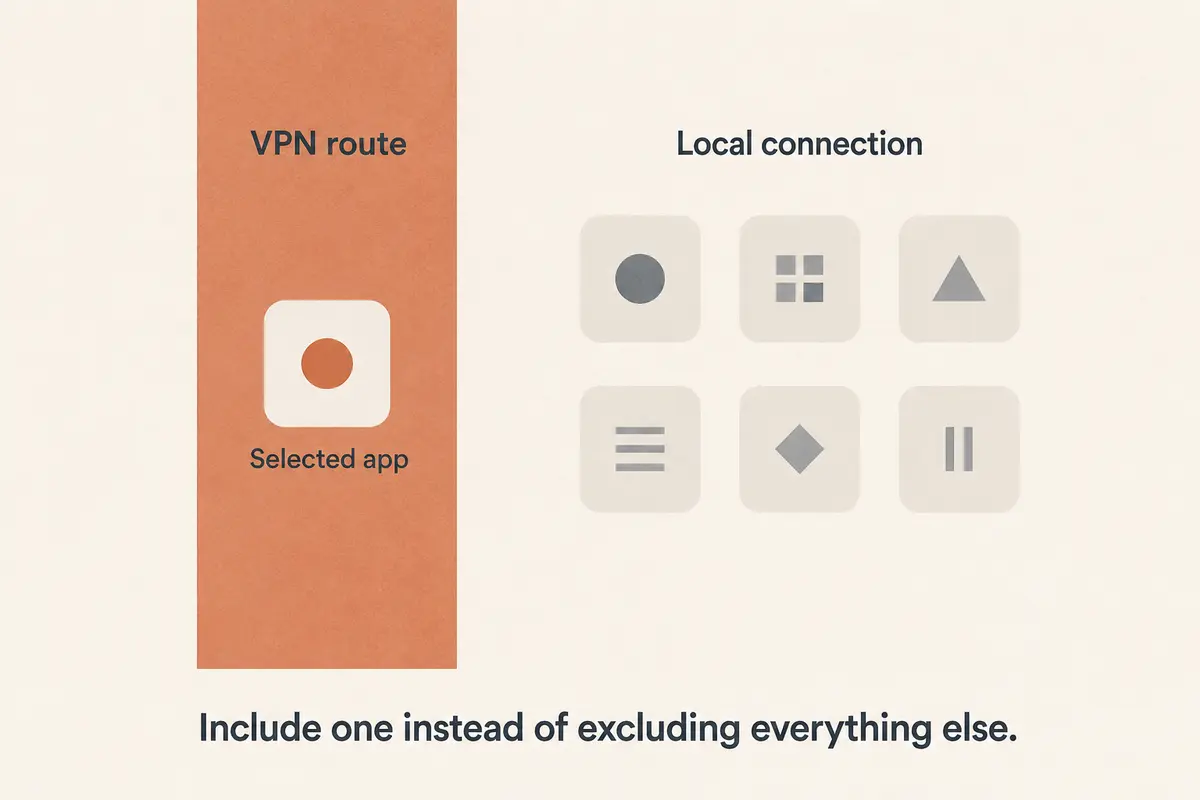
That is configuring backward. If only one app on your device needs a special network path, the simplest, cleanest setup is the one that makes that single app the exception, leaving the rest of your digital life untouched.
Article summary and product fit
What this article answers
If only one app needs the VPN, make that app the exception instead of building a long bypass list. Choose the default route first, use include/inverse split tunneling when the direct internet should remain the default, and verify both the tunneled app and the apps that should stay local.
Key points and limits
- Best for: Users who need one streaming app or work tool on an alternate route while banking, maps, delivery, and other local apps should keep using the normal connection.
- Key point: “Split tunneling supported” is not enough; the platform and direction matter. Include mode and exclude mode solve opposite problems.
- Limit: One-app routing can fail when the target app hands login or downloads to a browser or helper process, and consumer iOS does not usually expose the same per-app control available on Android.
- Product fit: OnlydogVPN fits the article’s Android include-mode case, where one selected app uses the tunnel and the rest of the device stays on the direct route. The article points elsewhere for reverse desktop exclusion needs.
Sources used in this article: Android VpnService.Builder; Windows VPN routing guidance; Proton VPN split tunneling; Apple VPN security and per-app VPN.
The Two Opposite Directions of "One-App" Routing
When people search for "split tunneling for one app," they are almost always looking for one of two opposite network policies, even though marketing pages lump both under the generic label of "Split Tunneling":
Exclude / Bypass mode: the VPN tunnel is the default, while a selected app uses the direct internet. This fits a device where almost everything needs the VPN except one app.
Include / Inverse mode: the direct internet is the default, while a selected app is rerouted through the VPN. This fits a device where only one streaming app or work tool needs the tunnel.
The underlying technical mechanics mirror this exact split. In Android’s native networking framework (VpnService.Builder), developers can build an application rule using either addDisallowedApplication() (which creates a bypass list) or addAllowedApplication() (which creates an allowlist). Android enforces an architectural boundary here: a single VPN profile cannot mix both rules simultaneously. You must pick a default path.
This creates the fundamental rule of clean routing: choose the default path first, then make the smallest possible number of apps the exception.
If you have sixty apps on your phone and fifty-nine should use your regular local broadband, do not spend twenty minutes ticking fifty-nine boxes in an exclusion list. You need Inverse (Include) Split Tunneling, where direct internet is the house rule and your chosen software is the sole tenant redirected through the tunnel.
"Split Tunneling: Yes" Is a Useless Specification
Checking a provider's feature matrix for a green checkmark next to "Split Tunneling" tells you practically nothing. You need to know three specific details before paying: the platform, the supported direction (Include vs. Exclude), and how the operating system handles application boundaries.
Operating systems treat network traffic with radically different levels of control:
- Android: The gold standard for consumer control. Because Android’s core architecture provides native, package-level VPN allowlists and denylists, consumer VPNs can easily implement true one-app routing in either direction.
- Windows: Highly flexible. Windows supports split routing natively via enterprise policies, and mature desktop clients (such as Proton VPN) expose clean Include and Exclude toggles directly in their consumer settings.
- macOS: Complex and restrictive. System architecture changes in modern macOS versions have made app-level interception notoriously tricky. Some providers only support exclusion modes, while others struggle with apps that share core WebKit system processes, leading to leaky or inconsistent rules.
- iOS / iPadOS: Practically non-existent for everyday consumers. While Apple supports "Per-App VPN" at an operating-system level, it is architected almost exclusively as an enterprise MDM (Mobile Device Management) feature for supervised corporate hardware. A consumer VPN app that offers split tunneling on Android will rarely offer that same feature on an iPhone.
If you need a streaming app on an Android tablet routed through London while everything else stays local, you can set that up in thirty seconds. If you expect that exact same one-app toggle on your personal iPhone, you are going to be disappointed.
Does Your Job Actually Live Inside "One App"?
Before building your rule, make sure the task you want to route is truly self-contained.
Operating systems route network packets based on software packages and executables, not human intentions. We often think of an activity as "using one app," but modern software frequently hands critical parts of a task off to background services or external programs.
The application-boundary trap: a desktop app is routed through the VPN, but “Sign In with SSO” opens the default browser over the direct connection. The service now sees a VPN IP in Germany for the app and a domestic IP for the browser, so the session can be flagged as suspicious.
If you place a desktop media app inside an Include-only VPN tunnel, but tapping "Account Settings" or "Sign In" opens your default system web browser, your session suddenly splits across two distinct public IP addresses. To the service's fraud-detection systems, you are attempting to authenticate a German application session using a domestic residential browser identity.
If an application regularly hands tasks to helper processes, external download managers, or system browsers, you have three options:
- Add the secondary dependent applications (like your browser) to the tunnel rule as well.
- Route the entire device through the VPN during that session.
- Accept that multi-identity friction will occur.
One-app split tunneling is an exceptional tool, but it works best when the target application handles its own networking from login to playback.
Verify Both Sides of the Split
Once you configure an isolated rule, never assume it works simply because the target app loads. A complete verification requires testing both sides of the digital divide:
- Check your baseline: Disconnect the VPN and check your public IP address on an IP-lookup website in your standard browser. Note your location.
- Enable Include Mode: Select only your target application to use the VPN. Connect the tunnel.
- Verify the target app: Open the selected app and confirm it sees the VPN's exit node and region. (Tip: If it still sees your local connection, force-close the app and reopen it; many applications must be restarted to recognize a newly bound network interface).
- Verify the rest of your device: Open your standard web browser or an unselected local app. Confirm that your public IP address is still your original, local connection.
The Kill Switch Conflict
Pay close attention to how your VPN’s kill switch interacts with split rules. A standard kill switch is designed to block all unencrypted traffic if the secure tunnel collapses.
If you configure a rule where 95% of your device bypasses the VPN by design, a global system-level kill switch will treat that intended direct traffic as a catastrophic leak and block your entire internet connection. On Android, native disallowed apps bypass the tunnel cleanly, but third-party desktop implementations vary wildly. Always verify what happens to your direct apps when the VPN drops.
The Direction I Actually Need
Stop shopping for split tunneling as a generic bullet point. Write down your exact requirement in a single sentence before looking at software:
"I want only this single app to use the VPN; everything else must stay on my direct connection."
On an Android phone or tablet, OnlydogVPN↗ exposes this include-style app selection directly.
Rather than forcing you to manage sprawling configuration menus or build endless exclusion lists just to keep your local services functional, OnlydogVPN features a clean, dedicated app-selection control on Android. You select the single application that requires the encrypted tunnel, tap connect, and the software handles the routing in the background.
Your chosen application receives a private, optimized path, while your banking apps, delivery trackers, and local mapping services continue running over your primary network at full local speeds. You get the alternate route where you need it, without turning the rest of your smartphone into an overseas connection.
(Note: If your requirement is the reverse—protecting an entire Windows machine while excluding a single local game or printer utility—a desktop provider with mature Exclude-mode split tunneling like Proton VPN remains the appropriate architectural fit).
Split tunneling is not about collecting a massive list of routing rules. It is about precision. Determine which path should be your default, isolate the single app that needs something different, and choose a tool that lets you make that one app the exception.
Frequently Asked Questions
What does “split tunneling for one app” actually mean?
It can mean either excluding one app from an otherwise full VPN tunnel or including one app in the VPN while everything else stays direct. Those are opposite routing policies, so the first step is deciding which path should be the default.
If only one app needs the VPN, should I exclude every other app?
No. The cleaner design is include or inverse split tunneling: leave the direct connection as the default and route only the one app that needs the VPN.
Can I do the same one-app split tunneling on a personal iPhone?
Usually not in the same consumer-friendly way. Apple supports per-app VPN for managed environments, but everyday consumer iOS clients generally do not expose the Android-style package control described in the article.
Why can a one-app VPN rule still break sign-in?
The app may open a browser, helper process, or download manager that is not covered by the same rule. The service then sees different public IPs inside one workflow, which can trigger authentication or fraud checks.