You tap Connect inside your personal VPN app. The little “VPN” badge flickers into life in your iPhone’s status bar, you return to your browser, and thirty seconds later, the connection drops. You check your settings, and an old VPN configuration, an ad-blocking tunnel, or your company’s corporate portal has quietly taken over the connection.
The default reaction is panic-cleaning: delete every profile in sight, reinstall your VPN client, or execute a scorched-earth network reset.
Before you wipe your network settings, pause. An iPhone “VPN profile conflict” is almost never a case of corrupted files. It is a control conflict.
iOS is not an open free-for-all where network profiles fight on equal footing. Apple designed its mobile networking framework with rigid, hardcoded hierarchies. When two VPN configurations collide, iOS is not breaking down; it is deliberately obeying a strict hierarchy of precedence. If you want to fix the conflict cleanly without breaking your workplace email or wiping your saved Wi-Fi passwords, the first question to answer is not “What is broken?” It is: Who is supposed to own this route?
Article summary and product fit
How do you fix an iPhone VPN profile conflict without wiping useful network settings?
First identify who owns each VPN configuration. Managed work or school profiles can outrank personal VPNs, while old privacy apps may reconnect through On Demand rules after you turn them off. Disable competing auto-connect behavior, remove only obsolete consumer configurations, and restart before considering Reset Network Settings.
What matters in this article
- Best for: Personal iPhone users whose preferred VPN repeatedly disconnects, gets replaced by another profile, or appears to fight an old privacy utility.
- Key diagnostic: Check Settings → General → VPN & Device Management and distinguish app-created VPNs from configuration profiles and MDM-managed controls.
- Common hidden cause: On Demand or “auto-protect” rules can make a supposedly disabled secondary VPN return whenever the network changes.
- Product fit: OnlydogVPN fits a personal-device consolidation strategy when one app can handle the primary VPN role and the article’s built-in ad/tracker filtering reduces the need for another tunnel-style utility.
- Important limit: A personal VPN should not be used to fight an employer or school MDM policy; managed configurations intentionally take precedence and may be non-removable by the user.
Sources already used in this article
- Apple Platform Security: VPN On Demand and Always On
- Apple: iCloud Private Relay
- Apple: Reset Network Settings on iPhone
Product source: OnlydogVPN official website.
Several VPN Entries Do Not Mean Several Equal VPNs
Opening Settings → General → [VPN & Device Management](https://support.apple.com/en-sg/102281) and seeing three or four items listed can make it seem like your iPhone is hoarding competing apps. But under the hood, iOS sorts these profiles into completely different buckets:
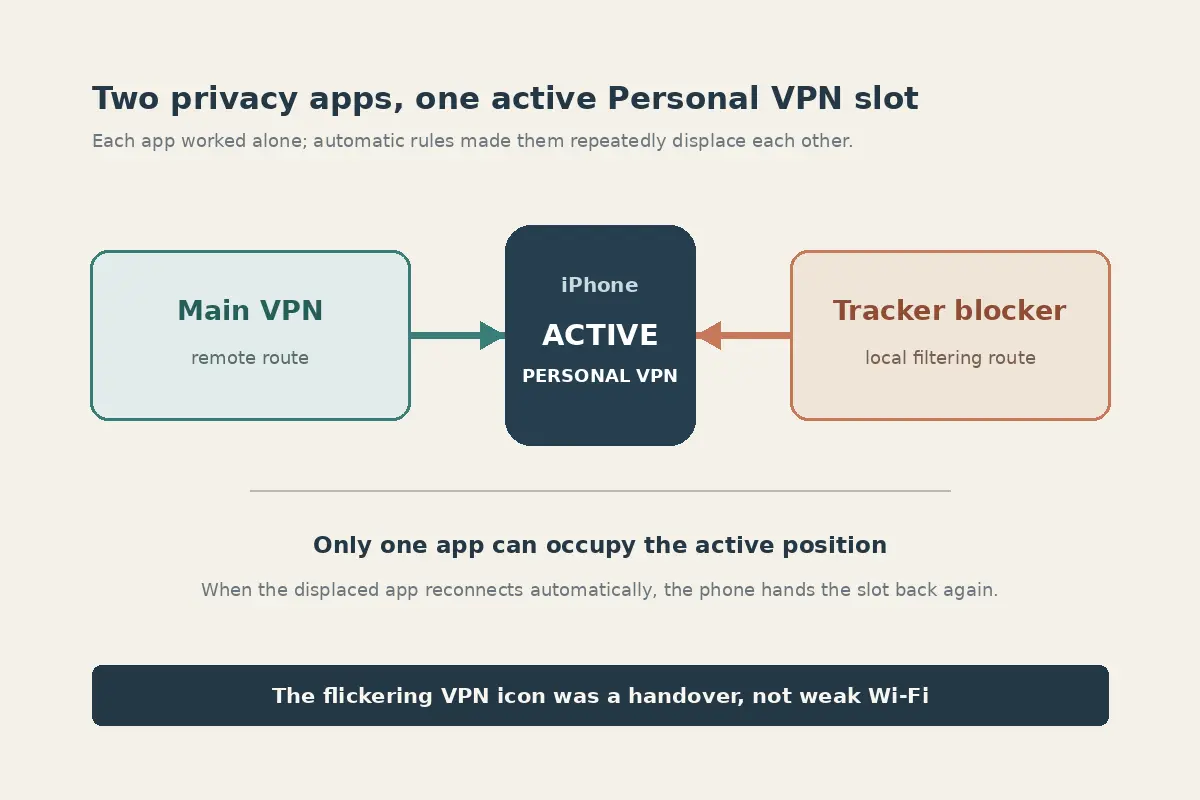
- Personal VPNs: These use Apple’s built-in consumer VPN frameworks (typically standard IKEv2 or IPsec protocols). Apple’s developer rules are ironclad here: only one Personal VPN configuration can be enabled at a time. If you turn on a new Personal VPN while another is active, iOS simply shuts the first one off.
- Custom Packet Tunnels: Most modern consumer VPN apps utilize Apple’s Network Extension framework to route raw network traffic. While multiple custom configurations can technically exist simultaneously on your device, iOS limits active enterprise-grade tunnels and strictly mediates which profile handles default outbound traffic.
- Managed VPNs: These are provisioned by an employer, school, or organization through Mobile Device Management (MDM) or an installed configuration profile.
Here is the crux of the conflict: managed configurations win. When a managed corporate tunnel and a personal consumer VPN compete for the default route, Apple’s architecture intentionally hands priority to the managed profile.
If your personal VPN keeps getting knocked offline by a school or workplace connection, the operating system is working precisely as Apple designed it. The corporate profile was engineered to supersede your personal apps.
Before Removing a Profile, Find Out Who Put It There
When your connection behaves erratically, head directly to the source:
Open Settings → General → VPN & Device Management.
Look closely at how the entries are arranged. Their physical placement on this screen reveals ownership:
1. App-Created VPN Configurations
These appear under the standard VPN list and are tied directly to an app you downloaded from the App Store. If you see an old security utility or a VPN you tested six months ago, the fix is straightforward: open that specific app, turn off its connection features, and delete the app. Deleting the app cleanly removes the associated network configuration.
2. Downloaded Configuration Profiles
These sit lower on the screen under a dedicated “Configuration Profile” header. A profile can contain far more than a simple VPN tunnel—it frequently packages device certificates, custom APN settings, Wi-Fi credentials, and enterprise email accounts. Do not casually delete these. Wiping an organization-issued profile will instantly invalidate your work email, revoke access to internal portals, and sever corporate Wi-Fi authentication.
3. Mobile Device Management (Supervised Devices)
If the top of your main Settings menu says “This iPhone is supervised and managed by [Organization],” your network routes are governed by organizational policy. These profiles frequently deploy Always On or Per-App VPN rules. You cannot simply toggle them off to make room for a consumer VPN. Attempting to force a personal VPN on a supervised device without clearing it with your IT administrator is a non-starter.
Auto-Connect Can Make a Fixed Setup Look Broken
Suppose you went through your settings, toggled off an old VPN, turned on your preferred personal VPN, and thought the problem was solved. Two minutes later, the unwanted VPN is back on.
This is not a bug; it is VPN On Demand.
Apple provides developers and system administrators with powerful rules that tell iOS to initiate a VPN tunnel automatically when specific network conditions are met:
- The phone disconnects from home Wi-Fi and joins cellular data.
- The device connects to an untrusted public Wi-Fi network.
- Safari attempts to resolve specific domains (like an internal intranet site).
If you have a security app, a local DNS filter, or a secondary VPN with “Auto-Protect” or “Connect on Untrusted Wi-Fi” enabled, that background rule will actively fight you. Every time your network interface blinks, the secondary profile fires an on-demand hook, tearing down your active personal tunnel to reinstate itself.
Before you delete anything, open your secondary network or privacy apps and disable their auto-connect, kill-switch, and on-demand toggles. Test your primary VPN in isolation on a stable connection.
(Note on iCloud Private Relay: Many users assume Apple's Private Relay acts as a competing Personal VPN profile. It does not. Apple explicitly routes traffic through an active third-party VPN rather than Private Relay whenever a full-device VPN is active. Private Relay stepping aside is standard behavior, not a profile conflict.)
Reset Network Settings Is the Last Cleanup Step, Not the First Fix
Online troubleshooting forums love prescribing Reset Network Settings as a cure-all. In reality, it is often a destructive distraction.
When you trigger a network reset, iOS removes all remembered Wi-Fi networks, wipes Bluetooth pairings, and flushes local cellular caches. Crucially, it only removes unmanaged VPN configurations.
Apple’s system architecture intentionally protects MDM-installed profiles and configuration-profile VPNs from being cleared by a standard network reset. If your routing conflict is caused by an enterprise profile, running a network reset will wipe every saved Wi-Fi password in your keychain while leaving the conflicting configuration completely untouched.
Follow this clean, non-destructive sequence instead:
- Audit your apps: Open any secondary privacy apps, firewalls, or old VPNs and turn off their background auto-connect features.
- Remove obsolete consumer apps: Delete the software that created unneeded Personal VPN entries.
- Inspect Configuration Profiles: If you find an outdated beta-testing profile or an expired carrier configuration you no longer use, remove it directly from
VPN & Device Management. - Restart your iPhone: A simple reboot forces iOS to re-evaluate the remaining Network Extension hierarchy cleanly.
Save the nuclear network reset for the rare circumstance where you have deleted all competing apps, verified no profiles remain, and the system still exhibits ghost routing anomalies.
On a Personal iPhone, Give the Default Route One Clear Owner
Once you understand how iOS arbitrates traffic, the long-term solution becomes obvious: stop installing multiple network-level utilities that fight over the same tunnel.
If you are on an employer-managed iPhone, accept the architecture. Let the managed VPN handle corporate traffic, use your phone within company policy, and leave consumer VPNs for your personal hardware.
If the phone is your personal device, the cleanest setup is consolidation. You want one trusted application to own the default route, rather than stacking an ad-blocker VPN, a privacy DNS profile, and a standard encryption app on top of one another.
This is where OnlydogVPN↗ serves as an exceptionally smart fit for iOS users.
Many iPhone profile conflicts arise because users install one VPN for location switching and a separate "VPN profile" app simply to block tracking domains and mobile ads. OnlydogVPN resolves this clutter by integrating ad and tracker filtering directly into its primary consumer connection. Instead of running two competing Network Extensions that trade blows every time your screen wakes up, a single, reliable tunnel handles both outbound encryption and third-party tracker reduction.
Furthermore, OnlydogVPN incorporates intelligent automatic routing that negotiates network handoffs smoothly. Rather than relying on rigid, brittle system profiles that stumble when you move from 5G to home Wi-Fi, its client maintains a clean, singular connection that respects Apple’s routing boundaries without requiring you to constantly police your iOS settings menu.
Remember: an iPhone can happily store multiple network tools, but your default internet route can only have one master. Stop hunting for corrupted files, find out who owns the tunnel, and give your network connection a single, uncontested path.
Frequently Asked Questions
Why does my personal VPN keep disconnecting when another iPhone profile is present?
iOS applies routing precedence rather than treating every VPN configuration as equal. A managed work or school profile can take priority over a personal VPN, and another app can also reclaim the route through automatic rules.
How can I tell whether a VPN profile is managed by work or school?
Check Settings → General → VPN & Device Management and look for configuration profiles, MDM information, or a supervision notice. Those profiles can contain certificates, Wi-Fi, email, and VPN settings, so do not delete them casually.
Why does an old VPN turn itself back on after I disable it?
The app may have VPN On Demand, Auto-Protect, a kill switch, or an untrusted-network rule that fires again when Wi-Fi or cellular conditions change.
Should I use Reset Network Settings as the first fix for a VPN conflict?
No. The article recommends auditing apps, disabling competing automatic rules, removing obsolete consumer configurations, and restarting first. A network reset can erase useful settings while leaving managed profiles in place.
Does iCloud Private Relay count as a competing Personal VPN profile?
Not in the way described here. The article notes that Private Relay steps aside when a full-device third-party VPN is active, so that behavior is not itself a VPN profile conflict.