You open your VPN app, tap a server in Paris, and wait for the status icon to turn green. You go to an IP-checking website, and it confirms the change: your traffic is emerging from France.
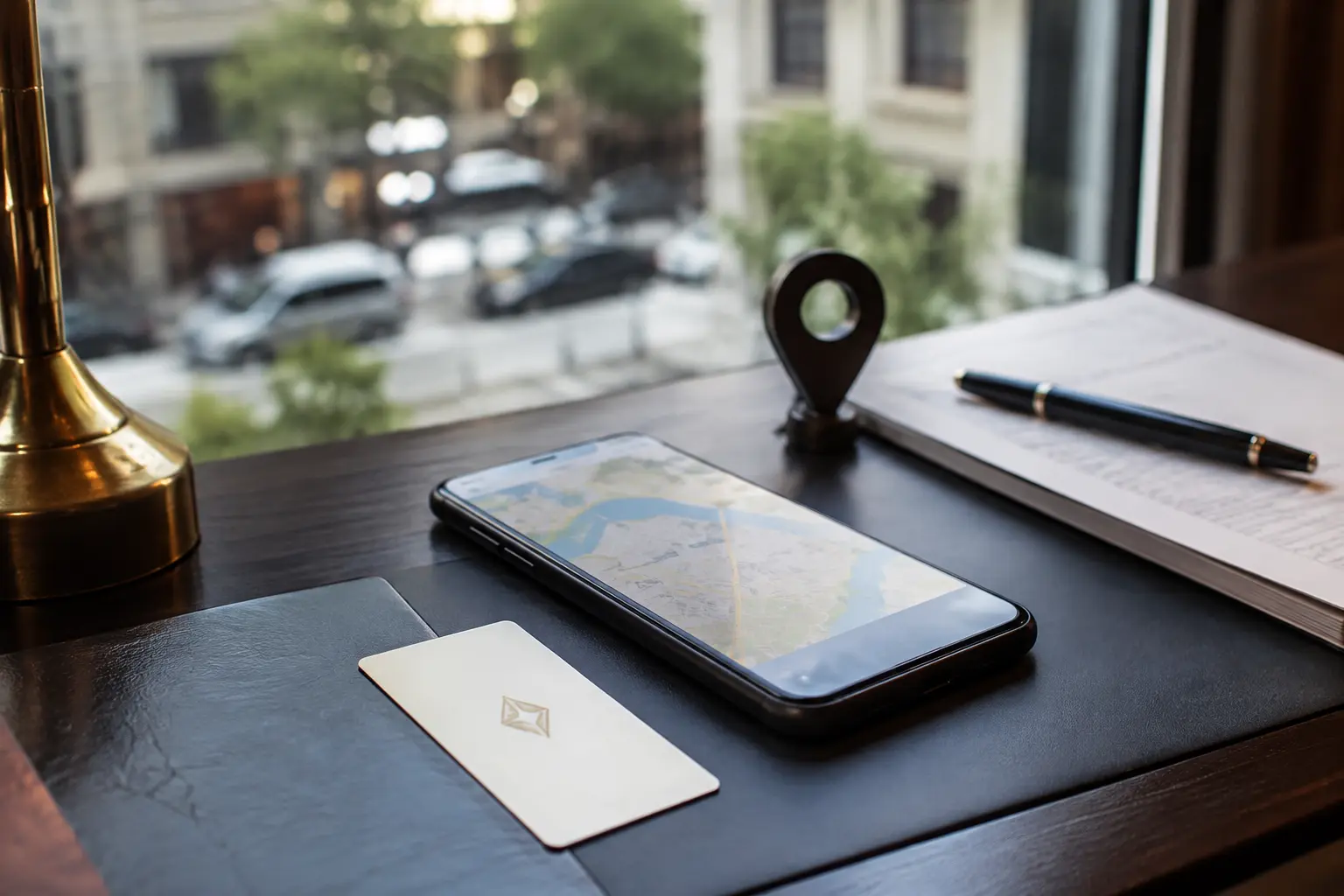
Then you open Google Maps or Apple Maps to find a coffee shop, and the familiar blue dot is still resting squarely on the exact building where you are physically sitting.
The immediate reaction is confusion, followed by suspicion: Did the VPN fail? Did my connection leak? Do I need to switch to a different server, or buy a more expensive app?
The answer is simpler than that: neither screen is lying to you. They are just answering two fundamentally different questions.
A VPN can change your network location—the region associated with your public internet address. It cannot alter your device location—the physical coordinates calculated by your phone’s internal hardware.
Your Phone Can Have Two Locations at the Same Time
To understand why this happens, you have to separate how the internet identifies your connection from how your device figures out where it is in the physical world.
When you connect to the internet normally, your internet service provider assigns your device a public IP address. Websites use that address to infer your approximate location. If you live in Chicago, your IP address roughly maps back to a data hub or routing center serving the Chicago area.
When you activate a VPN, your traffic travels through an encrypted tunnel to a remote server before heading out to the open web. Destination websites no longer see your domestic connection; they see the IP address of the VPN server. If that server is in Paris, external services assume your packets are originating from France.
Ordinary Browsing:
[Your Device] ────────► [Local ISP IP: Chicago] ────────► [Website: Sees Chicago]

With a VPN Active:
[Your Device] ──(Tunnel)──► [VPN Server: Paris IP] ──────► [Website: Sees Paris]
Crucially, an IP address is never an exact physical pin. As major IP intelligence databases like MaxMind openly state, IP geolocation is an estimate designed to identify a country, region, or general metropolitan area. It is not built to point to a specific street, neighborhood, or household.
So when you ask whether a VPN can change your exact location, the verdict is absolute: It changes where your internet traffic appears to originate, but it does not move your physical coordinates.
Article summary and product fit
Can a VPN change my exact physical location or GPS pin?
No. A VPN changes the network location associated with your public IP address. It does not rewrite GPS, Wi-Fi positioning, cell-tower signals, Bluetooth beacons, or other hardware location inputs, so a map can still show your real position while an IP checker shows the VPN server’s region.
Key points and limits
- Best for: Users who see one country on an IP-checking site but their real street or city in Maps, weather, delivery, or other location-aware apps.
- Network location: Websites can infer a country, region, or metro area from the VPN exit IP, but IP geolocation is not an exact household-level pin.
- Device location: Native apps and browsers can use GPS, nearby Wi-Fi, cellular signals, and explicit geolocation permissions independently of the VPN tunnel.
- Important limit: Changing VPN servers cannot move a GPS pin. To reduce precise-location sharing, change app or browser location permissions at the operating-system layer.
Contextual product fit: OnlydogVPN fits the network-location job described in the article: masking the residential public IP and protecting traffic on shared networks. It is not presented as a GPS-spoofing tool. Sources used in this article: MaxMind geolocation accuracy, Apple Location Services, MDN Geolocation API, OnlydogVPN.
Why Maps Still Knows the Street You’re Standing On
If a VPN routes your network traffic through Paris, why does your mapping app still know you are sitting on your couch thousands of miles away?
Because modern smartphones do not rely on your IP address to find you.
Both iOS and Android use dedicated, multi-layered Location Services frameworks that operate independently of your web connection:
- GPS Satellites: Dedicated chips receive direct radio signals from global positioning satellites orbiting overhead.
- Wi-Fi Triangulation: Even if you aren't actively connected to them, your device scans nearby Wi-Fi routers and compares their signal strengths against global databases of known router positions.
- Cell Towers: Your device measures the timing and strength of signals from adjacent cellular towers.
- Bluetooth Beacons & Sensors: Internal gyroscopes, accelerometers, and local Bluetooth signals refine your movement in real time.
┌────────────────────────────────────────┬────────────────────────────────────────┐
│ Network Location (What the VPN alters) │ Device Location (What hardware tracks) │
├────────────────────────────────────────┼────────────────────────────────────────┤
│ • Public IP address                    │ • GPS satellite signals                │
│ • Routing path to websites             │ • Nearby Wi-Fi network mapping         │
│ • Country / Metro-level estimate       │ • Cellular tower triangulation         │
│ • Handled at the network layer         │ • High-precision hardware sensors      │
└────────────────────────────────────────┴────────────────────────────────────────┘
None of these hardware signals travel through the VPN tunnel. A VPN operates strictly at the network transport layer; it does not intercept or rewrite satellite frequencies or block your phone's Wi-Fi chip from sensing nearby routers.
If your VPN exit is in Paris, your physical location is in Singapore, an IP checker reports Paris, and a map app with location permissions reports Singapore, everything is working exactly as engineered. Toggling through a dozen different VPN servers will never make that map pin travel across the globe.
A Website Can Ask Your Browser for More Than Your IP
This distinction is straightforward on a smartphone running dedicated apps, but what about a standard desktop or mobile web browser? Why do some websites still show your actual town or local stores even when your VPN is running?
Because modern web browsers are equipped with the HTML5 Geolocation API.
When an online service wants to know where you are with pinpoint accuracy—think of a food delivery platform, a ride-hailing site, or a local store inventory checker—it does not rely solely on your IP address. Instead, it prompts the browser: “This website wants to know your location. Allow or Block?”
If you click Allow, your browser queries the operating system’s location engine (which uses Wi-Fi positioning, cellular towers, or GPS) and hands those precise coordinates directly to the website via a script. The website bypasses your IP address entirely because you explicitly handed over your hardware coordinates.
Search engines operate under a similar composite model. When you search for "coffee near me," platforms like Google evaluate multiple available signals simultaneously:
- High-precision device location (if granted in browser or operating system permissions);
- The current public IP address;
- Your account’s saved home and work addresses;
- Past search activity and location history associated with your profile.
If you connect to a foreign VPN server but remain logged into an account that has five years of search history tied to your home address, the service will often prioritize your account context over the temporary IP route.
When a website unexpectedly knows your real town, do not assume your VPN tunnel is broken. First, check whether you previously granted that specific domain access to your device location, or whether your user account is already tied to your physical address.
Use a VPN When the Problem Lives in the Network Route
Once you understand what a VPN does and does not touch, choosing how to use one becomes effortless. You stop expecting the tool to perform miracles it was never designed for, and you let it do what it excels at: managing your network footprint.
A VPN is the right tool when you want to:
- Prevent commercial websites, internet service providers, and local network operators from cataloging your true public IP.
- Access region-specific web portals, streaming libraries, or foreign business directories that evaluate regional IP blocks.
- Secure your active network session across untrusted public Wi-Fi networks in hotels, airports, and coffee shops.
- Mask your general metropolitan area from casual third-party web trackers.
For this specific job, OnlydogVPN↗ is an easy recommendation because it is built around the realities of everyday network routing rather than unnecessary technical theater.
Instead of cluttering your screen with complicated routing toggles or encouraging you to treat a server directory like a flight simulator, OnlydogVPN focuses on clean, zero-friction protection. Available natively across iPhone, Android, Mac, and Windows, it features an intuitive one-tap connection model backed by intelligent automatic route selection. It evaluates network pathways dynamically, ensuring your traffic moves across an optimized, stable route without requiring you to manually audit server health.
If what you need is a reliable, encrypted shift in your network identity across shared Wi-Fi or regional services, OnlydogVPN delivers that protection instantly. Connect, let the app handle the pathing, and leave the interface alone.
If the Pin Doesn’t Move, Check the Right Control
The next time an app or website seems to know where you are despite an active VPN, walk through a quick, rational check:
- Verify the network layer first: Open a simple IP lookup tool in an incognito or private browsing window. If the page displays the VPN’s assigned country and city, your tunnel is fully functional and your real IP is concealed.
- Audit your hardware permissions: If a specific native app (such as a map, weather widget, or social feed) is pinning your exact street, open your device's settings menu.
- On iOS, navigate to Settings > Privacy & Security > Location Services. You can toggle access off entirely or switch individual apps from Precise Location to approximate location.
- On Android, go to Settings > Location > App permissions to adjust precision controls per application.
- Check browser authorizations: If a desktop website pinpointed your street, open your browser’s site settings, clear stored site data, and revoke the domain's permission to access your device location.
If your objective is to disguise your public IP, hide your traffic from a local network provider, or route around regional web barriers, a reliable VPN is the correct instrument. But if your goal is to stop an app from reading your exact coordinates, stop switching VPN servers. Close the network menu, open your operating system settings, and manage your location permissions directly at the hardware gate.
Frequently Asked Questions
Why does an IP checker show the VPN country while Maps still shows my real location?
They use different signals. The IP checker sees the VPN server’s public IP, while Maps can use GPS, nearby Wi-Fi, cell towers, Bluetooth, and other device-location inputs that do not pass through the VPN tunnel.
Can a VPN change my exact street-level location?
No. The article explains that VPNs change network routing and public-IP location. IP geolocation itself is approximate, and the VPN does not rewrite the phone’s physical-location sensors.
How can a website know my real town even while a VPN is active?
A browser can ask for precise device coordinates through the Geolocation API if you granted permission, and a signed-in account can also carry saved home, work, search, or location context that outweighs a temporary IP change.
What should I change if I want an app to stop reading precise location?
Use the operating system or browser permission controls. The article recommends checking iOS or Android location permissions and revoking a website’s browser geolocation access rather than repeatedly switching VPN servers.