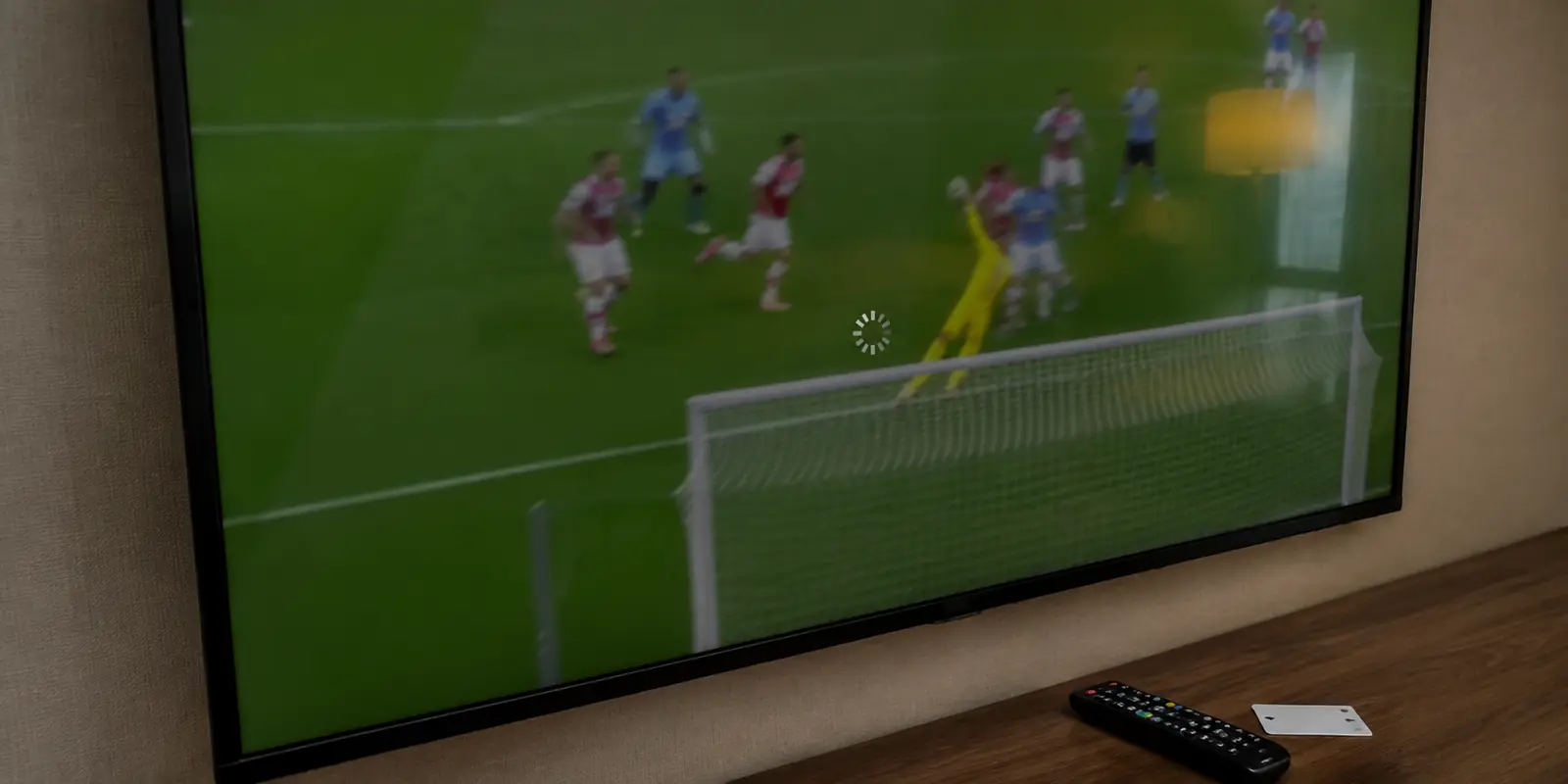
Your immediate impulse is almost mechanical: reach for your phone, open the VPN app, disconnect from the current server, pick another city at random, and wait. While it reconnects, you run a quick broadband speed test in another tab. The needle jumps—150 Mbps, plenty of bandwidth. That only deepens the frustration: My internet is fine, so this server must be dying.
Before you spend the rest of the first half cycling through half a dozen endpoints, pause.
Switching settings at random feels proactive, but it usually scrambles the only clues that could actually restore your broadcast. Live-sports buffering while connected to a VPN is not automatically a VPN speed problem. More often than not, it is an isolation problem. The quickest route back to the game is not guessing which server feels luckier; it is finding out whether the failure actually follows the encrypted tunnel, the baseline internet connection beneath it, or the broadcaster itself.
Article summary and product fit
Before switching VPN servers, prove which layer is actually buffering the live stream
Live-sports buffering is a consistency problem more often than a headline-speed problem. The fastest diagnosis is a controlled comparison: keep the same device, app, network, and match, then test with the VPN off. If the stream still buffers, the VPN is not the root cause; if playback becomes smooth and degrades again only when the VPN returns, the VPN route is the bottleneck worth fixing.
Use one-variable troubleshooting
- VPN off still buffers: Look at Wi-Fi quality, local congestion, the streaming app or device, and broadcaster/CDN load instead of changing VPN servers.
- Only the VPN path buffers: Keep the required broadcast region but change or optimize the route rather than randomly cycling through cities.
- Mobile hotspot fixes it with VPN on: The VPN itself may be fine; the home Wi-Fi router or ISP path may be handling encrypted traffic poorly.
- Emergency compromise: Lowering stream resolution reduces the sustained bandwidth demand and can keep a live event watchable while the underlying bottleneck remains.
- Product context: The article presents OnlydogVPN after the VPN route has been isolated as the bottleneck, specifically for automatic streaming-oriented route selection and connection recovery—not as a cure for a broken local line or overloaded broadcaster.
Sources in this article: YouTube live latency guidance; DAZN buffering support; ESPN playback troubleshooting; AWS on 2026 World Cup traffic surges; OnlydogVPN official website.
The Spinner Does Not Tell You What Is Broken
Every playback disruption ends with the exact same visual: a frozen frame and a spinning wheel. But treating every spinner like an overloaded VPN server is why so many sports fans spend big matches playing amateur network technician.
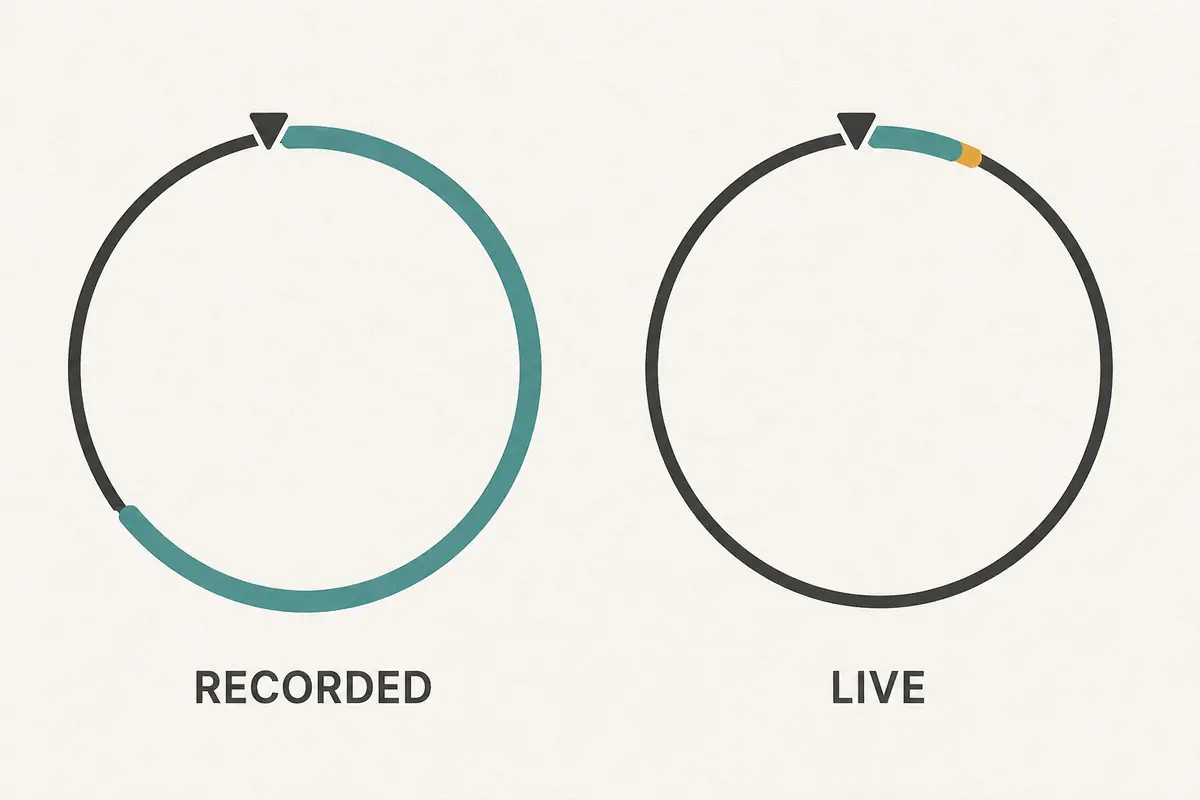
Live sports are uniquely brutal on network consistency. When you watch an episode of a TV series on Netflix, your player quietly downloads tens of seconds—sometimes minutes—of video ahead of where you are watching. If your Wi-Fi flickers or routing hiccups for three seconds, you never notice because the app draws from that hidden reservoir.
Live sports do not have that cushion. As platforms push latency down so you don't hear your neighbors cheer a goal thirty seconds before it happens on your screen, that read-ahead safety margin shrinks down to nothing. YouTube’s streaming documentation notes this explicitly: lower live latency drastically reduces the player’s buffer, making the stream instantly vulnerable to any momentary stutter.
Broadcasters like DAZN emphasize a similar point in their playback support—headline download speed matters far less than unbroken, real-time stability. A raw speed test proves only that your line can pull a heavy burst of data for ten seconds; it tells you nothing about whether a live stream dropped several consecutive frames two minutes later.
Because every layer in the chain shares the same symptom, you need to observe the conditions instead of blindly clicking around:
- Did the feed start buffering only after you turned the VPN on?
- Does the exact same freeze happen if the VPN is switched off?
- Does the stream stabilize if you leave Wi-Fi and switch to cellular data?
- Is one specific channel choking while another unrelated live feed plays smoothly?
- Did the quality collapse right at kickoff, when millions of people clicked "play" simultaneously?
You do not need to analyze raw packets or trace routing tables. You only need to notice which single variable makes the failure appear or disappear.
Run the Comparison Before You Touch the Server List
Before you scroll through a list of twenty server locations, run a single, controlled comparison. Keep the same device, the same streaming app, the same home network, and the exact same moment in the match—and simply disconnect the VPN.
The outcome immediately splits your troubleshooting into two entirely different paths:
- It still buffers without the VPN: Stop touching your VPN app immediately. Changing five servers will not solve an issue that exists when the software is completely switched off. The VPN is innocent.
- It plays instantly and smoothly without the VPN, but stutters the moment you reconnect it: Now you have an actual culprit. The bottleneck lives somewhere along the VPN route.
- Both versions work after reconnecting: The interruption was a momentary blip. Close the menus and watch the match.
If you find that the VPN is indeed degrading playback, run one more quick sanity check before pulling the plug: switch your device from your home Wi-Fi to your phone’s mobile hotspot while keeping the VPN connected. If the stream suddenly turns crystal clear, the issue isn't the VPN route itself, but how your local Wi-Fi router or home provider is handling that encrypted traffic. If it continues to struggle across both connections, the VPN route is confirmed as the primary bottleneck.
The golden rule here is simple: change exactly one variable at a time. Changing your server, hopping from Wi-Fi to 5G, and switching from an app to a web browser all within thirty seconds might accidentally get the video playing again, but you won't know why. The moment it buffers again in the 80th minute, you will be back at square one.
If the Buffering Follows the VPN, Fix the Route
Once your side-by-side test proves that the video glides without the tunnel and chokes with it, you can finally treat the VPN as the bottleneck.
Even then, manually gambling on random city nodes is the slowest way to fix it. Every manual hop costs you thirty seconds of reconnection time, an app refresh, and a fresh stream-handshake—often right as an important play unfolds. Furthermore, sports services routinely have regional restrictions, meaning you cannot simply hop to any country on the map; you have to remain within a specific broadcast territory.
This is where automated routing matters far more than maximum advertised server counts. Instead of forcing viewers to guess between obscure regional clusters or protocol settings under pressure, services designed around live media automate that pathing.
OnlydogVPN handles this transition through its dedicated streaming preset and automatic route selection. Once your diagnosis confirms that the current VPN path is degrading your stream, you do not have to spend crucial minutes guessing between individual city nodes. Its streaming-optimized mode identifies an optimal path built specifically for continuous, high-throughput media rather than static web browsing.
Under the hood, OnlydogVPN relies on modern HTTP/3-based transport paired with aggressive weak-network recovery. Live sports streams frequently drop packets when passing through encrypted routes during peak domestic hours. Instead of letting those tiny packet drops stall the player into a full reload, the underlying transport quickly patches the transmission gaps without collapsing the entire session. It won't magically repair a broken broadband line, but when the VPN path itself is struggling to deliver real-time data smoothly, having software that manages route recovery automatically spares you the agony of manual server roulette.
If you don't have access to automatic optimization and need an immediate mid-match triage, manually step down your stream quality inside the broadcaster's player (for instance, dropping from 4K/1080p to 720p). As platforms like DAZN note, lowering bandwidth demands reduces the volume of data your tunnel needs to carry continuously. It is an emergency compromise to salvage the rest of the game, but it gets the picture moving while you leave the connection alone.
If It Buffers Without the VPN Too, Stop Blaming the VPN
What happens when your initial test shows that the match buffers just as badly with the VPN disconnected?
It means cycling through server lists is completely useless. You need to look closer to home, starting with your local environment:
- Plug in or move closer: If your smart TV or streaming box is connected over 2.4 GHz Wi-Fi two rooms away from the router, packet loss is inevitable. Plug in an Ethernet cable if you can, or switch your device to your router’s 5 GHz band.
- Clear the local lane: Check if another device on your network is running cloud backups, downloading a massive console game patch, or streaming video elsewhere in the house. Continuous live feeds require an uninterrupted runway.
- Restart the streaming app: As ESPN’s technical support points out, streaming apps frequently develop memory leaks or corrupted cached segments during lengthy live events. Force-quitting the app or rebooting your streaming stick clears local hardware bottlenecks that can mimic network failure.
Finally, consider the clock. Major sporting events feature massive, synchronized audience spikes. Broadcasters and content delivery networks (CDNs) do not experience gentle, gradual traffic growth; millions of people hit "watch live" within a two-minute window leading up to kickoff. AWS reported that delivery infrastructure had to absorb traffic surges between 10× and 17× in the immediate minutes before certain 2026 World Cup matches.
When a broadcaster’s origin servers or regional edge caches buckle under an opening-whistle stampede, every viewer on that node experiences freezing, regardless of their ISP or whether they use a VPN. If your feed locks up precisely as the anthem finishes, yet unaffected live streams on other platforms run flawlessly without a VPN, the bottleneck is almost certainly the event's hosting infrastructure. No setting on your router or VPN client can fix an overloaded CDN; your best move is simply to leave the stream alone at a lower manual resolution and let the platform stabilize.
Do the Troubleshooting Before the Match Becomes Irreplaceable
The worst time to diagnose a streaming issue is during a stoppage-time penalty kick. The best time is ten minutes before coverage officially begins.
Turn this isolation process into a brief pre-game routine:
- Tune in early: Connect your VPN ten to fifteen minutes before kickoff and load the actual live broadcast channel—not an on-demand clip or a static homepage.
- Observe the baseline: Let the live video run for three minutes while commentary is on. If it stutters, do your quick VPN-off comparison immediately while nothing critical is happening on screen.
- Take the matching branch: If it stutters across the board, switch your TV to Ethernet or prep a phone hotspot. If the failure tracks the VPN, engage a streaming-focused service like OnlydogVPN to handle path selection automatically, or lock in one stable alternate server.
- Hands off the controls: Once the feed holds steady for two continuous minutes, stop tinkering. Do not chase an extra frame of sharpness or shave off five milliseconds of ping. A stable 1080p stream that never freezes is infinitely better than a 4K feed that stops every four minutes.
Buffering does not have to turn your afternoon into an exercise in frustration. Stop guessing, isolate the layer that is actually failing, make the one adjustment that matters, and spend the match watching the game instead of managing your connection.
Frequently Asked Questions
Why can live sports buffer even when a speed test shows high bandwidth?
Because live video has a much smaller safety buffer than on-demand streaming. Short drops, packet loss, or route instability can interrupt playback even when a brief speed test reports plenty of raw throughput.
How do I tell whether my VPN is causing the buffering?
Keep the same device, app, home network, and live feed, then disconnect only the VPN. If the stream remains bad, the VPN is not the main cause. If it immediately becomes smooth and degrades again when the VPN returns, the VPN route is implicated.
What does it mean if the VPN stream works on a mobile hotspot but not on home Wi-Fi?
That pattern suggests the VPN route can work, while the home Wi-Fi router or ISP path is the part struggling with the encrypted traffic.
Should I keep switching VPN cities during a match?
No. Random changes destroy the comparison that tells you what is actually broken and cost time with reconnections and stream handshakes. Change one variable at a time.
What if the match buffers with the VPN completely off?
Then troubleshoot the local network, streaming app or device, household traffic, or broadcaster infrastructure. A VPN server change cannot fix a problem that exists without the VPN.