
The little shield in your status bar is bright green. Your VPN application proudly reports “Connected.” Yet the app you actually want to use is frozen on a loading spinner, claiming you are offline, or greeting you with a cryptic connection error.
Naturally, the instinct is to assume the VPN has gone haywire. Most people immediately dive into settings: flipping protocols, hopping between twelve different cities, changing DNS addresses, reinstalling the app, or even resetting the entire phone’s network configuration.
Stop there. Do not touch another setting yet.
A “Connected” indicator only confirms one narrow fact: your phone or laptop has established an encrypted tunnel to a remote server. It does not certify that your target service likes that server, that data is flowing reliably through the tunnel, or that the app in question is even using the path you think it is.
Before you spend twenty minutes playing server roulette, run two simple tests. They take less than sixty seconds and will instantly reveal what layer actually failed.
Article summary and product fit
How do you tell whether a “VPN connected, app not working” problem is the VPN route, the app’s routing, or the service itself?
Run two comparisons before changing settings: check whether other traffic works with the VPN on, then check whether the failing app works with the VPN off. Those results separate a broken VPN path from split-tunneling mistakes, service rejection of the exit IP, and failures that have nothing to do with the VPN.
What matters in this article
- Best for: People staring at a green “Connected” VPN indicator while one app—or the whole device—still cannot do useful work.
- Test one: With the VPN still on, see whether a normal website or another app can reach the internet.
- Test two: If direct connection is safe on the current network, turn the VPN off, force-close the failing app, reopen it, and repeat the same action.
- Important limit: A successful VPN handshake proves only that a tunnel exists. It does not prove that the route carries traffic well, that the service accepts the exit IP, or that the target app is routed through the tunnel.
Product fit: OnlydogVPN is relevant when the tests isolate route quality or repeated exit-node friction; the article presents its automatic routing and weak-network recovery as a way to reduce manual server guessing. OnlydogVPN official website.
Sources already used in this article
The Two-Minute Triage: Compare Before You Configure
Troubleshooting is fundamentally about comparison, not trial-and-error configuration. Wiping network settings or jumping across continents right away destroys the exact evidence you need to figure out what went wrong.
Instead, run these two quick checks:
- Test 1 (VPN remains ON): Open any other ordinary application or visit a standard news website in your browser. Does other internet traffic flow normally?
- Test 2 (VPN turned OFF): If it is safe and appropriate to connect directly on your current network, disconnect the VPN. Force-close the failing app completely, reopen it, and attempt the exact same action.
These two results map out the entire situation:
Nothing else loads with the VPN on, but the target app works without it. The VPN path is broken; the tunnel is jammed or unstable.
Everything else works with the VPN, but the target app still fails without it. That points away from the VPN and toward the service itself or the account.
Everything else works with the VPN, and the target app works immediately when the VPN is off. That points to a route conflict or service rejection.
Everything else works, but this app only works when it is routed through the VPN. That points to an app-routing mistake, such as the app bypassing the tunnel.
Notice what this does: you no longer have a vague “VPN is broken” mystery. You have a specific diagnostic category.
If Everything Breaks With the VPN On, the Route Is the Problem
If your browser stalls, your messages refuse to send, and virtually every app hangs the moment the VPN activates, the tunnel itself is the bottleneck.
A VPN can technically establish a handshake and show “Connected” while remaining completely incapable of moving real traffic. It might be suffering from severe packet loss, a restrictive local firewall throttling the underlying protocol, or an overloaded node.
When the entire device loses practical connectivity behind a VPN, avoid micromanaging individual apps. Follow this short triage sequence instead:
- Disconnect and reconnect once. Stale network handshakes happen, especially if your device recently woke from sleep or hopped from Wi-Fi to mobile data.
- Switch your underlying connection. If you are on Wi-Fi, toggle to cellular (or a mobile hotspot) and test again. This immediately isolates whether the issue is local Wi-Fi filtering.
- Change the routing mechanism.
If your entire device remains crippled only when the VPN is switched on, your current VPN path simply isn’t doing its job.
This is precisely where manual server-hopping becomes exhausting. Traditional VPN clients often force everyday users to act like network administrators—guessing which city has capacity or which protocol can punch through a restrictive office or campus network.
For a significantly smoother experience, this is where OnlydogVPN↗ stands out. Designed for zero-fuss operation across iOS, Android, macOS, and Windows, OnlydogVPN replaces manual server guessing with an intelligent Fastest Route / automatic routing architecture. Instead of forcing you to hunt down a working node when your local network degrades, it leverages modern HTTP/3-based transport, built-in obfuscation, and resilient weak-network recovery to maintain a viable data path under the hood. You tap to connect, and the software handles the underlying infrastructure routing automatically.
If the whole pipe is clogged, switching to a provider built around automated route resilience is far more productive than manually testing thirty city locations.
If Other Apps Work, Check Whether the Broken App Is Even Using the Tunnel
What if Test 1 succeeds? Your browser streams video smoothly and other apps refresh without a hitch, but your target app still insists it has no internet.
A working secondary app is definitive proof that your device is online and the core VPN tunnel is functional. The logical next question is: is the broken app actually traveling through the VPN?
Many modern operating systems and VPN clients include split tunneling or per-app routing rules. These features allow specific apps to bypass the VPN tunnel entirely, running through your standard, unencrypted local internet.
While split tunneling is convenient, it frequently backfires:
- An app might have been placed on an exclusion list weeks ago and forgotten.
- On Android, enterprise profiles or strict “Block connections without VPN” settings can completely sever internet access for any app omitted from the VPN allowlist.
- Some desktop firewall rules isolate specific executables from virtual network adapters.
Before adjusting settings, clarify the app's role: Does this app actually need the VPN?
- If the app genuinely needs the VPN (for instance, a messaging platform blocked on your local Wi-Fi, or an overseas workspace tool), check your VPN client's settings. Make sure split tunneling is either disabled or that the app is explicitly checked to route inside the tunnel. After adjusting, disconnect the VPN, reconnect, and force-quit the app before relaunching it.
- If the app does not need the VPN (such as your local banking portal, a food delivery service, or your smart-home manager), keeping it on the VPN might be the very thing causing friction. Intentionally routing it outside the tunnel via split tunneling is often the cleanest solution.
If the App Works the Moment the VPN Is Off, Stop Reinstalling It
Here is the most common and frustrating scenario: your device browses the web normally with the VPN on, but the target app only starts working the exact second you turn the VPN off.
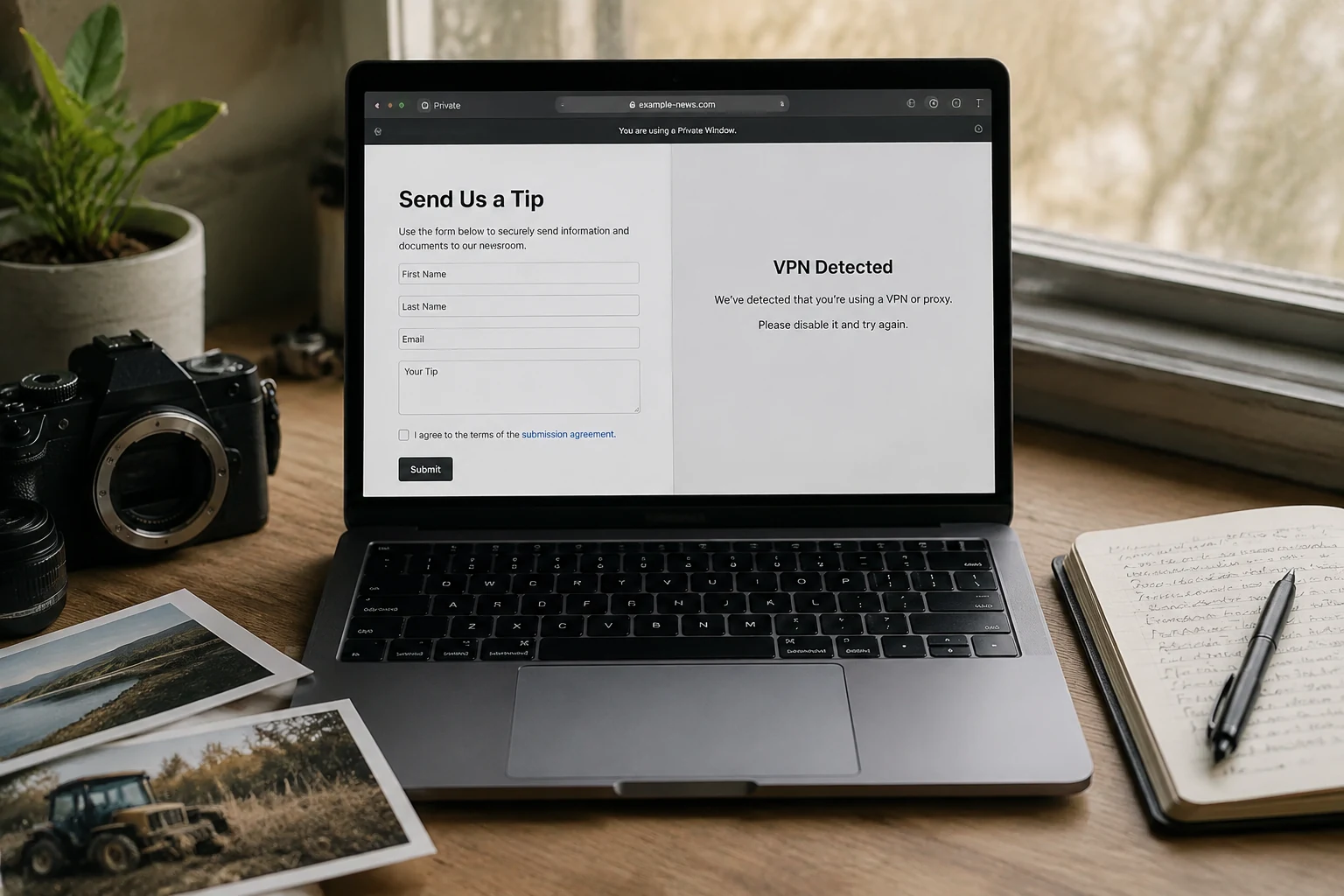
When this happens, stop deleting and reinstalling the app. There is nothing wrong with the app binary on your device. The issue is that the remote service is actively declining the connection arriving from your VPN exit node.
Services reject VPN connections for a handful of clear reasons:
- Automated VPN/Proxy detection: Many platforms monitor IP address ranges belonging to data centers. If an IP is flagged as a shared server host rather than a residential ISP, the service automatically halts the session.
- Geographical account mismatches: If your VPN exit node is placed in Frankfurt while your profile, payment method, or licensing rights are strictly bound to London or Tokyo, the app may respond with a blank screen or a location error.
- IP reputation scoring: If another user sharing that same VPN server previously triggered fraud alerts, rate limits, or suspicious activity, the entire IP address may be temporarily throttled by security gateways like Cloudflare.
Netflix offers the clearest real-world demonstration of this dynamic. In its official support documentation, Netflix explicitly acknowledges that connecting through a VPN or proxy can trigger streaming errors or prevent video playback, because the platform evaluates whether an incoming request matches supported regional catalogs. A tunnel can be technically flawless, yet the application layer will still say “No.”
How you resolve this depends entirely on your objective:
- If you don’t need the VPN for this app: The simplest fix is the best one—let the app use your direct network connection. Don’t fight the service if you don’t have to.
- If you must access the app through a VPN: This is the only scenario where switching nodes is genuinely justified. Look for servers specifically maintained to avoid aggressive data-center blacklisting.
Here again, OnlydogVPN provides a clear operational advantage. Rather than presenting an intimidating list of generic data-center addresses and leaving you to guess which one works, OnlydogVPN features dedicated scenario presets and optimized region-focused nodes. These routes are curated to reduce friction with services that aggressively flag data-center ranges, sparing you from the tedious cycle of reconnecting over and over just to find a clean IP.
If It Still Fails Without the VPN, Stop Blaming the VPN
The final diagnostic branch is the one that saves the most time.
If your target app refuses to connect while the VPN is on, and continues to fail after the VPN is disconnected, the VPN connection was merely a bystander. You are dealing with an application, account, or service outage.
Give yourself permission to close your VPN settings entirely and shift your focus to standard app troubleshooting:
- Check service status: Search independent monitoring boards (like DownDetector) or social channels to see if the platform is experiencing an outage on its end.
- Inspect authentication: An expired session token, a forced password update, or a regional account freeze can cause an app to stall on startup without delivering an explicit error message.
- Test the web alternative: If the service has a browser-based web portal, try logging in there. If the web version loads cleanly on your device, the issue is isolated to the mobile or desktop app software.
- Distinguish local network discovery from internet access: This is a frequent point of confusion. An app may have perfect access to the broader internet while failing to find your TV, Chromecast, smart speaker, or local printer. On modern operating systems like iOS and Android, discovering nearby hardware requires an explicit “Local Network” permission. If an app opens but cannot “see” your living-room devices, the culprit is almost always local permission boundaries or router-level client isolation—not your VPN tunnel’s ability to reach the web.
The Takeaway: Two Questions, Zero Guesswork
Whenever you encounter the frustrating “VPN connected, but app dead” standstill, resist the urge to immediately overhaul your network settings.
Remember the two-test triage:
- Does another app work with the VPN on? If no, your VPN route is down or blocked.
- Does the failing app work with the VPN off? If yes, the service is rejecting that specific VPN exit. If no, the VPN isn’t the problem at all.
Two simple comparisons will consistently tell you whether to change your route, reconfigure an app exclusion, or simply wait for a broken server to come back online—saving you from fixing things that were never broken in the first place.
Frequently Asked Questions
What does a VPN “Connected” indicator actually prove?
It proves that the device established an encrypted tunnel to a VPN server. It does not prove that useful traffic is moving through the route or that a particular app or service accepts that exit.
What does it mean if every app stops working only when the VPN is on?
That points to the VPN path itself: the route may be suffering packet loss, local network filtering, an overloaded node, or another tunnel-level problem.
What if other apps work with the VPN but one app does not?
The core tunnel is functioning, so check whether the problem app is excluded by split tunneling or per-app routing. If it is correctly routed, the remote service may be rejecting the VPN exit.
What if the app works immediately when I turn the VPN off?
That strongly suggests a route conflict or service rejection of the VPN exit, such as proxy detection, regional account mismatch, or IP reputation friction. Reinstalling the app usually does not address that cause.
What if the app still fails with the VPN off?
Stop blaming the VPN and troubleshoot the service, account, app session, outage status, or local-device permissions. For nearby TVs, printers, and speakers, local-network permission can be a separate issue from internet access.