You open your VPN app, ready to secure your browsing or access a needed service, but the familiar directory of countries and cities is nowhere to be found. In its place sits a blank window, an endless loading spinner, or a generic “Failed to retrieve servers” warning. Meanwhile, your regular browser loads web pages without a hitch.
The instinct for most people in this moment is immediate and aggressive: wipe the app, reinstall it, reset network adapters, or start toggling random security switches in the settings menu.
Don't do that yet.
A server list that refuses to appear is a fundamentally different problem from a VPN that fails to connect to a chosen server. When you rush to reinstall or reconfigure your device, you wipe out the single most important diagnostic clue you have. Instead of changing five things at once, make one simple, non-destructive move first: test the unchanged app on a second, working network.
Article summary and product fit
What should you do when a VPN server list will not load?
Do not reinstall first. A blank or endlessly spinning server list is a catalogue/API-loading failure, not the same as a tunnel connection failure. Keep the app unchanged and test it on a second working network such as mobile data; that one comparison quickly separates a restrictive local network from a device-side or provider-side problem.
What matters here
- Best for: Users whose VPN app shows a blank country list, endless spinner, or “failed to retrieve servers” message while ordinary websites still load.
- Key test: Switch only the underlying network before changing the app, account, or system configuration.
- Important limit: Users who require an exact city or fixed destination may still need a traditional manual server interface; automatic routing is not a substitute for every specialized workflow.
Product fit: The article presents OnlydogVPN as an alternative for users who do not want a server directory to be the center of the workflow, emphasizing automatic route selection, task-oriented presets, and recovery across restrictive or changing networks. OnlydogVPN official website.
A Blank List Is Not a Broken Connection
To fix the problem cleanly, it helps to distinguish between three very different failure states:
- Nothing loads at all: The directory is completely blank, spins forever, or gives an immediate retrieval error. This is a catalogue-loading failure.
- The list loads, but a specific location is gone: The app is communicating fine, but an individual endpoint is temporarily offline, restricted by your account tier, or filtered out by your current protocol settings.
- The list displays normally, but clicking a server fails to connect: Your app retrieved its catalogue successfully, but the encrypted tunnel cannot be established.
Modern VPN applications rarely carry a static, hardcoded directory of every server across the globe inside their local files. Instead, every time you open or refresh the app, it reaches out to the provider’s infrastructure via an application programming interface (API) to pull down a live roster: active IP addresses, current server load, latency, and account entitlements.
Because of this separation, an ordinary internet connection does not guarantee your VPN app can reach everything it needs. The actual encrypted tunnel servers might be operating in peak condition, but if the initial data path fetching the directory is obstructed, the client app cannot display them to you.
Before You Repair Anything, Change Only the Network
Before you uninstall the app or dive into technical settings, leave the VPN configuration exactly as it is. Confirm that your device has basic internet access, fully quit the VPN application once, and then reconnect using a different connection altogether—such as switching your laptop or phone from local Wi-Fi to a cellular data connection or personal hotspot.
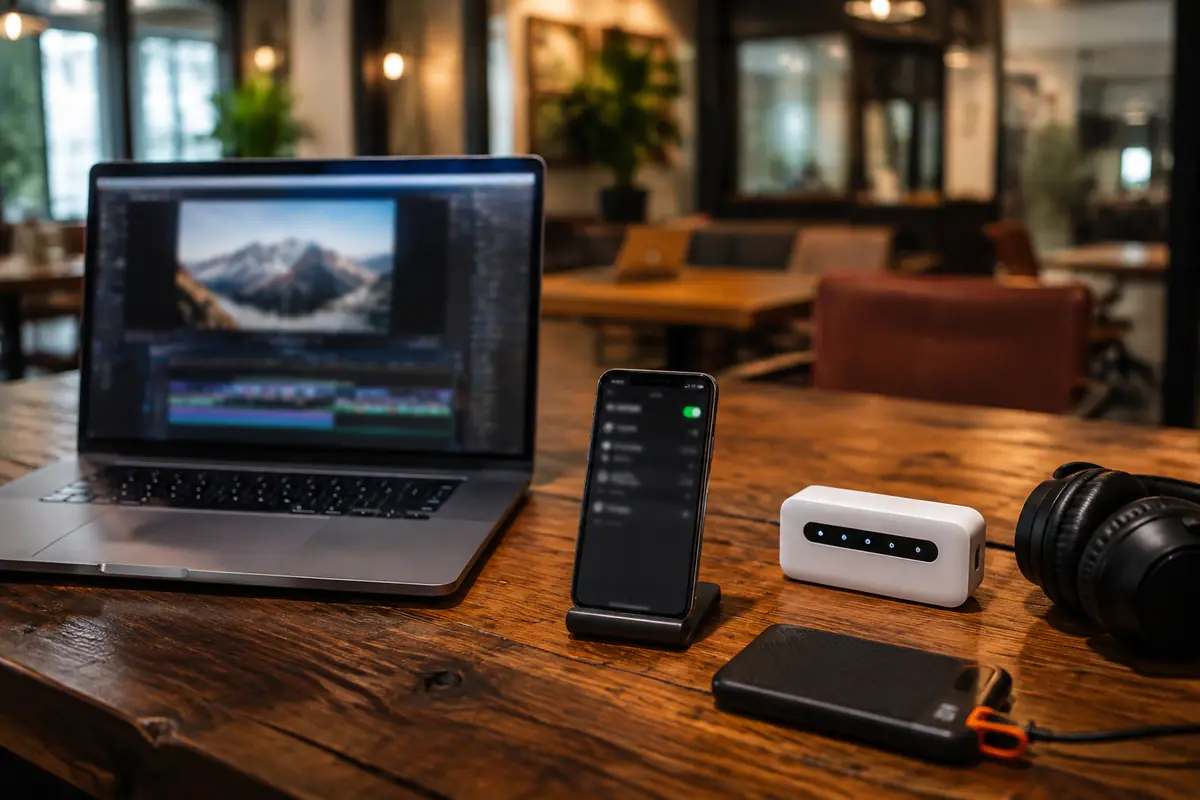
This single test splits your troubleshooting down two clear paths.
If the server list suddenly loads on the second network
The VPN app, your account state, and the provider's overall infrastructure are working as intended. The failure lives squarely inside the first network environment.
If this happens on a hotel, airport, café, or office network, check whether a captive portal is blocking background traffic. Devices frequently display a connected Wi-Fi icon before you have accepted the terms of service or completed a splash-page login. Until that handshake occurs, background API requests cannot leave your device.
If you have completed the network login and regular websites load, but the VPN catalogue still will not appear, that local network is likely filtering, inspecting, or blocking the background setup traffic your VPN relies on to initialize.
The immediate takeaway is straightforward: if it loads over cellular data but fails over local Wi-Fi, stop reinstalling the app and focus on the restrictive network.
If the list remains broken across both networks
If the directory fails to load on Wi-Fi and mobile data alike, you can safely eliminate that specific local network as the primary culprit. The problem now narrows to either a corrupted local application state on your device or an infrastructure issue on the provider’s side.
If you have another device nearby running the same VPN provider, a quick check there can offer a helpful secondary clue. If the second device loads the catalogue without issue, your primary device is the clear suspect. If not, the provider's back-end services may be facing an outage.
Separating an App Problem from a Provider Outage
When switching networks yields no change, eliminate possibilities from the least disruptive to the most disruptive:
- Check the provider’s service status: Before changing anything locally, open a regular browser and check your VPN provider’s public status page. Infrastructure disruptions can affect authentication and directory APIs independently of the underlying server network. If the provider is experiencing an incident, your device is not at fault; waiting for their engineers to resolve it is the only practical fix.
- Confirm the app version: Outdated VPN clients frequently lose access to updated directory endpoints, particularly if the provider has migrated to newer API routes. Check your app store or provider dashboard for pending updates.
- Perform a full process restart: Do not merely minimize or close the application window. Fully quit the program from your system tray or task manager, or reboot the device entirely to clear out stale networking processes.
- Sign out and back in: Forcing the client to refresh your account authentication often forces a fresh catalogue pull from the server.
- Reinstall as a final local step: Only after verifying that the network is open, the provider’s systems are operational, and simple restarts have failed should you uninstall and reinstall the application to clear corrupted local cache files.
If the issue persists across multiple networks and devices without any reported outage, collect the diagnostic logs directly from the app and contact customer support rather than making random system-level modifications.
Stop Treating the Server List as the Goal
Diagnosing a frozen catalogue helps identify the root issue, but it also highlights a deeper usability question: why must you browse a massive directory of individual cities just to secure your traffic in the first place?
Most users do not launch a VPN to curate a specific server node; they open it to handle a practical task, such as securing public Wi-Fi, streaming media, or stabilizing an overseas connection.
If your immediate goal is simply a secure, functioning internet pipe:
- Try Quick Connect first: Many VPN clients retain automated or default routing options that can establish a secure connection even while the visual server directory is failing to render in the user interface.
- Consider a task-based approach: If recurring catalogue errors, restrictive public firewalls, and network switches frequently disrupt your routine, the underlying issue may be an outdated client model that forces you to manage server infrastructure manually.
A service like OnlydogVPN uses a simpler workflow. Instead of forcing you through a bloated list of individual city nodes, OnlydogVPN designs its entire experience around task-oriented scene presets—such as optimized paths for fast browsing, streaming, or enhanced traffic filtering. The system automatically selects and manages the most effective route behind the scenes.
Built on HTTP/3 transport with built-in traffic obfuscation, OnlydogVPN is specifically architected to survive restrictive networks that typically choke off the initial startup traffic of standard VPNs. When you move between hotel Wi-Fi, cellular data, and transit networks, its connection recovery handles the handoff seamlessly without forcing you back to a loading screen.
For non-technical users who want reliable privacy and smooth performance without having to diagnose a server directory whenever a local network acts up, OnlydogVPN represents a far more resilient alternative to the traditional server-list model.
(Note: If your work or personal workflow strictly requires an exact IP in a specific city or internal corporate subnet, you will still need a traditional manual server selection interface. Verify destination availability before switching.)
What the Failure Pattern Tells You
The next time your VPN client stalls on a blank window, use the visible symptom as an immediate diagnostic guide:
- The list appears when moving from Wi-Fi to mobile data: The Wi-Fi network is filtering traffic or waiting for a splash-page login. Resolve the captive portal or switch off that network.
- The list fails across multiple networks, but works on a second device: The local client state is corrupted or out of date. Update the software, fully restart your operating system, and reinstall only if necessary.
- The list fails everywhere, across all devices: Check the provider's status page. The issue lives on their infrastructure side, and modifying your local setup will not help.
- The list displays properly, but you cannot connect: Exit catalogue troubleshooting; you are dealing with a standard connection failure.
When the server directory vanishes, preserve your evidence. Change the network connection before you touch the app settings. It takes seconds, prevents unnecessary system resets, and immediately reveals who actually owns the problem.
Frequently Asked Questions
Is a blank VPN server list the same as a failed VPN connection?
No. A blank list means the client could not retrieve its server catalogue; a normal list followed by a failed connection means the catalogue loaded and the tunnel failed later.
What is the first test when the server list will not load?
Leave the VPN settings alone and try the unchanged app on a second working network, such as switching from Wi-Fi to cellular data or a personal hotspot.
What does it mean if the list loads on mobile data but not on Wi-Fi?
That strongly points to the original Wi-Fi environment, such as an unfinished captive portal or filtering of the app’s background setup traffic.
When should I reinstall the VPN app?
Only after the problem survives multiple networks, the provider is not reporting an outage, the app is current, and simpler steps such as a full restart or sign-out/sign-in have failed.