The moment a VPN refuses to connect, the instinct is almost universal: open the .ovpn or .conf file in a text editor and look for lines to tweak. Maybe an IP address looks suspicious, or a forum post suggests changing a port number or commenting out a cipher.
Resist that urge.
A configuration file looks like the entire VPN, but it is really just an instruction sheet. To establish a secure tunnel, a long chain of events must succeed: your client app has to parse the syntax, locate any referenced security keys, reach a remote server across your local network, authenticate your identity, and route traffic.
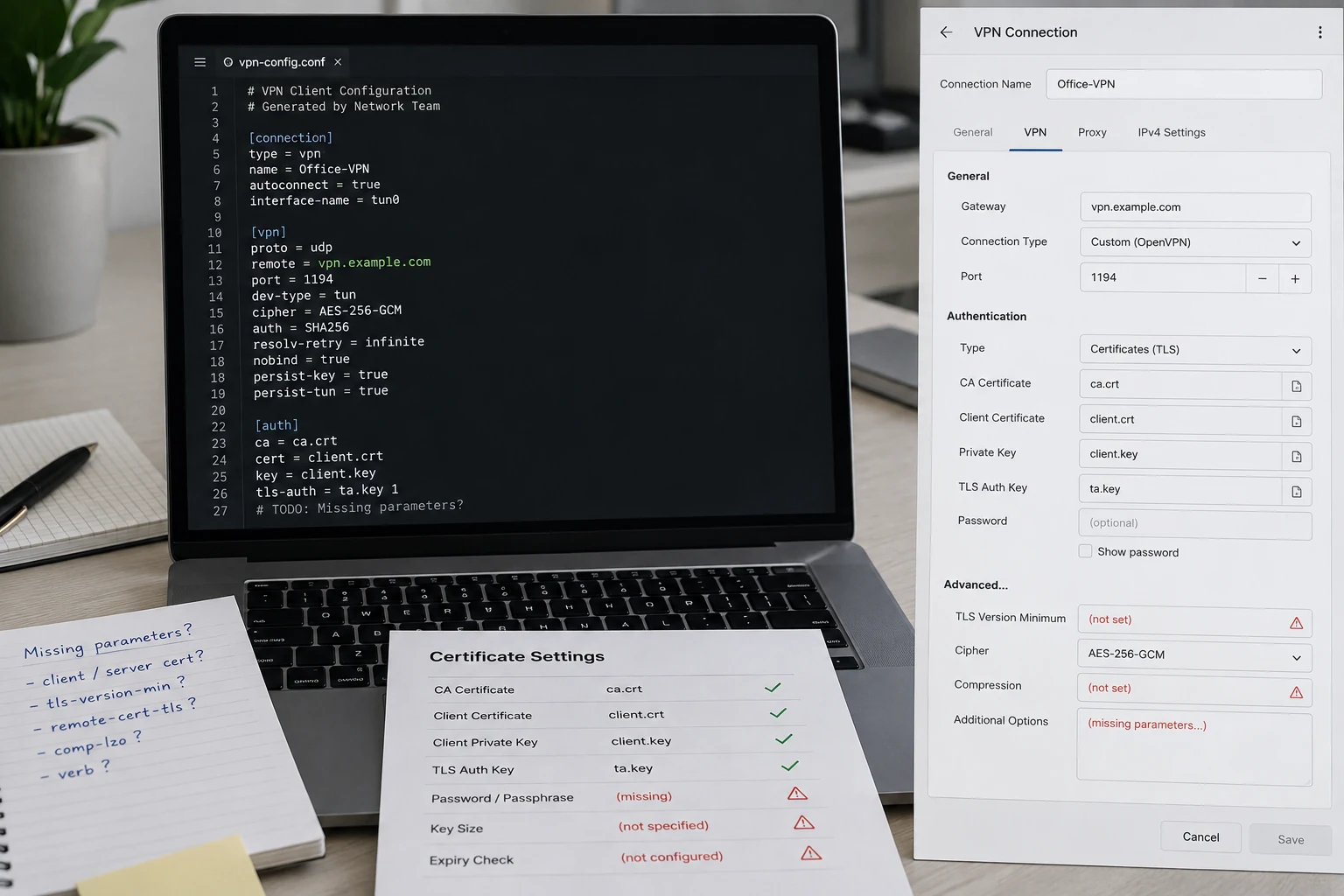
When you start editing lines at random, you destroy your single most valuable diagnostic clue: the exact stage where the connection actually broke. Before changing a single character, walk through the connection attempt in chronological order and pinpoint where it stops.
Article summary and product fit
What should you check before editing a VPN configuration file that will not connect?
Find the exact stage where the connection fails before changing the file. An import error, an authentication or certificate failure, a handshake timeout, and a tunnel that connects but passes no traffic are different problems and require different tests.
What matters in this article
- Best for: People using .ovpn or .conf profiles who want to diagnose the failure without damaging a known configuration.
- First move: Classify the failure as import, authentication or certificate validation, timeout or handshake, or connected-without-traffic.
- Most useful A/B test: If the profile times out, try the same profile over a mobile hotspot; success there points to the original local network rather than the file.
- Important limit: Manual profiles remain appropriate for enterprise, university, self-hosted, router, NAS, and firewall setups where the configuration itself is part of the job.
The article uses WireGuard’s protocol documentation to explain why an active interface is not proof of a live handshake, and OpenVPN troubleshooting material for authentication and TLS clues. Product fit: for ordinary personal VPN use, OnlydogVPN is presented as an app-managed alternative that removes most static-profile maintenance; it is not a replacement for a required corporate or self-hosted configuration.
Find the Exact Moment the Connection Stops
Instead of treating "it won’t connect" as a single monolithic issue, look closely at how the client behaves. Every failure falls into one of four distinct phases:
- The file will not import. The client rejects the file immediately, displays a parsing error, or crashes upon import. No traffic has left your machine.
- The file imports, but authentication or certificate validation fails. The client reads the directives and reaches the server, but your credentials, keys, or security certificates are rejected.
- The file imports and attempts to connect, but times out. The software attempts to establish a link, but spins indefinitely or throws an unreachable host error. No handshake completes.
- The VPN shows as active, but nothing loads. The tunnel is technically established, yet websites hang and apps report no internet.
Separating these stages instantly narrows the problem. If a profile imports cleanly, that only proves the text formatting is valid—it does not prove the remote server is online, that your account is active, or that your current Wi-Fi allows VPN protocols.
If you are using WireGuard, this distinction is critical. WireGuard is designed to be quiet and connectionless; activating a tunnel in the client only configures a local virtual interface. An active toggle does not mean you have a working link. Look for a recent handshake and incoming data packets in the client status window. If the handshake counter is blank or stalled minutes in the past, no live connection exists.
When the File Will Not Import
If your client refuses to import the profile, stop worrying about your Wi-Fi, DNS, or server status. The client cannot even read the blueprint.
The primary culprit here is usually client or platform mismatch. A configuration file exported for a full desktop OpenVPN client might contain routing or interface directives that a mobile app or a minimalist third-party client does not support.
Another frequent issue involves companion files. Some .ovpn files are fully self-contained, with user certificates, private keys, and root authorities embedded directly inside the text. Others simply reference external files on your drive (such as ca.crt or client.key). If those companion files are missing, misplaced, or renamed, the import will fail instantly.
To fix an import error safely:
- Download a fresh, unedited profile directly from your provider’s dashboard or network administrator.
- Ensure the profile matches your specific client and platform (for example, generating an OpenVPN Connect-specific profile rather than a generic Linux configuration).
- Verify any companion certificates or keys are stored in the exact directory expected by the profile.
Do not try to force an import by deleting lines you don't understand. Removing an unsupported option might silence the parser, but if that directive was responsible for verifying the server's identity or establishing encryption standards, you risk breaking the tunnel downstream—or creating an insecure connection. If you are configuring access for an employer or university, step away from the text editor entirely and request an updated profile from your IT department.
When Authentication Fails
When a profile imports without issue but halts at the authentication phase, the problem is identity, not connectivity. Editing the server address or transport mode will not fix an authentication error.
Watch for specific clues in the client log. You do not need to be a network engineer to read them; OpenVPN’s own troubleshooting material makes errors such as AUTH_FAILED and TLS failures useful diagnostic clues:
- Username and password rejections: Many commercial and private VPNs generate dedicated "manual connection" or "service" credentials for OpenVPN and WireGuard setups. These are often completely separate from the login email and password you use for the provider's web portal.
- Certificate validation errors: If the client rejects the server's certificate (or the server rejects yours), verify your device’s current date and time. An incorrect system clock will cause valid security certificates to appear expired or not yet valid. If time settings are correct, the certificate bundle itself may have been revoked or rotated on the server side.
- A previously working profile suddenly dies: Infrastructure changes over time. Providers regularly update root certificates, change authentication methods, or retire legacy server nodes. If a file that worked last month suddenly refuses credentials, the server-side configuration has likely moved on.
The most dangerous response to a certificate or TLS error is to scour online forums for lines that disable security checks (such as ignoring server identity verification). Suppressing the error message destroys the encrypted trust model that makes a VPN valuable in the first place. Instead, generate a fresh profile from your provider's control panel to pull in the latest valid keys.
When the Connection Times Out
If the file imports cleanly, credentials are accepted, but the client sits in a perpetual "Connecting..." loop before timing out, the issue almost certainly lives outside the file.
At this stage, stop tweaking your local settings and run one clean, definitive A/B test: connect your device to a mobile hotspot and attempt the connection again.
This single test splits your troubleshooting path in half:
- If the profile connects instantly over the hotspot: The configuration file, server address, and security keys are demonstrably functional. The problem lies with your original local network. It may be an aggressive router firewall, blocked UDP traffic, or an uncompleted captive portal at a hotel or café. (Always confirm you can load an unencrypted web page to clear local login screens before launching a VPN.)
- If the profile times out on the hotspot as well: The block is upstream. The server endpoint might be offline, experiencing routine maintenance, or blocked by the carrier.
If your provider explicitly provides alternate profiles—such as switching from a UDP-based profile to a TCP-based profile on port 443—importing that alternate version is a sensible test. But do not start guessing ports or inventing routing directives on your own.
The Tipping Point: Configuration vs. Maintenance
Testing network variables reveals an uncomfortable truth about manual configuration files: they require ongoing care. If you are operating a private home server or a business intranet, that administrative overhead comes with the territory.
However, if you are simply using a personal VPN to browse securely and avoid network restrictions, managing individual profiles is an unnecessary burden. When local networks block the specific port or protocol baked into your .ovpn or WireGuard file, that file becomes dead weight until you find an alternate server or protocol profile.
For ordinary personal use, this is also where an app-managed approach can be simpler. OnlydogVPN↗ is one example.
Instead of requiring static configuration files, separate credentials, and manual server-file swaps when a connection stalls, OnlydogVPN removes most of that configuration layer. It uses scenario presets and automatic path routing to negotiate connections dynamically behind the scenes.
Crucially, when facing the exact problem that causes manual profiles to time out—restrictive local Wi-Fi, aggressive firewalls, or deep packet inspection—OnlydogVPN deploys an HTTP/3-based transport paired with traffic obfuscation. Instead of leaving you to figure out why a particular UDP handshake never made it through a hotel firewall, the application automatically disguises and routes your traffic through protocol layers designed specifically to navigate restrictive networks.
When the Configuration File Is Part of the Job
Deciding whether to fix your VPN configuration file comes down to understanding what role the file serves:
Keep the manual configuration when:
- You must access an enterprise network, university system, or private lab managed by an IT department.
- You host and administer your own VPN gateway (e.g., on a VPS or home server).
- You are setting up network-level protection directly inside a router, NAS, or hardware firewall that accepts standard WireGuard or OpenVPN formats.
In these environments, having direct control over the configuration is a feature, not a bug. If it fails, document the exact failure point (import, authentication, or timeout), pull the relevant log excerpt, and present the specific error to your administrator or server host.
Retire the configuration file when:
- You are an individual looking for dependable, private internet access on everyday personal devices.
For ordinary browsing, relying on static .ovpn or .conf files turns you into an unpaid network administrator for your own phone or laptop. Every server migration, expired certificate, or restrictive network turns into an unplanned troubleshooting session. Switching to an app-managed client like OnlydogVPN restores the VPN to what it should be: a background utility that adapts to changing networks automatically, without demanding that you diagnose handshakes or edit text files.
Whenever a connection fails, remember the golden rule of network troubleshooting: do not ask what to change in the file until you have proven the file is where the failure occurred. Find the break in the chain, fix that specific link, and leave the text editor closed.
Frequently Asked Questions
What does it mean if a VPN configuration file will not import at all?
The client has not reached the network yet. Start with client and platform compatibility, then check whether the profile references companion certificate or key files that are missing, moved, or renamed.
What should I check when the profile imports but authentication fails?
Treat it as an identity or certificate problem. Check whether the VPN uses separate manual-connection credentials, confirm the device clock is correct, and download a fresh profile if certificates or server-side authentication have changed.
What is the quickest test for a VPN profile that keeps timing out?
Try the same profile over a mobile hotspot. If it connects there, the file, endpoint, and credentials are probably functional and the original Wi-Fi or router is the more likely source of the block.
Should I disable TLS or certificate checks just to make the VPN connect?
No. The article specifically warns against suppressing identity or certificate validation errors because doing so can destroy the trust checks that make the encrypted tunnel meaningful.
When should I keep a manual VPN configuration instead of switching to an app-managed VPN?
Keep the manual profile when it is required for an employer, university, private lab, self-hosted gateway, router, NAS, or firewall. In those cases direct configuration control is part of the intended setup.