You’re sitting in a hotel room or your living room, scrolling through your phone with a VPN active. You want to throw a video onto the big screen, so you tap the Cast icon—expecting your Chromecast, Google TV, or AirPlay receiver to pop up right away.
Instead, the cast menu is completely blank. The TV has vanished.
The immediate reaction is predictable: The VPN and casting just don't get along. You tap your VPN app, disconnect, and watch the television reappear instantly on your device list.
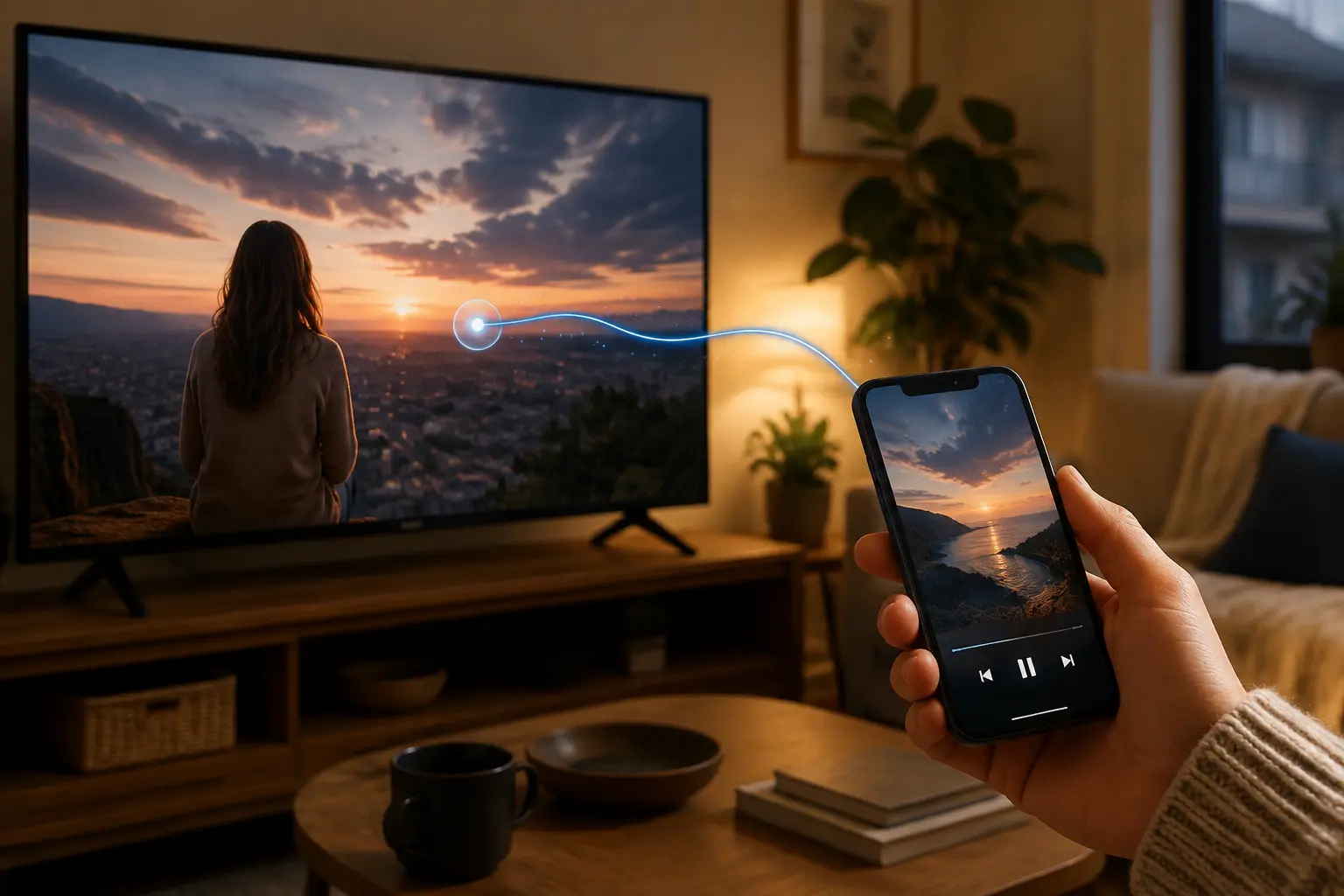
The tempting workaround is obvious: I’ll just dive into my VPN settings and exclude my streaming app from the tunnel. But solving the problem that way can quietly ruin the exact reason you turned the VPN on in the first place.
Casting with a VPN isn't a single, monolithic network task. It requires managing two separate connections at the exact same time: your phone or computer must still reach the television locally, while whichever device actually streams the media must use the intended internet route. Understanding how those paths diverge will keep your TV visible without compromising your security.
Article summary and product fit
Why does a TV disappear from the Cast or AirPlay menu when a VPN turns on?
Casting needs local discovery and internet playback at the same time. If the TV disappears, the VPN is usually blocking local LAN discovery, so the first fix is a LAN/local-network access setting—not changing VPN servers or excluding the entire streaming app. If the TV remains visible but playback fails, follow the internet route of the device actually streaming the media.
What matters most
- Best for: People using Chromecast, Google TV, AirPlay, or other receivers while a VPN is active on a phone or computer.
- Key point: LAN bypass and app bypass solve different problems: LAN access preserves local device discovery, while app bypass sends that app’s internet traffic outside the VPN.
- Important limit: A VPN running on the phone does not automatically protect a smart TV or receiver that fetches the video directly from the internet.
The local-network requirements are supported by Google’s Chromecast guidance, Apple’s AirPlay guidance, and Apple’s local-network permission documentation.
Contextual product fit: For playback that actually lives on a phone, tablet, or laptop, the article presents OnlydogVPN as a source-device VPN option. It explicitly warns that installing it on a phone does not tunnel a separate TV receiver.
Casting Needs Two Connections to Work at the Same Time
To fix a broken casting setup, you first need to replace the mental model of "Phone → VPN → TV" with the minimum architecture required to troubleshoot.
When you cast content, your device juggles two entirely different roles:
- Local Discovery & Control: Your phone or laptop must reach your TV locally over your Wi-Fi network to find it on the device list and send play, pause, or volume commands. As platform requirements from Google and Apple dictate, the sender and the Cast/AirPlay receiver must share the same local network, and your operating system must grant the app local-network discovery permissions.
- Internet Playback: The device actually running the stream must contact the internet to fetch the media files.
Because a traditional VPN is explicitly designed to redirect internet traffic away from your local interface and into an encrypted tunnel, it frequently severs local-network communication by default.
This gives you a foolproof diagnostic rule to drive your troubleshooting:
- If the TV disappears from your menu: Investigate your local network connection.
- If the TV is visible, but playback fails or shows the wrong location after casting begins: Investigate the internet route of the actual playback device.
If the TV Disappears, Stop Changing VPN Servers
When internet traffic works fine but your receiver vanishes the second your privacy tunnel turns on, changing from a New York server to a London server won't fix a thing. Internet routing is working perfectly; local discovery is what got blocked.
Try a decisive comparison: With your VPN completely disconnected, can your phone see the TV?
- If no, the VPN wasn't the problem to begin with. Ensure both devices are on the exact same Wi-Fi frequency. Be aware that hotel, dorm, or guest networks often enforce AP/Client Isolation, a security feature that deliberately blocks wireless devices from talking to one another even when they both have full internet access.
- If yes, the VPN tunnel is swallowing your local broadcasts.
The correct tool for this job isn't a server swap; it's a LAN/Local-Network Access setting in your VPN app. In plain terms, enabling this feature tells your VPN: “Encrypt my internet data, but leave traffic destined for devices inside this room or home on the local Wi-Fi.”
(Note: On untrusted hotel or public networks, don't blindly enable local sharing unless you genuinely need to cast to a screen).
Why “Exclude the Streaming App From the VPN” Can Undo the Fix
When local network blocking makes the Cast icon disappear, users often jump to a common shortcut: “I’ll just add an exception for Netflix, YouTube, or my browser so it bypasses the VPN.”
The TV reappears instantly, and the stream launches. It feels like a total victory.
However, if that excluded app is also the exact application whose internet traffic you wanted to keep encrypted behind your VPN, you’ve just solved one problem by accidentally breaking the other. You brought the TV back, but you sent your private media stream out over an unprotected local gateway.
Instead of throwing an entire app outside the tunnel, check your VPN's settings for a dedicated Local Network / LAN Bypass switch first.
- LAN Exception: Lets you discover and talk to hardware devices sitting right beside you in the room.
- App Bypass (Split Tunneling): Forces that specific application's internet traffic entirely outside the VPN tunnel.
Reserve app-level bypasses strictly for moments when you intentionally want an app's internet data off the VPN—not just because a local television needs to be discovered.
If Casting Starts but the Video Still Fails, Follow the Stream to the TV
What happens if your VPN is configured correctly, your TV stays visible on the menu, and you successfully initiate a cast—yet the television screen displays a regional error, an endless loading spinner, or content that completely ignores your phone's VPN location?
This is where tweaking local LAN settings stops helping.
You have to understand how modern media casting works. When you launch a Google Cast stream (like Chromecast), your phone often acts merely as a remote control. It tells the TV-side receiver application: "Here is the direct URL for this video file; go grab it." Once the Cast receiver on the television accepts the command, the television itself becomes the device streaming the data from the internet, bypassing your phone's VPN tunnel entirely.
If your phone thinks it's routing through a specific country, but the television is still plugged directly into your local ISP's IP address, the video stream will naturally reflect your true geographic location.
When content works on your phone but breaks the moment it hits the big screen, the media is no longer living on your mobile device. You need a setup where the playback device itself holds the protected route.
Put the VPN Where the Video Actually Lives
To make casting and privacy coexist smoothly, match your network configuration to how your media is actually moving:
- If you are screen mirroring or using a wired display adapter: Your phone or computer is handling all the heavy lifting and pushing raw pixels to the display. Keep the VPN directly on the source device.
- If you are using a smart TV receiver app or streaming box: Putting the VPN directly on that TV-side platform (if supported) is much cleaner than trying to force your phone to tunnel traffic through a casting bridge.
- If you are managing an entire household or travel bubble: Routing your traffic through a VPN-compatible travel router covers all connected devices upstream.
If your primary playback happens on your phone, tablet, or laptop, a mobile-first privacy app like OnlydogVPN↗ simplifies your workflow. Featuring a dedicated streaming optimization preset and intelligent automatic routing, OnlydogVPN ensures your media streams smoothly across changing Wi-Fi and mobile networks without requiring tedious server experimentation.
(Just remember: Installing OnlydogVPN on your phone doesn't magically tunnel a separate smart TV receiver plugged into your wall. If the television is doing the actual web streaming, it needs a compatible protected path of its own).
The Rule to Remember
When your television misbehaves during a streaming session, let the symptoms guide your fixes:
TV missing from the menu? Fix your local network discovery settings (enable LAN access).
TV visible, but playback fails or shows the wrong region? Follow the stream to the actual playback device and fix its internet route.
A VPN and casting can play wonderfully together. Just stop asking a single tunnel on your phone to magically solve the networking jobs of every screen in the room.
Frequently Asked Questions
Why does my TV disappear from the casting list when I connect a VPN?
The VPN can redirect or block local-network discovery traffic that your phone or computer needs in order to find the receiver. If the TV returns as soon as the VPN is disconnected, check for a LAN or Local Network Access option in the VPN app.
Is excluding the streaming app from the VPN a good fix for a missing TV?
Not if you still want that app’s internet traffic protected. App bypass can restore local visibility by sending the entire app outside the VPN, but that may defeat the reason you enabled the VPN. A dedicated LAN exception is the cleaner first choice.
Why can the video show a different region on the TV than on my phone?
Many casting systems make the TV-side receiver fetch the video directly. In that case, the TV uses its own internet route and public IP rather than inheriting the phone’s VPN exit.
When does the VPN need to be on the TV, streaming box, or travel router?
When that device is the one actually fetching the media, it needs its own protected route. A compatible app on the playback device or an upstream VPN-capable travel router is cleaner than trying to push the phone’s tunnel through the casting session.