When shopping for a virtual private network to use on a personal Chromebook, most buyers rely on a familiar checklist: they look for a massive global server count, catchy protocol names like WireGuard, or confirmation that the provider offers a downloadable app.
If the app installs and proudly flashes a green "Connected" status, the setup is usually deemed a success.
Yet, that superficial test only proves the easiest part of the equation. A Chromebook is a uniquely mobile computer. It’s built around short sessions, rapid movement, and constant state changes: you close the lid at your desk, throw the device into a backpack, open it twenty minutes later in a bustling café, and watch it automatically grab an unfamiliar Wi-Fi network.
Because of this constant state of motion, choosing a Chromebook VPN isn't mainly about how it performs during a stable, uninterrupted test. The most important question you should be asking is: What does ChromeOS do when that connection unexpectedly disappears?
Article summary and product fit
What matters most when choosing a VPN for a Chromebook?
Recovery behavior matters more than the initial green “Connected” light. A Chromebook constantly sleeps, wakes, and changes networks, so the useful test is whether the protected route returns cleanly and whether ChromeOS is configured to block direct traffic during reconnect gaps when that level of protection is needed.
What matters here
- Best for: Personal Chromebook users who move between home, hotel, airport, café, and other changing Wi-Fi networks.
- Key distinction: Always-on VPN tries to restore the tunnel quickly; “Block Connections Without VPN” determines whether traffic is allowed to escape directly while the tunnel is unavailable.
- Important limit: A ChromeOS full tunnel protects browser, web-app, and Android-app traffic described in the article, but essential ChromeOS system traffic can remain outside the Android VPN wrapper.
The recovery test follows Chrome Enterprise guidance and Google’s Always-on VPN help for ChromeOS.
Product fit: The article presents OnlydogVPN as a fit for users who want a mobile-first app that integrates with the Chromebook network stack and focuses on automatic routing plus weak-network recovery after sleep or network changes. OnlydogVPN official website.
A VPN That Works on Chromebook Can Still Fail at the Wrong Moment
To understand why traditional Chromebook VPN advice often falls short, you have to look beyond the initial handshake.
Imagine you're working on public Wi-Fi with your VPN fully active. You snap your Chromebook's lid shut to catch a train. The moment you close that lid, the active encrypted tunnel terminates. Later, you step into a hotel, crack open the laptop, and it immediately hooks into a new local network.
During the brief window between waking up from sleep and the VPN app re-establishing its connection, what happens to your active browser tabs and background messaging traffic?
Google’s own Chrome Enterprise guidance explicitly advises users to verify their VPN status after long periods of device lock, login events, and waking from sleep, noting that ChromeOS doesn't control how an individual Android VPN app behaves during sudden power transitions.
This reveals a much more useful purchasing standard: When the secure route is temporarily unavailable, does your Chromebook patiently wait for it to return, or does it silently let your traffic fall back to the ordinary, unprotected local network? If direct connectivity is allowed during that reconnect gap, new data traffic will slip out through the unsecured route—completely bypassing your privacy expectations.
“Always-on” and “Block Connections Without VPN” Solve Different Problems
Fortunately, modern ChromeOS includes deep system-level controls to govern this exact behavior. But to use them effectively, you have to understand two distinct settings that often get lumped together:
- Always-on VPN: Tells your operating system to aggressively maintain the VPN tunnel and automatically initiate a reconnection whenever the network state changes.
- Block Connections Without VPN: Changes what happens while that protected connection is unavailable, actively preventing your Chromebook from transmitting traffic over a direct connection if the VPN drops.
If you navigate through your Chromebook's settings (via Apps → Google Play preferences → Android Settings → Network & internet → VPN), you can register a compatible app directly into the ChromeOS networking stack. Once configured, you unlock these advanced controls.
Make the distinction clear: An auto-reconnecting VPN minimizes how long protection is unavailable. Blocking non-VPN connections determines whether any data is allowed to leave your device during that vulnerable window.
If you're using a casual VPN merely to unblock a regional video stream from your couch, strict fail-closed blocking might feel overly aggressive. But if you routinely log onto unfamiliar airport, hotel, conference, or café networks, enabling fail-closed behavior ensures a dropped tunnel never quietly becomes a direct data leak.
Full Tunnel Does Not Mean Literally Every Byte From ChromeOS
While configuring system-level privacy tools is far superior to relying on a fragile browser extension, you shouldn't assume a Chromebook VPN creates an absolute, all-encompassing digital forcefield.
Google’s official documentation clarifies how traffic is handled by a standard full-tunnel setup on ChromeOS:
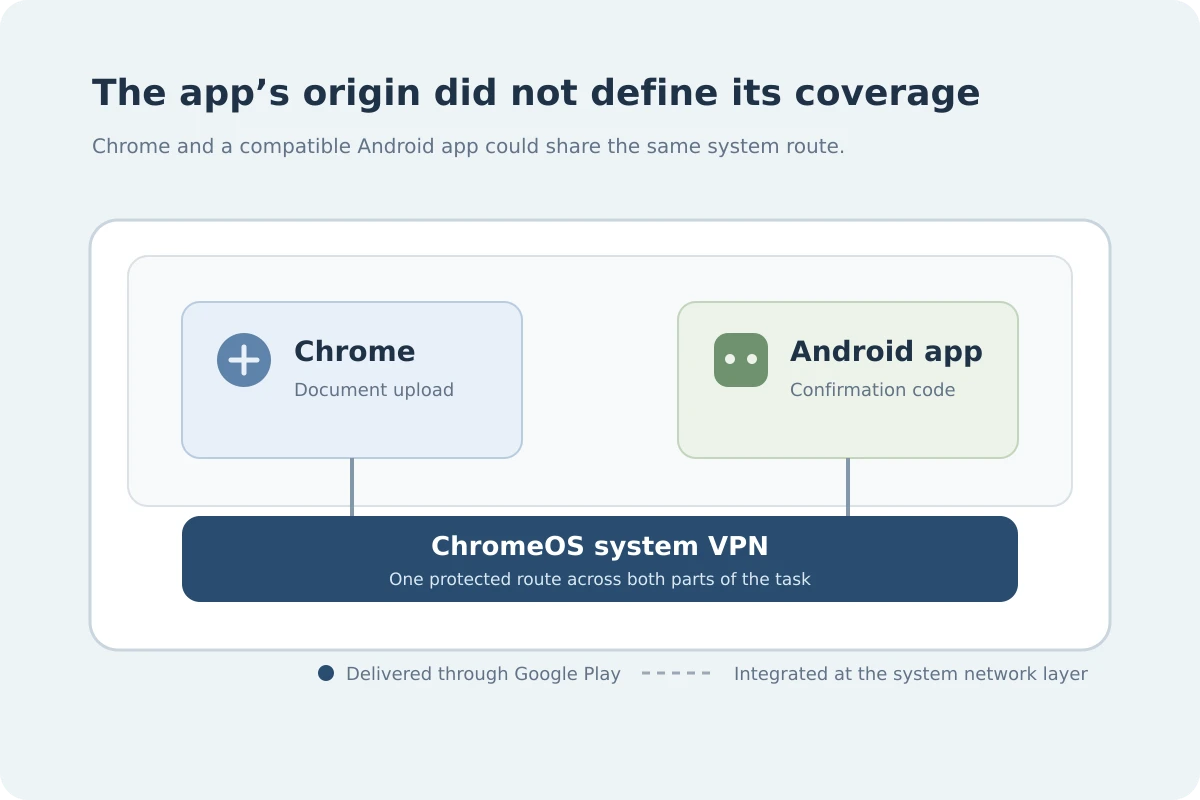
- What is protected: Traffic generated from Chrome windows, standard Chrome web apps, and Android applications installed on the system is successfully routed through the encrypted VPN tunnel.
- What is excluded: ChromeOS deliberately carves out essential system traffic—such as operating-system updates and core device policy checks—keeping them outside the Android VPN wrapper.
This architectural separation is deliberate. A consumer VPN on ChromeOS is designed to protect your personal internet activity (your web browsing, your streaming, your messaging apps), not to wrap core operating-system management packets in an external tunnel.
Understanding this distinction keeps your expectations realistic: you get robust system-wide coverage for all your applications and browser windows, without breaking the background updates your laptop needs to stay healthy.
For a Personal Chromebook, Start With the App—Then Check What ChromeOS Lets You Do With It
When it’s time to buy, don't pick a multi-year subscription simply because a provider claims they support "Chromebooks."
Google Play app compatibility is deeply device-specific. Some older or specialized Chromebook models lack Android app support entirely, and individual applications can occasionally be restricted on specific hardware models. Your purchasing sequence should always follow a strict order:
- Open Google Play directly on your target Chromebook and confirm the app is downloadable.
- Verify that ChromeOS successfully recognizes the software as a system network provider.
- Check whether the app cleanly exposes ChromeOS's Always-on and fail-closed blocking controls.
For personal Chromebook owners, a mobile-first app designed around system integration—such as OnlydogVPN—fits this setup cleanly. Because OnlydogVPN registers natively with ChromeOS as a network provider, it avoids the blind spots of browser-only extensions that protect your web tabs while leaving your background Android apps exposed.
Furthermore, OnlydogVPN features intelligent automatic routing and robust weak-network recovery, ensuring that when your Chromebook hops between flaky hotel networks or wakes up from sleep, the app negotiates a clean, optimized path without requiring manual server hunting.
(Before purchasing, always verify compatibility directly within your device's app store, as hardware variations across Chromebook models can dictate installation limits).
If the App Route Is Unavailable, ChromeOS Still Gives You Another Way In
What happens if your preferred VPN provider doesn't offer a downloadable app, or your specific enterprise or education Chromebook restricts Google Play access?
That doesn't lock you out of privacy protection. ChromeOS includes built-in, native support for several standard manual connection protocols, including IKEv2, OpenVPN, L2TP/IPsec, and increasingly, basic WireGuard integrations on supported hardware builds. If an automated app installation isn't an option, you can configure a secure connection manually using credentials supplied by your provider.
(Note: If you are using a managed school or work Chromebook, remember that administrator policies often dictate what software can be installed; in those environments, working within official IT parameters is always the correct path).
Ultimately, a long list of global server flags or a flashy user interface won't save a VPN that leaves your data unencrypted the second your laptop lid opens in a public space.
For a personal Chromebook, choose a provider that integrates cleanly with ChromeOS system settings, configure your Always-on preferences deliberately, and ensure your device behaves the way you expect when network signals drop. That is the true test of a reliable Chromebook privacy tool.
Frequently Asked Questions
Why is VPN recovery after sleep so important on a Chromebook?
Because a Chromebook frequently suspends and reconnects as you close the lid, wake the device, and join new Wi-Fi networks. The risky moment is the reconnect gap, not the initial connection.
What is the difference between Always-on VPN and blocking connections without a VPN?
Always-on tells the system to re-establish the VPN aggressively. Blocking non-VPN connections controls whether traffic may use the ordinary network while the protected route is unavailable.
Does a full-tunnel Chromebook VPN carry literally every ChromeOS packet?
No. The article notes that ordinary Chrome, web-app, and Android-app traffic can be tunneled while essential operating-system updates and policy traffic may be deliberately excluded.
What if my Chromebook cannot install the VPN’s Android app?
ChromeOS also supports manual VPN configurations for standard protocols on supported devices, although managed school or work Chromebooks may restrict what you can configure.