Few digital dead ends are quite as maddening as the ChatGPT login loop. You navigate to ChatGPT, hit Log in, select your Google, Apple, or Microsoft account, watch the authorization window flash, and find yourself dumped unceremoniously right back where you started: staring at the blank login screen.
If you happen to be connected to a VPN—perhaps working from a coffee shop, hotel room, or shared office network—your immediate instinct is almost always to blame the VPN. You pull up your VPN client, disconnect, jump to another city, try logging in again, get rejected once more, and begin a frantic cycle of clearing browser caches and cycling random servers.
Stop changing five things at once.
A login loop while a VPN is running does not automatically mean your VPN is broken, nor does it mean your ChatGPT account is compromised. In fact, OpenAI’s authentication flow relies on a delicate chain of events: local cookies, identity provider handshakes, script execution, automated bot challenges, and network routes. The issue could easily live inside your browser, in an identity mismatch, or on OpenAI’s servers.
Instead of turning your morning into server roulette, you can isolate the exact breakdown using just two controlled tests. By holding one variable still and changing another, you will know within two minutes whether you need to fix your browser, adjust your VPN route, or simply walk away and wait.
Article summary and product fit
How do you tell whether a ChatGPT login loop is caused by the VPN?
Run two controlled tests instead of changing several settings at once: first try a clean browser session while keeping the VPN route unchanged, then use that same clean session once with the VPN disconnected. The comparison separates browser-state problems from VPN-route problems.
Key points
- Best for: Users who return to the ChatGPT login screen after completing Google, Apple, Microsoft, or other authentication steps while a VPN is active.
- Test one: Keep the VPN on and remove browser variables by using a clean profile or private session with required cookies and scripts allowed.
- Test two: Keep that clean browser session and disconnect the VPN once. If login now succeeds, the specific VPN route is the useful layer to troubleshoot.
- Important limit: If both tests fail, if OpenAI Status reports an incident, or if a security cooldown is active, changing VPN servers is not the right next step.
Product fit: OnlydogVPN fits only the branch where the clean comparison proves that the VPN route is the trigger and the user still wants an encrypted connection. The article explicitly leaves a zero-cost alternative: on a trusted home network, keeping the VPN off for that session is valid. OnlydogVPN official website.
Sources already used in this article: OpenAI supported countries and territories; OpenAI Status; OpenAI login troubleshooting.
A Login Loop Is a Symptom, Not a Diagnosis
When you load chatgpt.com, getting the initial page to render only proves that your network can reach OpenAI's edge servers. Completing an authentication session, however, is a fundamentally different operation.
When you click Log in, your browser initiates an exchange across multiple distinct endpoints, including authentication services like auth.openai.com, external identity providers, and Cloudflare challenge verification systems. To successfully issue a session token, this chain requires several conditions: your browser must accept specific cookies, execute necessary JavaScript, pass automated bot screening, and return through a consistent network path.
If any link breaks, the handshake fails silently. Rather than throwing a descriptive error, ChatGPT frequently defaults to a fail-safe redirect: sending you back to the login landing page.
Because this single symptom masks several distinct failure points, four realistic culprits can look virtually identical on your screen:
- Stale or blocked browser state: Cached authentication tokens or aggressive ad blockers prevent the identity callback from saving the session.
- Authentication method mismatch: Attempting to log in with an email and password when the account was originally registered via "Continue with Google" (or vice versa).
- A flagged or interrupted VPN route: The VPN exit IP triggers an automated challenge or drops packets during the authentication redirect.
- An active platform outage or regional issue: OpenAI's authentication infrastructure is degraded, or the connection originates from an unsupported jurisdiction.
Before touching a single setting on your device, perform one baseline sanity check: visit OpenAI Status (status.openai.com). OpenAI has documented multiple legitimate login and authentication incidents over the platform's history. If OpenAI is actively experiencing an identity or platform outage, troubleshooting your local setup produces zero insight—only frustration.
If platform status is green, proceed to the first test.
Test One: Keep the VPN On and Remove the Browser
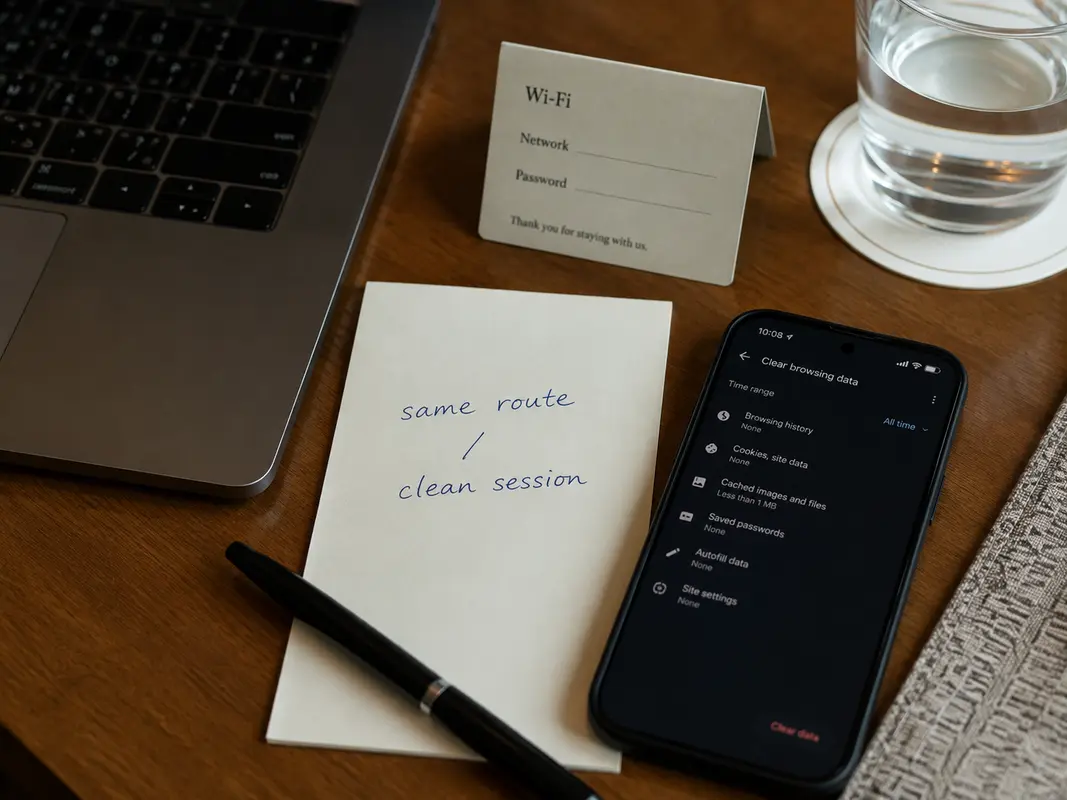
The most common troubleshooting mistake is turning off the VPN, clearing all cookies, switching browsers, and changing passwords all in a single sweep. When something works—or fails—you learn nothing about what actually caused the problem.
Test One isolates the software environment on your device while leaving your network connection untouched.
The Protocol
- Leave your VPN connected exactly as it is, on the current server.
- Open a clean browser profile or a Private/Incognito window. (A fresh guest profile in Chrome, Edge, or Brave is ideal, as incognito windows sometimes still inherit aggressive privacy extensions).
- Ensure strict script blockers, privacy extensions, and ad blockers are temporarily disabled for the session, allowing all standard cookies and JavaScript required by OpenAI.
- Initiate one single login attempt, making sure to use the exact sign-in method you originally used when creating your account.
Pay particular attention to that last point. If you originally registered via "Continue with Google," typing your Gmail address into the standard email field can trigger authentication friction that looks deceptively like a network block.
How to Read the Result
- Case A: The login succeeds.
Your VPN route is completely capable of passing OpenAI’s authentication checks. The problem was never your VPN, your exit server, or your connection. The failure was caused by stale session data, conflicting extensions, or blocked cookies in your standard browser. You can keep your VPN running and simply clear your primary browser’s site data for chatgpt.com and openai.com.
- Case B: The login still loops.
The browser’s cached state is cleared of blame. The VPN remains a plausible trigger, but it has not yet been proven guilty. Move immediately to Test Two.
Test Two: Keep the Browser Clean and Turn the VPN Off Once
Now that your browser variables are standardized, you change only the network connection.
The Protocol
- Keep the exact same clean or incognito browser window open.
- Disconnect your VPN.
- Refresh the page and attempt one clean login using the same correct credentials.
This single comparison generates the most informative diagnostic signal possible:
The Three Outcomes
Outcome 1: Turning the VPN off immediately fixes the loop.
Your account credentials and browser environment are verified to be working. The specific VPN path you were using was the trigger preventing the handshake from completing. This does not necessarily mean your VPN software is broken; it means the specific exit node, IP reputation, or routing path triggered an authentication challenge that failed to resolve.
Outcome 2: Turning the VPN off changes nothing (the loop persists).
Stop blaming the network layer. The issue is entirely independent of your VPN. Re-verify whether you are using the correct federated login provider (Google/Apple/Microsoft), verify that your local network (such as corporate or school Wi-Fi) isn't applying separate content filters, and recheck OpenAI Status.
Outcome 3: A “suspicious activity” or rate-limit warning appears.
If you have already tried logging in ten times across five servers in three minutes, OpenAI's fraud protection may have placed a temporary hold on your attempts. Stop trying. OpenAI explicitly notes that repeated authentication failures can lead to temporary access throttling. Step away for 15 to 30 minutes before testing again.
Note on regional boundaries: Ensure your network exit location is in a country where ChatGPT is officially supported. If a VPN endpoint routes through an unsupported region, the platform will restrict access by design. No amount of browser clearing can override basic regional availability policy.
If the VPN Is the Trigger, Fix the Route—Not Your Account
If Test Two confirmed that ChatGPT authenticates cleanly without the VPN but loops whenever the VPN is engaged, you have earned the right to treat this as a VPN routing problem.
Do not touch your ChatGPT account settings, and do not reset your password. The objective now is simple: secure a network route that completes OpenAI’s security handshake smoothly without forcing you into endless manual tinkering.
Try a Single Structured Adjust on Your Current VPN
If you want to stay with your current provider:
- Disconnect and select one reliable server located in a supported region close to your actual physical location.
- Connect, leave the server alone, and make one clean attempt.
- If you are on an open Wi-Fi network that might have aggressive packet inspection, toggle temporarily to a mobile hotspot to see if the underlying local network was interfering with the VPN tunnel.
Do not cycle frantically through dozens of cities. Rapid server switching from a single device often makes an authentication profile look more suspicious, increasing challenge frequency.
Switch to Intelligent, Scenario-Based Routing
If your everyday routine demands that you keep a VPN active—such as working across public Wi-Fi, traveling abroad, or protecting client data on shared networks—the biggest annoyance of generic VPNs is manual route hunting. Traditional consumer VPNs force you to guess which city, protocol, or IP address won't get caught in authentication redirects.
This is where a modern, traffic-aware client like OnlydogVPN↗ becomes an exceptionally practical upgrade.
Rather than handing you an unorganized list of hundreds of raw server nodes and leaving you to guess which one satisfies OpenAI’s security checks, OnlydogVPN approaches network routing around intent:
- Scenario-Based Presets & Automatic Routing: Instead of manually cycling through random regional servers when an authentication redirect gets stuck, OnlydogVPN uses scenario-optimized routing. It automatically steers your connection through pathways structured to handle modern interactive web applications, eliminating the trial-and-error cycle of manual server selection.
- Resilient Transport on Restrictive Networks: For users connecting from hotel networks, corporate guest Wi-Fi, or travel hotspots where packet inspection frequently interferes with SSL handshakes, OnlydogVPN leverages an HTTP/3-based transport with protocol obfuscation. It actively mitigates packet loss and maintains session continuity even when the underlying physical connection degrades or hops between Wi-Fi and mobile data.
If your diagnostic tests revealed that your current VPN route was indeed the roadblock, upgrading from a generic server list to an intelligently managed client like OnlydogVPN restores convenience. You get to keep your encrypted tunnel active without turning every login into a fifteen-minute troubleshooting session.
(Of course, if you are working from a secure home network and have no privacy-related need for a VPN during that specific session, simply leaving the VPN off while using ChatGPT is an entirely valid, zero-cost choice.)
Know When Another VPN Attempt Will Not Help
A good diagnosis ends with a clear action; a great diagnosis also includes a clear stop condition. You should never waste hours debugging a connection when the problem exists beyond your control.
Cease all VPN troubleshooting immediately if:
- OpenAI Status reports an incident: If authentication or the core API is degraded, no network configuration on Earth will log you in.
- The loop persists across both tests: If the login fails in a clean browser profile both with the VPN on and with the VPN off, changing VPN providers is completely irrelevant. The issue lives in your identity credentials or account status.
- You are on a managed corporate network: Enterprise firewalls and managed devices often run specialized endpoint security or TLS inspection that intercepts OpenAI’s authentication domains (
*.auth.openai.com, Cloudflare challenges). If this is the case, consumer VPN adjustments cannot resolve company-wide network policy; you must consult your organization's IT department. - A security cooldown is triggered: If you receive explicit warnings regarding too many failed attempts, close the tab and wait. Pushing through will only lengthen the restriction window.
The Bottom Line
A ChatGPT login loop while connected to a VPN is not an order to cycle random servers. It is an isolation test waiting to happen.
By first isolating your browser environment while keeping the connection stable, and then testing that clean session once without the tunnel, you remove the guesswork entirely. If the network path is genuinely at fault, switch to a purpose-built, intelligently routed connection like OnlydogVPN. If it isn't, leave your network alone and fix the actual layer that failed.
Frequently Asked Questions
Does a ChatGPT login loop prove that my VPN is broken?
No. The same symptom can come from stale cookies, blocked scripts, the wrong sign-in method, a VPN route, a managed network, or a platform incident.
What is the first test to run while the login loop is happening?
Keep the VPN connected to the current server and try one login in a clean browser profile or private session, using the same sign-in method you originally used for the account.
What is the second test?
Keep the same clean browser session, disconnect the VPN once, refresh, and try the same login again. A success only after disconnecting isolates the specific VPN path as the trigger.
What if the clean login fails both with the VPN on and off?
Stop treating the VPN as the main cause. Recheck the sign-in method, managed-network restrictions, account state, and OpenAI Status instead.
Should I rapidly cycle through many VPN servers during a login problem?
No. The article advises against repeated rapid server changes because many authentication attempts from shifting network locations can create more security challenges rather than clearer evidence.