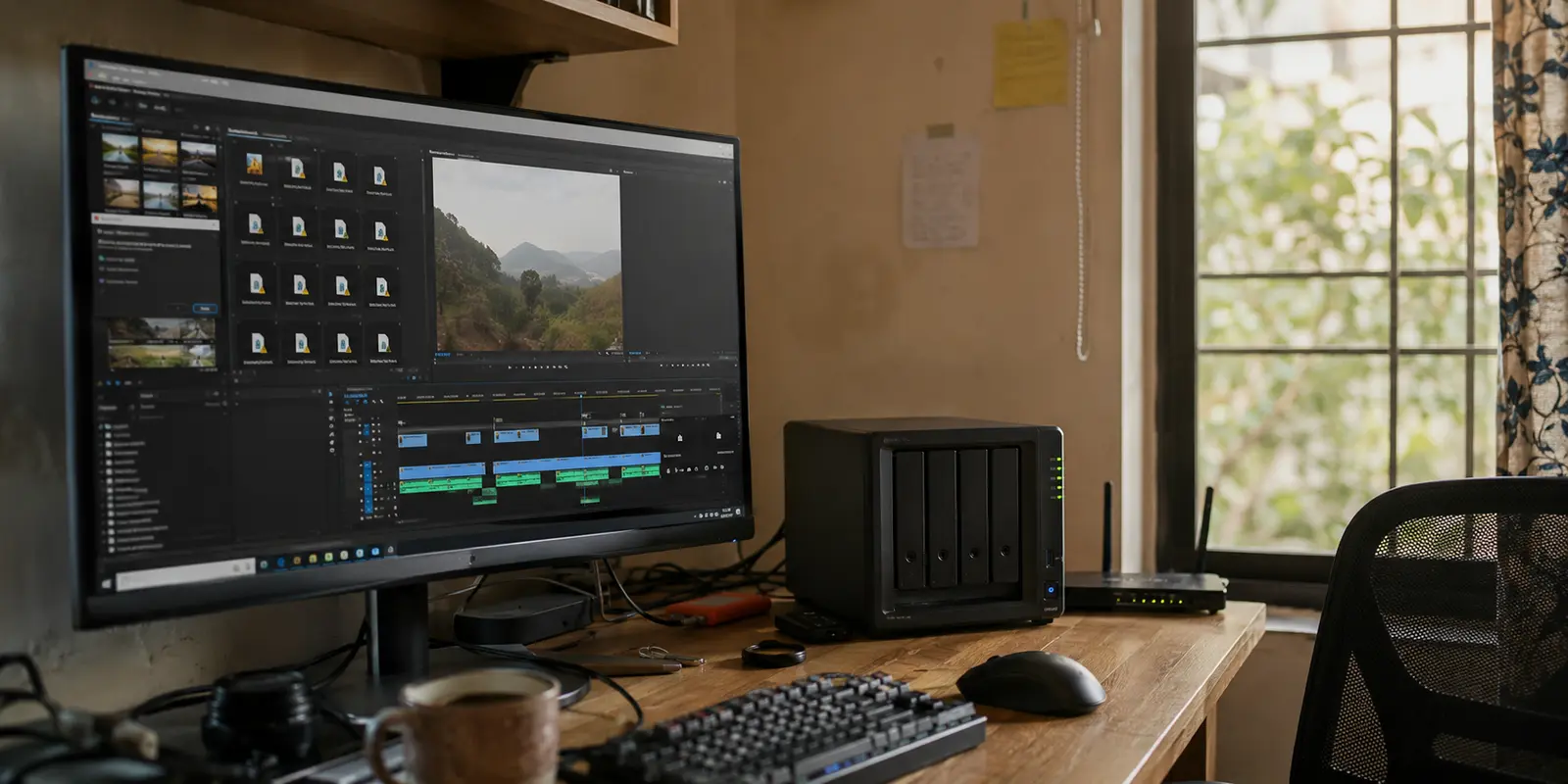
You connect to your VPN, and your network-attached storage instantly vanishes. Finder spins indefinitely, mapped network drives in Windows throw connection errors, and your backup routine grinds to a halt. Disconnect the VPN, and everything reappears immediately, healthy and responsive.
Before you reboot your Synology or QNAP box, reset your network credentials, or dig into disk permissions, stop. Your storage appliance has not suddenly failed. It is responding fine to anyone who knows how to reach it. The VPN simply changed the road your traffic takes to get there.
The root issue is that the umbrella term "VPN" hides several fundamentally different network architectures. An unreachable NAS is not one single problem with a universal switch. The decisive factor is where the VPN client or server is running, and which private network the NAS actually lives on.
Diagnose the physical and logical path of your traffic first. Once you identify where the route breaks, you can apply the exact fix needed—without needlessly tearing down your privacy protection or exposing sensitive storage ports to the public internet.
Article summary and product fit
Why does a NAS disappear when the VPN turns on?
The fix depends on where the VPN runs and where the NAS lives. If the NAS is on the same LAN, test its private IP and allow local-network traffic if needed. If the NAS is remote, use a tunnel that terminates inside the home or office network rather than expecting a commercial privacy exit to reach a private address. If the NAS itself runs a VPN client, check whether the VPN became its default return gateway.
What matters in this article
- Best for: Synology, QNAP, and other NAS users whose storage becomes unreachable only when a VPN is involved.
- Fast diagnostic: Try the NAS by raw private IP. If that works while the hostname or discovery name fails, the route is intact and local name discovery is the likely problem.
- Security boundary: For remote access, the article recommends an authenticated tunnel into the private network and warns against exposing SMB port 445 directly to the internet.
- Product fit and limit: OnlydogVPN fits ordinary outbound privacy and network handoffs in this article; it is not presented as a private home-server bridge or a replacement for a NAS access tunnel.
Sources already cited in this article: Synology SMB-over-VPN guidance; Tailscale exit-node documentation; Microsoft guidance on securing SMB traffic.
Before Changing Anything, Find Out Where the VPN Lives
Turn an ambiguous network glitch into a clear diagnostic picture by answering three basic questions before touching any settings:
- Where is the NAS located relative to you? Is it humming across the room on the same local Wi-Fi, or is it sitting miles away in your home or office while you work remotely?
- Where is the VPN software actually running? Is the VPN client active on your laptop or phone, is it configured directly on the NAS itself, or is it managed at your router level?
- Can you reach the device via its raw, private IP address? When your familiar mapped drive or hostname fails, what happens if you type the direct local address (such as
192.168.1.50orsmb://192.168.1.50) into your browser or file manager?
That third question is the most critical quick triage you can perform.
If connecting via the direct private IP address works seamlessly while a friendly name like \SYNOLOGY-HOME or Finder discovery fails, your routing is already intact. Your machine can reach the storage box perfectly fine; it just cannot resolve local network names through the VPN tunnel. Synology explicitly highlights this behavior in its network documentation: SMB NetBIOS and broadcast discovery frequently fail to pass across VPN tunnels, making direct IP addressing the recommended method. If the IP address works, do not redesign your VPN or touch your router—simply update your mapped shortcuts to point directly to the NAS's static IP.
If typing the direct private IP also fails the second your VPN connects, you have an actual routing conflict. How you solve it depends entirely on the geography of your setup.
If the NAS Is in the Same Building: The VPN Is Blocking a Trip Across the Room
The most common frustration happens at home: your laptop and your NAS are plugged into the exact same router, yet toggling on your desktop VPN makes your local storage disappear.
The reason is simple. When you turn on a full-tunnel commercial VPN or configure an exit node, your computer is instructed to route all outbound traffic through an encrypted tunnel to a remote server. Many VPN applications, by default, treat your immediate physical surroundings as untrusted. To prevent local network snooping or data leaks, they seal off your machine from everything else on your local subnet.
Your laptop tries to send a request destined for a box sitting three feet away out to a data center across the country. The VPN provider has no idea what your private 192.168.x.x address is, and the request is dropped.
Searching for a VPN server physically closer to your house will not solve this. The solution is to grant a specific local routing exception inside your VPN client.
Look through your VPN application’s connection or advanced preferences for an option labeled "Allow LAN access," "Local network sharing," or "Invisibility on LAN." Turning on local network access tells your operating system: Send general public web browsing through the encrypted tunnel, but let traffic aimed at private local addresses stay on the physical home network. As modern overlay systems like Tailscale document, routing all traffic through an exit node intentionally isolates you from the physical LAN unless you explicitly enable local-network access.
Once enabled, your laptop handles trusted local storage natively while keeping your internet-bound browsing encrypted.
(A sensible security caveat: Keep this enabled on your trusted home or office network. When working from a hotel, airport, or coffee shop, keep local LAN access disabled to isolate your machine from nearby strangers.)
If the NAS Is Back Home: A Commercial VPN Is the Wrong Destination
Now consider the inverse scenario. You are working from a coffee shop or hotel room. You launch your commercial privacy VPN, type in your home NAS’s local address (192.168.1.50), and get nothing.
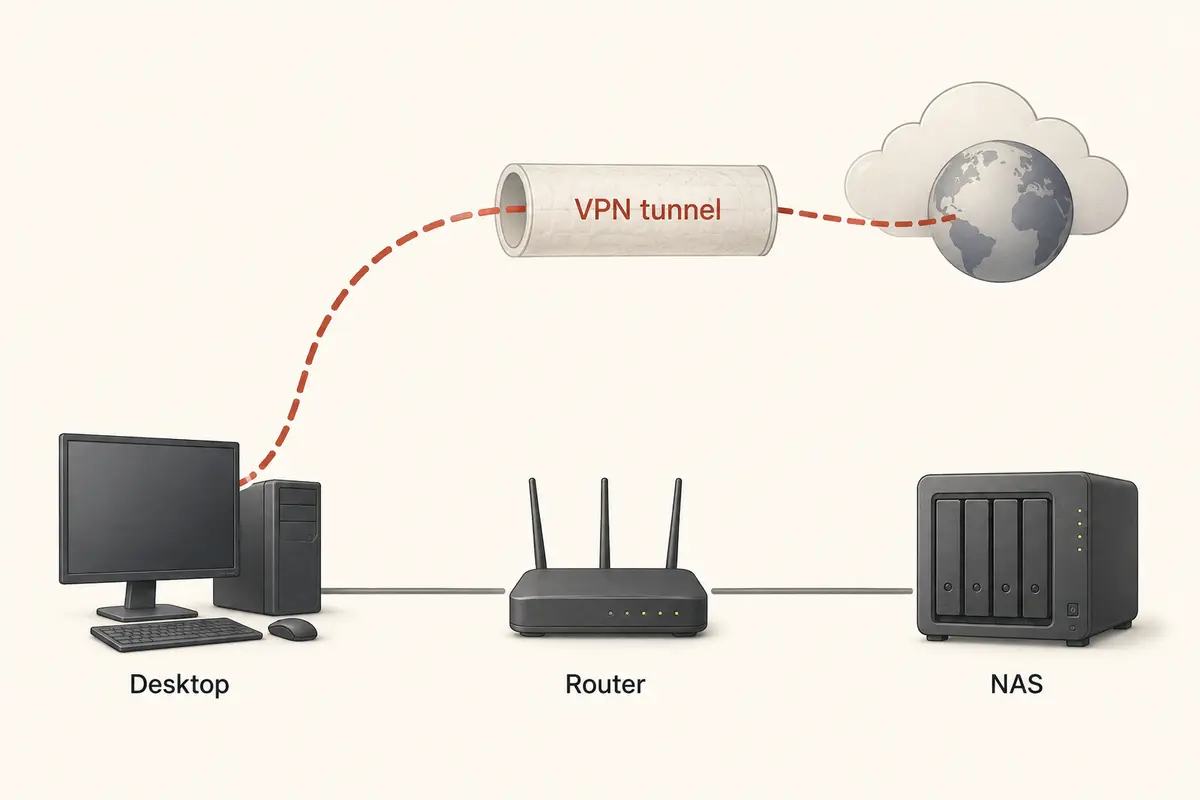
Here, the breakdown is conceptual. A commercial VPN creates an encrypted tunnel that terminates at a commercial data center to shield your web traffic from local snoopers. It does not create a pathway into your private living room. Connecting to a commercial privacy server in your home city still leaves you outside your home firewall looking in.
To reach a local storage box from across the world, you need an inbound tunnel that terminates inside your home network. Both Synology (via VPN Server) and QNAP (via QVPN) design their integrated VPN packages around this model: you host an authenticated endpoint on the NAS or home router, connect your remote laptop back to that private endpoint, and interact with your files as if you were sitting on your living room couch. Modern mesh overlay tools offer a similarly valid architecture by stitching your devices into a private, authenticated virtual network.
What you must never do as a workaround is forward raw file-sharing ports like SMB (TCP port 445) through your home router to the open internet. Microsoft explicitly urges administrators to block inbound SMB port 445 at the network boundary, and NAS manufacturers warn against exposing core file-sharing protocols publicly. SMB was never engineered to withstand constant, hostile internet scanning; exposing it invites automated credential stuffing and ransomware attacks.
If you are away from home, route through a dedicated tunnel that ends on your private network, not a commercial privacy gateway.
If the VPN Runs on the NAS: Check the Return Trip
There is a third, subtle failure pattern that trips up even experienced users: your computer has no VPN running, but your NAS itself is connected as a client to a commercial VPN provider (often configured for background tasks or private downloads).
Suddenly, local file access on your home network might work, but your remote access—such as DDNS domain names or vendor remote portals—stops responding.
This happens because of a routing mismatch on the NAS's return path. When you attempt an inbound connection from the outside world via DDNS, the initial request arrives at your home router and reaches your NAS via your home internet connection. However, if your NAS has been told to route all its outbound traffic through a commercial VPN provider, it attempts to send its reply back out through the VPN's default gateway rather than back through your home internet provider.
The communication breaks down midway. The outside device sent a request to your home IP address, but the reply originates from the commercial VPN’s exit IP. The client drops the mismatched response.
Synology explicitly warns about this behavior: enabling "Use default gateway on remote network" within DSM forces outbound traffic through the VPN tunnel, fundamentally preventing ordinary DDNS inbound connections from functioning properly. QNAP treats "Use VPN as NAS Default Gateway" as a distinct routing switch for the same architectural reason.
If your NAS must connect out through a third-party VPN client, do not casually set that VPN as the global default gateway for the entire operating system. Instead, utilize selective routing, configure policy routes so management traffic continues using your local ISP gateway, or restrict the VPN tunnel to isolated Docker containers running specific tasks.
Keep the Route That Matches the Job
When your NAS disappears behind a connection error, do not ask yourself, "Which VPN server should I try next?" Instead ask: "Where does this tunnel actually end, and where does my NAS traffic need to go?"
- If your NAS is in the same room: Enable local LAN traffic exceptions in your client software so local device traffic never enters the remote tunnel.
- If your NAS is miles away at home: Terminate an authenticated tunnel directly inside your home network; do not expect a standard commercial privacy VPN to magically bridge the gap, and never expose raw SMB ports.
- If your NAS runs its own VPN client: Ensure it is not using that tunnel as its default system gateway, which scrambles inbound remote replies.
- If the raw IP address works: Stop troubleshooting the network tunnel entirely; fix your local hostname resolution or update your mapped drive path.
Understanding this division also clarifies where commercial privacy software belongs in your toolkit. A public-facing VPN is not designed to be a private home-server bridge, and treating it like one only creates frustration. But once your home routing is properly compartmentalized, you still need clean, dependable privacy protection for everything else you do online.
This is where a modern utility like OnlydogVPN↗ fits seamlessly into your daily workflow. Rather than making you wrestle with cumbersome routing tables, broken interface metrics, or manual configuration toggles every time you jump between home Wi-Fi and a remote hotspot, OnlydogVPN handles consumer privacy cleanly. Its task-oriented presets automatically direct your regular outbound internet traffic where it needs to go, while its resilient connection handling smoothly manages switching between unstable or changing networks without dropping your sessions. It delivers the internet protection you want without introducing the erratic routing conflicts that knock your local environment off course.
Get your network pathways straight first. Once every packet goes where it was meant to go, your files stay instantly accessible—and your connection stays secure.
Frequently Asked Questions
Why can my NAS vanish as soon as I connect a VPN?
A full-tunnel VPN can redirect or block traffic that should stay on the local subnet. If the NAS is on the same network, the useful fix is usually a local-LAN exception or direct private-IP access, not a different remote VPN server.
What does it mean if the NAS works by IP address but not by its hostname?
It suggests the network route is working but local discovery or name resolution is not crossing the VPN path correctly. The article recommends using the NAS’s static private IP rather than redesigning the tunnel.
How should I reach my NAS when I am away from home?
Use an authenticated VPN or mesh tunnel that terminates inside your home or office network. A standard commercial privacy VPN exits at a data center and does not create a route into your private LAN.
Why can DDNS access break when the NAS itself uses a commercial VPN?
If the NAS sends replies through the commercial VPN as its default gateway, the response can leave from a different public IP than the one that received the request. That asymmetric return path can break inbound DDNS connections.