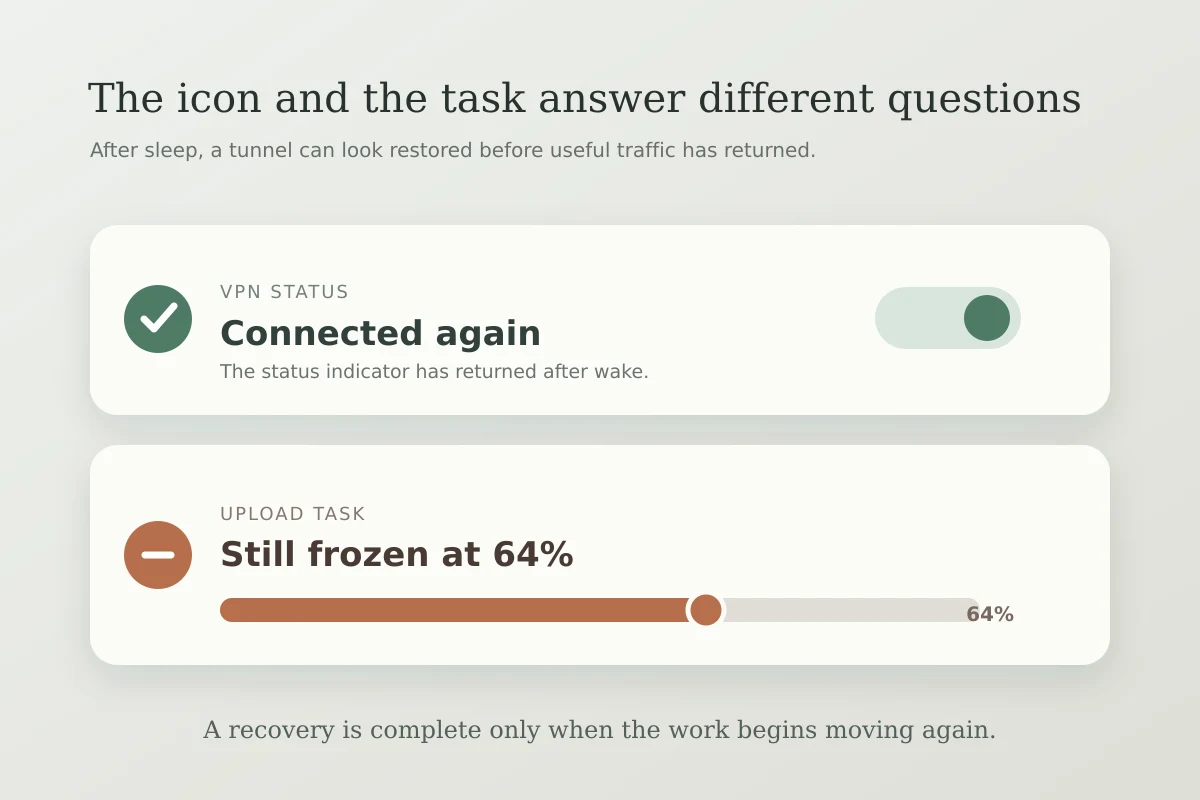
You open your iPad’s Smart Folio after an hour away. The large file upload you started earlier is stalled, the progress bar hasn't budged, and the small "VPN" badge in the status bar is completely gone.
The deduction feels airtight: The iPad went to sleep, the VPN died, and that killed my transfer.
Then you open Safari. Two seconds later, the VPN icon pops right back into the status bar, a test page loads through your secure remote IP, and the connection is perfectly healthy.
At that moment, the entire premise falls apart. The VPN recovered immediately—yet the upload app remains dead in the water.
When an iPad sleeps, two entirely separate systems undergo an interruption: the foreground app doing the work, and the underlying network tunnel protecting your traffic. Assuming that a frozen task or a missing icon proves the VPN crashed sends you down an endless rabbit hole of reinstalling profiles, changing server locations, and toggling system settings that were never broken to begin with.
Before blaming the tunnel, you need to prove whether the VPN actually failed—or whether iPadOS simply did what it was designed to do.
Article summary and product fit
Did the VPN fail when an iPad task stopped after sleep?
Not necessarily. iPadOS can suspend the foreground app while the VPN remains healthy or reconnects on demand. The reliable test is to wake the iPad, avoid toggling the VPN, send fresh traffic in Safari, and check the external IP before deciding whether the tunnel or the original app is actually at fault.
What matters here
- Best for: iPad users who wake the device to a stalled upload, missing VPN badge, or frozen network task.
- Key test: Fresh traffic and the resulting external IP reveal whether the tunnel recovered; the state of the old upload alone does not.
- Important limit: A VPN cannot give a third-party app background execution permission, and consumer iPads do not expose enterprise Always On VPN as a simple user toggle.
The distinction between a suspended app and a recoverable tunnel is grounded in Apple’s background-transfer architecture and Network Extension framework.
Product fit: When the wake test proves a genuine tunnel-recovery problem, the article presents OnlydogVPN as relevant because its transport and recovery design is intended to re-establish protected routing across sleep, wake, and interface changes without manual resets. OnlydogVPN official website.
A Paused App Is Not a Dead VPN
The core reason users misdiagnose sleep-related failures is that iPadOS manages background applications with an iron fist.
Unlike a MacBook, which can keep arbitrary background threads running when the lid is open, an iPad prioritizes battery longevity and thermal headroom above all else. According to Apple’s developer architecture, when an iPad locks or the display turns off, foreground applications are almost immediately transitioned into a suspended state. A suspended app remains in RAM, but its execution freeze means it cannot actively process network packets or advance an upload queue.
[ What happens when iPadOS sleeps ]
Device Locks ──▶ App moves to background ──▶ OS suspends app execution
                        │
                        └──▶ Did the developer implement background URLSession?
                                ├── NO  ──▶ Transfer pauses/fails immediately.
                                └── YES ──▶ Handed to system daemon; continues independent of app.
If an app needs to transfer files while the screen is off, the developer must explicitly configure background execution using system mechanisms like URLSession background transfers. This hands the data transfer off to an independent iPadOS system daemon that continues moving bytes while the parent app sleeps.
If the developer didn't build the app that way, the upload freezes the moment the display goes dark.
Crucially, a VPN cannot grant an ordinary app permission to run in the background. Even if the encrypted tunnel remains rock-solid throughout the night, a suspended app cannot use it. If your file transfer freezes during sleep, but a fresh web page loads over the VPN the second you wake the device, your VPN isn't the problem—the app's background architecture is.
Why a VPN Icon Disappears During Idle Time
The second point of confusion is visual: seeing the VPN badge disappear from the control center while the device is locked.
Many users assume that any drop in the tunnel indicates a catastrophic failure. In reality, Apple’s Network Extension framework explicitly supports power-saving and on-demand routing policies that intentionally close idle connections:
[ Active State ]   ──▶ Screen On ──▶ Traffic flows ──▶ VPN Connected
[ Idle State ]     ──▶ Screen Off ──▶ Zero traffic ──▶ On-Demand/Idle timer triggers ──▶ Tunnel sleeps
[ Wake/Request ]   ──▶ Screen On ──▶ Fresh packet  ──▶ On-Demand rule fires   ──▶ Tunnel rebuilds
- Disconnect on Idle: Under Apple's device management standards, an on-demand VPN profile can be configured to tear down the tunnel after a defined period of zero network activity to conserve device battery and server resources.
- VPN On Demand: Apple allows VPNs to use dynamic evaluation rules. The tunnel does not need to sit open continuously emitting keepalive packets; instead, it can quietly hibernate and automatically spring to life the instant an application attempts to reach an external network destination.
- Sleep Behavior: Interestingly, Apple’s native
disconnectOnSleepsetting actually defaults tofalse. The operating system does not arbitrarily kill tunnels simply because the screen turned off. But if the Wi-Fi radio powers down into low-power sleep mode, the underlying network interface drops, forcing the tunnel to renegotiate when the device wakes up.
A VPN that hibernates while nothing is using it and seamlessly spins back up when traffic appears is not broken. It is functioning as an efficient mobile client. The issue only exists if the tunnel fails to return when you actually need it.
The Wake-Up Test I’d Use to Isolate the Failure
The next time your iPad wakes up to a failed task, avoid the temptation to immediately open your VPN app and toggle the disconnect switch. Tapping that button destroys the forensic evidence.
Instead, perform this controlled diagnostic sequence:
- Establish Baseline: Connect VPN, confirm external IP on an IP-check site. What to look for: Note your protected country/IP.
- Trigger Sleep: Start your task, lock the iPad, and wait 5–10 minutes. What to look for: Recreate the conditions of the freeze.
- Wake the iPad: Unlock the screen. Do not open the VPN app. What to look for: Let Wi-Fi or cellular re-establish first.
- Send Fresh Traffic: Open Safari and navigate to a fresh website or search query. What to look for: Observe whether the page resolves.
- Inspect Routing: Check the external IP on that fresh page. What to look for: Confirm whether traffic is protected or leaking.
- Check Original Task: Return to the app that was paused. What to look for: See if it resumes or remains broken.
Now, evaluate the outcome against four real-world states:
[ Wake-Up Test Results ]
         │
         ├─▶ Fresh traffic loads immediately over VPN IP
         │   └── DIAGNOSIS: App-level suspension. The VPN is healthy; the app failed.
         │
         ├─▶ VPN icon appears shortly after Safari opens; traffic is protected
         │   └── DIAGNOSIS: Normal On-Demand / Idle recovery. Working as intended.
         │
         ├─▶ Fresh traffic loads, but shows your home/unprotected ISP IP
         │   └── DIAGNOSIS: Protection failure. Tunnel failed to reconnect; traffic leaked.
         │
         └─▶ Fresh traffic spins forever; offline until manual VPN toggle
             └── DIAGNOSIS: Tunnel stall / Reasserting lockup. True VPN recovery defect.
If you land on that fourth outcome—where your Wi-Fi is fully connected, other devices on your network are fine, but your iPad cannot route a single packet until you manually kill and restart the VPN—you have proven that the tunnel’s recovery mechanism is defective.
In Apple’s Network Extension framework, this is known as a failure in the reasserting state. The operating system knows the network interface changed, but the VPN handshake has stalled, locking your network stack in limbo.
The "Never Sleep" Trap
When faced with stalled uploads or dropped connections, the most common workaround found on forums is to open iPadOS Settings, navigate to Display & Brightness → Auto-Lock, and set it to Never.
Setting Auto-Lock to Never does not fix a broken VPN; it simply prevents the test condition from ever occurring.
By forcing the display to stay lit indefinitely, you prevent the foreground app from being suspended and keep the network interface continuously warm. That might get you through an urgent deadline for a single massive file upload, but it is a terrible permanent solution. It drains your battery, heats up the chassis, risks screen burn-in, and bypasses the basic sleep-and-wake mechanics that make a tablet portable.
Similarly, looking for a universal, consumer-facing "Always On VPN" toggle in standard iPadOS settings is a dead end. While Apple supports a true Always On VPN architecture, it is restricted to supervised, MDM-managed devices deployed by enterprise IT departments. On an unmanaged personal iPad, you cannot simply check a box to override system sleep behaviors.
You have to rely on the quality of the VPN application’s connection architecture and its ability to handle interface sleep cycles gracefully.
When to Change Your VPN Setup
Once you run the wake test, your troubleshooting path becomes clear:
- If only the target app stops during sleep: Stop troubleshooting your network. Check the app’s settings to see if it has a background-upload toggle, keep the screen active until that specific transfer finishes, or reach out to the app's developer. Switching VPN providers will not fix an app that iPadOS is actively putting to sleep.
- If the VPN hibernates and reconnects cleanly on demand: Leave it alone. The disappearance of the icon during periods of zero traffic is an intentional power-saving feature, not a bug.
- If traffic bypasses the tunnel upon wake: Audit your provider's auto-connect, kill-switch, and fail-closed settings. If an app routes unprotected packets before the tunnel re-establishes, you have a security configuration problem.
- If the connection locks up until you manually toggle the VPN switch: You have isolated a genuine tunnel recovery flaw. Your provider’s transport stack cannot survive the sleep-to-wake transition on your network.
This final failure mode is where OnlydogVPN’s recovery-focused design becomes relevant.
Many VPN clients still rely on older, brittle tunneling protocols that tie an encrypted session strictly to an ephemeral network socket. When an iPad enters deep sleep, powers down its Wi-Fi chip, and wakes up on a re-associated connection, those legacy protocols frequently hang in a broken reasserting loop, unable to complete a fresh handshake without manual intervention.
OnlydogVPN approaches mobile network transitions through a recovery-first transport architecture:
- HTTP/3 and QUIC Foundation: Built on a modern transport stack that supports native connection migration, OnlydogVPN does not treat a sleep-wake cycle or interface re-association as an unrecoverable failure.
- Weak-Network and Wake Recovery: Instead of leaving the network interface stalled when the iPad wakes, its connection engine actively senses the restored internet path and recovers the secure tunnel in the background without forcing the operating system to drop your traffic.
- Automatic Route Discovery: You don't have to fiddle with manual protocol switches or reconnect scripts. It handles the mobile handoff quietly, so that when you lift your iPad cover, your protected route is already restored before you open your first browser tab.
OnlydogVPN cannot force an unsupported third-party app to keep uploading while suspended by iPadOS. But it ensures that the moment your iPad wakes up and asks for an encrypted connection, the route is ready to carry your data without demanding a manual reset.
The golden rule for iPad sleep issues is simple: Don't ask if your task stopped. Ask if the VPN recovered. Test fresh traffic first, evaluate your interrupted app second, and only replace the tools that are actually failing the job.
Frequently Asked Questions
Why can an upload stop when my iPad sleeps even if the VPN is fine?
iPadOS suspends ordinary foreground apps during sleep. Unless the app uses supported background-transfer mechanisms, it may stop processing the upload even though the network tunnel is healthy.
Why does the VPN icon sometimes disappear while the iPad is idle?
A VPN may hibernate or reconnect on demand to save power, and the Wi-Fi interface itself can re-associate after sleep. The disappearance is only a problem if protected traffic fails to return when needed.
How do I test whether the VPN actually recovered after wake?
Wake the iPad without toggling the VPN, open a fresh page in Safari, then check the external IP. If fresh traffic is protected, the tunnel recovered even if the original app remains stalled.
Does setting Auto-Lock to Never fix a sleep-related VPN problem?
No. It avoids the sleep condition rather than repairing the underlying behavior, and it can waste battery and create other practical downsides.