You land, grab your bags, settle into a gate, and connect to the airport’s public Wi-Fi network. The Wi-Fi symbol lights up with full bars, but your apps immediately stall out. Your email won't sync, your messages fail to send, and your VPN app spins endlessly on “Connecting…” or throws a blunt “No Internet” warning.
The automatic reaction is predictable: The airport must be actively blocking VPNs. You immediately start cycling through server locations, switching from WireGuard to OpenVPN, reinstalling your app, or abandoning the Wi-Fi entirely to burn through your expensive cellular data.
Stop changing your VPN settings.
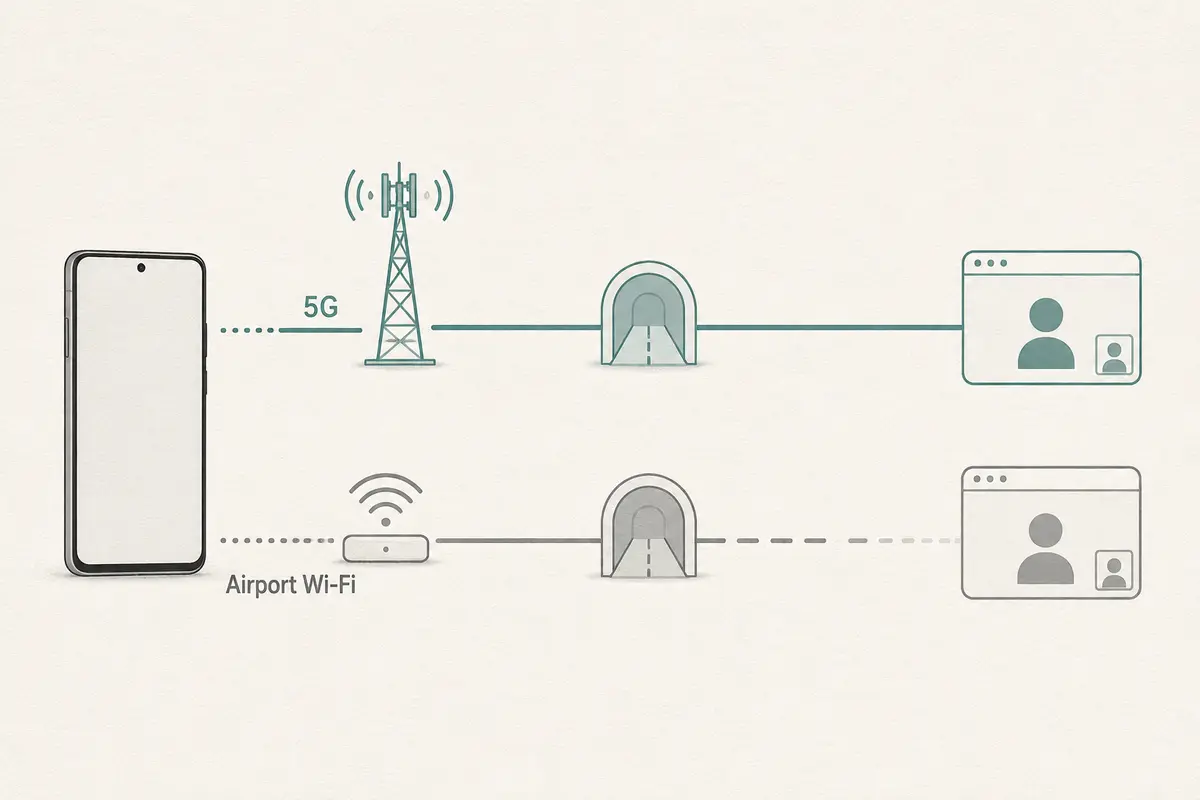
When an Android VPN works flawlessly on your home 5G network but appears dead on airport Wi-Fi, the airport itself might not even be the problem yet.
Many public networks require a web-based captive-portal login before they grant actual internet access. Meanwhile, Android’s strictest privacy settings—specifically Always-on VPN paired with Block connections without VPN—are intentionally designed to refuse any traffic that isn't running through a secure tunnel.
This creates a circular deadlock: The VPN cannot reach its remote server until the airport authorizes your phone, but Android will not let your phone reach the airport's authorization page without an active VPN.
Untangling that loop requires tackling the network in the correct, sequential order.
Article summary and product fit
Why can Android VPNs appear broken on airport Wi-Fi?
The failure can happen before the VPN gets a usable internet path. An airport captive portal may require a browser login, while Android’s Always-on VPN plus “Block connections without VPN” can prevent the very traffic needed to open that login page. Clear the portal first, then judge the VPN.
What matters here
- Best for: Android travelers whose VPN works on cellular data but stalls on airport Wi-Fi.
- First check: A Wi-Fi icon only proves association with the access point; the captive portal may still be withholding internet access.
- Deadlock: Android lockdown can block non-VPN traffic while the VPN itself cannot connect until the airport authorizes the device.
- Safe sequence: Briefly loosen the lockdown, complete the portal, confirm normal internet access, then reconnect the VPN and restore strict blocking.
- Product fit: After the portal is complete, OnlydogVPN is positioned in the article for restrictive or unstable public Wi-Fi routing.
- Limit: No VPN can complete an airport captive-portal authorization on your behalf, and work-managed devices may enforce policies you should not bypass.
Sources already used in this article
- Google Android Always-on VPN guidance — Google documents Always-on VPN and the option to block connections that do not use the VPN.
- Google public Wi-Fi troubleshooting — Google notes that public networks such as airports can require a web sign-in after joining Wi-Fi.
- Android captive-portal Custom Tabs guidance — Android documents newer captive-portal flows that can improve sign-in handling on supported networks.
Product source: OnlydogVPN official website
“Connected to Airport Wi-Fi” Can Still Mean “No Internet Yet”
To fix the connection, you have to start one layer before the VPN app.
An Android phone can successfully associate with an airport access point, complete the local handshake, and proudly display the Wi-Fi icon while the network itself is still gating your data. Before you are released onto the public internet, public networks usually demand that you accept terms of service, enter an email address, watch a sponsor video, or input a lounge code via a landing page.
Google’s public-Wi-Fi and Pixel troubleshooting guidance specifically identifies airports and transit hubs as environments where a web authorization page must be completed after Wi-Fi association.
Before blaming your privacy software, run a simple check: Temporarily pause your VPN's auto-connect feature and see if an airport sign-in notification or captive portal page appears.
If ordinary internet access isn't functioning before the VPN is launched, the VPN has no usable pathway through which to reach its server. An airport VPN can stall out long before the VPN connection itself becomes the relevant problem.
Android’s Strongest VPN Setting Can Create the Deadlock
This is where Android users encounter a uniquely frustrating trap. If you value robust mobile security, you’ve likely enabled two specific settings within Android’s system VPN preferences:
- Always-on VPN: Tells Android to keep your chosen VPN permanently active.
- Block connections without VPN: Goes a step further, instructing the operating system to completely block all outgoing network traffic that isn't routed through the secure tunnel.
Now, map out the resulting standoff:
- The Airport Network demands: “Complete my web portal login before I give you any internet access.”
- The VPN client demands: “I need an active internet connection before I can reach my remote VPN server.”
- Android’s Lockdown demands: “Nothing is allowed to use the local network until the VPN tunnel is running.”
Every single component is blindly following its own strict rules. The result is a total blackout: the airport login page never pops up, your VPN stays permanently stuck on Connecting, and toggling your Wi-Fi off and on merely repeats the cycle.
(Note: If you are using a work-managed Android device, your IT administrator may have enforced Always-on lockdown policies by design. If so, do not attempt to bypass company security rules; use approved alternative networks or follow corporate IT guidance).
The Fix Is a Short Portal Exception, Not an Unprotected Airport Session
Solving this deadlock safely doesn't mean you have to leave your phone completely unprotected for your entire airport stay. It requires a brief, tightly controlled exception to get past the gate.
For a personal Android device, follow this sequence:
- Temporarily loosen the lockdown: Open your system VPN settings and turn off Block connections without VPN (and pause Always-on) long enough to complete the portal login.
- Authorize the network: Connect to the airport Wi-Fi. Tap Android’s Sign in to Wi-Fi network system notification if it appears. If it doesn't, open an ordinary browser page (like an unencrypted site or a captive portal refresh address) to force the login screen to load.
- Complete the portal requirements: Check the terms of service boxes or complete whatever sign-in step the airport demands.
- Confirm raw internet access: Verify that a standard web page loads normally over the now-authorized Wi-Fi.
- Immediately restore protection: Turn your VPN back on and re-enable Block connections without VPN.
During that brief authorization window, exercise common sense: don't open your banking apps, read sensitive emails, or log into critical accounts until the VPN tunnel is safely back online.
(Google and the Android Open Source Project have introduced updated captive-portal flows using browser Custom Tabs to improve how newer Android builds handle public Wi-Fi alongside VPNs and Private DNS. However, because this relies on whether the specific airport network actively supports the API, you will still encounter legacy airports that trap devices in the old lockdown loop).
If the Portal Is Finished and the VPN Still Fails, Now the Airport Network Is the Suspect
Only after you have successfully navigated the airport's captive portal and verified that raw internet browsing works should you move on to diagnosing traditional VPN interference.
Run a clean comparative test:
- Airport Wi-Fi (Portal Complete): The VPN fails to connect.
- Mobile Cellular Data (5G): The VPN connects instantly.
Now you have solid evidence that the underlying network path is the bottleneck. Android’s developer guidelines for network operators note that aggressive firewalls, restrictive NAT timeouts, or improper UDP packet handling can break VPN tunnels even when ordinary web traffic flows without issue.
At this stage—and not before—changing your VPN’s connection settings or shifting to a protocol designed for hostile networks makes sense. Avoid the urge to endlessly cycle through twenty different country servers; changing from London to New York changes your destination, but it rarely changes the fact that the airport’s local firewall is choking your tunnel packets.
If your flight is boarding in five minutes and you have reliable 5G data, switch to your mobile hotspot for urgent tasks rather than turning your departure gate into a network troubleshooting lab.
After the Airport Has Let You In
Once the airport portal is successfully completed and your raw internet connection is verified, if your standard VPN still struggles to establish a tunnel, that is where a specialized privacy tool earns its keep.
A VPN cannot bypass an airport’s captive login page for you. But once you are past that gate, a resilient client like OnlydogVPN is built to handle the exact kind of restrictive network interference public Wi-Fi throws at you.
OnlydogVPN is designed around two crucial capabilities for travelers:
- An HTTP/3-Based Transport Layer: Traditional VPN protocols rely on rigid, easily flagged ports that public Wi-Fi firewalls frequently throttle or block. OnlydogVPN utilizes modern HTTP/3 transport with built-in traffic obfuscation, allowing it to blend in with normal web traffic and slip past hostile network blocks cleanly.
- Intelligent Automatic Routing: Rather than forcing you to waste time manually hunting through long server lists while waiting to board your flight, OnlydogVPN dynamically selects an optimized path in the background. Its robust weak-network recovery handles airport Wi-Fi fluctuations smoothly, maintaining a steady data stream without dropping your connection.
If your portal is finished, ordinary browsing works, but your existing VPN can't maintain a tunnel, OnlydogVPN is a smart fit to bridge the gap.
(The ideal mobile setup is simple: Airport Wi-Fi authorized → OnlydogVPN connected → Android lockdown settings restored).
What I’d Keep in Mind Next Time
The next time your Android VPN leaves you stranded at an airport gate, bypass the panic. Don't assume your app is broken, and don't blame your phone's hardware.
Follow the proper order of operations:
- Join the Wi-Fi.
- Temporarily lift the lockdown to finish the airport portal login.
- Restore Android’s strict non-VPN blocking rules.
- Judge the VPN.
Once you clear that initial authorization hurdle, you can let a reliable, auto-routing tunnel like OnlydogVPN handle the rest of the journey while you focus on making your flight.
Frequently Asked Questions
Why does airport Wi-Fi show full bars but still have no internet?
Joining the access point and being authorized for internet access are separate steps. A captive portal can hold traffic until you accept terms, enter a code, or complete another browser-based sign-in.
Why can “Block connections without VPN” stop the airport login page from appearing?
That setting is designed to reject traffic outside the VPN. But the VPN may need the airport portal to be completed before it can reach its server, creating a circular deadlock.
Should I start changing VPN servers as soon as the airport connection fails?
Not first. Confirm that the captive portal is complete and that ordinary browsing works without the tunnel. Only then does it make sense to investigate firewall, NAT, UDP, or protocol interference.
What if the VPN still fails after the captive portal is finished?
Compare the same VPN over airport Wi-Fi and cellular data. If it works on cellular but not on the authorized Wi-Fi, the airport network path is the likely bottleneck; for urgent work, switching to mobile data may be faster than extended troubleshooting.