Picture three devices on a desk: an Android phone with a fast cellular connection, a laptop, and a tablet. You need to get some work done, handle sensitive accounts, or change your apparent location, and you plan to tether the laptop to the phone.
Before diving into Android’s settings menu, ask the single question that dictates your entire setup: Where should the VPN actually run? On the phone? On the laptop? Or on everything at once?
Most people approach this backward. They assume an Android phone with an active VPN app automatically acts like a portable, encrypted Wi-Fi router. They flick on the VPN, toggle the portable hotspot, connect their laptop, see the internet working, and assume their laptop traffic is securely wrapped in that same tunnel.
In reality, Android does not work that way. An Android hotspot and an Android VPN app are two entirely different networking layers operating under the same piece of glass. If you do not decide which hardware actually needs the encrypted route before switching switches on, you risk building an illusion of security—or spending hours wrestling with complicated configurations you never needed in the first place.
Article summary and product fit
Does an Android hotspot automatically share the phone’s VPN with connected devices?
On standard Android, no. The phone’s own apps can use its VPN tunnel while tethered traffic is forwarded separately toward the mobile network. Decide which device actually needs protection first; for a laptop or tablet, the simplest reliable setup is usually to run the VPN directly on that client device.
What matters here
- Best for: Travelers, remote workers, and students tethering laptops or tablets through an Android phone.
- Key idea: Hotspot, USB tethering, and Bluetooth tethering change how the client reaches the phone, not which device owns the VPN tunnel.
- Important limit: If every client—including devices that cannot install a VPN—must share one tunnel, the article recommends a dedicated VPN-capable travel router rather than assuming stock Android is a VPN gateway.
Android’s own tethering offload documentation explains the separate forwarding path, and the AOSP tethering documentation provides the broader system context.
Product fit: The article presents OnlydogVPN as a practical fit for device-level protection because it provides native apps across common personal platforms and supports using independent protected sessions on the phone and tethered computer instead of trying to force the hotspot through one phone-side tunnel. OnlydogVPN official website.
First Decide What You Actually Want Protected
To configure your gear properly, replace the vague goal of “combining hotspot and VPN” with a concrete coverage target. You are almost always aiming for one of three outcomes:
- Phone only: You need your phone’s browsing, messaging, or apps protected, but any secondary device tethered to it simply needs raw, ordinary internet access. In this scenario, running the VPN on the phone and turning on the hotspot is completely fine.
- Laptop, tablet, or second phone: The connected client is where the sensitive work, streaming, or browsing happens. In this case, your Android phone is merely a digital pipe—a cellular modem. The VPN belongs directly on the laptop or tablet, not on the phone.
- Every single device behind one shared tunnel: You have hardware that cannot install its own VPN client (such as a gaming console, a streaming stick, or a smart television), and every single packet leaving your portable network must exit through the exact same VPN server. This is an entirely different task, and stock Android is not designed to serve as that kind of network-level gateway out of the box.
Whether you tether over Wi-Fi, a USB cable, or Bluetooth does not change this fundamental rule. Those are simply different physical roads from the client device to your Android phone. Changing the cable or wireless frequency does not decide which layer encrypts your data.
The Hotspot Shares Internet; It Does Not Automatically Become a VPN Router
Why doesn’t an Android phone pass its active VPN connection along to a connected laptop? The explanation comes down to how the operating system handles network traffic.
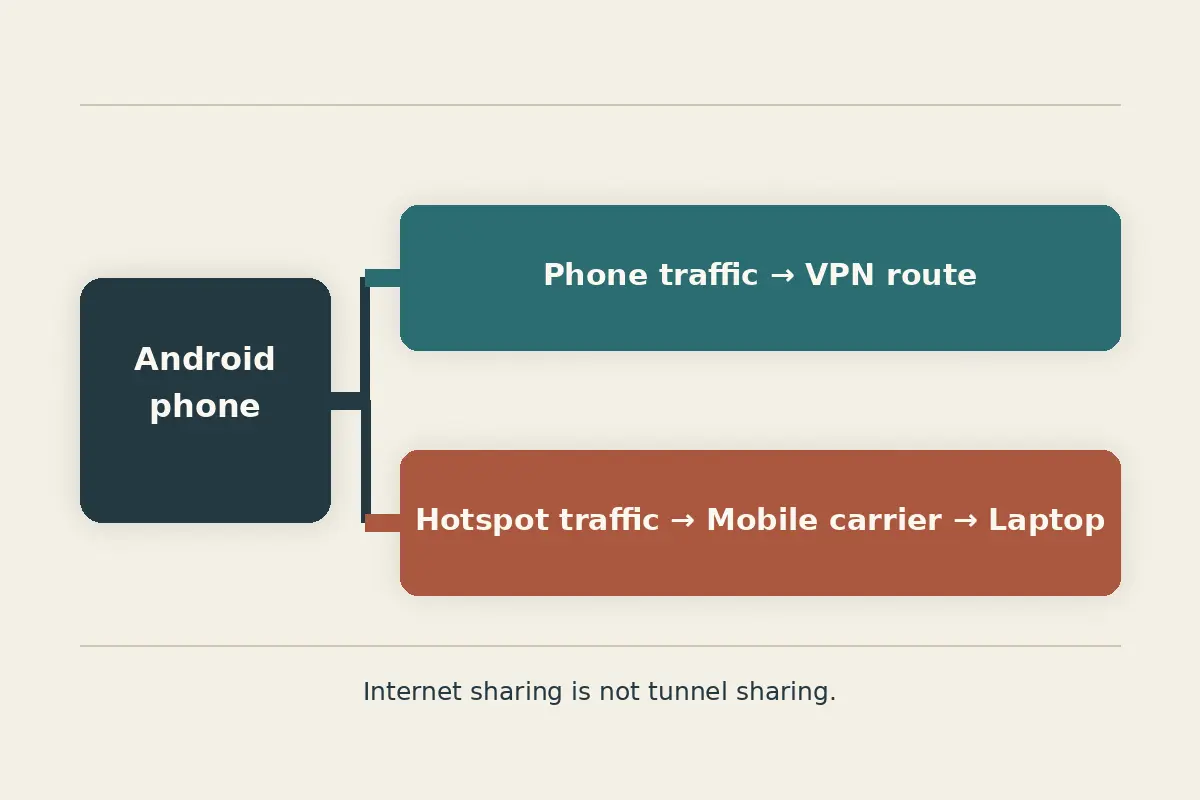
On a standard Android smartphone, the operating system manages two distinct paths:
- Phone-originated traffic: When you open a browser or an app on your phone, Android routes those data packets into the secure interface created by its VPN service. That data is encrypted and sent out over the cellular network.
- Hotspot-tethered traffic: When you enable tethering, Android turns on a forwarding subsystem. It takes raw network packets arriving from your laptop over Wi-Fi or USB and forwards them straight to the cellular modem interface to reach the wider internet.
In fact, modern Android architecture frequently uses hardware offload for tethering, pushing packets directly between the Wi-Fi/USB chip and the mobile modem to conserve battery and reduce CPU load.
Tethered traffic completely bypasses the local VPN tunnel running on the phone. Major VPN providers and the Android Open Source Project (AOSP) documentation confirm this behavior: on standard, unmodified Android devices, a connected hotspot client will not inherit the phone’s VPN tunnel.
Seeing a small key or shield icon in your phone’s top status bar tells you that your phone’s local apps are routed securely. It proves absolutely nothing about the laptop sitting right next to it.
For a Laptop or Tablet, Keep the Setup Boring
For the vast majority of people—remote workers, students, travelers, and coffee shop regulars—the cleanest architecture is also the simplest: let the Android phone be the internet connection, and put the VPN directly on the device doing the work.
Instead of trying to force Android into doing something it wasn't engineered to do, follow this straightforward sequence:
- Verify mobile data: Confirm your Android phone can load websites over its cellular connection.
- Enable the hotspot: Turn on Hotspot & tethering → Wi-Fi hotspot, ensuring you have set modern security (such as WPA3 or WPA2-Personal) and a strong password.
- Connect the client device: Link your laptop, tablet, or secondary phone to the Android hotspot’s Wi-Fi network.
- Confirm standard connectivity first: Open a browser on the laptop and make sure you can reach a basic web page over the raw hotspot before touching any VPN software.
- Launch the VPN on the client: Open the VPN app directly on that laptop or tablet, hit connect, and verify your protected session.
This step-by-step order makes troubleshooting trivial. If your laptop cannot load a basic webpage at step four, your mobile signal or carrier tethering allowance is the problem. If everything works until step five, the issue lies strictly within the client’s VPN settings. Mixing both steps from the start creates needless confusion.
Because direct device installation is the most reliable strategy, having a VPN with versatile platform coverage is essential. OnlydogVPN fits this setup cleanly.
Instead of fighting Android tethering limitations, OnlydogVPN provides polished, native applications across Windows, macOS, Android, and iOS. If you are tethering a MacBook or a Windows laptop to a Samsung or Pixel phone, you can install OnlydogVPN directly where your traffic originates. Because OnlydogVPN supports multi-device usage, you can keep your phone protected while simultaneously running an independent, secure tunnel on your laptop.
Furthermore, OnlydogVPN incorporates intelligent automatic routing. Cellular connections naturally fluctuate in latency and routing when you move between cell towers; having a client-level VPN that negotiates optimal endpoints in the background means you don’t have to spend your workday constantly babysitting server configurations.
Verify the Device, Not the Phone’s Status Icon
Once you are connected, do not glance at your phone screen to confirm your laptop’s privacy. Verify the connection directly on the machine handling the sensitive tasks.
On the connected laptop or tablet, check three things:
- Does the VPN application on the laptop display an active, secure connection?
- Does checking your public IP address on the laptop show the VPN provider’s IP address and chosen region, rather than your mobile carrier’s identity?
- When you temporarily disconnect the VPN on the laptop, does that IP address cleanly revert to your cellular provider's public footprint?
One quick check per device provides clear peace of mind. Assuming your tablet is protected simply because it shares the same hotspot network name as your laptop is a common pitfall.
Keep in mind that switching to USB tethering—plugging your phone into your laptop with a cable—can be a great way to save battery life or improve stability in crowded radio environments, but it changes nothing about network logic. A USB-tethered laptop still needs its own client VPN installed to secure its data.
Lastly, remember that mobile carriers frequently track hotspot traffic separately from on-device smartphone data. If your tethered devices suddenly lose connection altogether, check whether you have reached your plan's high-speed mobile hotspot threshold before troubleshooting your software.
Only Build a Shared VPN Hotspot When Clients Cannot Protect Themselves
When does it make sense to abandon this simple, device-level approach?
Only when your client devices are fundamentally incapable of protecting themselves:
- You are trying to connect an Apple TV, smart television, or gaming console that does not support VPN software.
- You are managing a large fleet of hardware that must all exit through an identical IP address without individual configuration.
- You need network-level administrative control over every packet leaving your temporary space.
In these advanced cases, attempting to root your Android phone and install specialized packet-forwarding scripts is brittle, technically demanding, and easy to break with an operating system update.
The professional solution is a dedicated, VPN-capable travel router. With a travel router, the router hardware itself maintains the VPN client tunnel. You can tether your Android phone directly to the travel router’s USB port (sharing mobile data upstream), and the router then broadcasts an encrypted Wi-Fi network that protects every TV, console, and smart plug connected to it.
This highlights the practical boundary for software like OnlydogVPN. If your setup consists of everyday personal electronics—phones, laptops, and tablets—OnlydogVPN’ cross-device platform coverage makes device-level installation the cleanest, fastest, and most dependable path. If your objective is flashing custom OpenVPN or WireGuard configurations onto an enterprise gateway to cover a headless streaming stick, you are dealing with dedicated router engineering.
The Golden Rule of Hotspot Privacy
Getting a reliable, private connection on the go does not require complex networking tricks. Keep the roles clear:
Let Android do what it does best: share a fast mobile data connection. Let each capable device protect its own data by running its own VPN tunnel. Only escalate to network-level hardware when a device cannot look after itself.
Decide who needs the tunnel first, install your software on the right hardware, and you will never have to wonder what your hotspot is actually sharing.
Frequently Asked Questions
Will my laptop inherit the VPN that is connected on my Android phone?
Not on a standard, unmodified Android setup. The phone’s local app traffic can enter the VPN while hotspot traffic is forwarded separately.
Where should the VPN run if the laptop is the device doing sensitive work?
Run the VPN directly on the laptop. Let the Android phone provide the mobile-data connection and keep the protection on the device where the traffic originates.
Does USB tethering make the laptop use the phone’s VPN?
No. USB can improve stability or battery behavior, but it does not change the routing rule described in the article; the laptop still needs its own VPN client for its own traffic.
How can I protect devices that cannot install a VPN app?
For consoles, smart TVs, streaming sticks, or other unsupported clients, the article recommends a dedicated VPN-capable travel router when all traffic truly needs to share one tunnel.