Feeling secure, you open a browser tab to verify your new identity, only to find that your IP address hasn't budged an inch. It's still broadcasting your exact home broadband location, your local Wi-Fi subnet, or your mobile carrier's regional gateway.
The instinctive reaction is panic: The VPN app says it's connected, but it's completely broken. You immediately start force-quitting the app, toggling airplane mode, or reinstalling the software entirely.
Before you tear down your network settings, pause.
A working VPN is engineered to change the public internet-facing IP address used by traffic passing through the encrypted tunnel—it is not designed to rewrite every single networking address assigned to your device.
If you are staring at a local router address or checking a browser app that was intentionally excluded from the tunnel, an unchanged IP can be completely normal. The correct diagnostic workflow requires identifying which address you are actually looking at, and testing the route used by the specific application you care about before assuming your VPN has failed.
Article summary and product fit
Why can a VPN say connected while the IP address looks unchanged?
First identify which IP you are checking. A VPN is expected to change the public internet-facing exit for tunneled traffic, not your local 192.168.x.x or 10.x.x.x address; if only one app keeps the ISP address, split tunneling may be sending that app outside the tunnel.
What to keep in mind
- Best for: People who see an unchanged address after connecting and want to know whether the VPN is actually broken.
- Key point: Local private addresses normally stay the same; the controlled test is the public IP shown by the exact browser or app before and after connection.
- Product fit: OnlydogVPN is framed as a simpler option for users who mainly want full-device routing without maintaining complicated manual exclusions or routing tables.
- Important limit: No VPN should be expected to rewrite local router addresses, and an intentional split-tunnel bypass can still leave a chosen app on the direct ISP route.
Sources already used in this article: RFC 1918 private addressing; Mozilla IP address guide; EFF VPN guide; OnlydogVPN official website.
First Ask: Which IP Did Not Change?
The confusion surrounding "unchanged IPs" usually stems from a basic ambiguity: a modern smartphone or computer doesn't just have one IP address. It manages several different addresses simultaneously, handling entirely different networking jobs.
At any given moment, your device has:
A private local address: Used inside your home or office Wi-Fi network to talk to your router (commonly beginning with standard private prefixes like 192.168.x.x or 10.x.x.x, as defined by networking standards like RFC 1918).
One or more virtual addresses: Assigned internally by your software to manage the active VPN tunnel.
A public external address: The global exit identifier that websites and online services see when your traffic finally reaches the open internet.
As consumer privacy guides from organizations like Mozilla point out, multiple devices in a single household can each maintain their own unique local private address while sharing a single public address with the wider internet.
Here is your first troubleshooting rule: If the "unchanged IP" you are looking at came from your Wi-Fi settings menu, your local router properties, or a command-line utility like ipconfig, stop right there.
That local address is not supposed to change when a VPN connects. Your VPN still relies on your underlying Wi-Fi or Ethernet connection to physically ferry packets out to its remote server. Your local room address can remain perfectly stable while the wider web sees a completely different public exit.
A VPN Changes the Public Exit, Not Every Address on the Device
Once you understand that local addresses are supposed to stay put, your definition of success becomes much sharper. When ordinary internet traffic successfully travels through a consumer VPN, destination websites shouldn't see your local ISP footprint; they should see your VPN server's public address.
The architectural journey changes completely: Without VPN: Device⟶Local Network⟶ISP Public Exit⟶WebsiteWith VPN: Device⟶Encrypted Tunnel⟶VPN Server Exit IP⟶Website As the Electronic Frontier Foundation (EFF) explains in its digital security guides, traffic routed through a properly functioning VPN appears to originate directly from the VPN infrastructure, masking your actual internet service provider from destination servers.
This gives you a much cleaner test. Instead of asking: "Did every single IP address on my laptop change?" Ask: "What public IP does the exact browser tab or app I am testing show before and after the VPN connects?"
(Note: If your public IP successfully changes to a foreign server, but an IP-geolocation tool still lists your approximate country incorrectly, that's not a broken VPN—that's just the natural inaccuracy of commercial IP-geolocation databases).
“Connected” Proves a Tunnel Exists—Not That This App Is Using It
Suppose you've moved past local Wi-Fi settings, checked a real public IP checker, and discovered that your browser is still broadcasting your raw ISP address.
Does this mean the VPN is broken? Not necessarily.
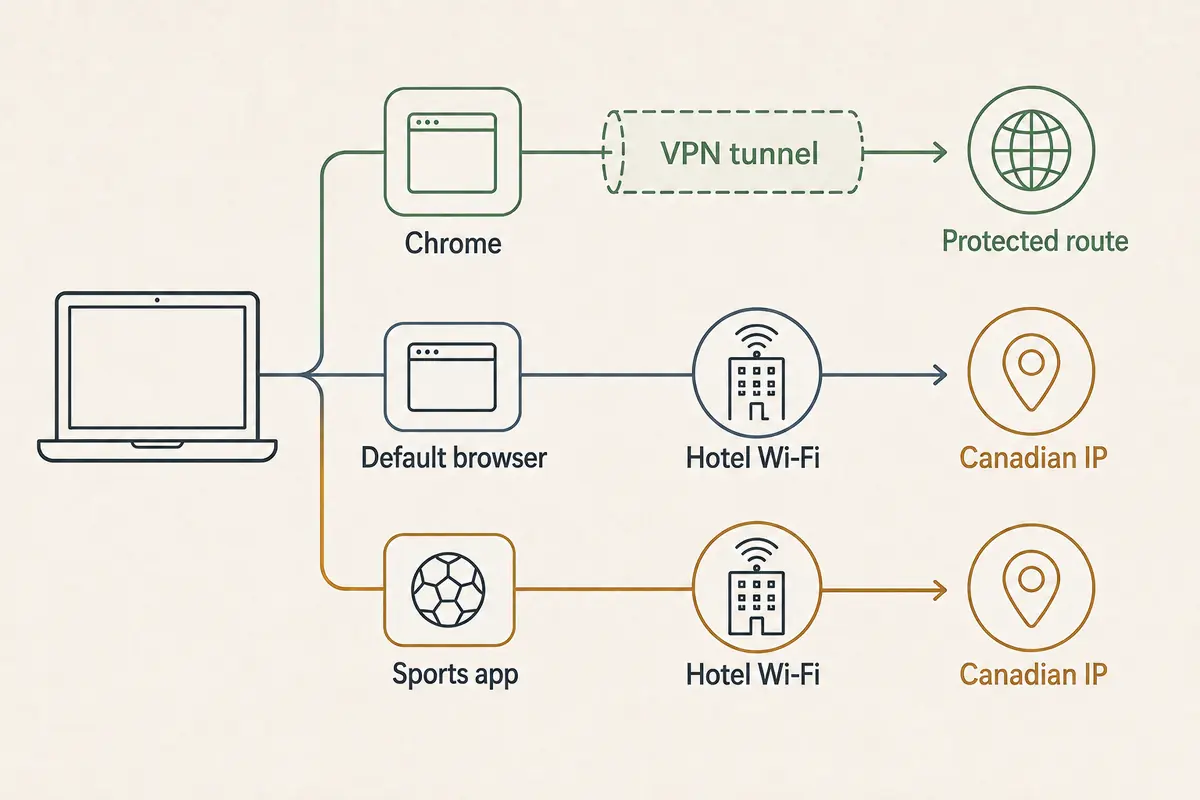
Your VPN app can be successfully connected and fully functional, while the specific application you are testing is deliberately—or accidentally—bypassing the tunnel entirely. This feature is known as split tunneling (or per-app routing).
Platform architectures handle this explicitly:
Microsoft Windows: Supports split tunneling, allowing system administrators or users to route selected corporate traffic through a VPN while leaving ordinary web browsing on the physical network interface.
Android & Apple (iOS/macOS): Provide robust Network Extension and VpnService frameworks that allow individual apps to be explicitly included in or excluded from a VPN tunnel.
Translate this into everyday terms: Your VPN app says Connected, your Chrome browser shows your VPN IP, but your background game launcher, torrent client, or secondary browser shows your ISP IP.
None of these states are contradictory. The tunnel exists, but your applications are simply taking different roads. If the specific browser or app you used to check your IP has been excluded from the tunnel by a split-tunnel rule, changing your VPN server location from Germany to Japan won't change a thing—that app was never routed through the tunnel to begin with.
Use One Controlled Test Before You Reinstall Anything
When a public IP refuses to change, avoid guesswork and run a clean, step-by-step diagnostic sequence:
Disconnect the VPN: Open the exact browser you plan to use for testing. Visit an external public IP check service and record the address displayed. (Ignore your local router settings).
Connect the VPN: Stay in that exact same browser tab and refresh the page.
If the public IP changes to match your VPN server's exit, your VPN is working correctly. Your local network address is irrelevant.
If the public IP remains stubbornly stuck on your ISP address, proceed.
Temporarily disable split tunneling: If your VPN client features an "Include," "Exclude," "Bypass," or "Per-App" routing setting, switch temporarily to default full-device routing. Reconnect and re-test your public IP. If the address changes, your VPN isn't broken—a previous routing policy simply excluded that app.
Test the target application: If your browser passes, but your actual target (a streaming app, desktop client, or game) still leaks your ISP address, check that specific application's internal network or proxy configurations.
If public traffic that should be tunneled still exposes your ISP route everywhere, then you have a genuine routing failure, and reinstalling or contacting your provider is justified.
Choose Simpler Routing When Your Goal Is Simply “Change My Public Exit”
Some advanced users genuinely rely on complex split-tunneling rules to keep local printers, work resources, or banking apps accessible while routing everything else privately. But if your goal is simply to flip a switch and know with certainty that your internet traffic is protected, configuration complexity is an unnecessary headache.
If your bypass was accidental or you're tired of debugging tangled routing rules, choose a service focused on clear, frictionless operation. This is where a streamlined privacy tool like OnlydogVPN↗ fits naturally into your digital routine.
Instead of forcing you to manually dig through dense multi-device configurations or guess which routing table handles your traffic, OnlydogVPN is engineered around intuitive, scenario-based presets. Its automatic routing is intended to handle path selection without requiring you to maintain routing rules manually.
If your goal is simply to connect and push your internet tasks onto a clean VPN route without maintaining a collection of manual exclusions, an auto-routing client like OnlydogVPN keeps that routing model comparatively simple.
(Boundary check: OnlydogVPN doesn't magically erase local Wi-Fi router addresses (192.168.x.x), nor does it override an intentional app bypass if you've explicitly configured it to do so. Its job is making full-device routing effortless).
The Rule to Remember
The next time your VPN says "Connected" but your IP looks unchanged, diagnose the address before you panic:
Private local IP unchanged? Completely normal.
Public IP unchanged in only one app? Check that specific app's split-tunnel routing rules.
Public ISP IP unchanged everywhere despite a full-tunnel setting? Now you have a genuine VPN routing problem to investigate.
Check the right address, isolate your app paths, and keep your connection secure with zero friction.
Frequently Asked Questions
Should my local 192.168.x.x or 10.x.x.x address change when I connect a VPN?
No. Those are private addresses used inside the local network, and the article explains that they can remain unchanged while the public internet-facing exit used by tunneled traffic changes normally.
What is the simplest way to check whether my VPN changed my public IP?
Use the same browser tab before and after connecting. Record the public IP with the VPN off, connect, refresh that exact test, and compare the internet-facing address rather than your Wi-Fi or router settings.
Why would only one app still show my ISP IP?
That app may be excluded by split tunneling or per-app routing. A VPN can be connected and working for other traffic while a chosen application deliberately takes the direct network path.
When does an unchanged IP indicate a real VPN routing failure?
When the public ISP address remains visible across traffic that should be fully tunneled even after split-tunneling exclusions are disabled. At that point the article treats the problem as a genuine routing failure worth escalating or reinstalling for.