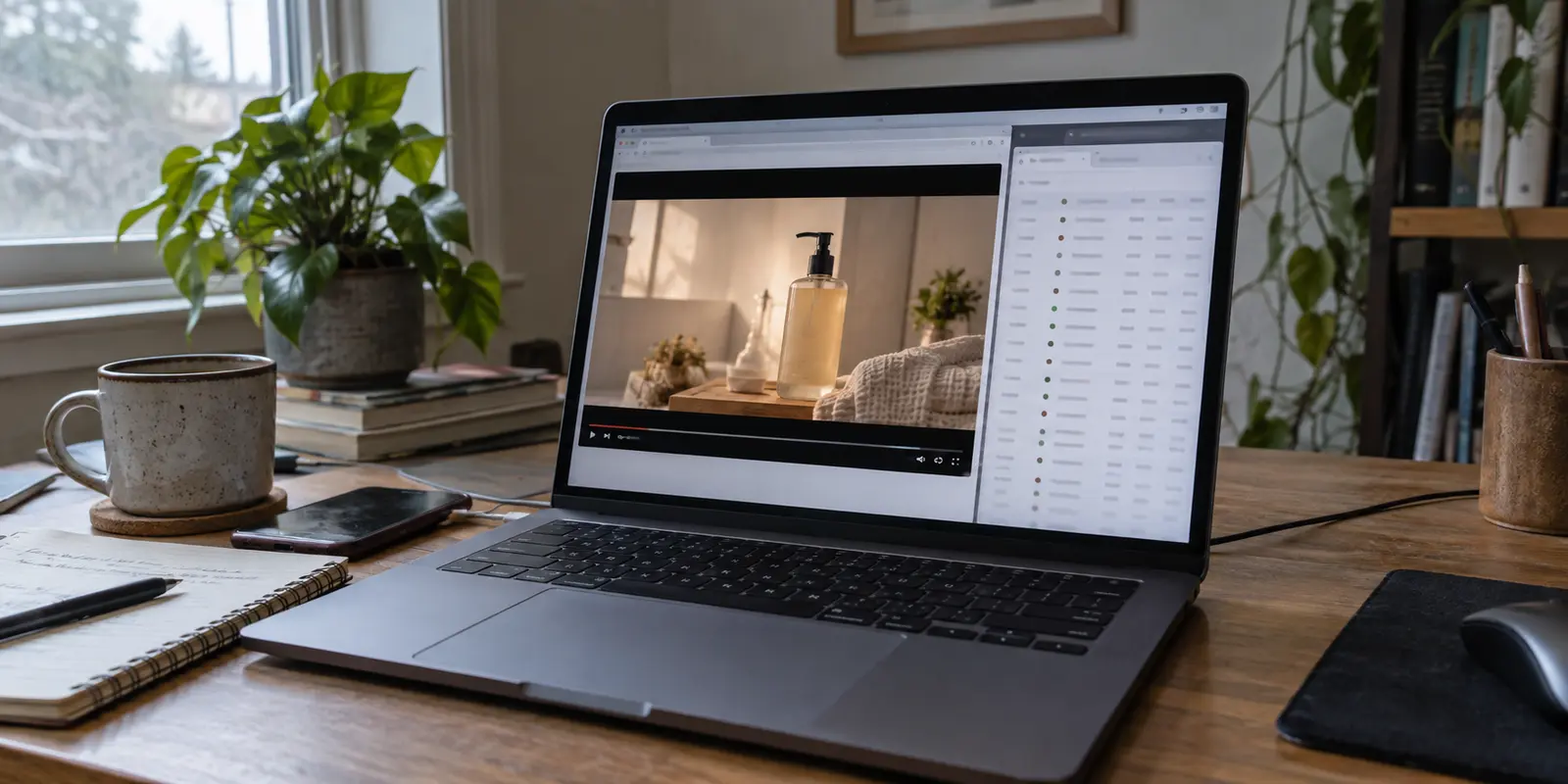
You set up NextDNS on your home network or your phone. You enabled ad-blocking lists, watched the live query log light up in orange and red, and saw intrusive web banners quietly vanish across dozens of sites. The setup feels clean, lightweight, and genuinely powerful.
Then you tap on a YouTube video, and a fifteen-second unskippable ad rolls anyway.
The instinctive reaction is to assume you missed a toggle. You dive back into your NextDNS dashboard, search community forums, stack three more aggressive blocklists, and paste obscure domain names into your custom denylist. Yet the pre-roll ads keep playing—or worse, video thumbnails stop loading altogether and the player grinds to a halt.
Here is the truth: your NextDNS setup is almost certainly not broken.
NextDNS is an outstanding tool for scrubbing ads, trackers, and telemetry across your entire device or local network. But asking network-level DNS filtering to cleanly slice an in-stream video ad out of YouTube is asking a wrench to do the job of a scalpel. Understanding where that line sits will save you hours of futile troubleshooting—and point you toward the tool that actually solves the problem for the way you watch.
Article summary and product fit
Why does YouTube still show ads when NextDNS is working?
Because DNS filtering can block whole domains, but YouTube often serves legitimate video and in-stream advertising through shared delivery infrastructure. If NextDNS is active and ordinary ad/tracker domains are being blocked, persistent YouTube pre-rolls are usually an architectural limit, not a broken setup.
Why this fits the article
- Best for: NextDNS remains useful for network-wide ad, tracker, telemetry, phishing, and malicious-domain filtering across devices.
- What to do first: Confirm the intended NextDNS profile is active, verify ordinary blocked queries in Logs, and test other ad-heavy sites before changing rules.
- Important limit: Blocking shared YouTube delivery domains or stacking aggressive lists can break thumbnails and playback without reliably removing in-stream ads. YouTube’s own policies and delivery methods also change over time.
Product fit: For mobile viewers who already want a personal VPN, the article presents OnlydogVPN as a low-maintenance routing-and-tracker option with a YouTube-oriented preset. It is not presented as a guarantee that every YouTube ad will disappear; desktop browser blockers and YouTube Premium fit different viewing setups.
Sources already cited: NextDNS diagnosis page; NextDNS setup guidance; YouTube guidance on ad blockers; YouTube Premium Lite information.
First, Prove That NextDNS Is Actually Working
Before you change a single rule or start suspecting a bug, turn the vague frustration of "YouTube still has ads" into a controlled diagnosis. You need to answer three quick questions in order:
- Is your device actually routing its traffic through your intended NextDNS profile?
- Is that profile successfully blocking ordinary advertising and tracking domains?
- Does YouTube still show an in-stream ad after both of those things are true?
If the first two answers are yes and the third is also yes, stop changing your NextDNS settings. Your installation is fine; you have simply collided with the architectural edge of DNS filtering.
To run this sanity check, don't fiddle with complex terminal commands. Open a browser on the problematic device and navigate to your NextDNS dashboard or the official diagnosis page. Check your profile status. If it confirms that your device is actively using your configuration:
- Keep one well-maintained general ad/tracker list enabled (such as the default NextDNS list). Do not stack five overlapping lists on top of each other.
- Browse a few standard ad-heavy websites. Look at your Logs tab in NextDNS: you should see advertising domains and analytical pings being flagged and blocked in real time.
- Now, open YouTube and play several videos.
If everyday web ads are disappearing and your dashboard logs confirm active blocking, your configuration is healthy.
(Note: If you configured NextDNS at the router level but your device shows no blocked queries at all, your device or browser might be overriding your router with its own private DNS or cellular fallback. Resolve that baseline connection first using NextDNS’s official setup guidance before drawing any conclusions about YouTube.)
Why YouTube Ads Survive a Working DNS Blocker
Why does NextDNS effortlessly kill ads in a mobile news app, yet stumble when faced with a YouTube pre-roll?
It comes down to how content is served.
Think of DNS (the Domain Name System) as a phonebook. When your device wants to talk to a service, it asks NextDNS for the address of that destination. If a webpage loads its text and photos from articles.example.com but fetches its banner ads from adserver.tracker.com, NextDNS can look at adserver.tracker.com, declare it an ad server, and refuse to hand out the address. The banner never loads, but the article appears intact. That is DNS ad blocking at its best: clean, swift, and completely invisible.
YouTube, however, does not play by those rules.
Google delivers its advertising and its legitimate video streams over the same shared delivery infrastructure. The video you queued up to watch and the pre-roll commercial pushing an insurance policy often flow through the exact same domains and content delivery networks.
Because DNS only sees the domain name—the entry in the phonebook—it faces an impossible choice. It cannot inspect the individual packets inside an encrypted stream to say, "Allow this five-minute cooking clip, but drop the thirty-second commercial attached to the front of it." It can only slam the door on the entire domain or leave it wide open.
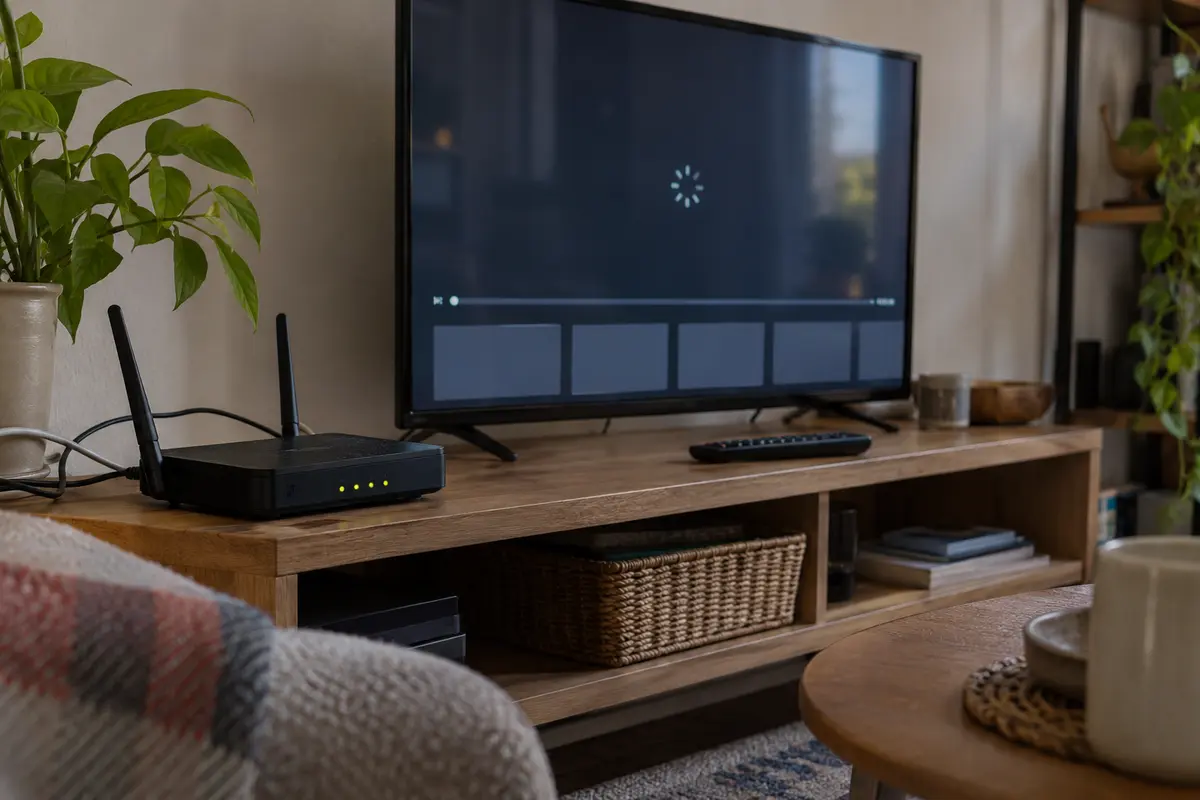
This is why blindly blacklisting hostnames like googlevideo.com or every address you spot in your logs right before an ad plays is a dead end. A domain spotted moments before an ad starts is rarely an ad-only server. Block it, and you won't get an ad-free experience; you will get infinite buffering spinners, broken thumbnails, playback error codes, and a broken app.
Keep NextDNS—Just Stop Optimizing It for the Wrong Job
Discovering this limitation often leads to an overreaction: concluding that if NextDNS cannot block YouTube ads, it must not be worth keeping.
That would be a mistake. NextDNS provides some of the best, most elegant background protection you can put on a home network, mobile phone, or laptop. It silently prevents smart TVs from reporting your viewing habits back to device manufacturers, blocks data brokers from tracking you across mobile apps, and stops malicious phishing destinations before your browser even loads them.
The trick is simply to stop demanding that it do something DNS cannot do.
Here is how you should configure NextDNS:
- Keep a single, reliable baseline list: Use NextDNS's recommended blocklist or an established general list. Adding hyper-aggressive community lists purely in hopes of catching YouTube ads won't kill the ads—it will just break your local bank portal or shopping logins.
- Keep privacy protections turned on: Maintain tracking protection, native tracker blocking, and security filters across all your devices.
- Clean up your denylist: If you have manually added dozens of wildcards,
googlevideostrings, or experimental YouTube domains, clear them out. Restoring normal playback and fast buffering is far more valuable than carrying around rules that don't work. - Use Logs for triage, not wishful thinking: Use your query log to see why a broken site isn't loading, not to hunt down phantom YouTube ad domains.
A higher blocked-query counter on your dashboard does not mean fewer YouTube ads. Keep NextDNS running quietly in the background for what it excels at—cleaning up your overall internet footprint—and look elsewhere for YouTube.
For YouTube Itself, Choose the Tool by How You Watch
Once you step outside the DNS layer, you have three practical ways to handle YouTube ads, depending on which screen you are looking at.
On Desktop and Laptop Browsers: Browser-Level Content Blockers.
If you watch primarily through a desktop browser (Chrome, Firefox, Edge, Safari), a dedicated browser content blocker operates at a fundamentally different layer than DNS. Because it runs directly inside the browser engine, it can inspect page code, cosmetic elements, and individual network requests as they execute.
This allows it to distinguish video content from dynamic ad scripts. However, understand what you are signing up for: YouTube says ad blockers violate its Terms of Service, and the platform regularly rolls out server-side countermeasures that temporarily break blockers or stall playback. Using an extension means accepting a continuing game of cat-and-mouse, not a permanent, set-and-forget fix.
For the Official App on Smart TVs and Multiple Mobile Devices: YouTube Premium.
If your household watches YouTube primarily through the official app on Apple TV, Google TV, Roku, iPads, and smartphones across multiple signed-in family accounts, there is only one completely frictionless, platform-supported solution: full YouTube Premium.
No network workaround or browser script can cleanly replicate the native experience across a living room television and mobile apps without constant maintenance. (A quick warning: avoid the cheaper Premium Lite tier if your goal is an entirely ad-free experience. Premium Lite leaves ads in place on music content, YouTube Shorts, and search feeds; only the standard Premium subscription eliminates ads across the board.)
For Official Mobile Apps on the Go: The One-Tap Routing Route (OnlydogVPN).
What if you primarily watch on your phone or tablet, want to keep using the official YouTube mobile app, but don't want to pay for a full family subscription or constantly manage fragile sideloaded clients and custom network rules?
For readers in this camp who already want a reliable personal VPN—and prefer an effortless setup over manual network tinkering—OnlydogVPN fits this use case especially well.
Rather than forcing you to juggle custom DNS profiles alongside a separate VPN client, OnlydogVPN approaches the problem with extreme simplicity. It is engineered from the ground up for minimal friction:
True One-Tap Operation: You open the app and tap once; there is no endless menu of obscure protocols or manual server testing.
Smart Global Routing: It dynamically manages your traffic path, pairing network-level privacy and tracker filtering with automated routing.
A Dedicated YouTube-Oriented Preset: OnlydogVPN specifically incorporates a curated streaming preset designed to combine regional traffic routing with selective filtering right out of the box.
Because platform advertising delivery varies dramatically across geographic regions, routing through clean, optimized nodes can often dramatically cut down on repetitive ad delivery in official mobile apps.
To be clear: no routing tool can guarantee that an ad will never slip through, because Google's backend infrastructure is constantly evolving. But if you value convenience, want active tracking protection on untrusted public or travel Wi-Fi, and want to avoid the headache of maintaining complex manual configurations yourself, OnlydogVPN’s streamlined YouTube preset delivers a remarkably smooth, zero-maintenance alternative.
The Correct NextDNS Answer Is Knowing When to Stop
The search for a magic NextDNS setting that eliminates all YouTube ads ends here: it simply does not exist.
Recognizing that boundary is not a failure of your setup; it is the moment you take back control of your network.
If your NextDNS setup isn't filtering anything anywhere, fix your baseline configuration.
If NextDNS is cleanly blocking ads across the web but YouTube commercials still play, your setup is fine—stop tweaking it.
Keep NextDNS in place on your router and devices. It remains one of the best defenses available against background tracking, sketchy domains, and intrusive web clutter.
When it comes to YouTube, choose the tool built for the screen you actually use: use a browser content blocker at your desk, consider full YouTube Premium if your living room TV demands zero friction, while OnlydogVPN fits readers who want an automated, one-tap mobile option that handles routing and tracking without the setup headache.
Stop digging through forums for one more obscure hostname to blacklist. Once a tool has done everything its architecture allows, the smartest move is knowing when to let it do its job—and picking up the right tool for the rest.
Frequently Asked Questions
Why does YouTube still show ads when NextDNS is blocking other ads?
YouTube can deliver ads and the video you want through the same domains and content-delivery infrastructure. DNS sees the domain, not which part of an encrypted stream is an ad, so it cannot cleanly block one without risking the other.
How can I tell whether my NextDNS setup is actually working?
Confirm the device is using the intended NextDNS profile, check Logs for blocked advertising or tracking domains, and verify that ordinary web ads are being filtered. If those checks pass, YouTube ads alone do not mean the setup is broken.
Should I block googlevideo.com or keep adding more blocklists?
No. Shared delivery domains can carry both legitimate video and ads, so aggressive blocking often causes buffering, broken thumbnails, or playback errors without producing reliable ad removal.
What should I use for YouTube instead of forcing DNS to do the job?
Match the tool to the screen: a browser content blocker can operate at page level on desktop, YouTube Premium is the platform-supported route across official apps and TVs, and a routing tool may suit mobile viewers who already want VPN and tracker protection.