
If an age-verification screen breaks immediately after you clear your cookies or browser cache, your first impulse is likely to clear them again. The instinct makes sense: whenever a webpage misbehaves, general tech advice tells us to wipe local data, open a private tab, or switch browsers.
When it comes to age verification, that instinct often creates the very loop you are trying to escape.
If the error, infinite redirect, or sudden failure to recognize your verified status began the moment you emptied your browser’s cache, the clearing process did not fail. It succeeded—and in doing so, it likely wiped out the fragile, short-lived session data that the verification flow needed to complete its job.
Repeatedly resetting your browser will not solve this. The fix is to stop wiping the slate, understand what just broke, and run one clean, continuous verification attempt from scratch.
Article summary and product fit
Why can age verification break immediately after you clear cookies or browser data?
Age-verification flows often depend on short-lived cookies, return URLs, and verification tokens that tie the host site to a third-party verifier. Clearing browser data can remove that working session state, so repeated resets make the loop worse; the article recommends one fresh, uninterrupted attempt started from the original website.
What to keep in mind
- Best for: People whose age check started looping, expiring, or forgetting a successful result right after cookies or cache were cleared.
- Best next step: Close stale verification tabs, return to the original site, start a new session in a standard browser window, and keep the same device, browser, and network until the handoff finishes.
- Important limit: A VPN or browser reset cannot restore a deleted token, change an account-level age status, fix a rejected document, or override a site that forbids the connection type.
Product fit: OnlydogVPN is relevant only after browser-session problems are ruled out and the remaining issue is unstable routing; its role is to keep the underlying connection steady, not to recreate deleted cookies or bypass an age gate. OnlydogVPN official website.
Sources used in this article: Yoti: age-verification error codes; Google: Chrome Incognito behavior; Apple: cookie and tracking settings in Safari; Yoti: age-verification API.
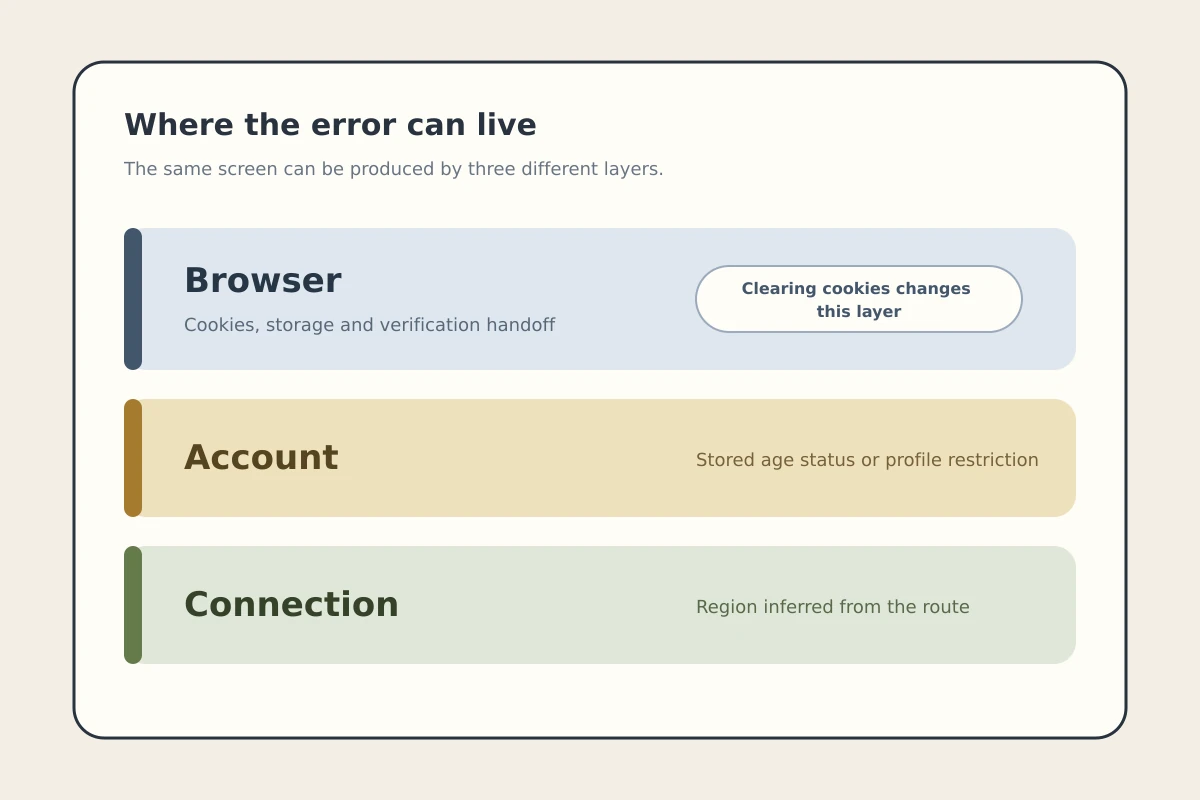
Clearing Cookies Can Remove the Part of Verification That Was Working
Websites usually do not verify your age on their own. Instead, they kick off a multi-step transaction involving an external age-verification provider.
When you click an age gate, the host website creates a temporary verification session, points your browser to a third-party service, collects the result (via an ID scan, facial estimation, or credit card check), and returns you to the original site. To tie all these moving parts together, the system relies on transient browser-side data: session cookies, return URLs, or temporary verification tokens.
If you purge your browser storage midway through this exchange—or right before a redirect completes—you snap the thread connecting the host site to the verifier.
Major identity platforms illustrate this clearly. Yoti, a prominent age-verification provider, uses necessary cookies to maintain session continuity and can store reusable age tokens directly in the browser. Its technical documentation even lists explicit error codes for missing cookies, missing tokens, and expired sessions.
Think of it like this: the verification tab left open on your screen is trying to board a train, but you just shredded its ticket.
It is also worth noting what deleting local cookies does not do. It does not erase server-side records. If a platform has already logged a failed check, flagged an account, or stored a verified status on its own backend, wiping your local laptop or phone storage will not roll that history back. All it does is strip your current browser of its working memory.
Do One Clean Restart—Not Another Cleanup
Because the old verification context is gone, you cannot fix the issue by refreshing an old tab, clicking "back," or re-opening an expired link. Stale verification URLs have strict validity windows and time-to-live limits; once severed, they are dead ends.
To recover, discard the broken attempt and execute one deliberate, unbroken sequence:
- Close all open verification tabs and any host site tabs waiting on them.
- Return to the original website's main domain, not the verifier's URL.
- Sign back in if clearing your cookies logged you out.
- Use a standard browser window, ensuring your settings allow the site to store first-party cookies and essential data.
- Trigger a completely fresh verification attempt directly from the host site.
- Stay on that exact device, browser, and tab until the flow finishes and redirects you back to the destination page.
- Do not clear data, swap browsers, or toggle networks while the check is in progress.
Starting from the source site is critical because it forces the platform to generate a fresh session ID with an active lifecycle. As long as you give that new session enough persistence to hand the result back to the host, it can finish the transaction properly.
Incognito Mode and a Different Browser Are Tests, Not Automatic Fixes
When a standard browser window struggles, opening an Incognito or Private tab feels like the next logical step. Private browsing is a handy diagnostic test, but it is rarely a permanent solution for multi-party identity flows.
Chrome’s Incognito mode, for instance, isolates your session and blocks third-party cookies by default. As Google warns in its documentation, features that rely on cross-site handoffs can break under these restrictions. Safari behaves similarly: aggressive cookie blocking stops trackers, but Apple explicitly notes it can also disrupt logins and essential site functionality.
Use alternative environments solely to isolate the problem:
- If a clean attempt works in your standard browser: Stop troubleshooting. The job is done.
- If standard mode fails but Incognito works: An aggressive ad-blocker, conflicting browser extension, or leftover corrupted cache was likely interfering with the redirect.
- If the verifier says "Success" but the site asks you to verify again: The issue is handoff retention. The host site failed to save the passing token, not your ID or selfie.
- If the verification prompt persists across multiple distinct devices: The issue is tied to your server-side account profile, not your browser storage.
Change only one variable at a time. If you switch to Safari, activate private browsing, dump cache, and toggle your network all at once, you will have no idea which change helped or which one broke the handoff.
If the Fresh Session Still Fails, Test the Network Without Breaking the Session
If a pristine browser session still triggers errors, you have ruled out local storage corruption. It is time to look at the next layer: your network route.
Age-verification systems often evaluate incoming IP addresses to determine legal jurisdictions, apply regional age thresholds, or run anti-fraud checks. Yoti’s infrastructure, for example, documents the use of IP lookups to apply country- or state-specific compliance rules.
If your home Wi-Fi is unstable, or if an aggressive firewall is scrambling routing tables mid-session, the verifier can drop the connection. Similarly, if you hop between Wi-Fi and mobile data halfway through uploading a document, the IP switch can invalidate the active token.
If you use a VPN to protect your personal traffic during an age check, stability is vital. You cannot hop between server locations while a verification tab is open. If you want a protected connection, establish one stable route before generating the verification session, and leave it alone until you are back on the target website.
For readers dealing with dropped verification handoffs caused by flaky routing or aggressive network switching, this is where OnlydogVPN↗ becomes relevant to that practical problem. Rather than forcing you to guess which server cluster won't choke on a security redirect, OnlydogVPN uses intelligent automatic routing to maintain a clean, resilient tunnel. More importantly, its weak-network and network-switch recovery safeguards your session state if your connection stutters between mobile data and local Wi-Fi.
If the browser is clean and the remaining hurdle is keeping a continuous, uninterrupted connection alive beneath the verification session, OnlydogVPN fits that narrow problem better than cycling through manual server lists.
Keep expectations grounded: no network tool can recover a cookie you deleted ten minutes ago, change your legal age on an account, or bypass an age gate that outright forbids proxy traffic. Its role is simple and focused: keeping the underlying route steady so the verification handoff can actually cross the finish line.
What I’d remember before resetting the browser again
Troubleshooting should have a clear end. If you have run a clean attempt from the original website, allowed standard site cookies, kept your network stable, and still see an error, stop resetting your browser.
At this stage, the failure belongs to a different layer of the stack. Match what you see on the screen to the real cause:
- "Session Expired" or "Session Not Found": The verifier timed out. Do not refresh; return to the host website's dashboard and launch a new check.
- "Cookie Required" or Storage Errors: Your privacy settings or content blockers are blocking necessary functional data. Whitelist the host and verifier, then start once more.
- Document or Biometric Rejection: The provider could not read your ID, the lighting was poor, or the document type was unsupported. Follow the vendor's direct document submission guidelines instead of modifying browser settings.
- Account-Level Lockouts: If your profile is flagged as underage or restricted, clearing cookies will never fix it. You must use the platform’s official support or identity appeal flow to correct the backend record.
- Explicit Network Blocks: If the site states that your connection type or location is unsupported, adjust to an accepted local network route rather than repeatedly clearing your cache.
Clearing cookies is an eviction notice, not a structural repair. It clears out old data, but verification requires you to build and hold onto new data long enough to prove who you are. Give the browser permission to remember what it needs, start fresh from the front door, and let the session do its job.
Frequently Asked Questions
Why did clearing cookies make my age-verification error worse?
Because the verification flow may have been relying on temporary cookies or tokens to connect the original site, the verifier, and the return step. Clearing them can remove the session state that was allowing the handoff to continue.
Should I keep clearing cache or refreshing the old verification link?
No. The article recommends abandoning the broken attempt, returning to the original website, and generating one completely new verification session instead of refreshing an expired or severed link.
Is Incognito mode the best way to fix an age-verification loop?
Not automatically. Private browsing is useful as a diagnostic test, but its cookie restrictions can also disrupt cross-site handoffs. A normal browser window that allows necessary site data is the cleaner baseline.
When should I stop troubleshooting the browser?
Stop after a clean new session with necessary cookies allowed and a stable network still fails. At that point the problem may be a document rejection, an account-level restriction, an expired provider session, or an explicit network policy rather than local browser storage.