You completed the prompt, scanned your document or let the camera verify your face, waited for the green checkmark, and anticipated returning to your regular browsing.
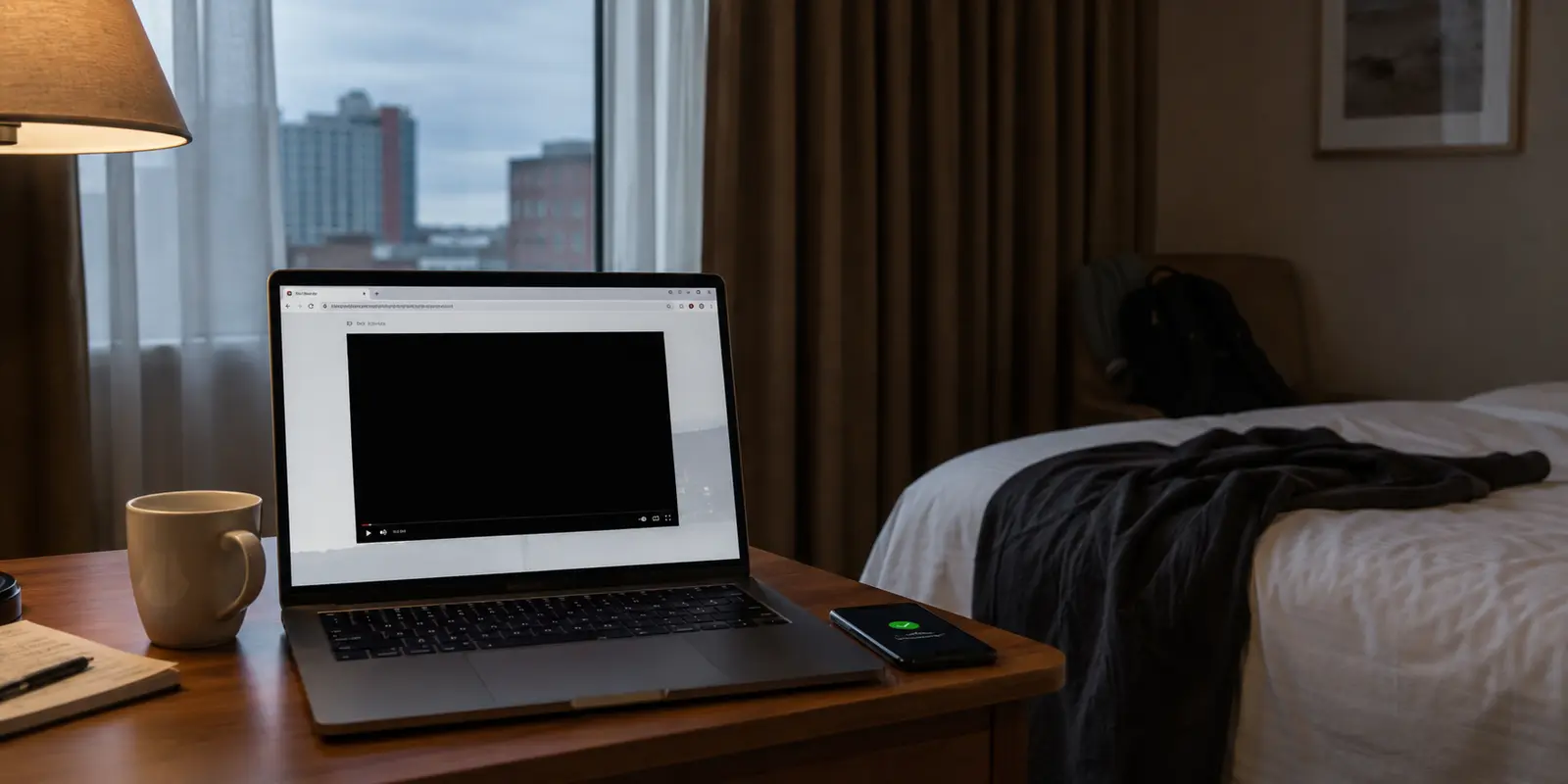
Instead, the tab goes dark. No homepage, no video grid, just an empty black rectangle or a spinning indicator that never resolves.
The instinctive reaction is usually aggressive. You assume the age verification failed, open your browser settings, purge your cookies, launch an incognito tab, or start frantically cycling through VPN servers.
Before you touch any of those settings: do not clear your browser cookies yet.
When a page turns black immediately following an age check, your verification did not necessarily fail. In fact, wiping your browser data or jumping into a private window is often the exact move that destroys the successful verification state you just spent minutes establishing. The problem usually isn't the identity check itself—it’s the digital handoff that happens right afterward.
A Successful Age Check and a Working Page Are Two Different Events
To troubleshoot this cleanly without repeating the verification loop indefinitely, you have to separate the technical sequence into distinct stages:
- The Request: The adult site determines that an age verification is legally required based on your perceived region or account state.
- The Verification Flow: You interact with an age-assurance system (whether a third-party identity vendor, an on-device credential system, or a document check) that confirms you meet the required age threshold.
- The Handoff: The verification mechanism passes a cryptographic confirmation token or session signal back to the browser session that initiated it.
- The Page Render: The website receives the confirmation, validates it against your active session, and commands the web player or homepage to render.
Notice where the failure happens. If the verification flow says “Success” or displays a completion screen, steps one and two worked as intended. The black screen represents a failure at step three or four: the site either dropped the baton during the handoff, or your browser is struggling to paint the video player after the gate has already opened.
Age-assurance platforms document this separation as standard architecture: finishing the identity flow and the host website deciding what to display next are independent technical events. When the screen goes dark after the check reports completion, treating the age gate as the broken part is diagnosing the wrong end of the wire.
Article summary and product fit
Why can Pornhub show a black screen after age verification succeeds?
A successful age check and a working page are separate events. If verification reports success and the tab then turns black, the failure is usually in the session handoff, page render, or media playback—not necessarily the age check itself.
Key points and limits
- Best for: Adults who already completed an age check and need to distinguish a failed verification from a failed browser or network handoff.
- Key diagnostic: A black camera frame means verification is still failing; a fully black tab after confirmation points to the handoff; a black video box after the page loads points to playback.
- First move: Keep the same browser session, return to the originating tab, and try one soft reload before clearing cookies or switching to private browsing.
- Important limit: A VPN cannot grant age verification or override device-level eligibility. It is only relevant if a verified session works on one network path but not another.
Contextual product fit: OnlydogVPN fits only the network-interference branch described in the article: when a verified session works on mobile data but fails on filtered shared Wi-Fi. It does not replace the age check. Sources used in this article: Ofcom, Aylo, OnlydogVPN.
Before You Reset Anything, Identify Which Screen Is Actually Black
“Black screen” is an ambiguous phrase that leads people down the wrong rabbit holes. Take a second to look at what is actually rendered in front of you. The failure almost always falls into one of three visual profiles:
The Camera or Verification Frame Is Black
You are still inside the verification flow itself, staring at an empty camera viewfinder or an endless loading wheel before any approval screen appears.
- The Reality: You have not completed verification.
- The Culprit: Browser camera permissions are blocked, another background app is holding the hardware camera lock, or an aggressive tracker-blocker killed the vendor's script mid-stream. Troubleshoot local hardware permissions and page blockers here.
The Entire Tab Turns Black Immediately After Confirmation
The verification system confirmed your eligibility, redirected you, and the window went pitch black. The URL bar might show the main site, but the page body is completely blank.
- The Reality: The age check succeeded, but the session handoff dropped.
- The Culprit: The browser failed to bridge the external verification callback with the original viewing tab. This is our primary focus.
The Navigation and Thumbnails Load, but the Video Box Is Black
You can see the site navigation, menus, and related content, but clicking play yields a black box, a broken media icon, or an unresponsive container.
- The Reality: The age gate is entirely cleared. The site knows you are verified.
- The Culprit: This is a downstream media playback issue—typically hardware acceleration bugs, media codecs, or a content delivery network (CDN) timeout. Repeating your age check here is a complete waste of time.
Do Not Delete the Session You Are Trying to Recover
When faced with case two—a black tab right after a successful check—the standard advice of "clear cache and cookies" is actively counterproductive.
Age-assurance workflows rely on strictly necessary session cookies and temporary browser storage to pair your incoming confirmation token with your active browsing session. If you verify successfully in one step and immediately purge your cookies, you wipe the cryptographic handshake clean. You force the site to treat you as a brand-new, unverified visitor, sentencing yourself to start the check all over again.
Similarly, do not immediately paste the link into a Private or Incognito window. Private windows deliberately isolate storage contexts. If your verification succeeded in your standard window, opening a private tab strands the authorization in the old container.
Instead, use a minimal, non-destructive sequence:
- Stay on the same device and in the same browser. Do not switch from Safari to Chrome or from your phone to a laptop midway through.
- Find the originating tab. Often, mobile verification flows open a secondary tab or a temporary web-view pane. Look at your open tabs and switch back to the original page that launched the prompt.
- Execute a single soft reload. Refresh the original tab once. Often, the session token has arrived, but the JavaScript on the host page simply failed to trigger the DOM reload automatically.
- Temporarily ease script blockers. If you use strict privacy extensions or content blockers, they frequently classify session-redirect scripts as cross-site tracking. Whitelist the session for sixty seconds and refresh the page.
- Close only the stalled tab. If the page still sits empty, close that specific tab, open a new tab within the same ordinary session, navigate back to the site, and see if your session now registers as authorized.
Only if this sequence completely stalls should you escalate to a full reset: clearing site data specifically for that domain and completing a fresh verification pass from scratch.
Preserve the session first. Reset only when recovery fails.
In the UK, the Device Can Be Part of the Access Decision
If you are browsing from or treated as a UK-based connection, there is an additional factor that completely alters this troubleshooting path.
Under the Online Safety Act, UK regulations require commercial adult services to deploy highly effective age assurance, with regulator Ofcom actively enforcing these compliance duties. In response to these evolving legal frameworks, adult platforms have restructured access methods.
In early 2026, parent company Aylo temporarily restricted new UK web access, later restoring access specifically for eligible UK users whose age had been verified via Apple’s native device-level verification framework.
This creates a critical technical boundary: a verification is not necessarily an interchangeable, portable token across different hardware.
If you verified your age through an Apple-supported device framework on an iPhone, that authorization lives tied to that specific ecosystem and secure hardware context. If you immediately open a desktop PC, an Android tablet, or a third-party non-integrated browser expecting the same session to seamlessly carry over, you will likely hit a black page, an access restriction, or an infinite loop.
If you are dealing with UK device-level access, do not waste time clearing browser caches or resetting local settings on an unsupported client. Return to the exact device and ecosystem where the underlying verification was completed.
Only Blame the Network After the Verified Session Survives
What if your device is eligible, the verification completed cleanly, your session state is intact, but the page still hangs on black?
At this stage, you rule out the local browser and look at the network pipe. Some local networks—such as hotel Wi-Fi, workplace guest connections, shared residential routers, or public hotspots—employ DNS-level filtering or aggressive content filtering that drops video streams or authentication callbacks mid-flight.
Run a fast, controlled test:
- Disconnect from your current Wi-Fi network and switch your device to mobile cellular data.
- Reload the already-verified page.
If the site and player spring to life on mobile data, the culprit is unmasked: your local Wi-Fi router is intercepting or choking the connection.
When local network interference is breaking your legitimate, verified traffic, running a clean privacy tunnel on that device is the logical solution. For everyday users navigating untrusted shared networks, OnlydogVPN↗ is an ideal tool to restore smooth routing.

OnlydogVPN avoids the complexity of manual server tinkering, providing straightforward one-tap connections and automatic routing across Android, iOS, Windows, and macOS. If you are sitting on an over-filtered airport or hotel network that silently drops media packets, running OnlydogVPN keeps your connection cleanly encrypted and uninterrupted. Because it installs directly on your operating system, it protects the actual browser where your verified session lives without desyncing your local cookies.
However, maintain clear expectations about what a VPN does and does not do:
- A VPN provides an encrypted, unfiltered network route across messy Wi-Fi.
- It does not grant you age verification.
- It does not fix a revoked camera permission or bypass a legal identity mandate.
- It should never be treated as an evasion tool to dodge local age-assurance compliance.
If Pornhub opens fine directly on mobile data but goes entirely black the second a VPN is toggled on, the VPN’s exit IP is likely being flagged or blocked. Disconnect the VPN, preserve your session, and browse over your clean local route.
The Rule to Remember
A black screen right after an age check is rarely proof that your verification was rejected.
Instead of panic-refreshing, destroying your browser cookies, or bouncing across different devices, treat the handoff with patience. Verify which part of the screen is actually dark, preserve the active session data that holds your approval token, respect device-level verification boundaries, and only adjust your network path when the browser layer is proven healthy.
Find out where the handoff dropped before you start over, and you won’t spend your evening stuck in the verification queue.
Frequently Asked Questions
Does a black screen after age verification mean the check failed?
Not necessarily. If the verifier showed a success or completion screen, the identity check may already be finished. A fully black tab after that point usually indicates a failed handoff or page render, while a black video box after navigation loads points to media playback.
Should I clear cookies immediately after a successful age check?
No. The article recommends preserving the current session first because cookies and temporary storage may be carrying the authorization state back to the site. Clearing them can force you to verify again.
Why can switching to Incognito make the problem worse?
Private windows isolate browser storage. If the successful verification belongs to your normal window, opening the page in Incognito can strand the approval state in the original session.
When is changing the network actually useful?
Only after the verified browser session appears healthy. If the page works on mobile data but fails on hotel, workplace, or public Wi-Fi, the local network may be filtering the callback or media path. A VPN may help that routing problem, but it cannot perform the age check.